
Activation
Once installed, activate and configure the Webkul AI ChatBot extension in the Magento Admin Panel.
Step 1: Enable the Module
- Log into your Magento 2 Admin Panel.
- Navigate to Stores > Configuration > Webkul > AI ChatBot Configuration.
- Under the Chatbot Configuration group, set Enable Module to
Yes.
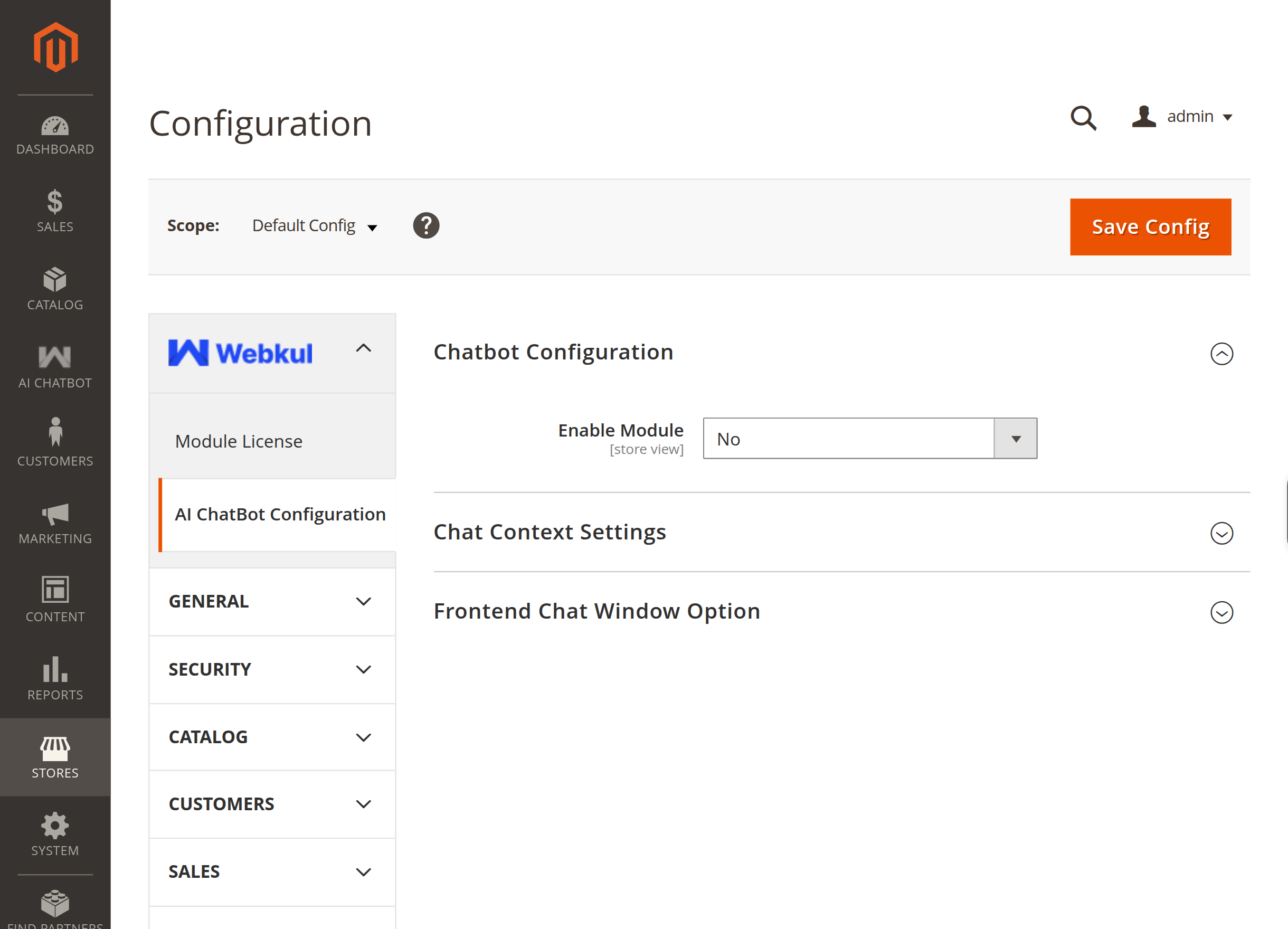
- Click Save Config and flush the Magento cache if prompted.
Step 2: Choose Your AI Model Type
Select the AI service mode that best fits your infrastructure:
- LLM Provider: Connect to cloud AI services (OpenAI, Gemini, Anthropic Claude, OpenRouter, Cerebras, DeepSeek).
- Pre Configured Model: Connect to a self-hosted or dedicated inference endpoint.
- Intfloat E5 (Browser Based): Run lightweight embeddings directly in the browser or via a companion Node server.
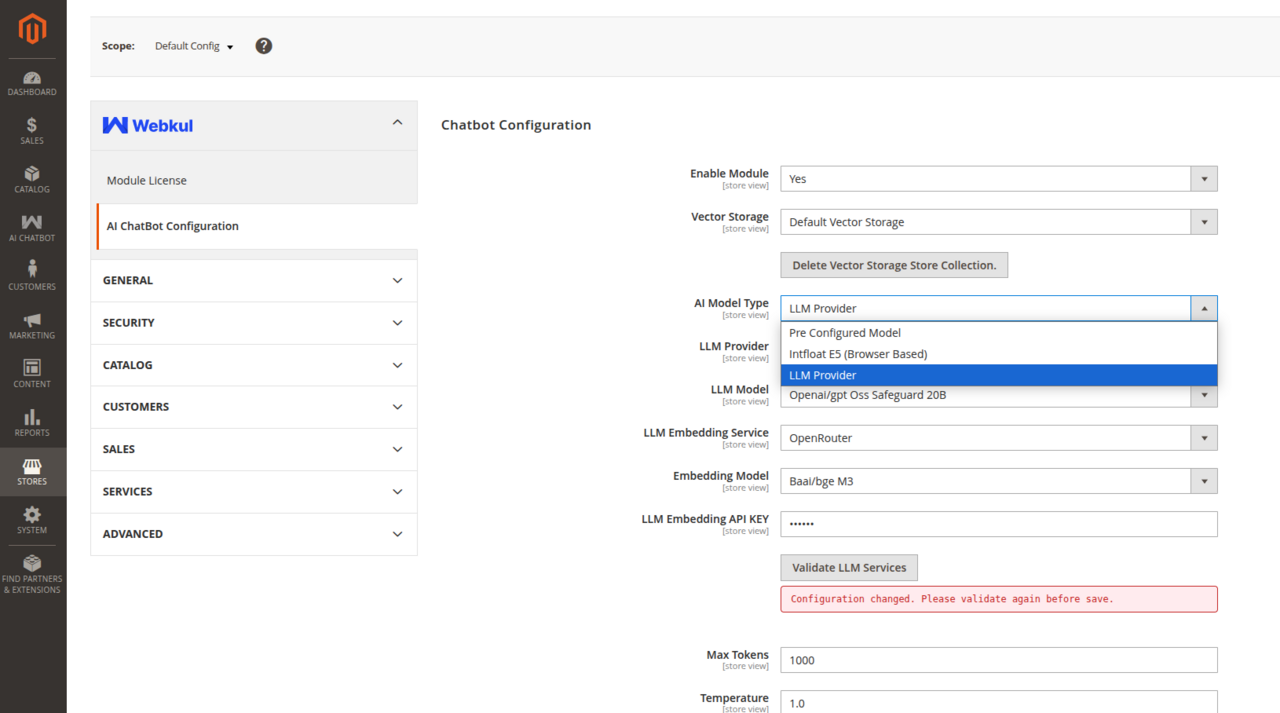
Choosing the Right AI Model Type
For the highest quality natural conversations and out-of-the-box accuracy, select LLM Provider with OpenAI (gpt-4o-mini) or Google Gemini (gemini-1.5-flash).
Step 3: Verify Admin Navigation Menu
Once Enable Module is set to Yes, the AI ChatBot top-level menu automatically becomes active in the Magento Admin sidebar.
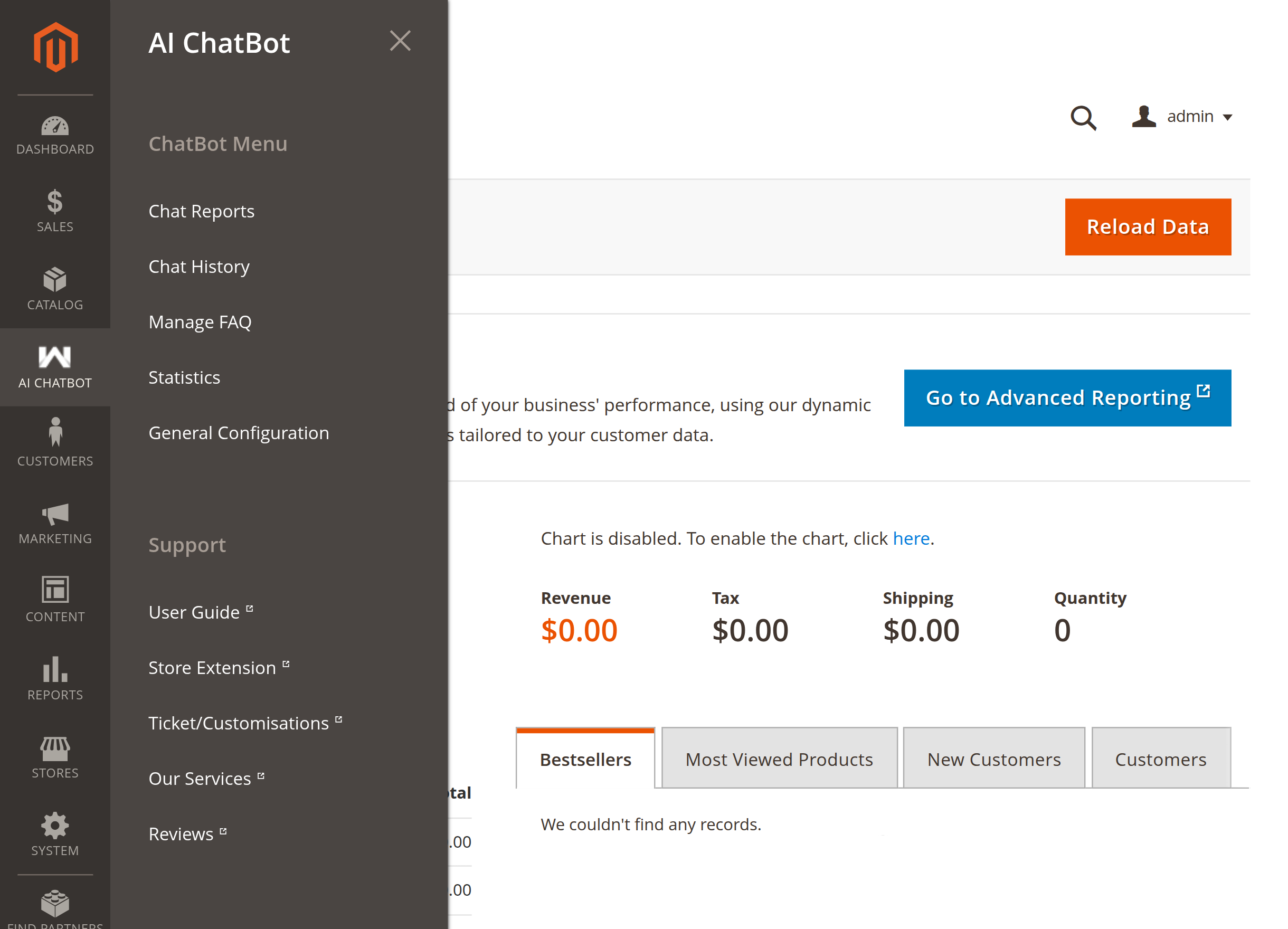
The admin menu gives store administrators direct access to:
- Chat History: Review customer conversation logs and message transcripts.
- Manage FAQ: Maintain FAQ question-answer pairs used for automated responses.
- Chat Reports: Review customer support inquiries and issue submissions.
- Statistics: Monitor chatbot usage trends, total chats, and indexed embeddings.
- General Configuration: Direct shortcut to the extension's system settings.
- Support Links: Access Webkul user guides, support ticketing, and extension updates.