
Verify events (GTM Debug mode)
Once the container is loading, verify that real shopper actions produce the right events. This is the single most useful check — it confirms the whole chain from storefront → dataLayer → GTM → destination.
Use GTM Preview mode
- In tagmanager.google.com, click Preview (top-right).
- Enter your storefront URL and click Connect. Tag Assistant opens your store in a new tab with a debug panel.
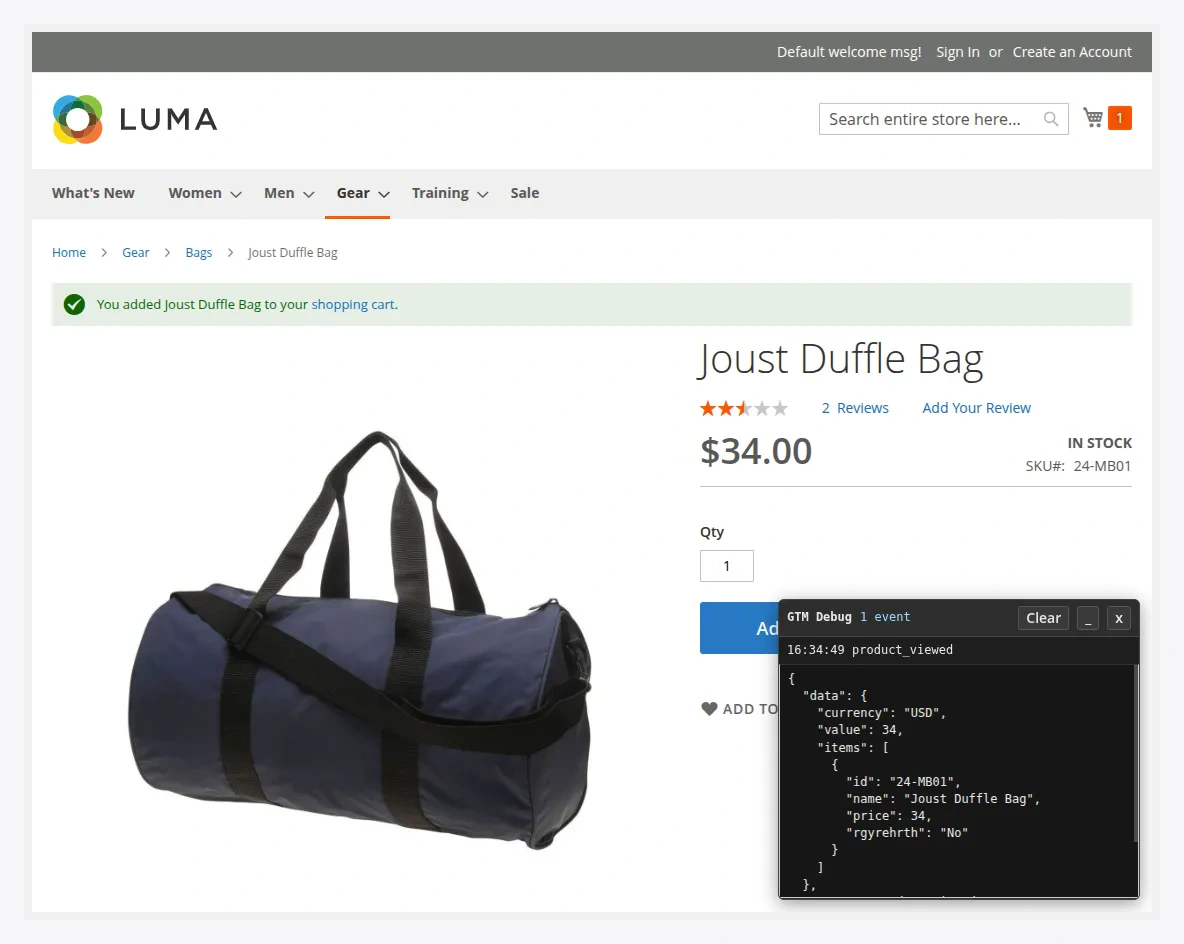
- Perform actions on the store — view a product, add to cart, search, check out.
- In Tag Assistant, each action appears in the left timeline as a dataLayer event (
product_viewed,cart_item_added,payment_completed, …). - Click an event to see which tags fired and inspect the Data Layer payload.
Checklist per funnel stage
| Action on store | Expected dataLayer event | Then |
|---|---|---|
| Open a category | product_list_viewed | GA4 view_item_list tag fires |
| Click a product in a list | product_clicked | GA4 select_item |
| Open a product page | product_viewed | GA4 view_item, Meta ViewContent |
| Add to cart | cart_item_added | GA4 add_to_cart, Meta AddToCart |
| Start checkout | checkout_started | GA4 begin_checkout, Meta InitiateCheckout |
| Place an order | payment_completed | GA4 purchase, Meta Purchase, Google Ads conversion |
Verify in each destination
Google Analytics 4
Open GA4 → Admin → DebugView while in Preview mode. Events appear within a few seconds with their parameters. Realtime reports confirm live (non-debug) traffic.
Meta Pixel
- Meta Pixel Helper (Chrome extension) lists the events firing and the Pixel ID.
- Events Manager → your pixel → Test Events shows events as you perform them.
Google Ads
Confirm the conversion tag fires in Preview mode on order success. In Google Ads, the conversion action moves to Recording conversions once it receives data (can take a few hours).
If an event does not appear
- Confirm the action's toggle is on in Shopper Actions to Track.
- Flush the cache:
php bin/magento cache:flush. - Check
window.dataLayerin the console to see whether the event reached the page at all. - If it is in the dataLayer but no tag fires, the trigger in GTM does not match — check the trigger's event name against the neutral event name.
- See Troubleshooting.