
How to create a Meta Pixel & find your Pixel ID
Your Meta Pixel ID (also called a Dataset ID) is a numeric value entered in the Meta Pixel destination. If you have not created a pixel / dataset yet, follow the walkthrough below.
Create a Meta Pixel (dataset) in Events Manager
- Sign in to your Meta Business account and open Events Manager.
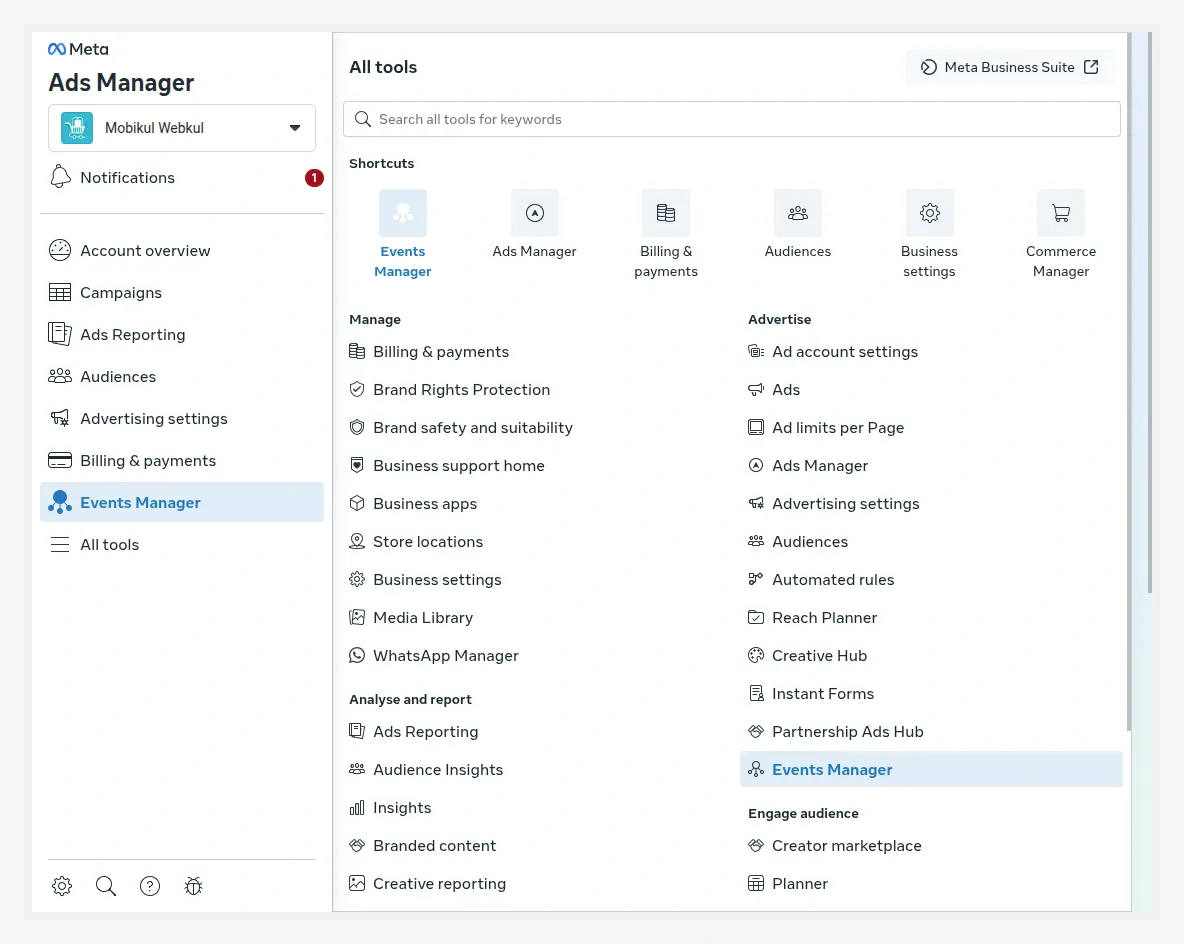
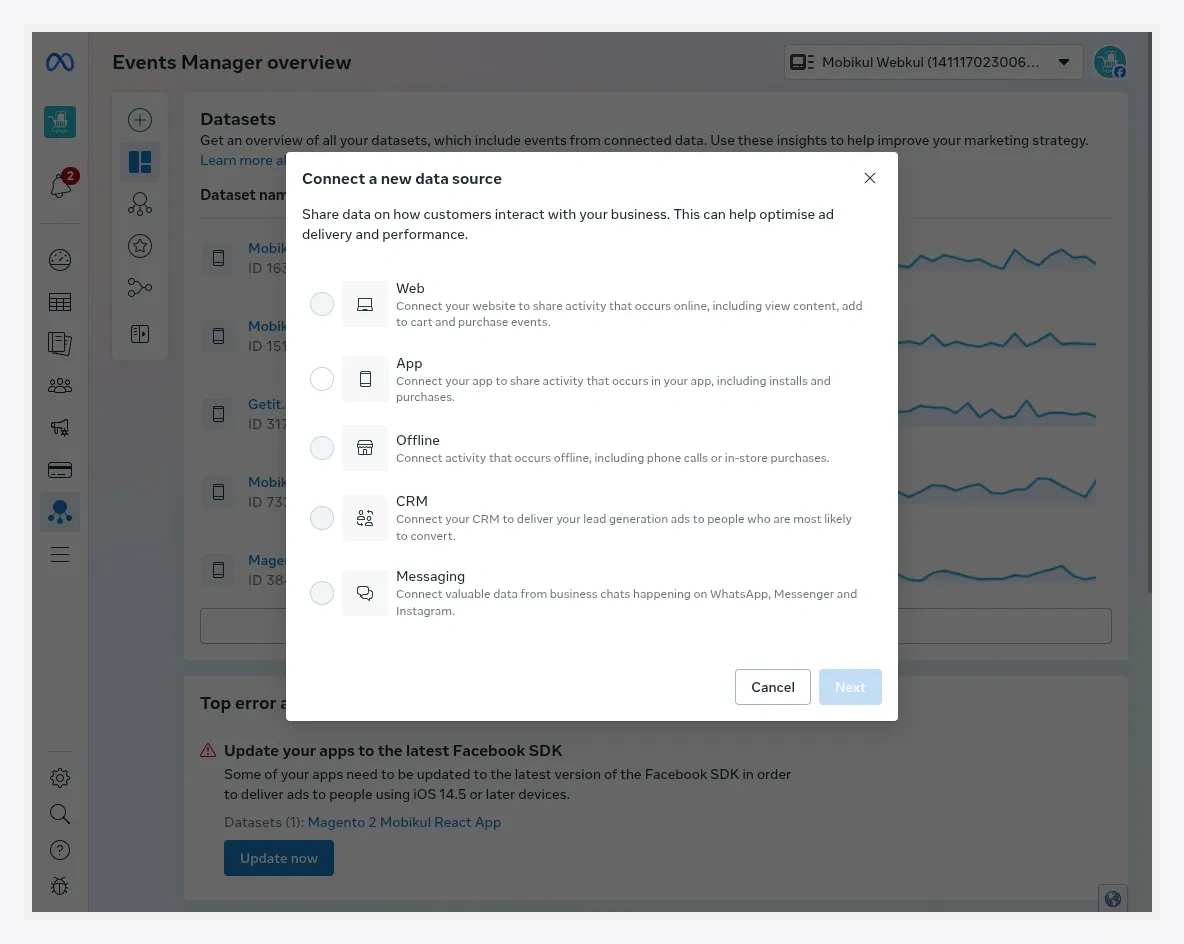
- Click Connect Data and choose Web as the data source.
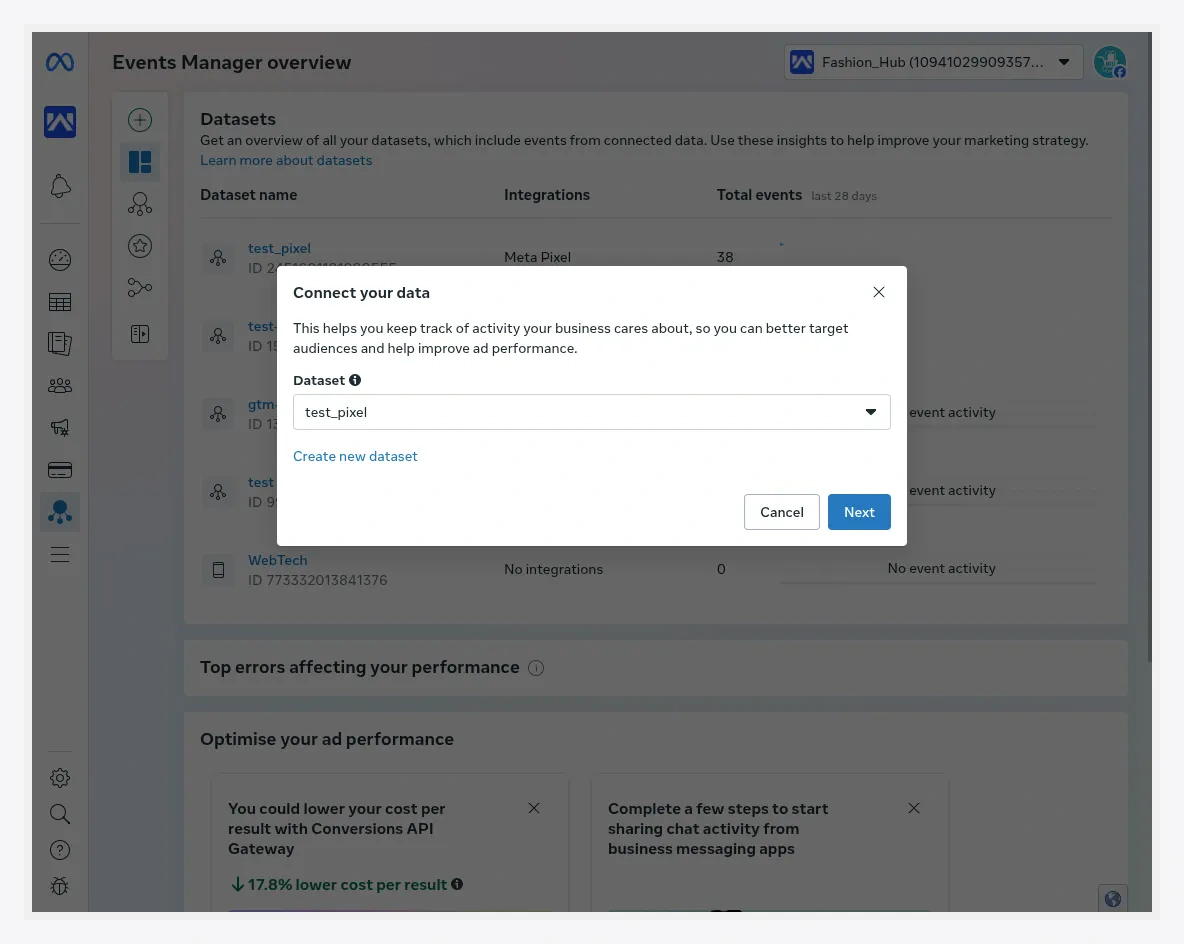
- Click Create new dataset and give it a name.
- On the Recommended setup window, choose Set up manually and click Next.
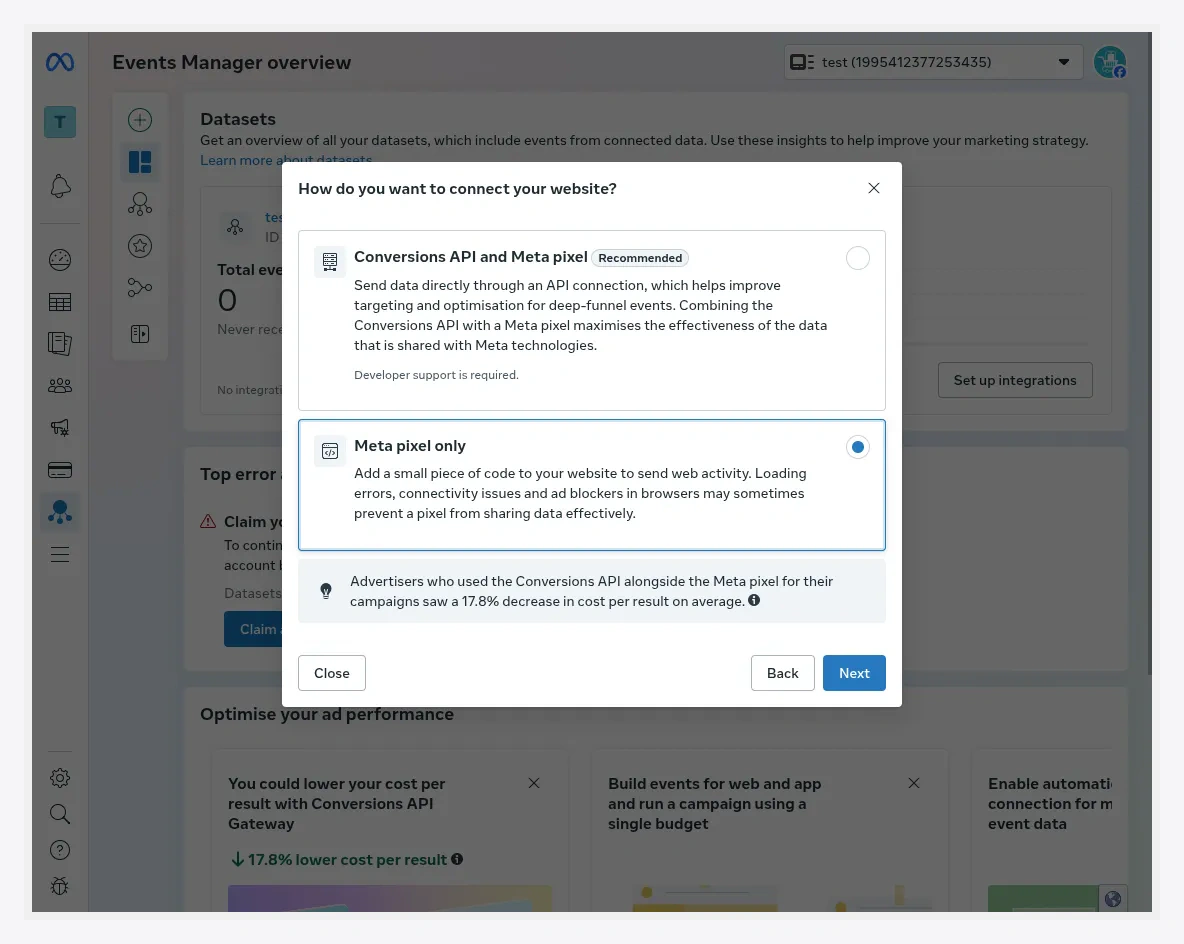
- Choose Meta Pixel only as the connection method and click Next.
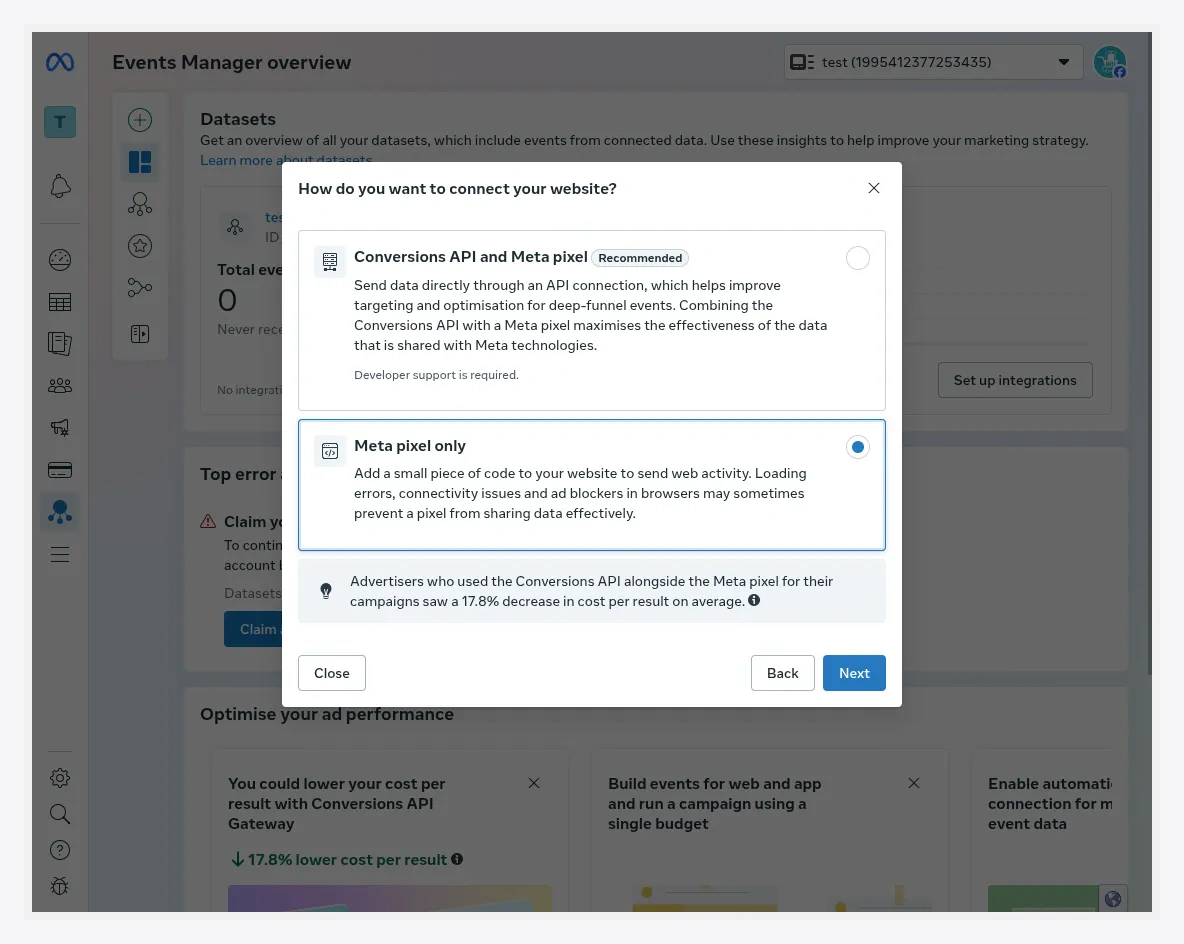
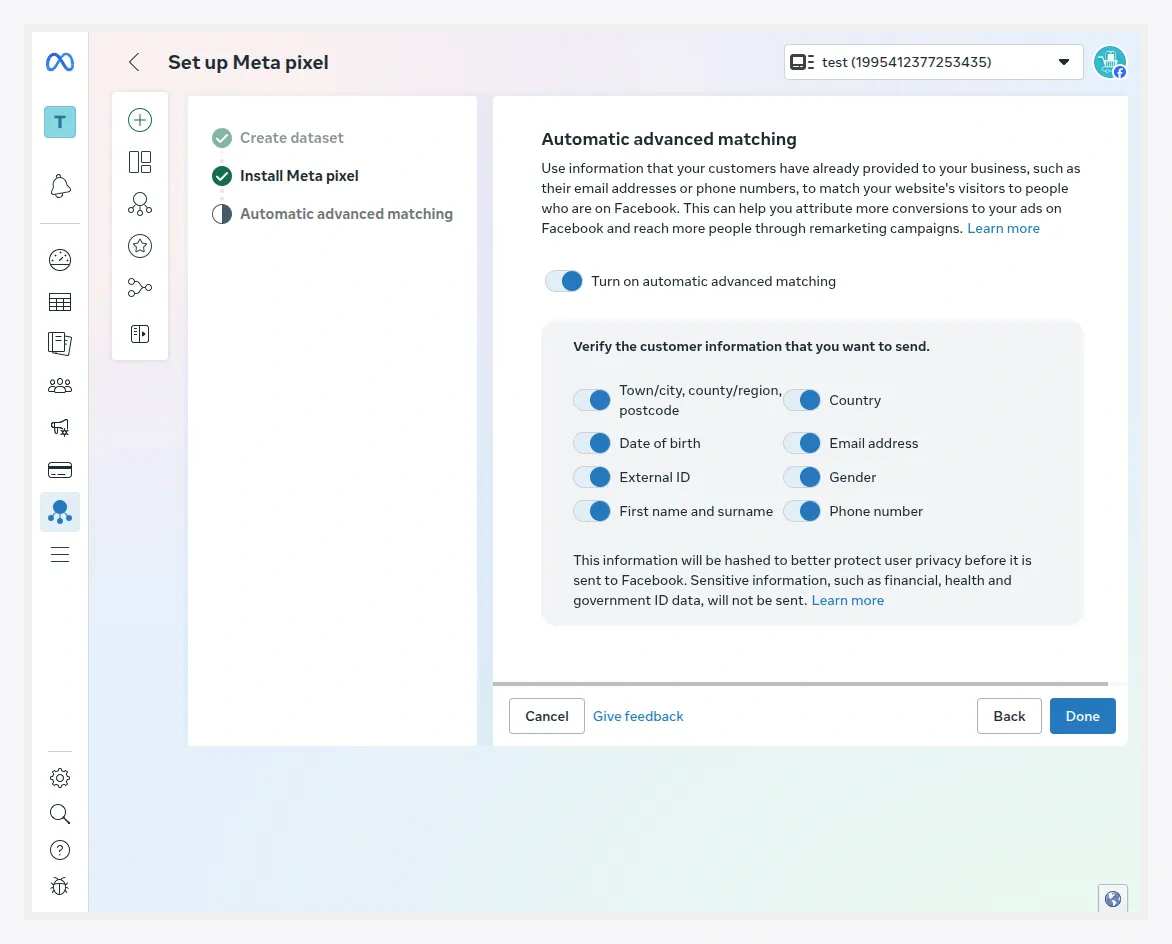
- Review the Automatic Advanced Matching settings (optional) and click Done.
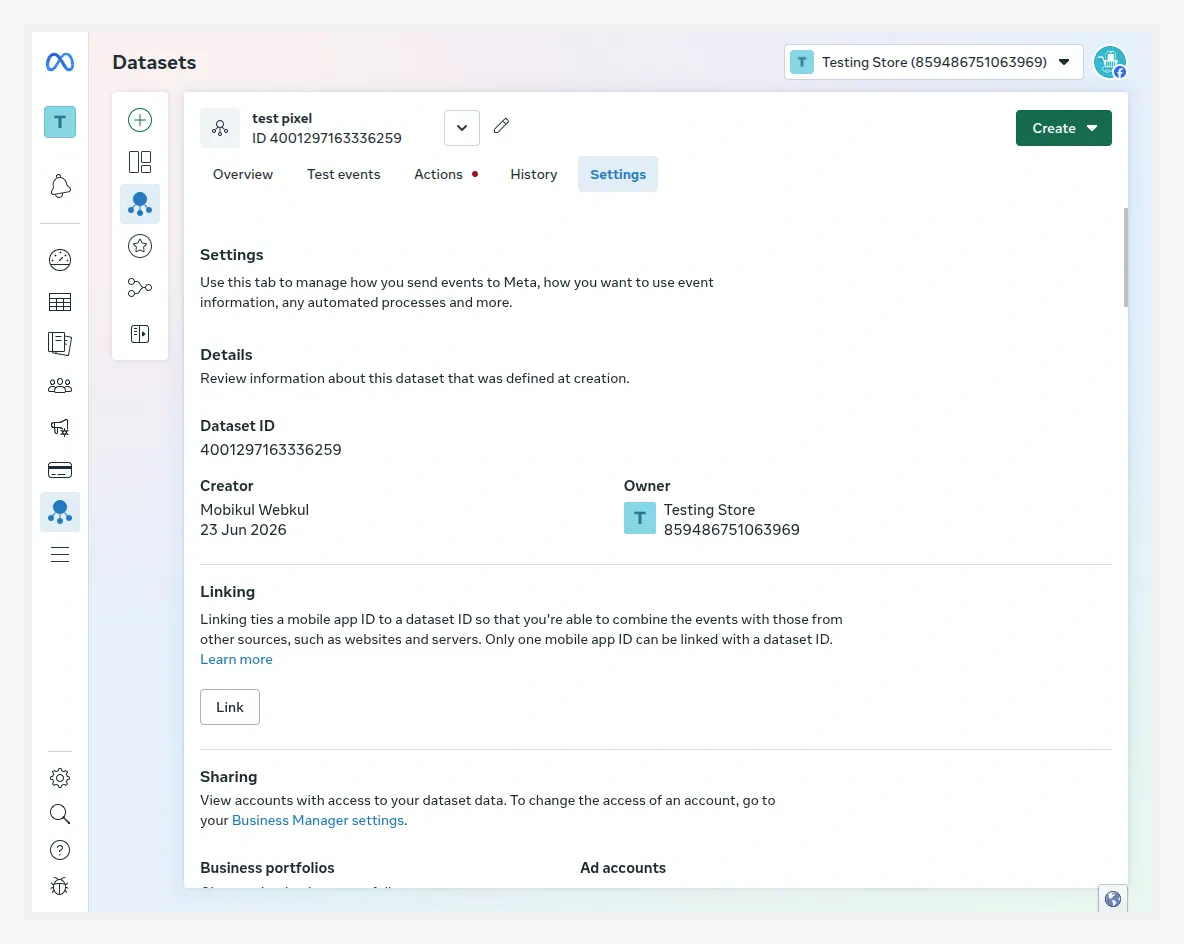
- Open the Settings tab of the created dataset. The Dataset ID (Pixel ID) — a numeric value — is shown under Details.
Find the Pixel ID again later
- Go to business.facebook.com/events_manager and open Events Manager.
- In Data Sources, select your pixel.
- Open Settings — the Pixel ID (a numeric value) is shown near the top.
Where it goes
Paste it into Destinations → Meta Pixel → Meta Pixel ID, then save. On container export, it is wired into the Meta Pixel base and event tags.
Verify it is firing
- Install the Meta Pixel Helper Chrome extension and browse your storefront — it lists the events firing and the Pixel ID they report to.
- Or use Events Manager → your pixel → Test Events and perform actions on the store.
See Verify events for the full check.