
How to create a GA4 account & find your Measurement ID
The GA4 Measurement ID starts with G- (for example G-XXXXXXXXXX) and is entered in the Google Analytics 4 destination. If you do not have a Google Analytics 4 property yet, create one first using the steps below.
Create a Google Analytics 4 account & property
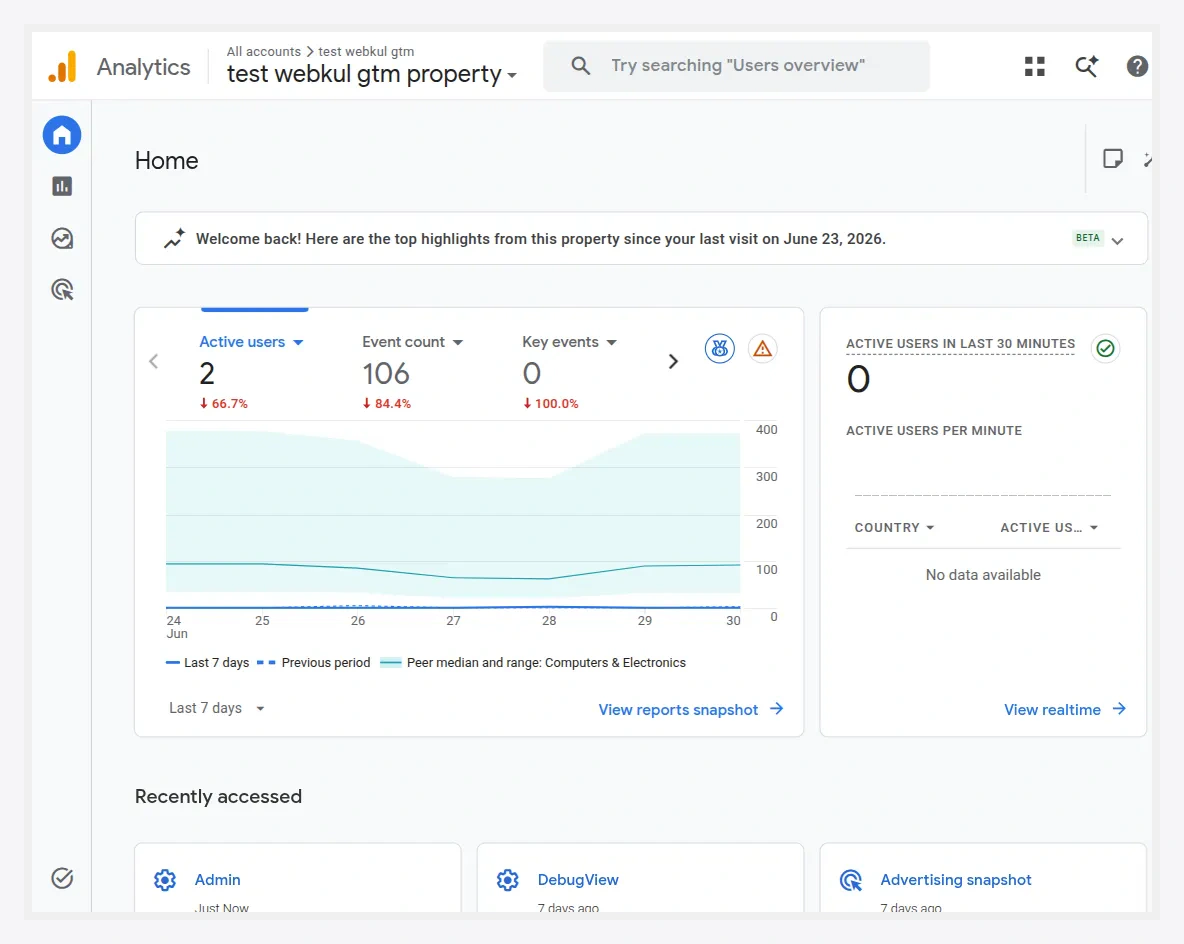
- Go to analytics.google.com and sign in. Click Admin (the gear icon in the left navigation).
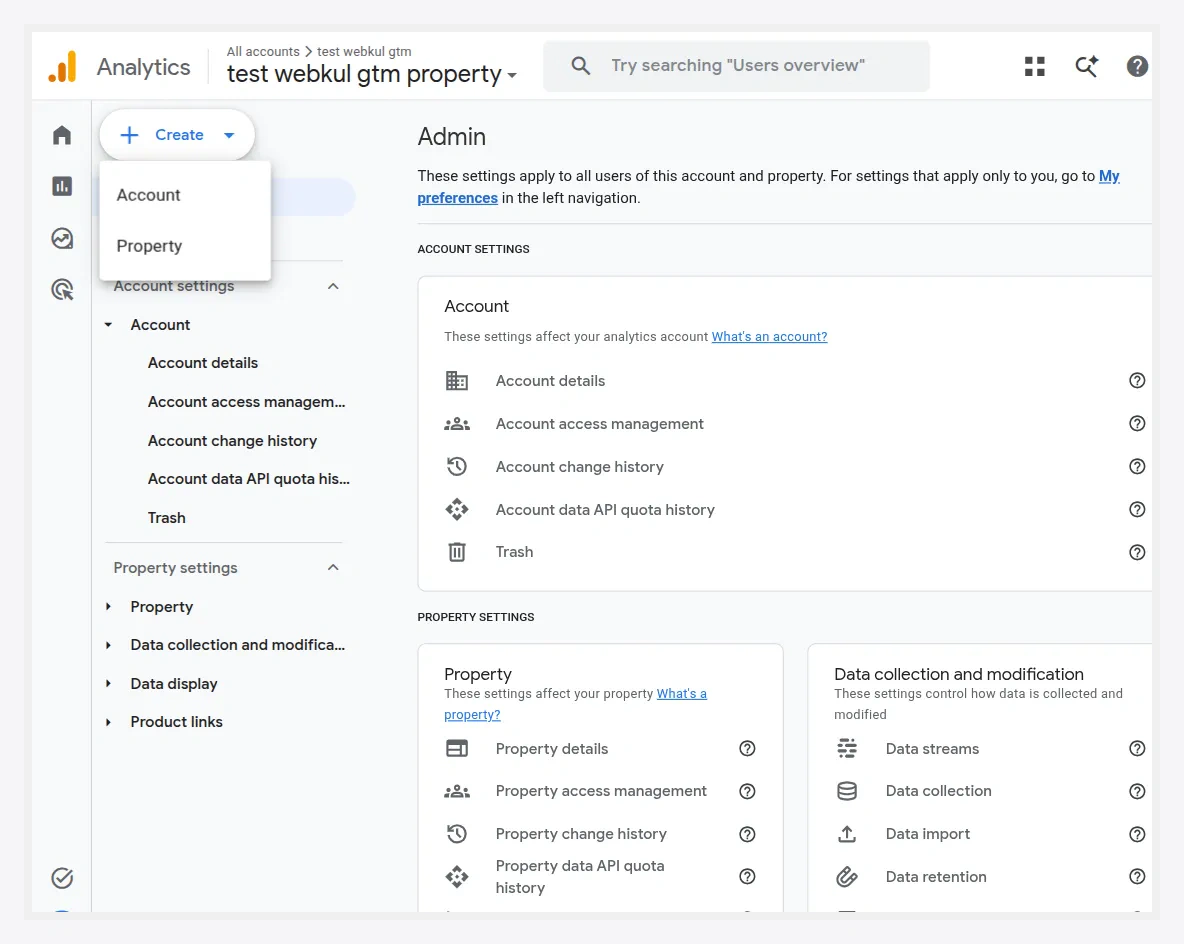
- Click Create Account.
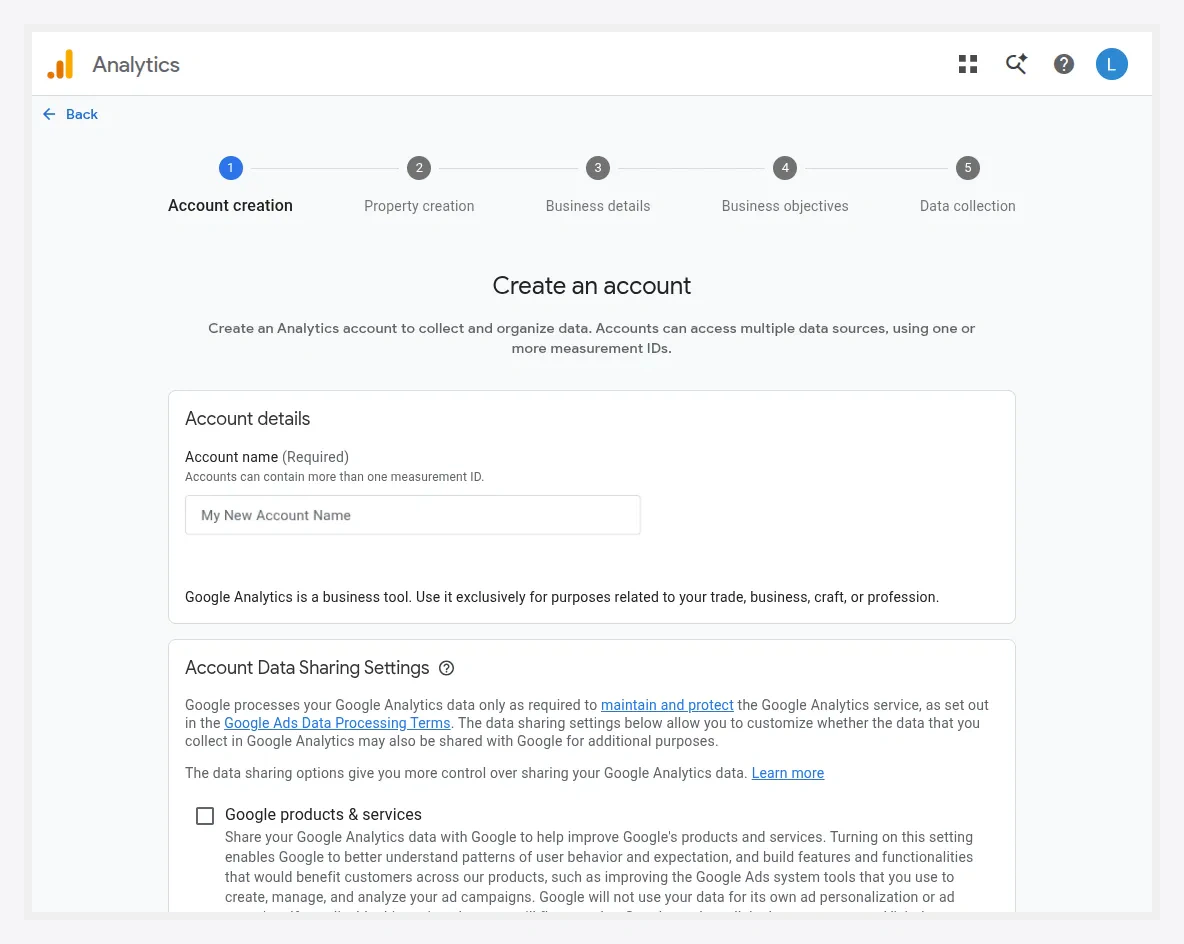
- Enter an Account Name and click Next.
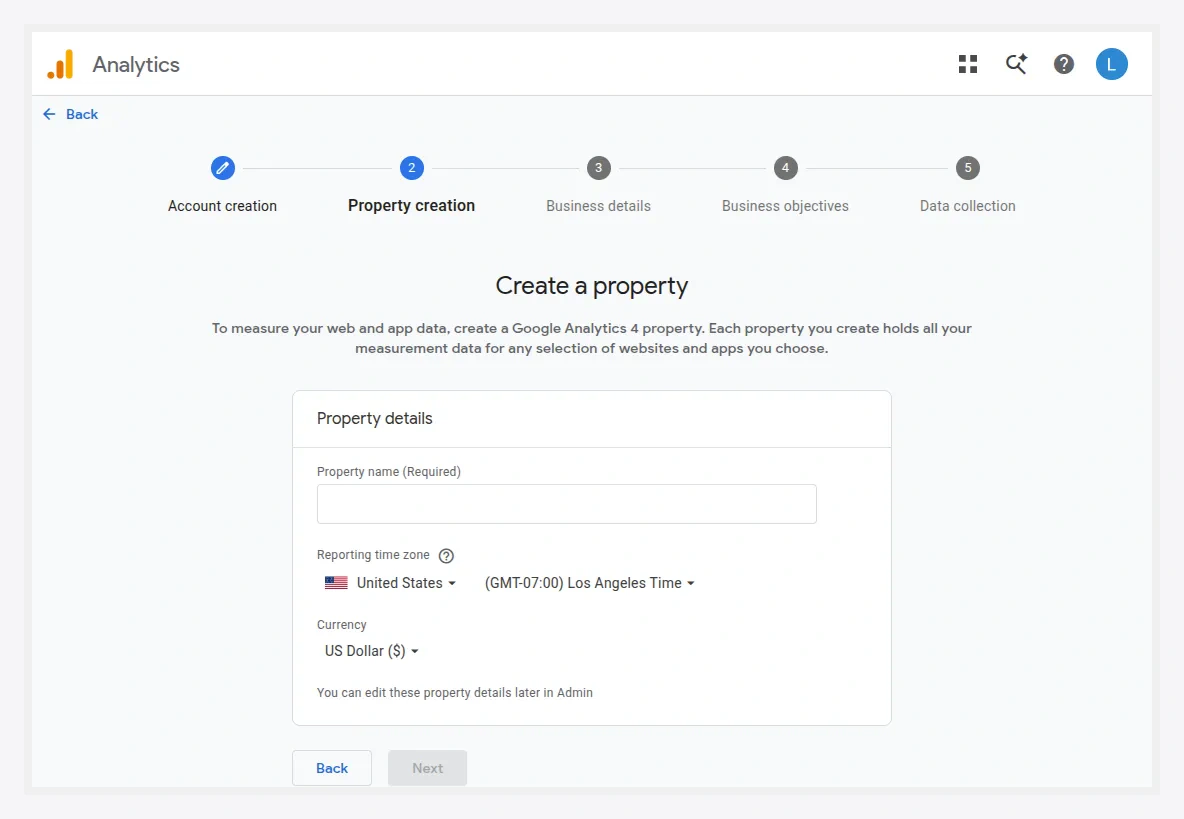
- Enter a Property Name, choose your Reporting Time Zone and Currency, then click Next.
- Select your Industry Category and Business Size, then click Next.
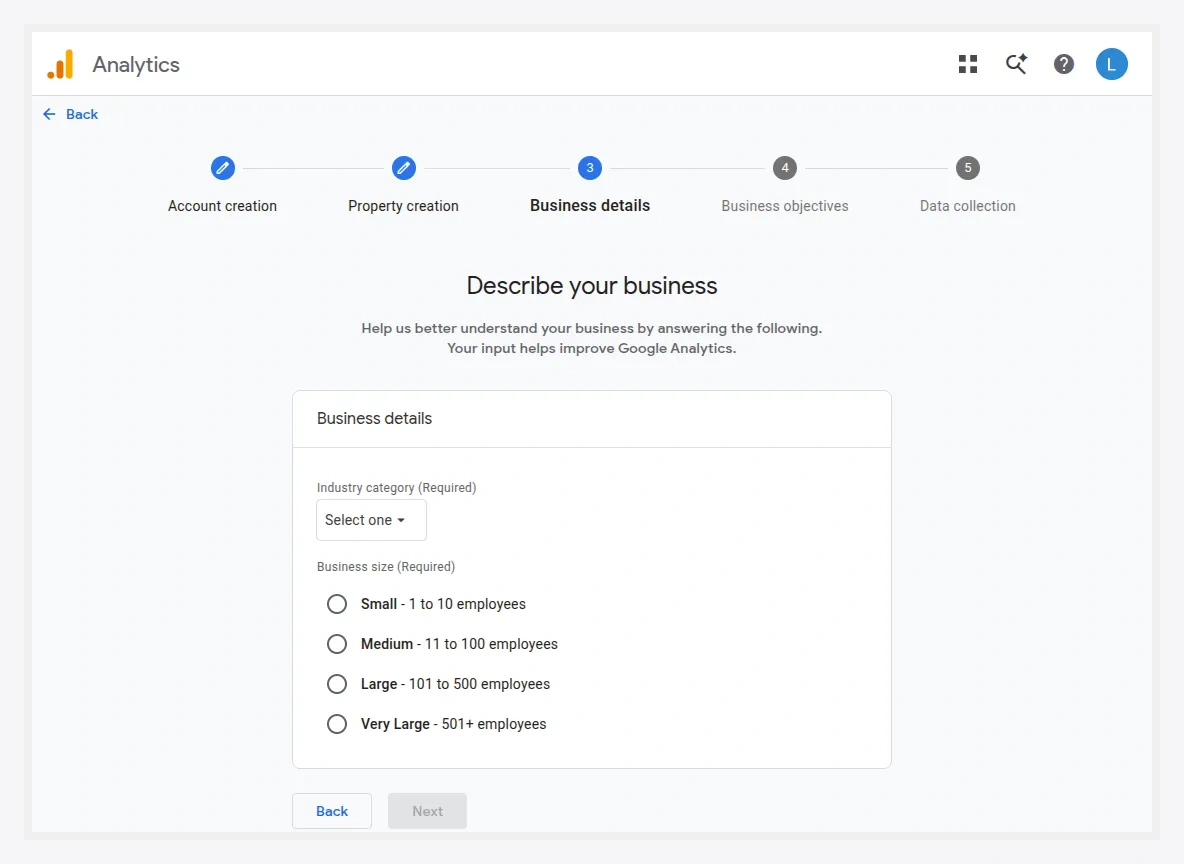
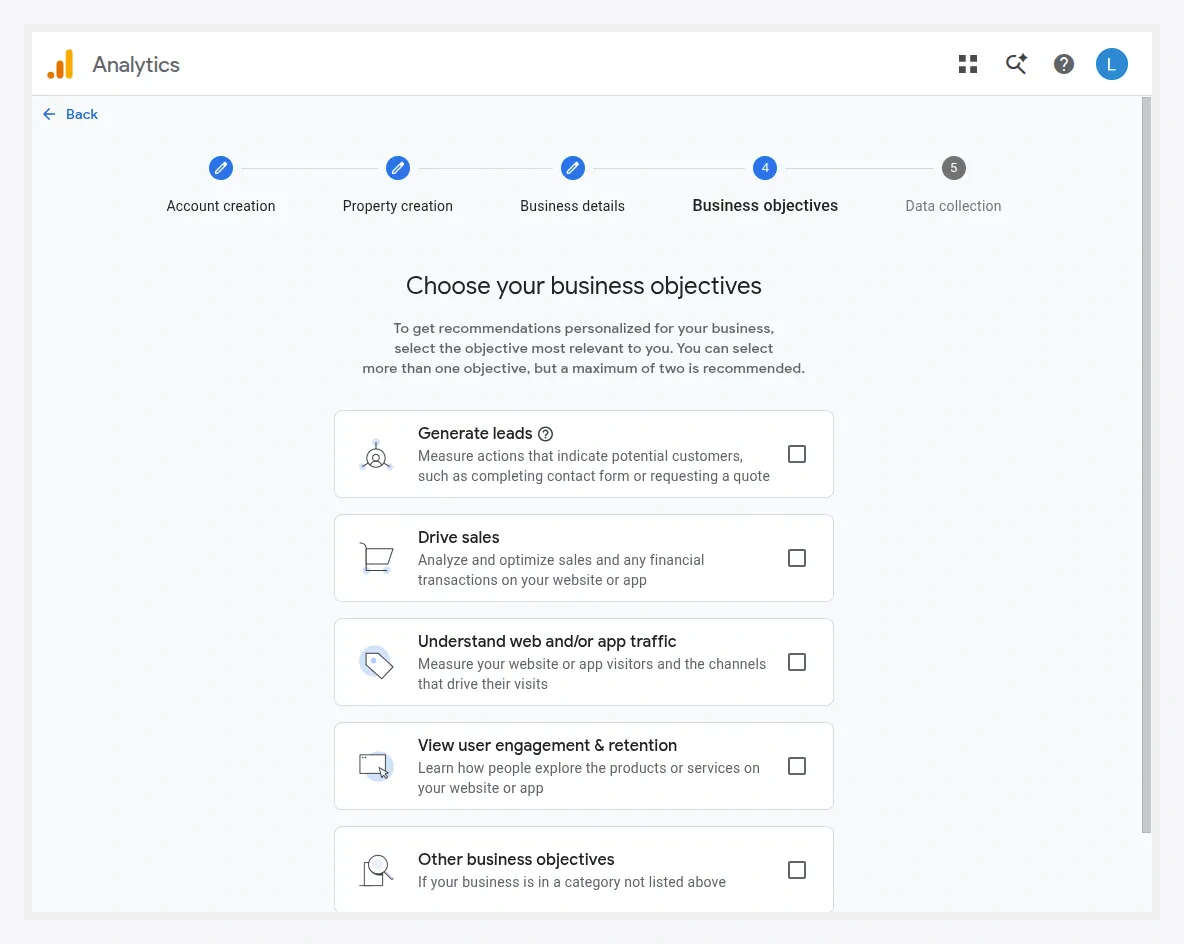
- Choose the business objectives that match how you'll use Analytics, then click Create.
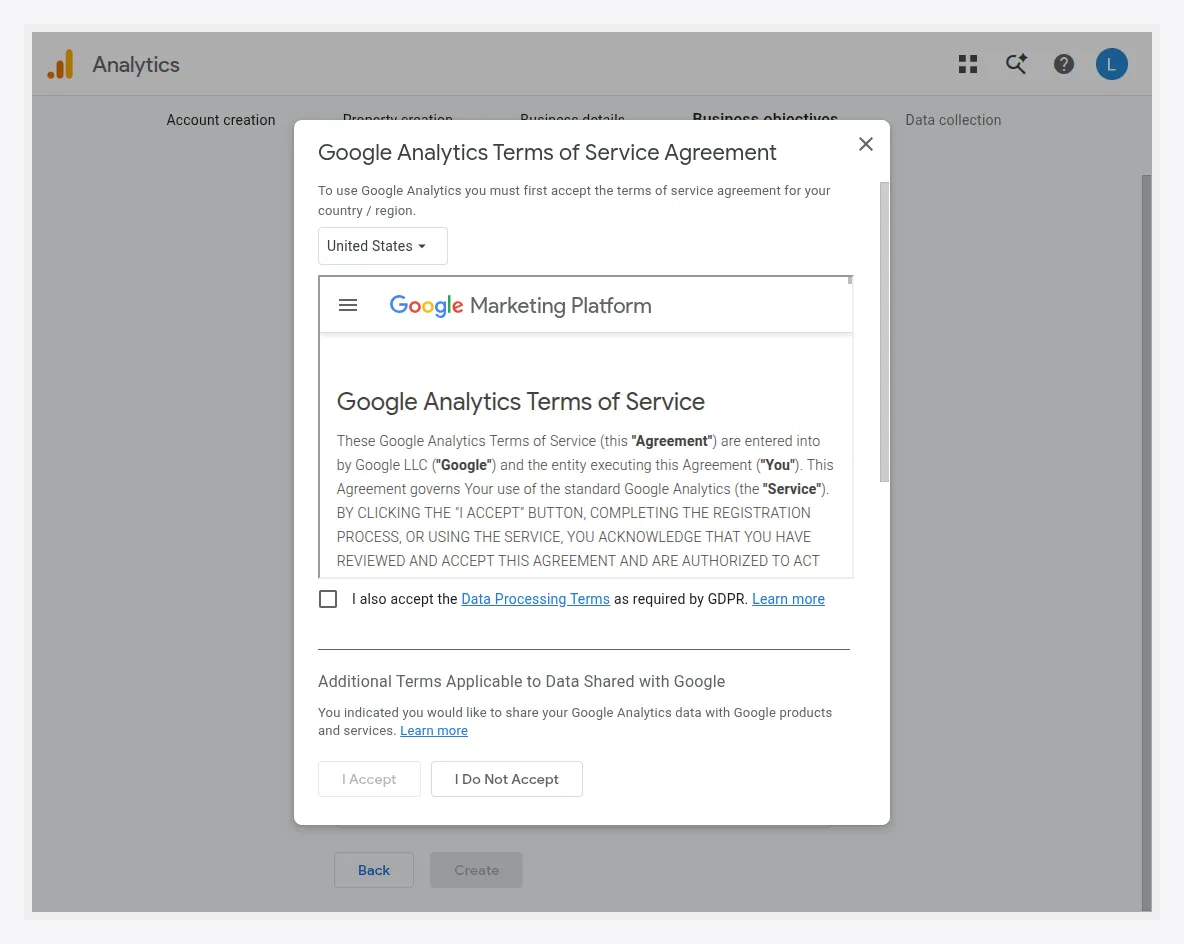
- Review the Google Analytics Terms of Service and click I Agree.
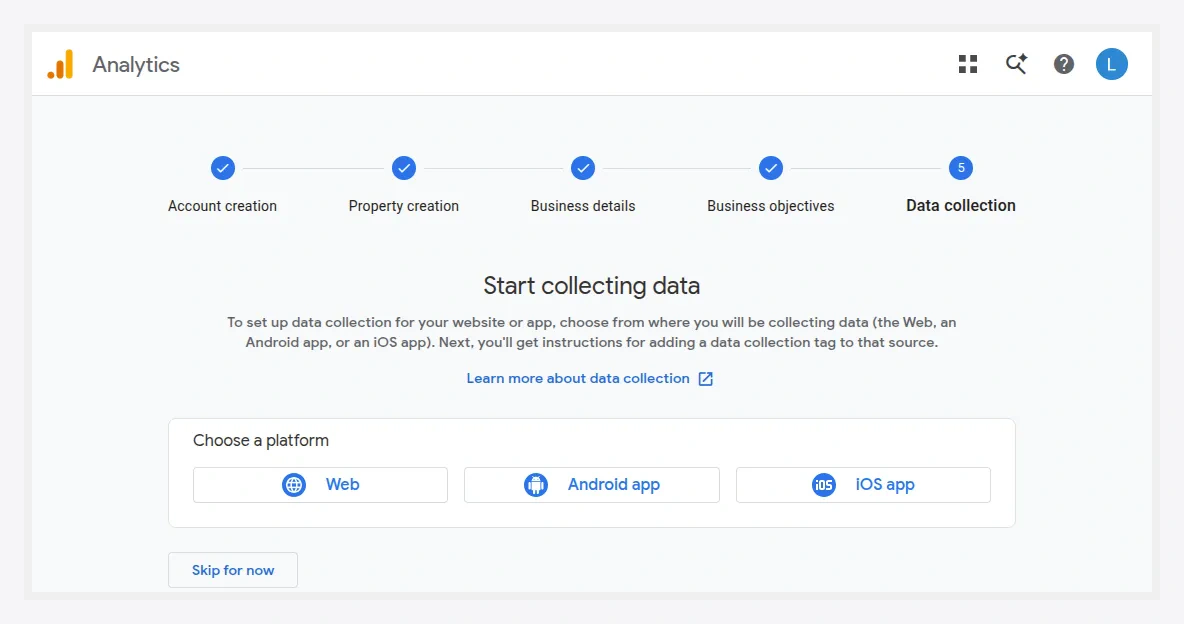
- Choose Web as the platform for your data stream to start collecting data.
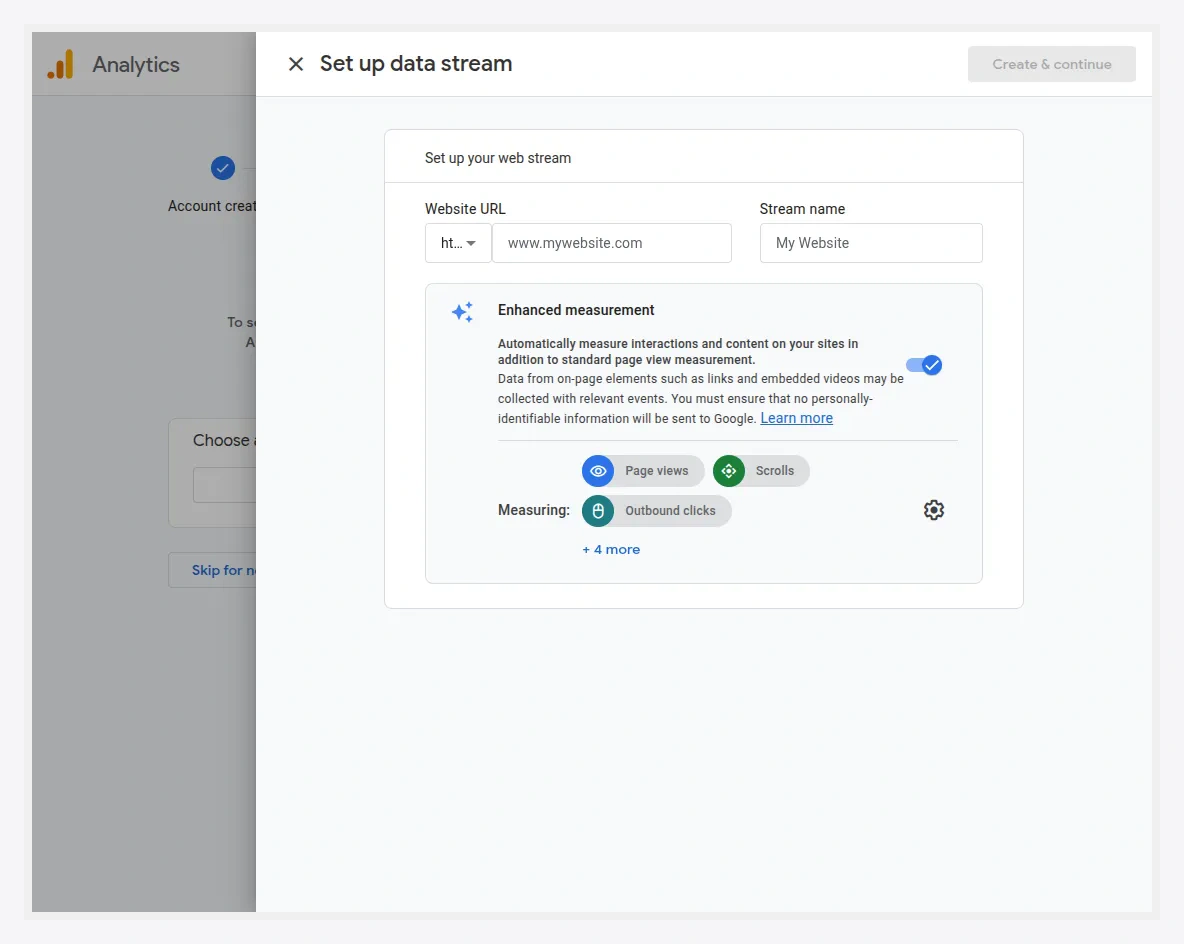
- Enter your Website URL and a Stream Name, then click Create and Continue. The Measurement ID (
G-XXXXXXXXXX) is shown at the top-right of the Web Stream Details page.
Find the Measurement ID again later
If you already have a property and just need the ID:
- Go to analytics.google.com → Admin (gear icon).
- In the Property column, open Data Streams.
- Click your Web stream (create one with Add stream → Web if you have none).
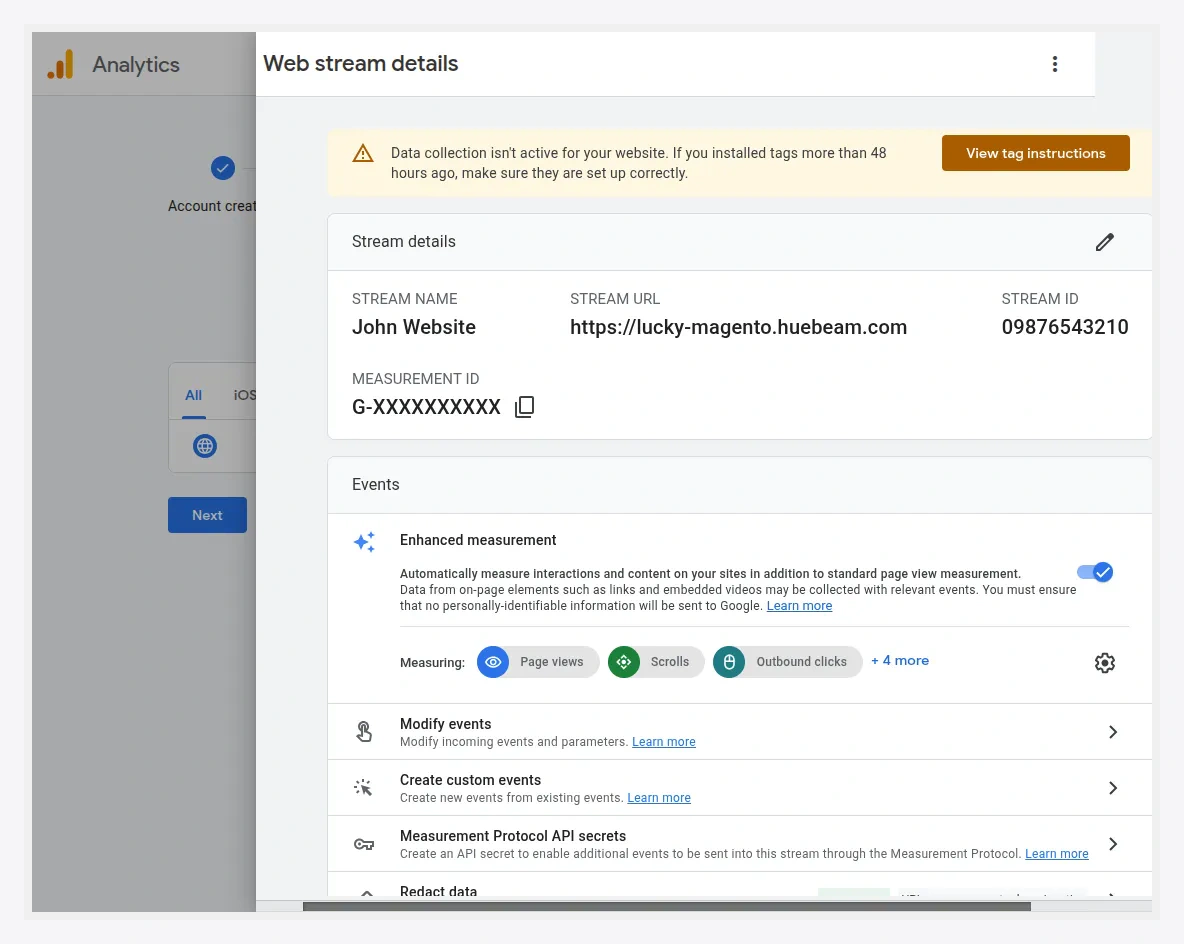
- The Measurement ID (
G-XXXXXXXXXX) is shown at the top-right of the stream details.
Where it goes
Paste it into Destinations → Google Analytics 4 → Measurement ID, then save. On container export, it is wired into the GA4 tag for you.
Measurement ID vs Stream ID
The Measurement ID starts with G-. The numeric Stream ID shown next to it is a different value — the extension needs the G- Measurement ID.
Verify it is collecting
After importing the container, open GA4 → Admin → DebugView (or Reports → Realtime) and browse your storefront in GTM Preview mode. Events should appear within a few seconds.