
General Settings
The General group is where you switch the extension on and connect it to your Google Tag Manager container. It is the only group you must fill in for the storefront to start pushing events.
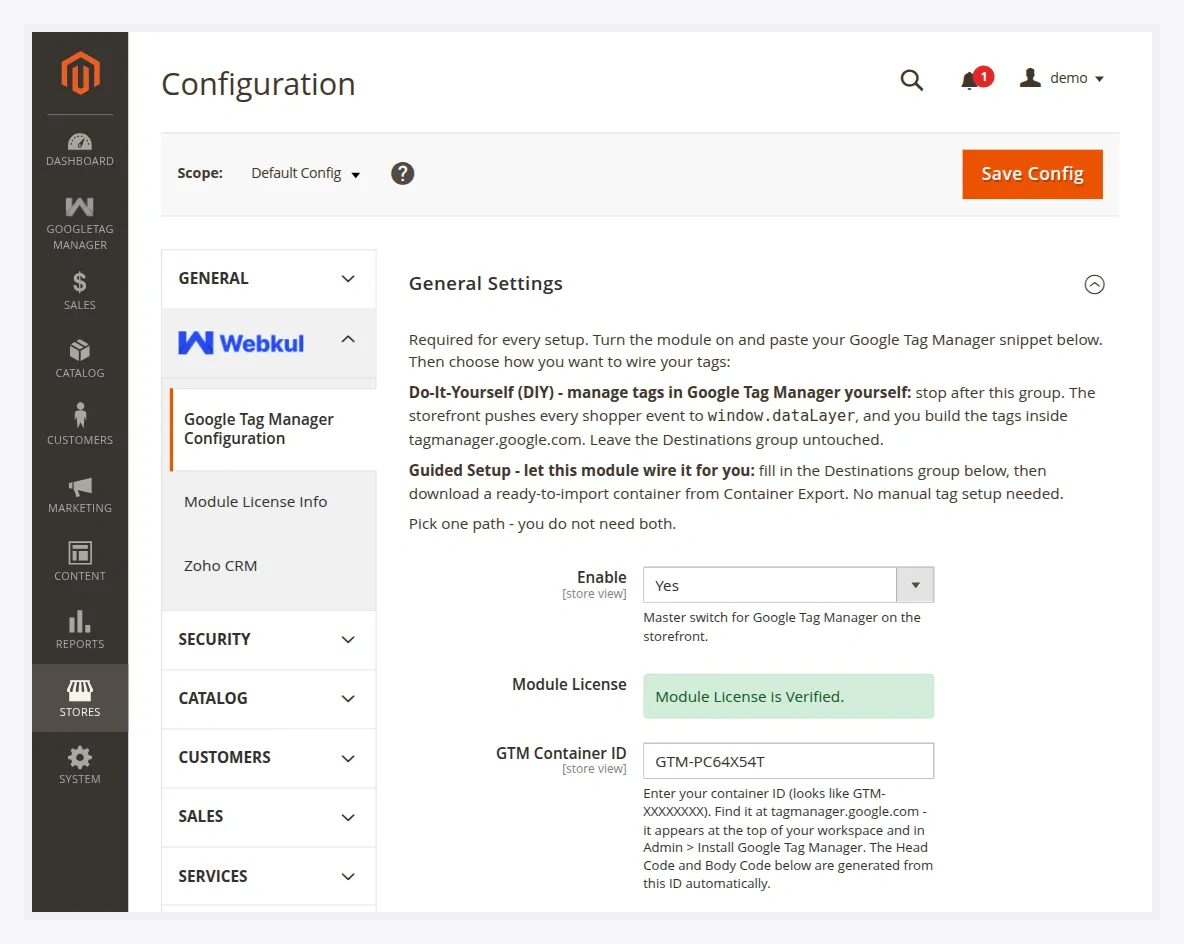
Fields
| Field | Description |
|---|---|
| Enable | Master switch for Google Tag Manager on the storefront. Set to Yes to activate. |
| Module License | The license key supplied with your purchase. It must validate before the container fields unlock. |
| GTM Container ID | Your container ID in the form GTM-XXXXXXX. Head and body snippets are generated from this automatically. See how to find it. |
| Test Google Tag Manager Setup | Runs a connectivity check against your container and reports whether it is reachable and correctly wired. |
| Head Code | Read-only snippet generated from the Container ID. Injected into <head> for you — reference only. |
| Body Code | Read-only <noscript> snippet generated from the Container ID. Injected after <body> for you — reference only. |
You don't paste snippets by hand
The Head Code and Body Code are shown for reference only. The extension injects both into every storefront page automatically once Enable is Yes and a valid Container ID is saved. Do not also paste them into your theme, or GTM will load twice.
Scope
The General group respects Magento's configuration scope. To send events to a different container per website or store view, switch the Store View selector at the top-left of the configuration page and uncheck Use Website / Use Default on the field you want to override.
After saving
php bin/magento cache:flush
Then confirm the container is live using the checks in Activate & Connect, and continue to Shopper Actions to Track.