Activate & Connect
To get the API credentials, the admin needs to generate the Shopify API credentials first using their Shopify account.
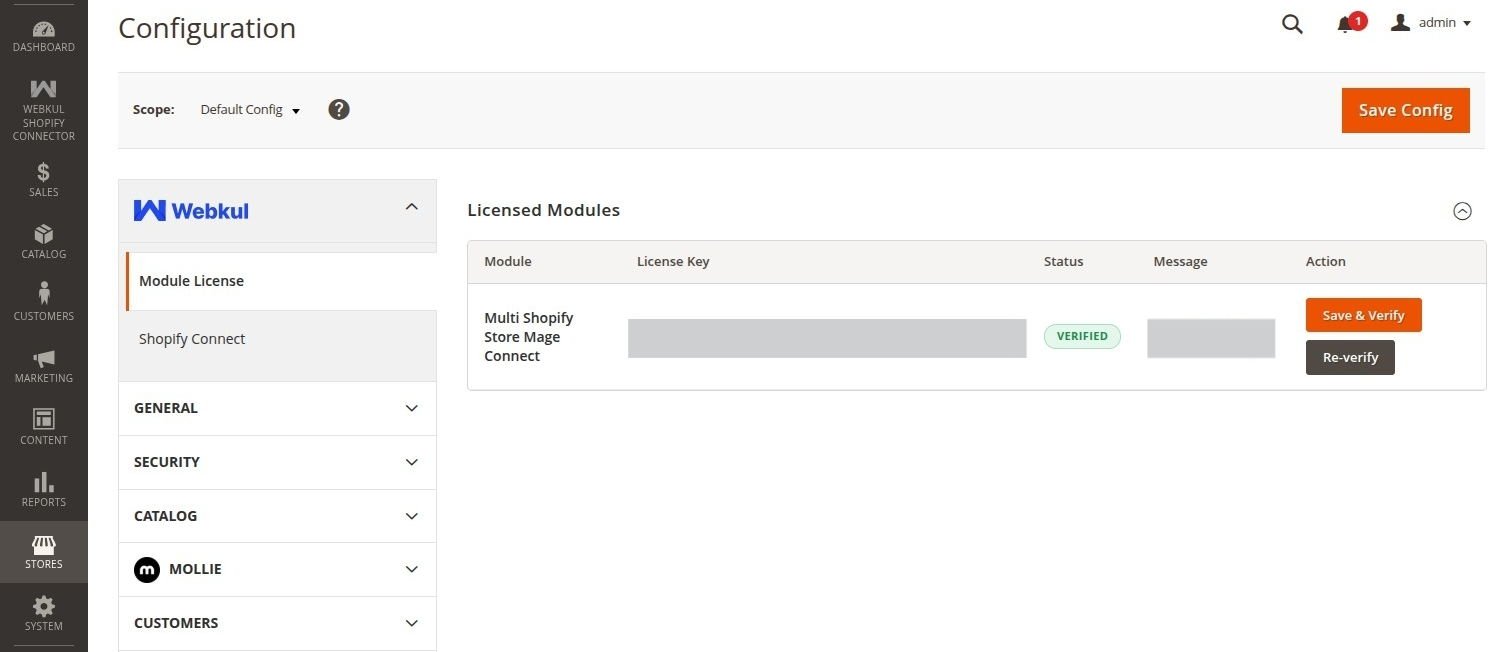
Module License Verification
To use the extension, you must verify your module license.
- Navigate to Stores > Configuration > Webkul > Module License.
- Locate Multi Shopify Store Mage Connect in the Licensed Modules list.
- Enter your License Key in the provided field.
- Click on the Save & Verify button.
Once verified, the status will show a green VERIFIED badge.
How to Get API Credential From Your Shopify Account
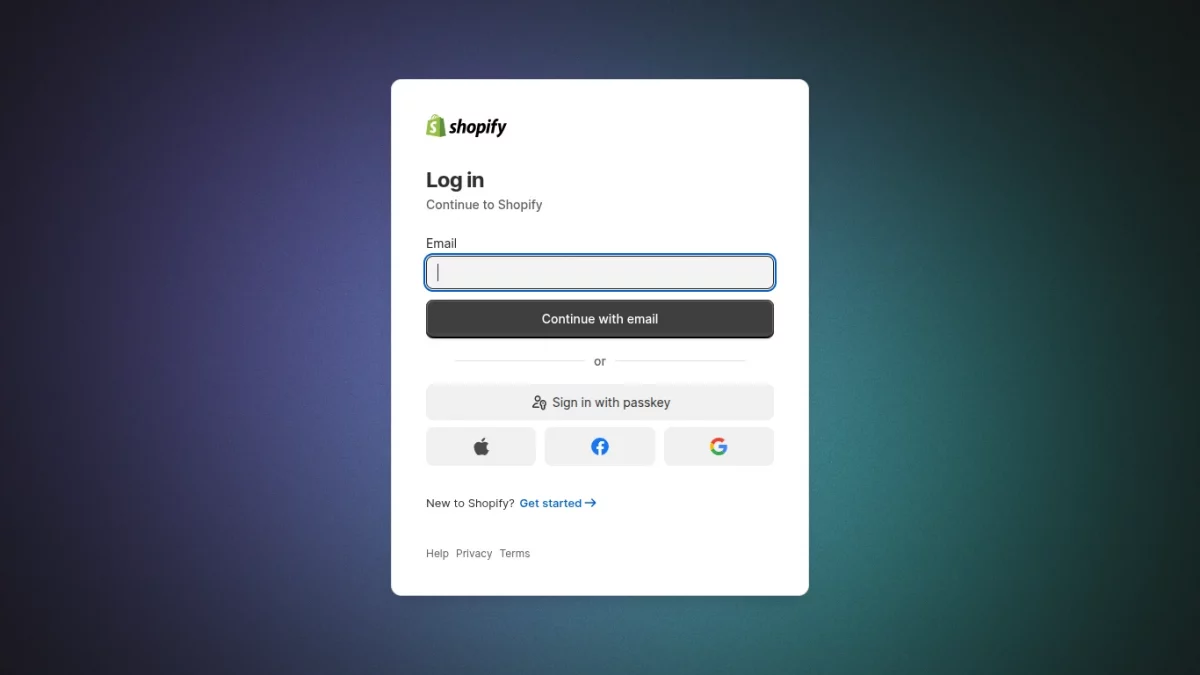
Step 1 – Log in to your Shopify Admin
First, log in to your Shopify store using:
- Your store URL
- Your admin username and password
Make sure you are logged in as a store owner or have app developer permissions.
Step 2 – Navigate to “Apps”
From the Shopify left sidebar menu, click Settings, then select Apps. This is where all integrations and custom apps are managed.
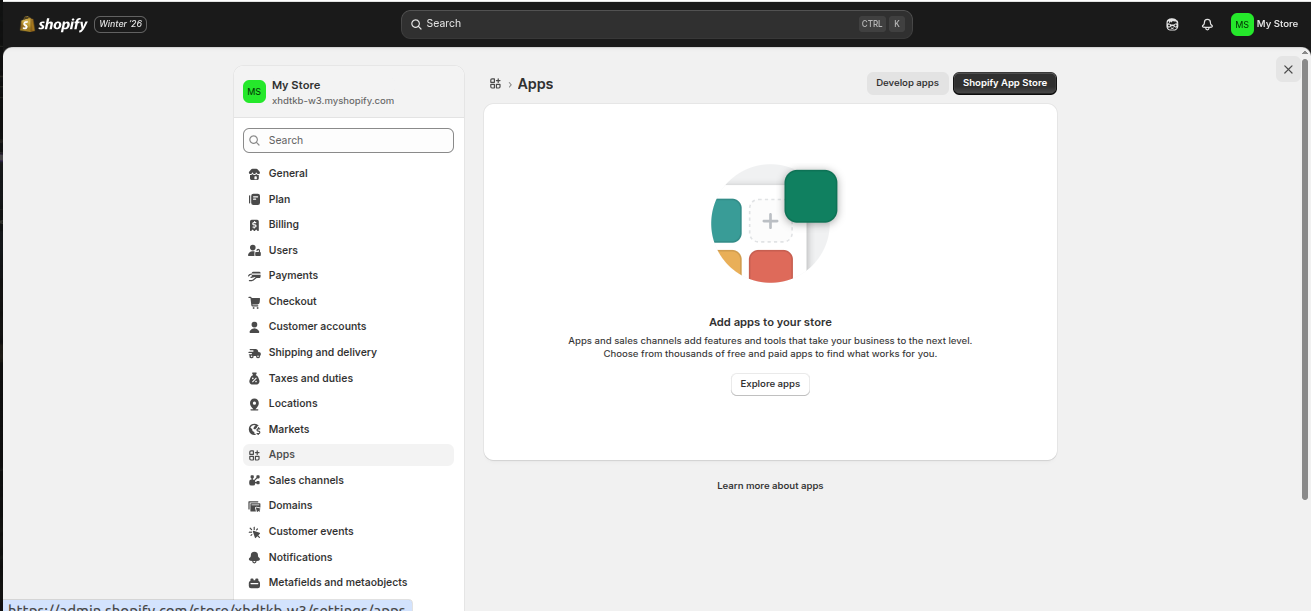
Step 3 – Open the “Develop Apps” Section
On the top-right corner of the Apps page, click Develop apps. This option allows you to create custom/private apps for API integrations.
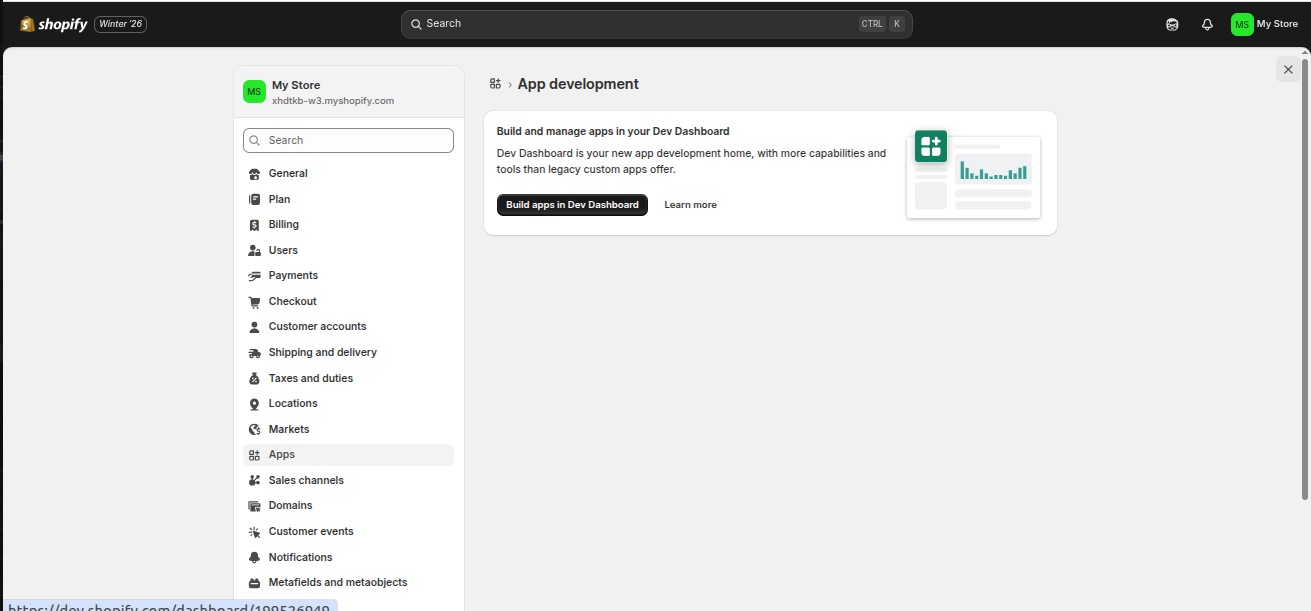
Step 4 – Build Apps
Click on the “Build apps in the developer dashboard” option.
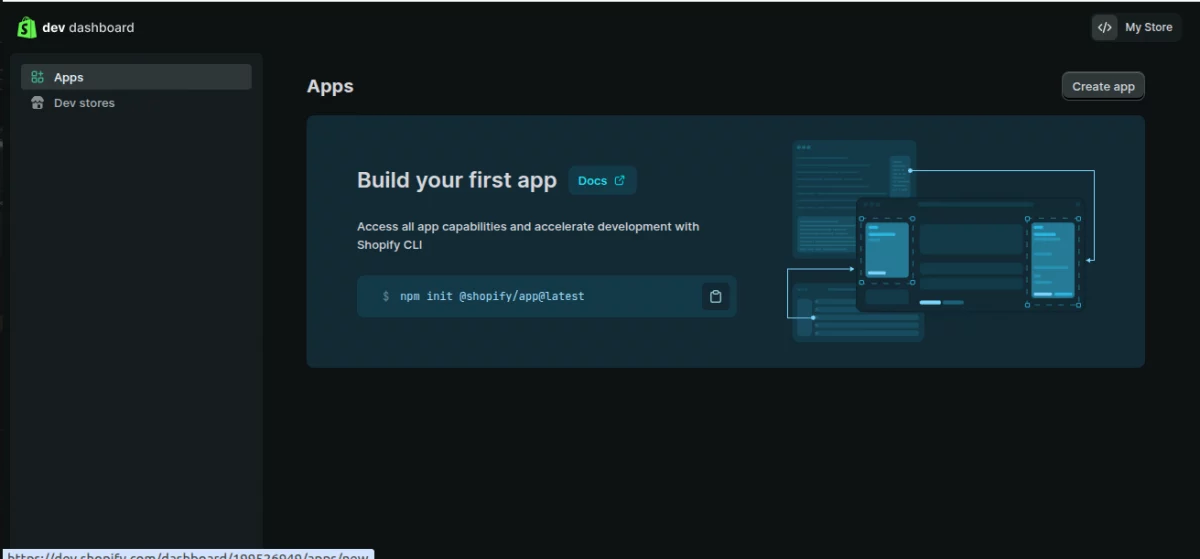
Step 5 – Create a New App
Click the Create app button. This will open the app creation pop-up. Fill in the app name (e.g., “Webkul App”) and click Create.
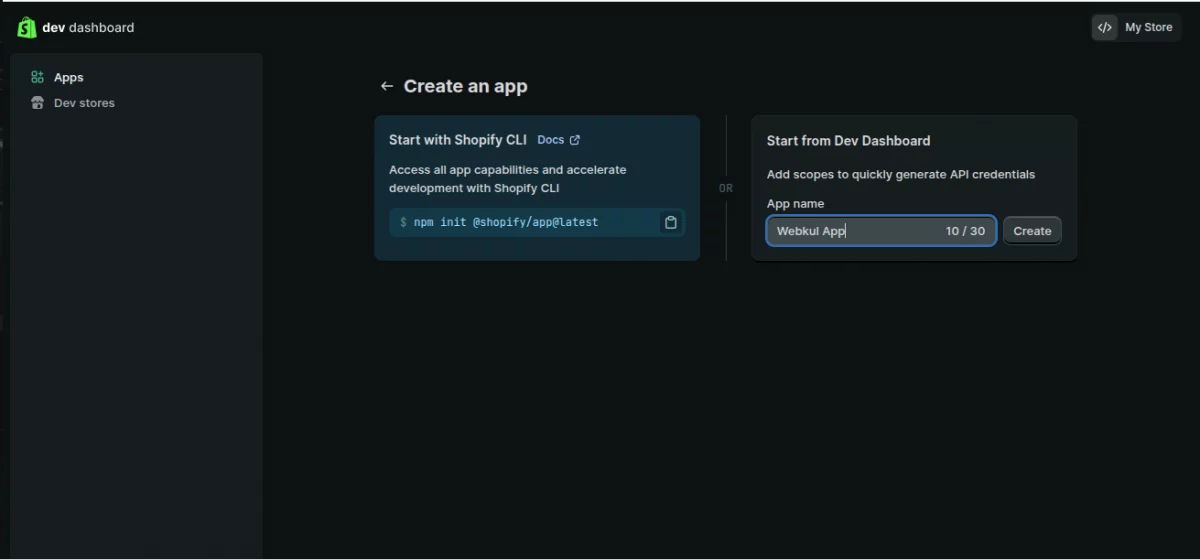
Step 6 – Configure Admin API Scopes
Fill the following details:
- App URL:
https://your-magento-store.com/ - Redirect URL:
https://your-magento-store.com/multishopifystoremageconnect/oauth/callback
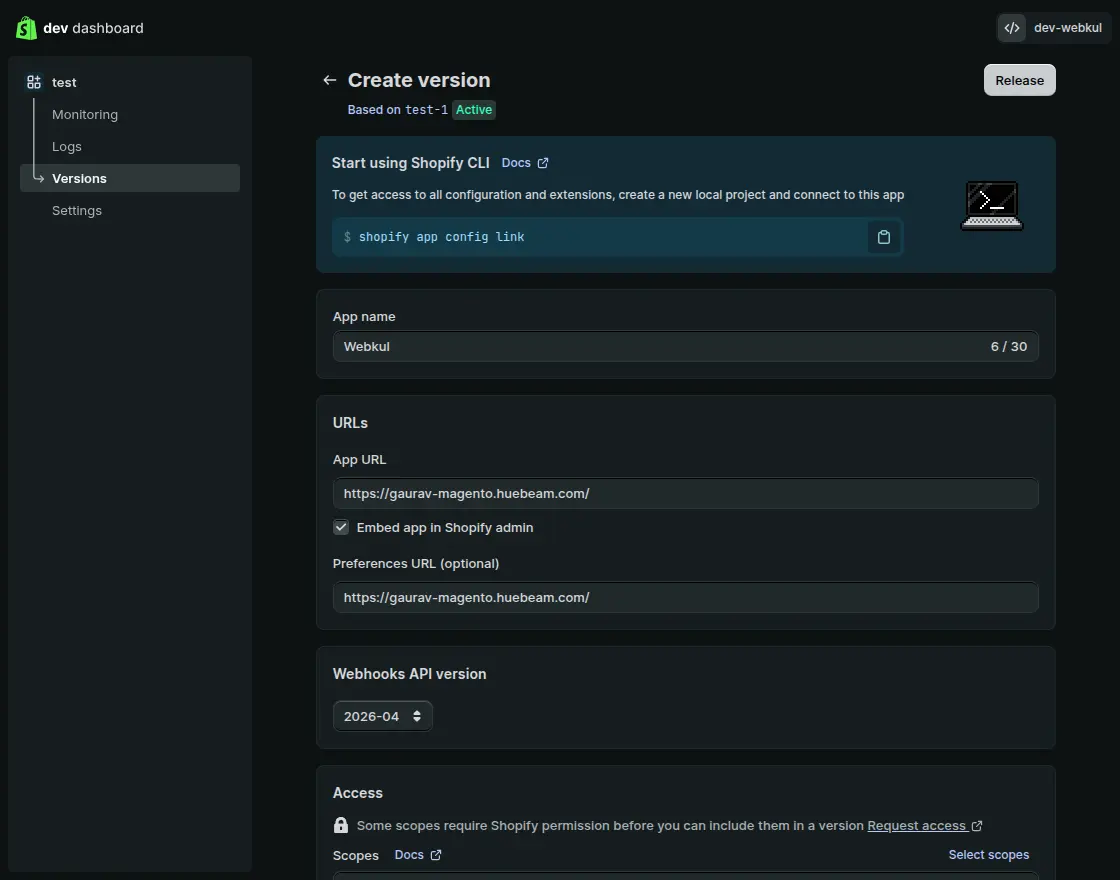
Then go to the Access section to select the required API scopes/permissions (for example: Products, Orders, Inventory, Customers etc.). It should have Read and Write API permission for the following:
- Customer details and customer groups; inventory; orders, transactions, and fulfillment.
- Product information including products, variants, and collections.
- Locations
- Shipping rates
- Discounts
- Online Store Pages access via the GraphQL API.
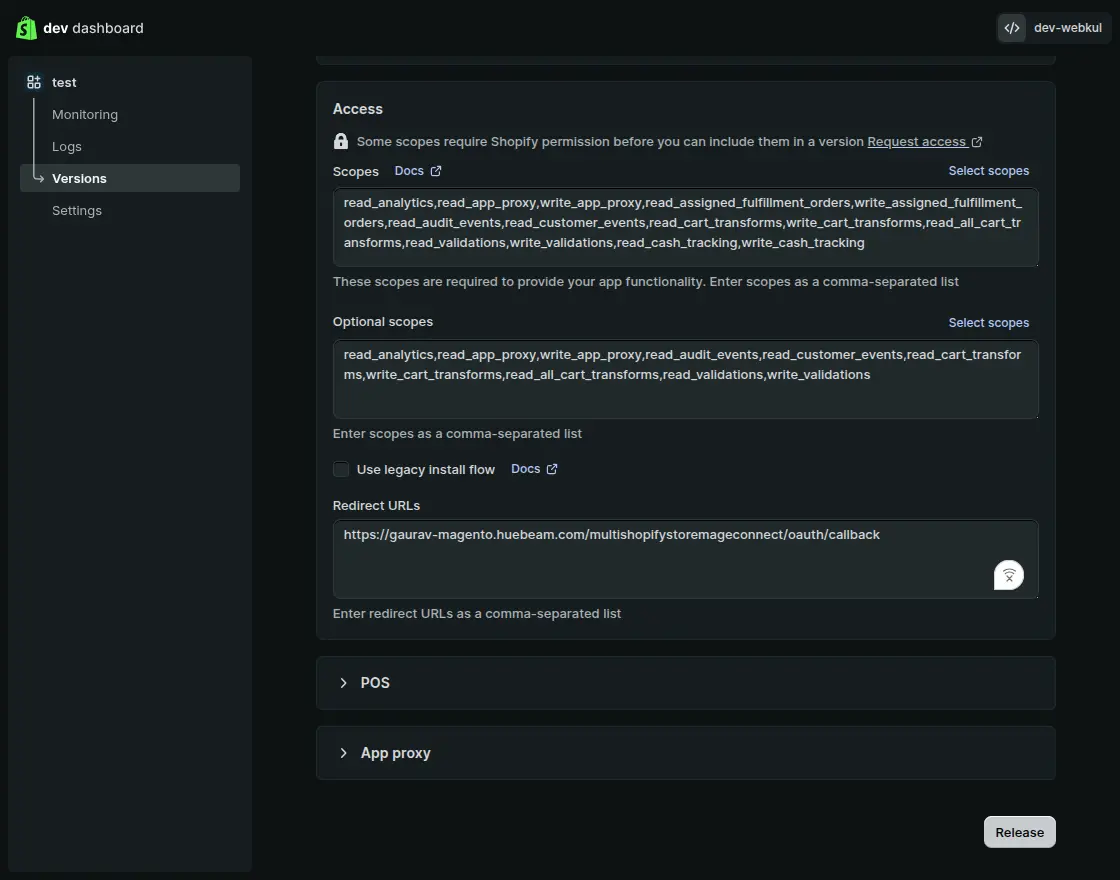
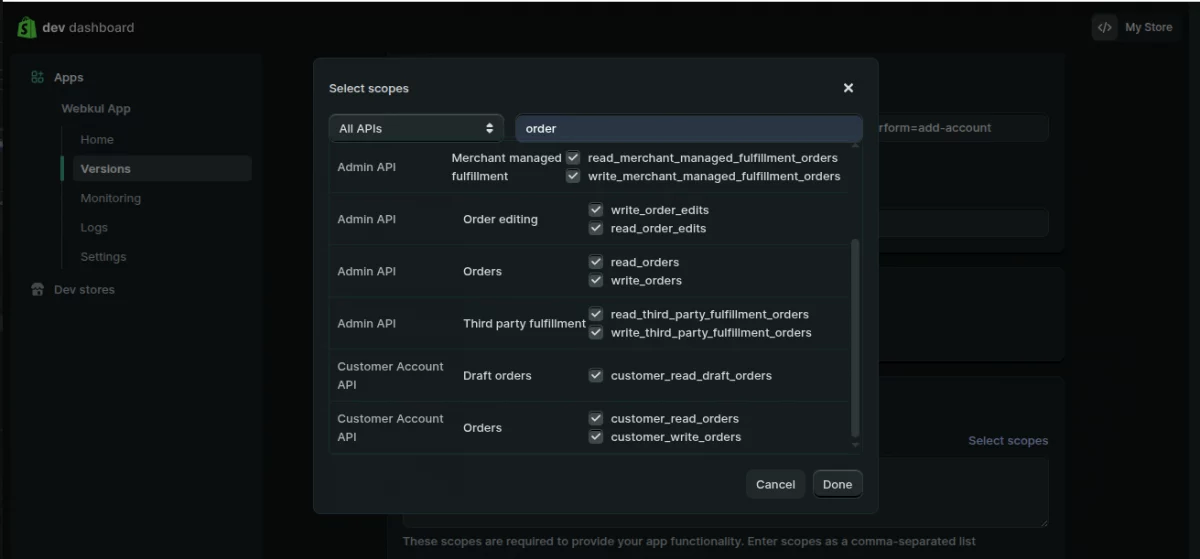
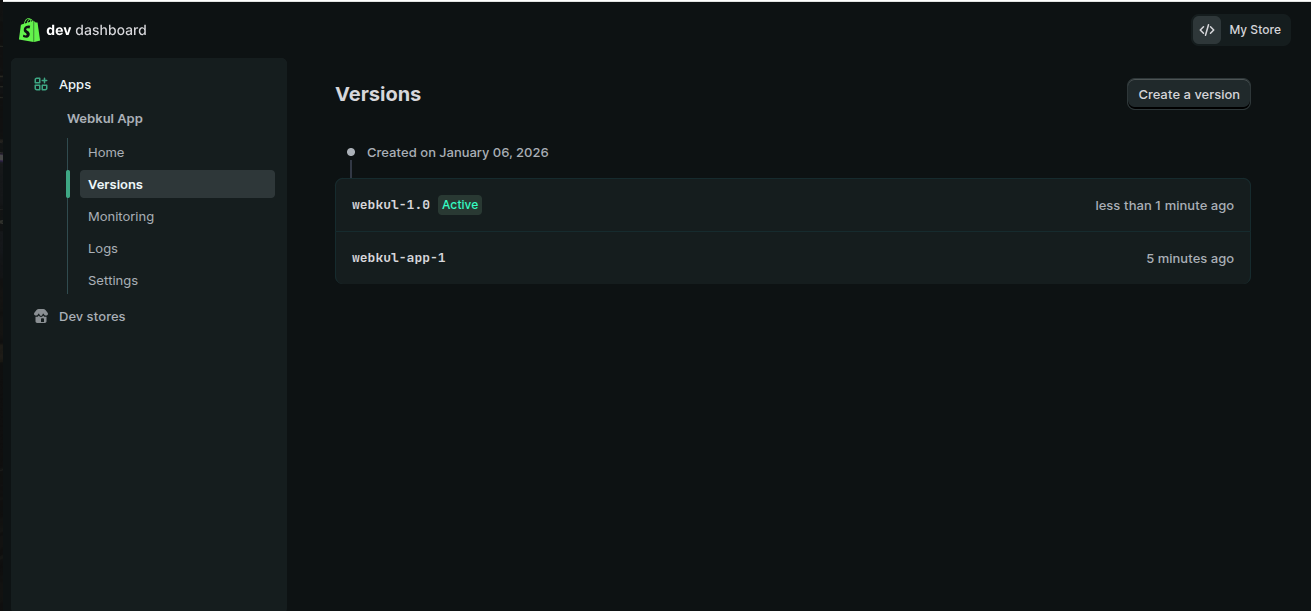
Note: While making the Webhook Subscription, please make sure to select the latest Event Version. After selecting the scopes, click Release.
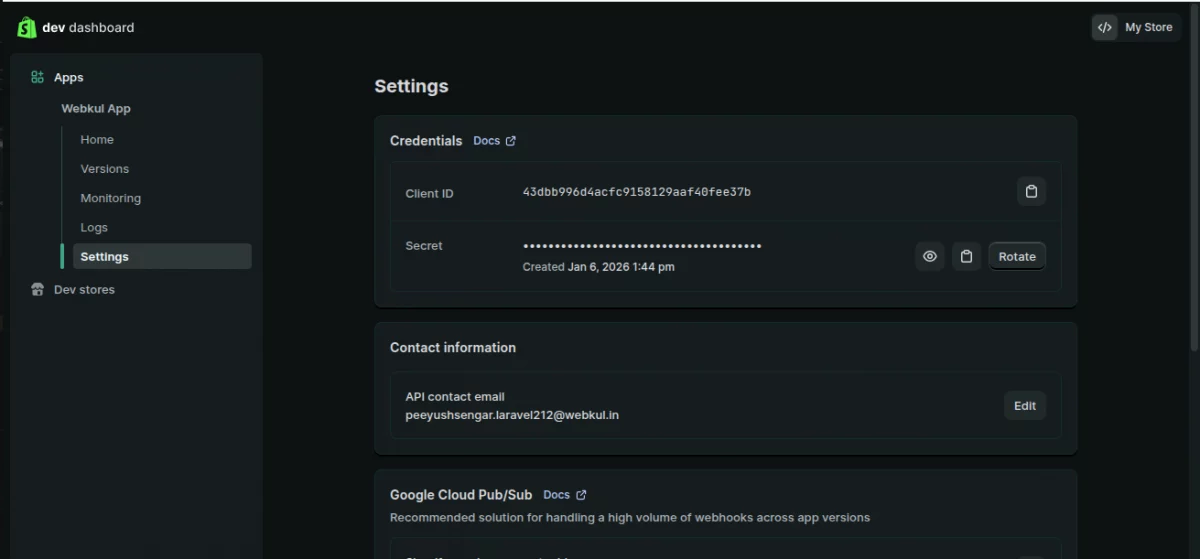
Step 7 – Retrieve Your API Credentials
Go to the API Credentials section in the app settings, where you can view your generated keys. You will see:
- Client ID (API Key)
- Client Secret Key
Click Reveal to display the secret key. Copy both values carefully.
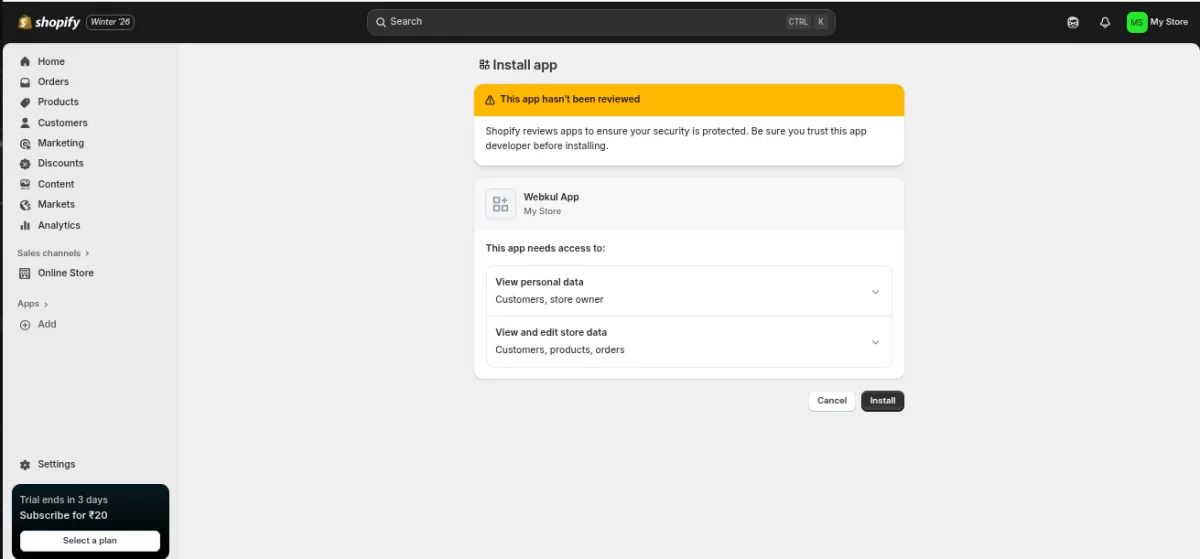
Step 8 – Install the App
Click on Install app and confirm the installation in the pop-up. This generates your OAuth application credentials.
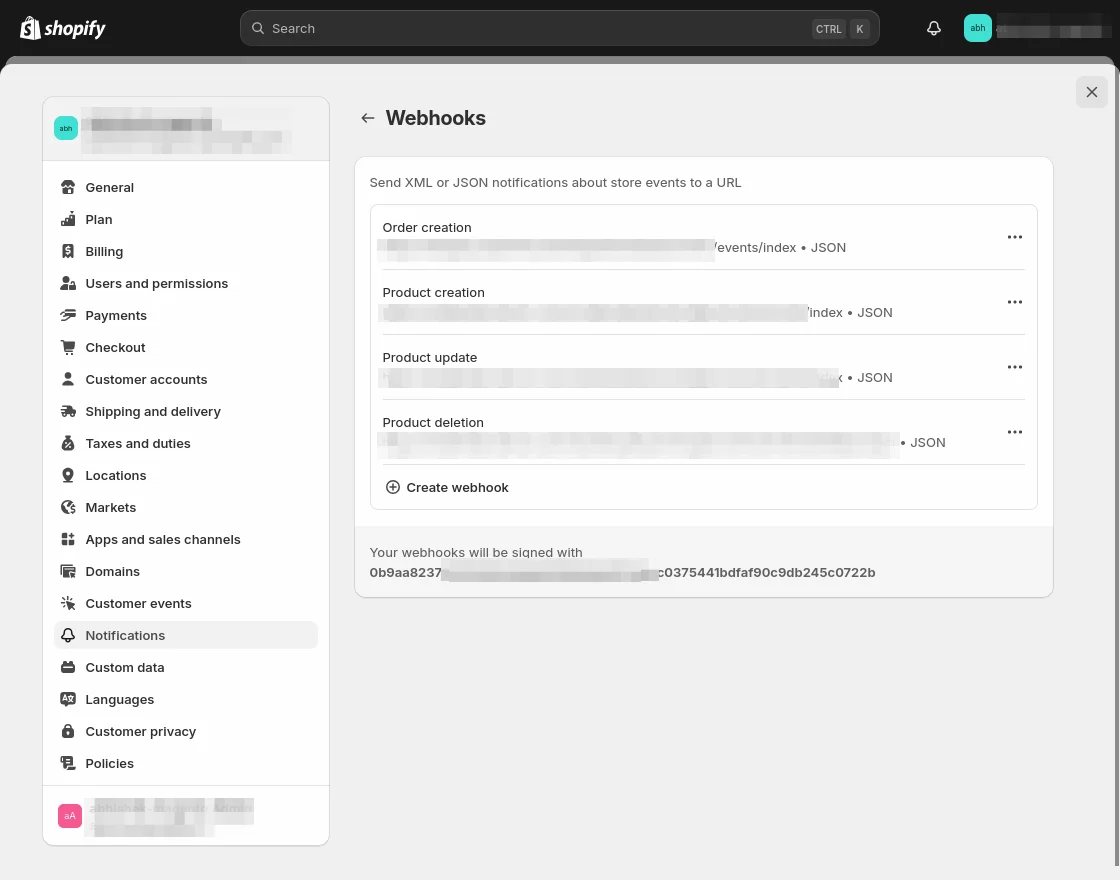
Webhook Verification Key
In Shopify, a webhook is a way to automatically send data to an external URL when certain events happen in your store.
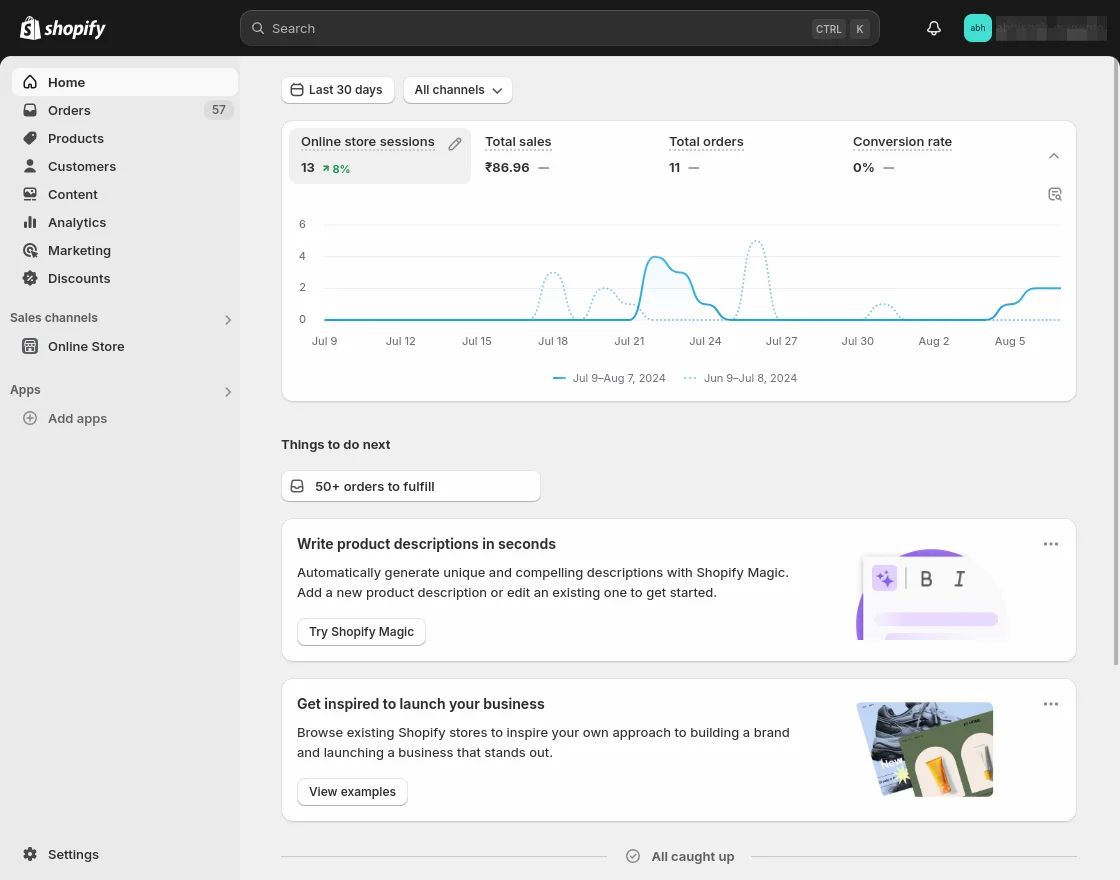
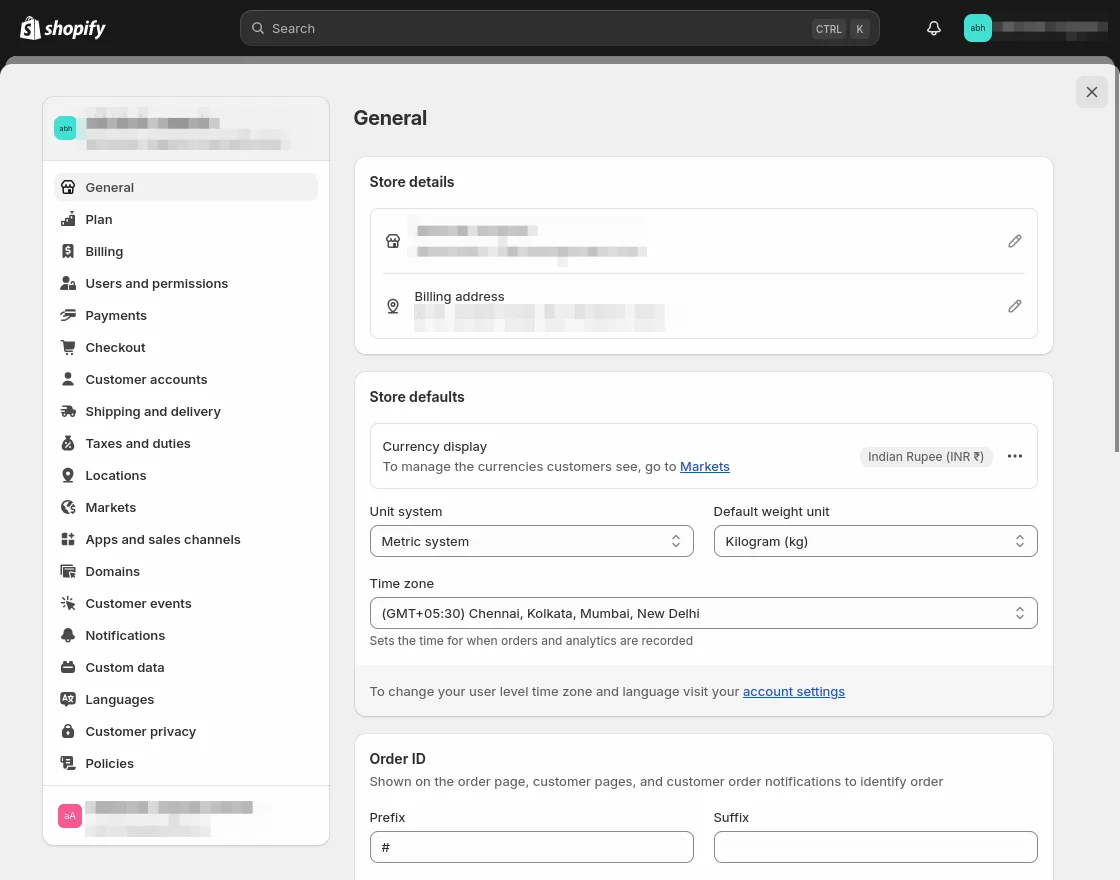
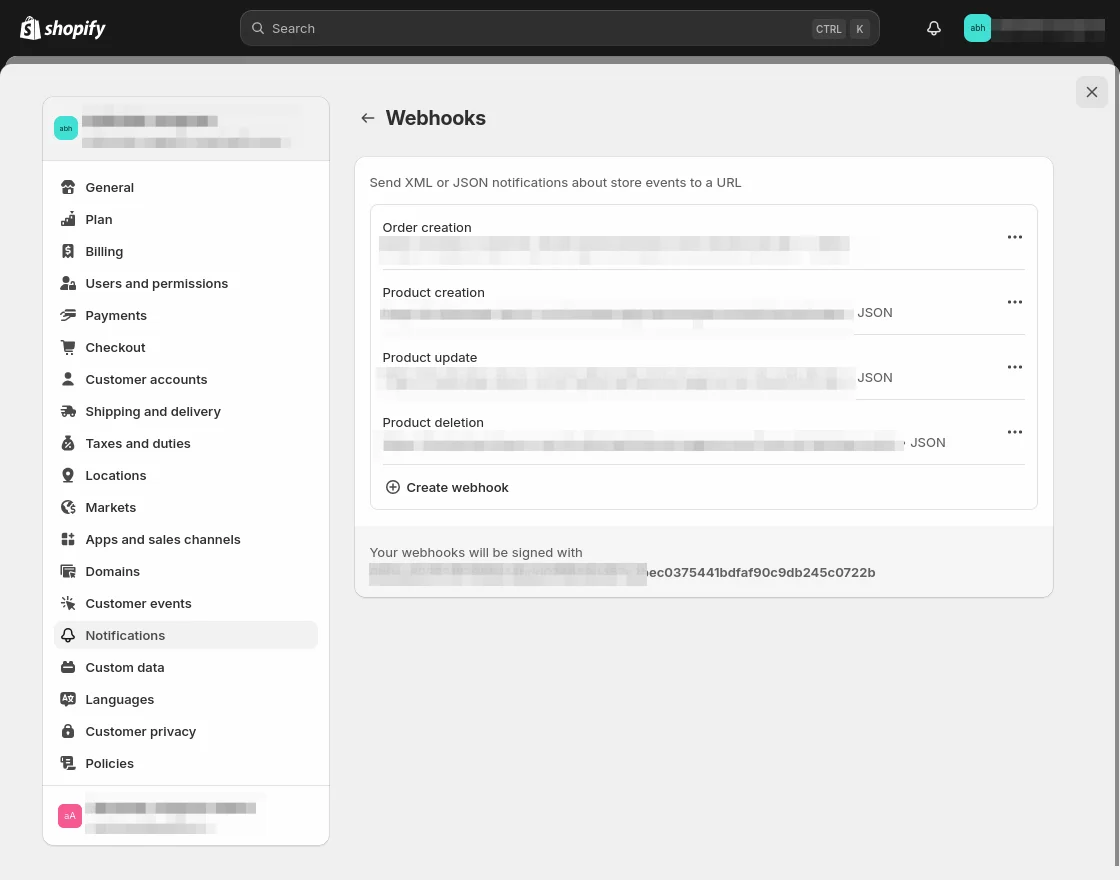
- Log in to your Shopify admin panel and navigate to Settings.
- Select Notifications and scroll down to the Webhooks section.
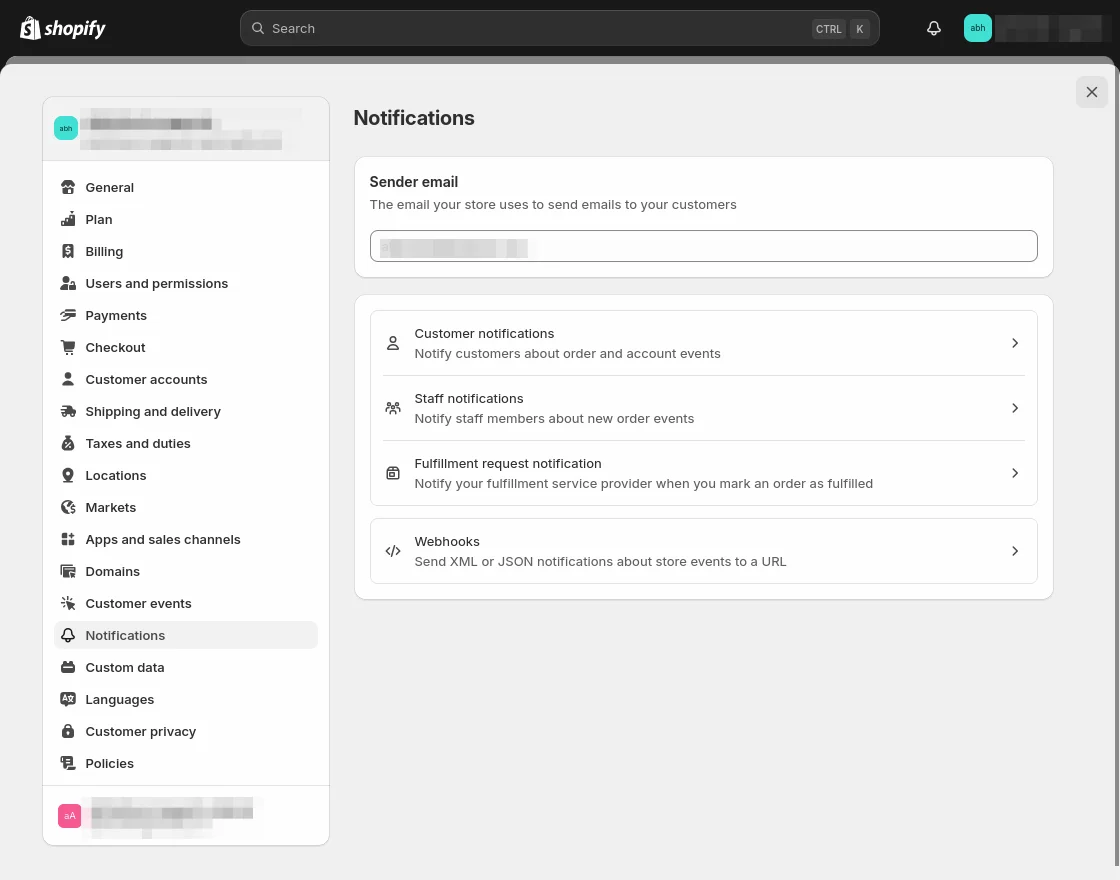
- Click Create webhook.
- In the Event dropdown, select the event.
- In Format, choose JSON.
- In URL, enter the endpoint URL to receive webhook data. (
https://your-magento-store.com/multishopifystoremageconnect/events/index)
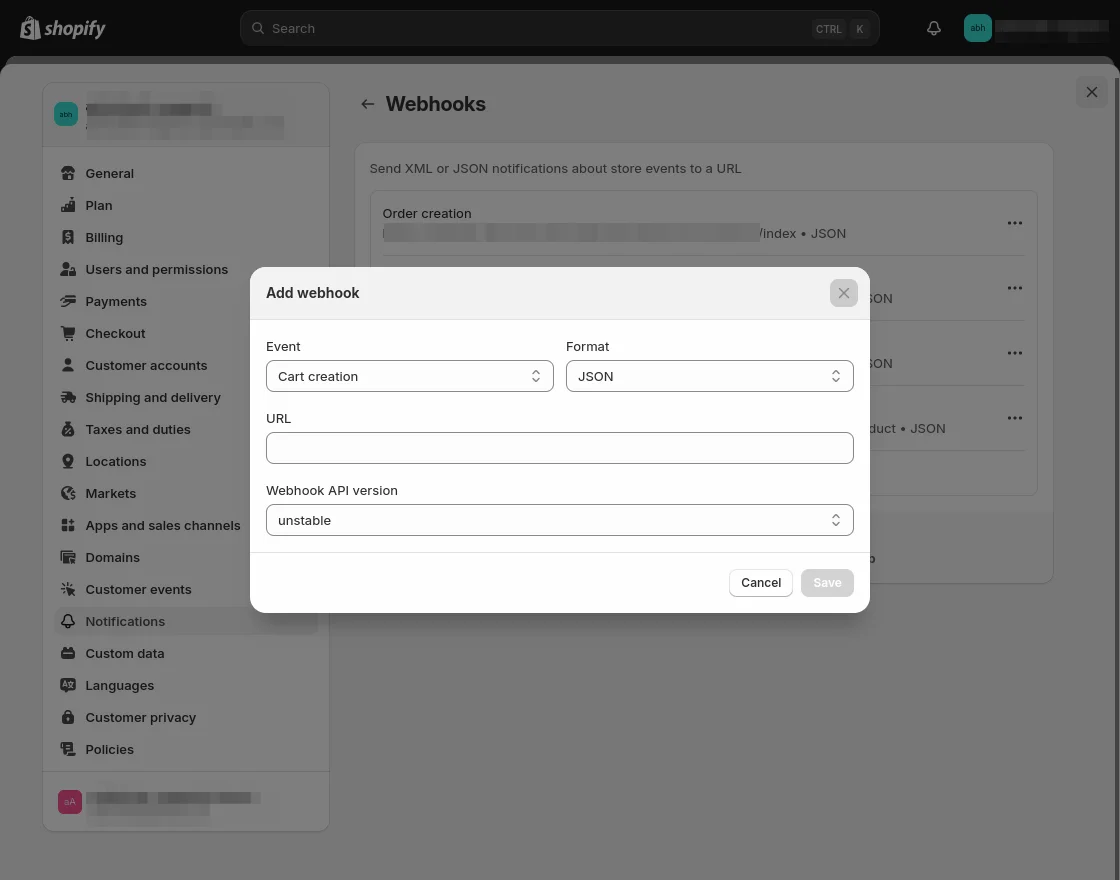
- Click Save webhook.