
Enable a Product
The Add to Quote button appears only on products you have marked as quotable. Nothing in your catalogue becomes negotiable by accident.
One product
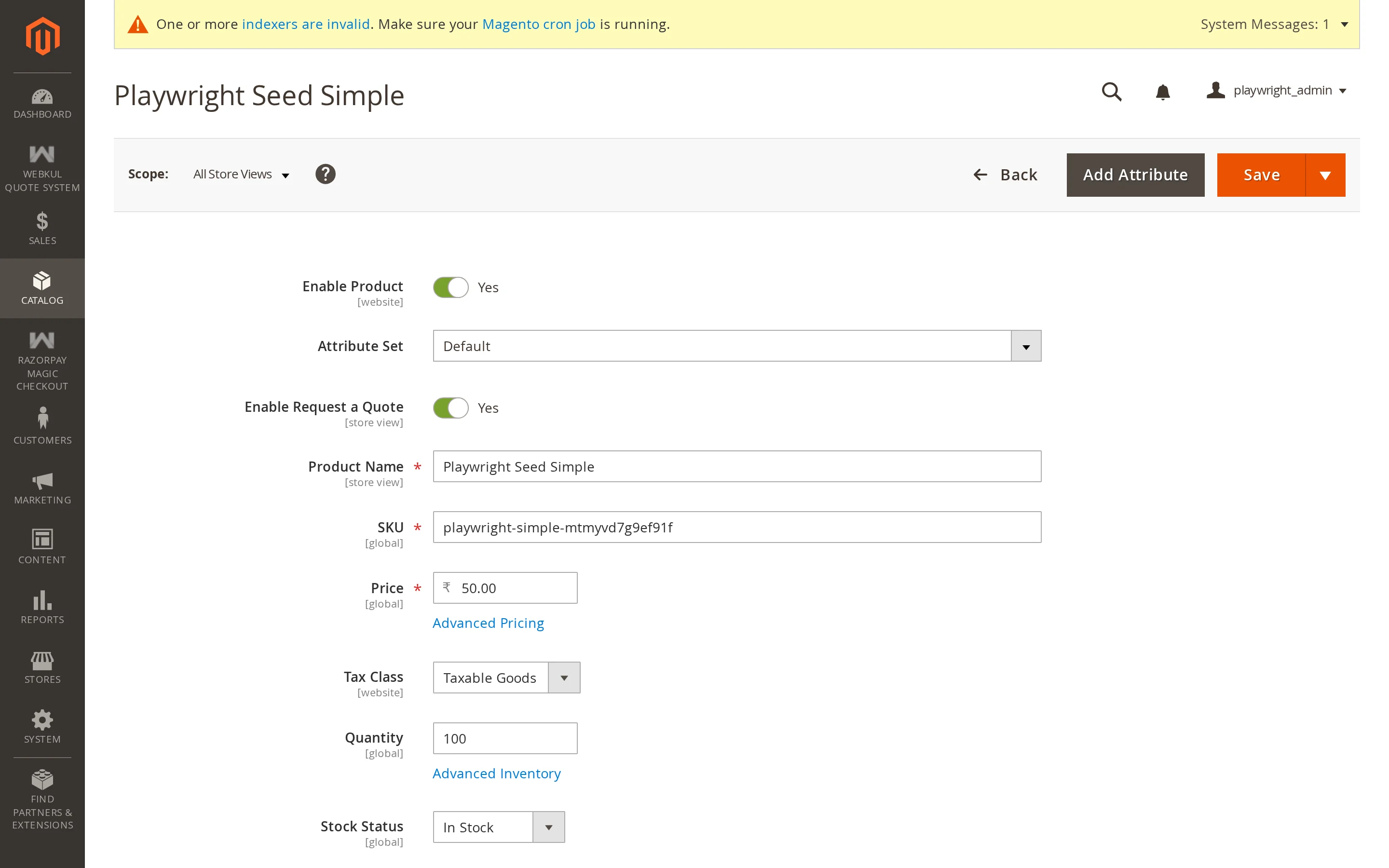
- Go to Catalog → Products and open the product.
- In the Product Details section, find Enable Request a Quote — it sits just under Enable Product.
- Set it to Yes.
- Save.
Many products at once
The attribute is available in the product grid, so you can set it in bulk:
- Go to Catalog → Products.
- Use Filters to narrow the list — by attribute set, category, price, or anything else.
- Tick the products, or use Select All.
- From Actions, choose Update attributes.
- Set Enable Request a Quote to Yes and submit.
You can also filter the grid by the attribute, which is the quickest way to audit which products are currently quotable.
Scope
The attribute is store-view scoped. A product can be quotable on one store view and not another — useful when one site is B2B and another retail.
What else has to be true
Marking a product is one of several conditions. The button appears when all of these hold:
If a product you have marked shows no button, work through Troubleshooting.