
Stores → Configuration → Webkul → Quote System → Email
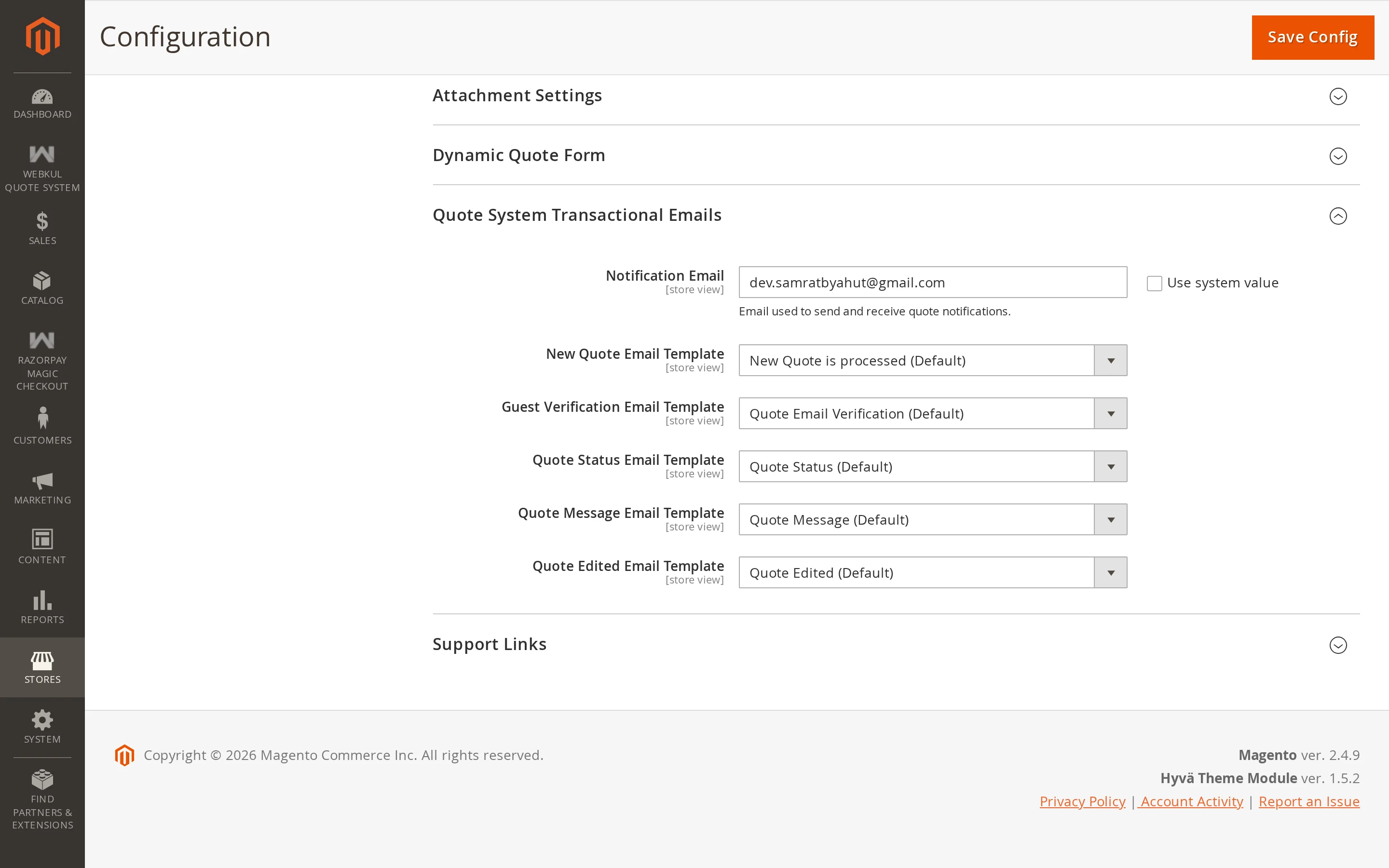
| Setting | Description |
|---|---|
| Notification Email | Where new quote requests are announced. |
| New Quote | Template sent to you when a request arrives. |
| Quote Verification | Template carrying the six-digit verification code. |
| Quote Status | Template sent to the customer when a quote's status changes. |
| Quote Message | Template sent when a conversation message is posted. |
| Quote Edited | Template sent when you change the offered price or quantity. |
| Reminder | Template warning that a quote is about to expire. |
Notification Email
The address that receives new quote requests. Use a shared mailbox your sales team watches, not one person's address.
Multiple addresses are accepted, separated by commas. Each is validated when you save, so a typo is caught immediately rather than silently swallowing notifications.
The templates
Each selector points at a transactional email template. The defaults are installed with the extension and work as they are.
To change the wording:
- Go to Marketing → Communications → Email Templates.
- Click Add New Template.
- Under Load default template, choose the Quote System template you want to start from, and click Load Template.
- Edit it, give it a name, and save.
- Come back to this configuration section and select your new template.
This keeps the defaults intact, so you can always go back.
Tips
Emails are sent best-effort: if your mail transport fails, the failure is logged and the quote still goes through. A customer is never blocked from submitting because a message could not be delivered. If notifications go missing, check the mail configuration and the extension's log before assuming the extension is at fault.