
Reviewing & Counter-Offering
When a shopper submits a quote request, store administrators review the requested lines, formulate counter-offers, and negotiate terms directly from the Magento Admin Panel.
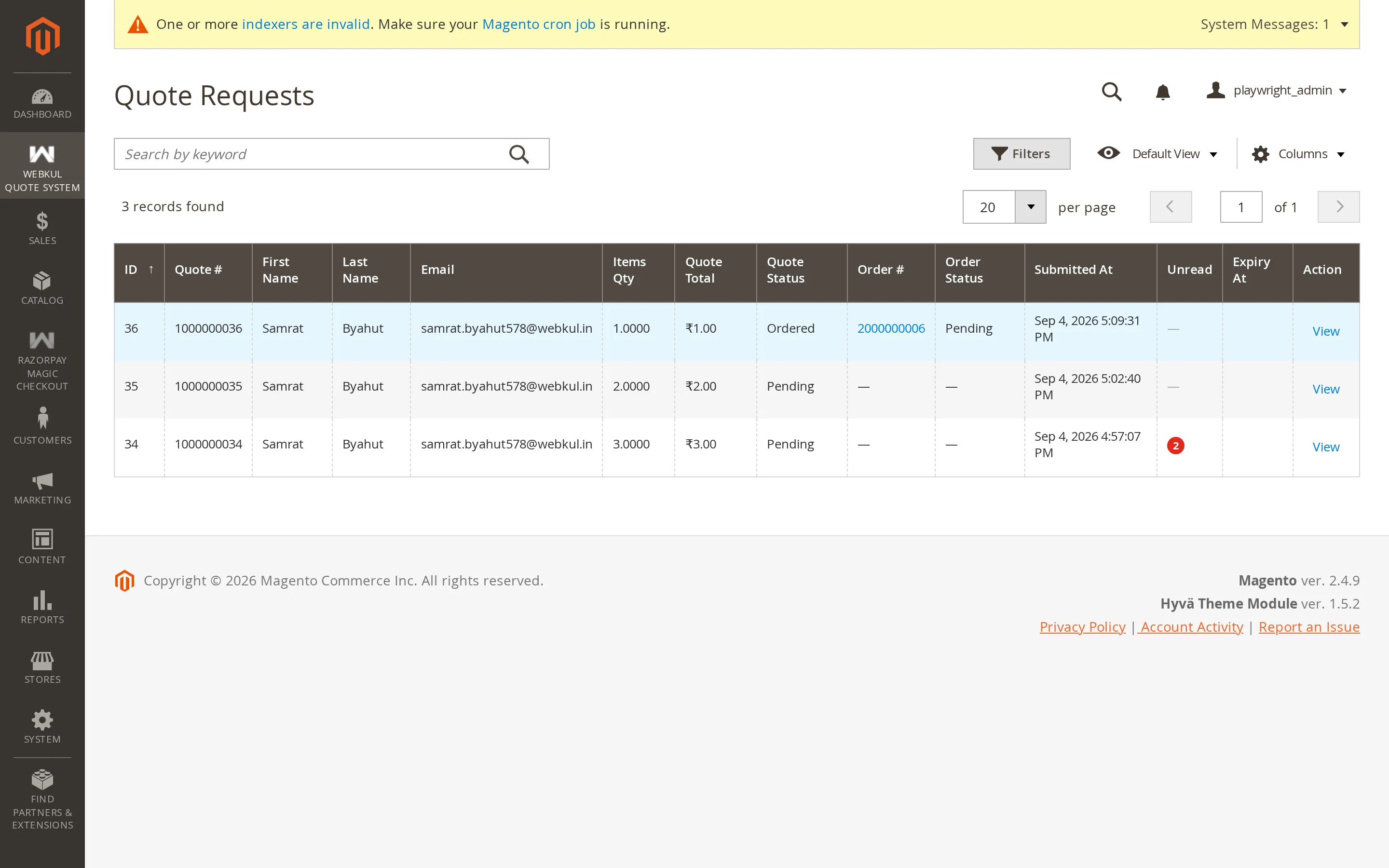
Accessing the Quote Detail Page
- Navigate to Webkul Quote System → Manage Quote Requests.
- Click anywhere on the row or click View under the Action column to open the quote.
Step-by-Step Review Workflow
The quote view is structured into four primary operational sections:
1. Header Information & Status
- Quote Identification: Quote number (e.g.,
#000000034), creation timestamp, and assigned store view. - Customer Details: Name, email address, customer group, and telephone.
- Quote Status: Dropdown to transition the quote between states:
Pending: New submission awaiting initial review.Processing: Under review (notifies customer that calculations are in progress).Approved: Offer is finalized and customer is permitted to purchase.Declined: Proposal cannot be fulfilled.Expired: Automatically triggered if the validity window lapses.Ordered: Read-only state once converted to a completed Magento order.
2. Line Items Table & Offer Fields
The table compares catalogue values with customer requests and admin counter-offers:
| Column | Description | Admin Editable |
|---|---|---|
| Product Information | Name, SKU, variant attributes, and dynamic form inputs | No |
| Original Price | Base catalogue price before quote discounts | No |
| Requested Price | The price per unit proposed by the shopper | No |
| Requested Qty | Number of units requested | No |
| Offered Price | Your counter-offered price per unit | Yes |
| Offered Qty | The quantity you agree to supply at this price | Yes |
| Line Status | Status per line item (Requested, Approved, Declined) | Yes |
| Subtotal | Calculated based on Offered Price × Offered Qty | Calculated |
Quick Approval Shortcut
To accept the customer's requested price without changes, simply change the Quote Status dropdown to Approved and click Save. The system will automatically populate the Offered Price with the customer's Requested Price.
Communicating with the Buyer
Negotiations often require clarifying specifications, delivery schedules, or volume tiers.
- Scroll to the Conversation & History section at the bottom of the page.
- Enter your message in the text area.
- Click Submit Comment.
- The message is instantly recorded with an admin badge, and an email alert is dispatched to the buyer through Magento's asynchronous message queue.
Saving and Notifying
Click Save Quote in the top action bar to commit your changes:
- If changed to Approved, the buyer receives an approval email with a direct link to purchase the quote.
- If changed to Declined, the buyer receives a notification explaining the status.
- The Unread flag is cleared on your admin grid, and an unread marker is set on the customer's My Account → My Quotes dashboard.
What Happens Next?
Once the customer accepts your offer, they click Proceed to Purchase on the storefront:
- The items are transferred to their shopping cart at the Offered Price.
- Standard Magento checkout handles shipping and payment.
- When the order is placed, the quote automatically flips to Ordered status with a clickable link to the new Magento Order ID.