
Product Display
Stores → Configuration → Webkul → Quote System → Product
Controls how a quotable product appears on the storefront.
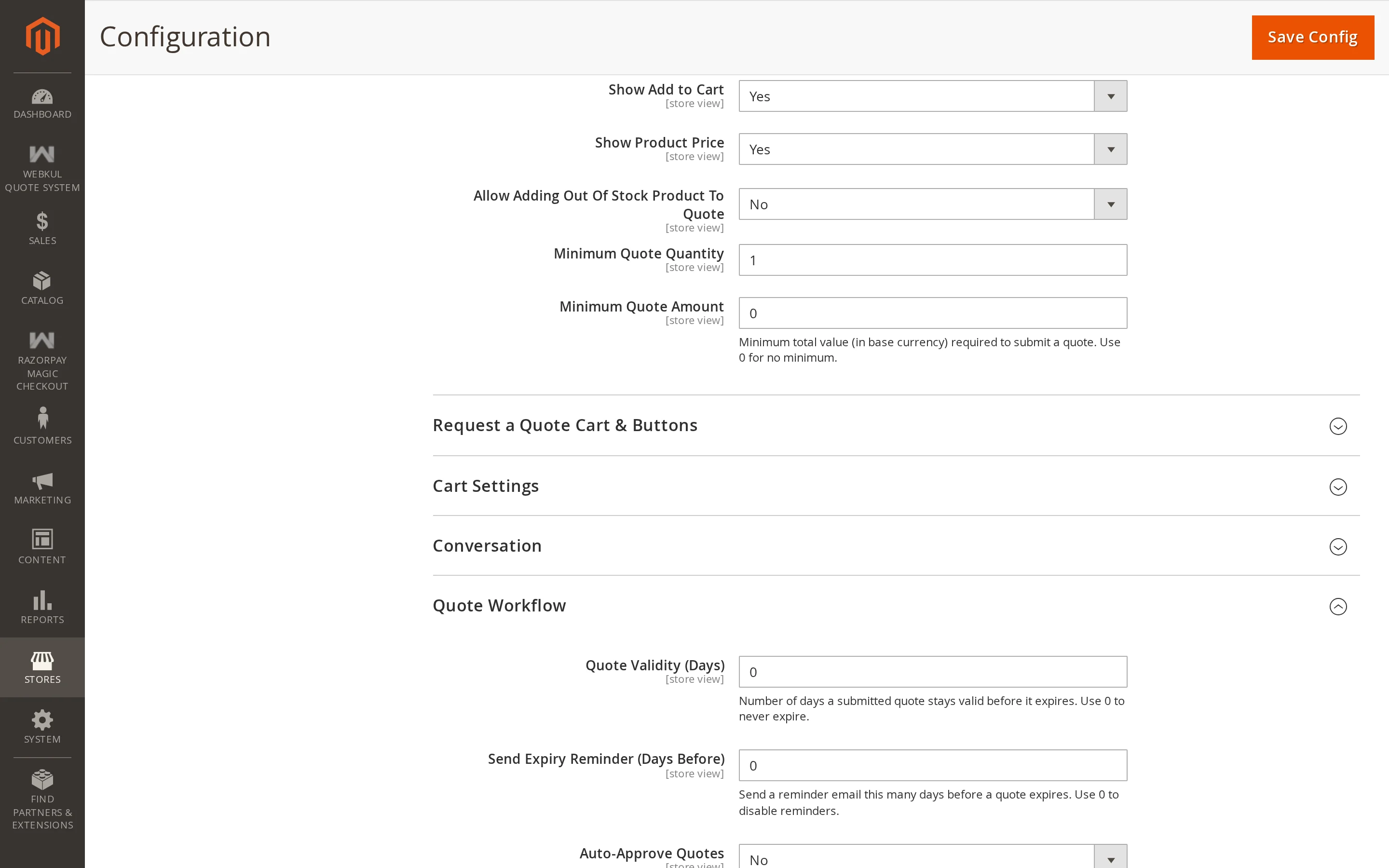
| Setting | Description |
|---|---|
| Show Add to Cart | Keep the normal Add to Cart button on quotable products. |
| Show Price | Keep the price visible on quotable products. |
| Allow Out of Stock Products | Let shoppers request a quote for products that are out of stock. |
| Minimum Quantity | The smallest quantity a shopper may request. |
| Minimum Amount | The smallest total a request line may come to. |
Show Add to Cart and Show Price
Together these turn a product from buyable into quote only.
| Show Add to Cart | Show Price | Result |
|---|---|---|
| Yes | Yes | Normal product, plus the option to negotiate |
| Yes | No | Buyable, but the price is revealed only through a quote |
| No | Yes | Price shown for reference; the only way to buy is to request a quote |
| No | No | A pure "price on request" product |
Both apply only to products marked quotable. Everything else in your catalogue is untouched.
Allow Out of Stock Products
Off by default. Turn it on if you want customers to be able to ask about something you can re-order — useful for made-to-order or long-lead-time stock.
Minimum Quantity and Minimum Amount
These set the floor for a request.
- Minimum Quantity is checked against the quantity in the quote form.
- Minimum Amount is checked against quantity multiplied by the requested price, not the price on its own.
So with a minimum amount of 500, a customer may request 10 units at 50 each, but not 2 units at 50 each.
Both are shown as hints under the fields in the quote form, and enforced when the form is submitted. Set either to 0 to remove the limit.
Tips
Minimum Amount is the more useful of the two for B2B. It lets a customer order a small number of expensive items, while still filtering out requests that are not worth quoting for.