
Manage Subscriptions (Seller Panel)
Marketplace vendors can monitor active subscribers, verify payment profile reference numbers, view subscription renewal histories, and process subscriber cancellations directly from their account panel.
Accessing Seller Subscriptions Grid
- In the seller account sidebar, navigate to Recurring Subscriptions > Manage Product Subscriptions.
- The Manage Subscriptions table displays all customers who have subscribed to the vendor's products.
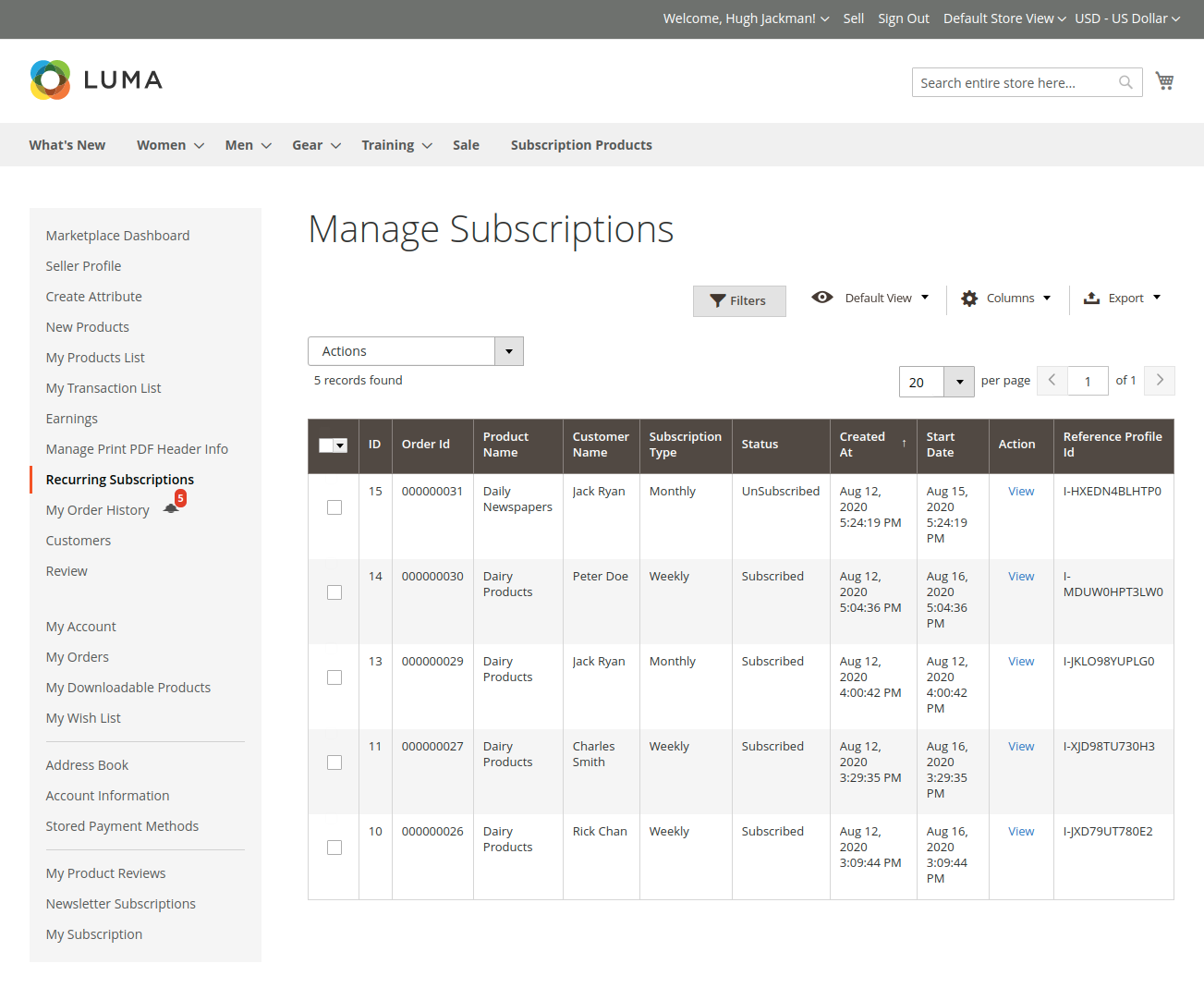
The grid includes:
- Order ID: Primary order ID generated upon initial purchase.
- Product Name: Subscribed product title.
- Customer Name: Full name of the subscriber.
- Subscription Type: Assigned billing frequency (e.g. Monthly, Weekly).
- Status: Current lifecycle status (
Subscribed,Unsubscribed). - Start Date: Date when the subscription became active.
- Created At: Timestamp of order placement.
- Action: Link to view full subscription details.
Detailed Subscription View
Clicking View on any entry opens the View Subscription page:
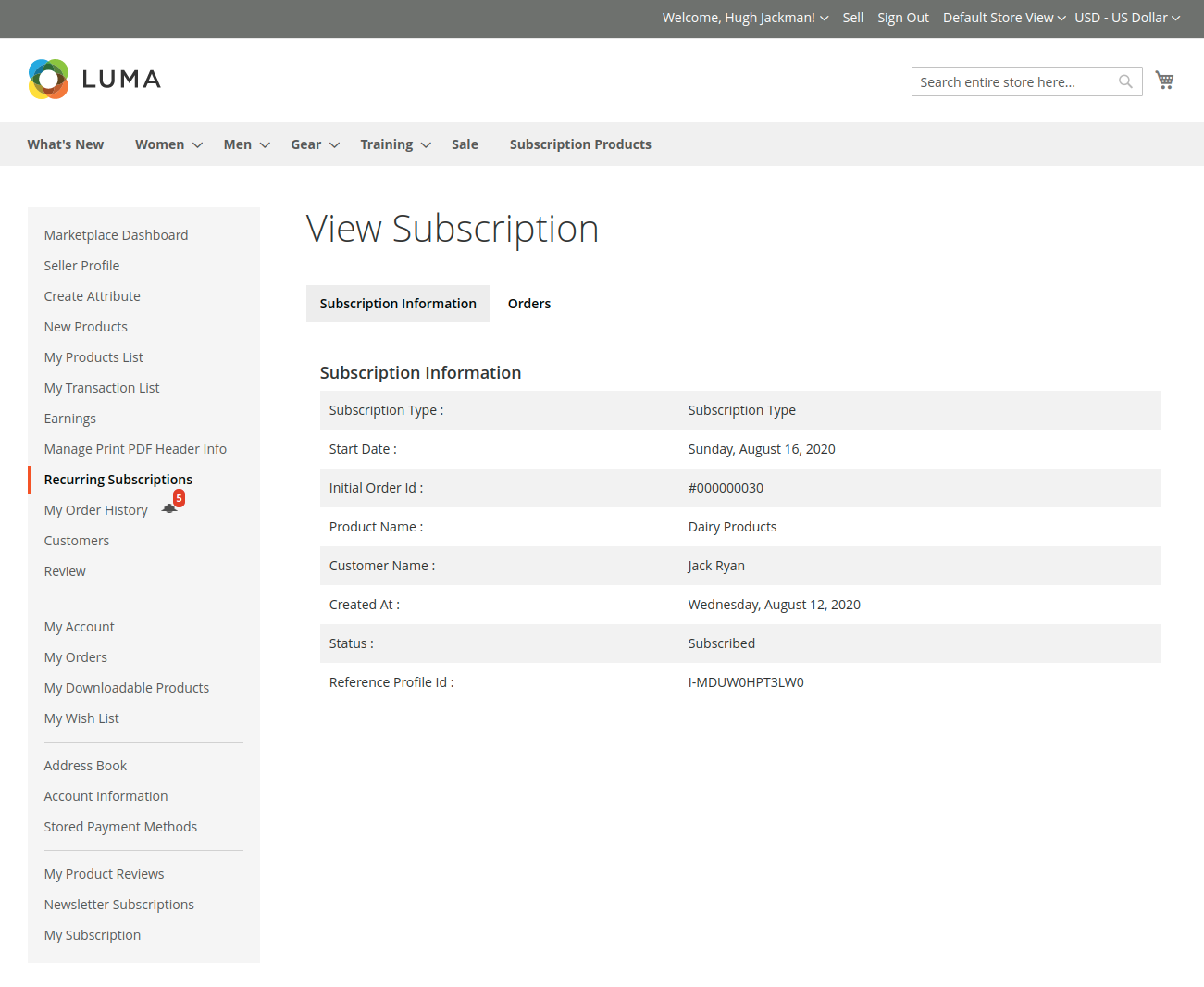
The seller can inspect:
- Subscription Information:
- Subscription Type & Duration
- Start Date
- Initial Order ID (links to sales order)
- Product Name & SKU
- Current Lifecycle Status
- Reference Profile ID (gateway transaction token)
- Pricing Breakdown:
- Initial Fee billed upfront
- Periodic Subscription Fee billed per renewal cycle
Seller-Initiated Unsubscription
If a customer requests manual cancellation or if services can no longer be fulfilled, the seller can cancel the subscription:
- Open the specific subscription detail page.
- Click Unsubscribe.
- Confirm the cancellation prompt.
- The system communicates with the payment gateway to terminate the recurring billing profile. Future renewal orders will immediately halt.