
Installation Guide
Follow these steps to install the Magento 2 Multi Vendor Recurring Payments & Subscription module on your server.
Step 1: Unzip & File Transfer
- Extract the downloaded extension archive on your computer.
- Inside the unzipped directory, navigate to the
srcfolder, which contains theappdirectory. - Transfer the
appfolder into the Magento 2 root directory on your server via FTP/SFTP or SSH.
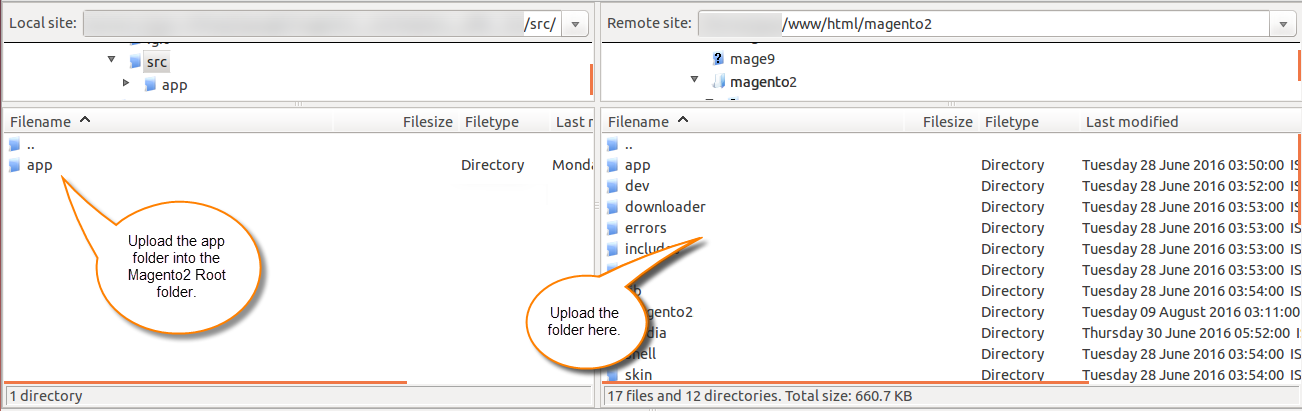
Ensure the directory structure matches up to the module directory:
<magento-root>/
└── app/
    └── code/
        └── Webkul/
            └── MpRecurringPayment/
Step 2: Install Composer Dependencies
Run the following command in the Magento 2 root directory to ensure the PayPal REST API SDK is installed:
composer require paypal/rest-api-sdk-php
Step 3: Run Deployment Commands
Open your terminal, navigate to your Magento 2 root directory, and execute the standard Magento 2 deployment CLI commands in sequence:
# Upgrade the database schema and register module components
php bin/magento setup:upgrade

# Compile dependency injection definitions and code generation
php bin/magento setup:di:compile

# Deploy static storefront and admin assets
php bin/magento setup:static-content:deploy -f

# Reindex all indexing tables
php bin/magento indexer:reindex

# Clear and flush Magento cache storage
php bin/magento cache:flush
Step 4: Flush Cache via Admin Panel
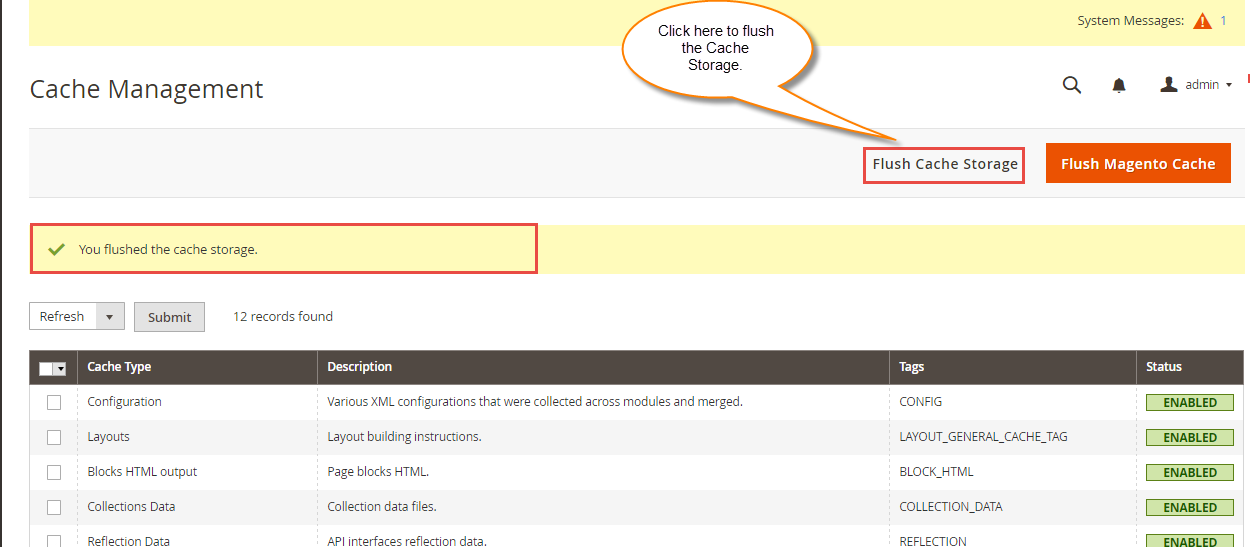
After executing the CLI commands, log in to the Magento Admin Panel and navigate to:
System > Tools > Cache Management
Select all cache types, set the action to Refresh, and click Submit. You can also click Flush Magento Cache and Flush Cache Storage.
Step 5: Verify Module Status
Verify that the module has been successfully registered and enabled:
php bin/magento module:status Webkul_MpRecurringPayment Webkul_Recurring Webkul_Marketplace
Both modules should report Module is enabled.