
Admin Panel Configuration
Once the extension is installed, the administrator must configure the core subscription parameters and payment solutions before subscription products can be sold on the marketplace.
Subscription General Settings
To configure general subscription behavior:
- Log in to the Magento Admin Panel.
- Navigate to Stores > Settings > Configuration.
- In the left navigation panel, click Subscription Configuration > General Settings.
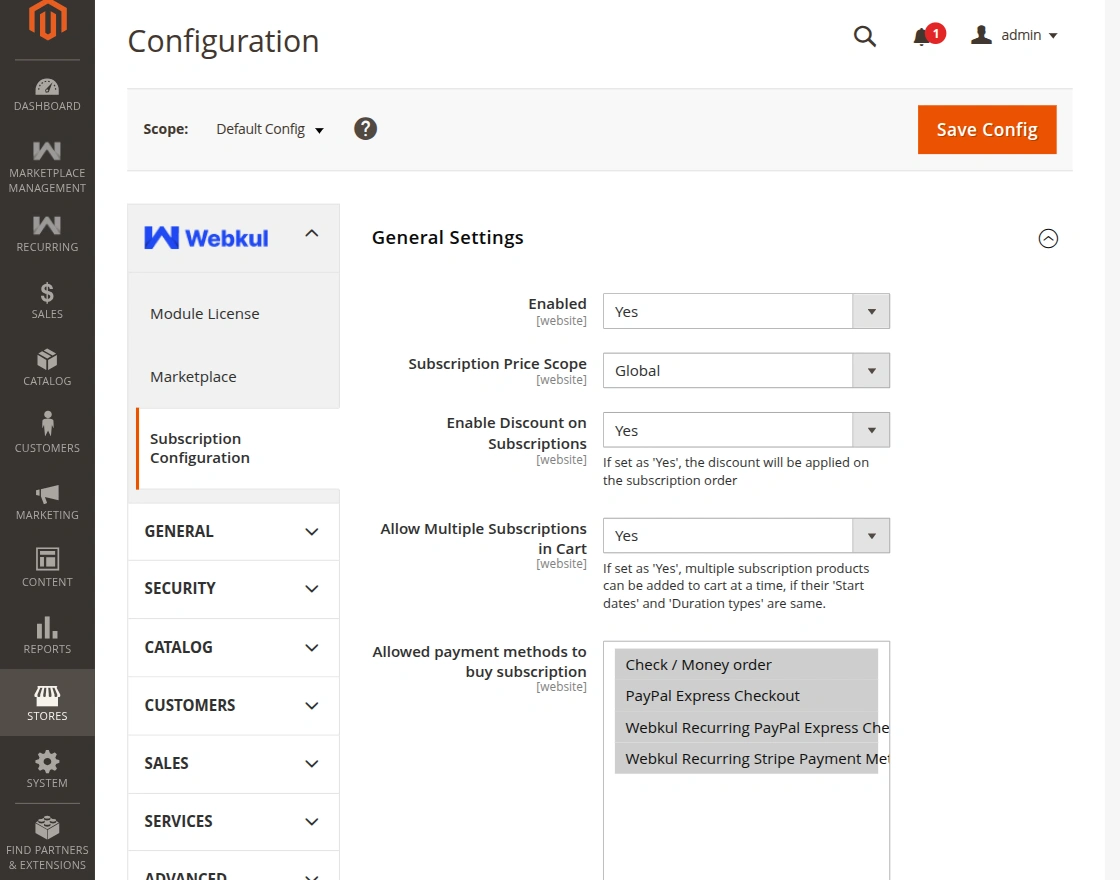
Configure the following fields:
| Field | Description | Recommended Setting |
|---|---|---|
| Enable | Enables or disables the recurring subscription feature store-wide. | Set to Yes. |
| Subscription Price Scope | Defines whether subscription plan pricing is scoped Globally across all websites or restricted per Store View. | Set according to catalog architecture. |
| Enable Discounts on Subscriptions | Allows Magento discount coupon codes and cart price rules to apply to recurring subscription orders. | Choose Yes or No per store policy. |
| Allow Multiple Subscriptions in Cart | When set to Yes, customers can add more than one subscription item to their shopping cart (subject to validation rules). | Set to Yes to allow multi-subscription carts. |
| Allowed Payment Methods to Buy Subscription | Multiselect list of active payment methods permitted for recurring checkouts. | Select Recurring Stripe, Recurring PayPal, or offline methods. |
Payment Method Visibility
If no payment methods are highlighted under Allowed payment methods to buy subscription, customers will encounter a "No Payment method available" error at checkout when purchasing a subscription product. Ensure at least one recurring gateway is selected.
Webkul Recurring PayPal Express Settings
To configure PayPal Express Checkout for recurring subscriptions:
- Navigate to Stores > Configuration > Sales > Payment Methods.
- Expand the section titled Webkul Recurring PayPal Express Checkout Payment Method.
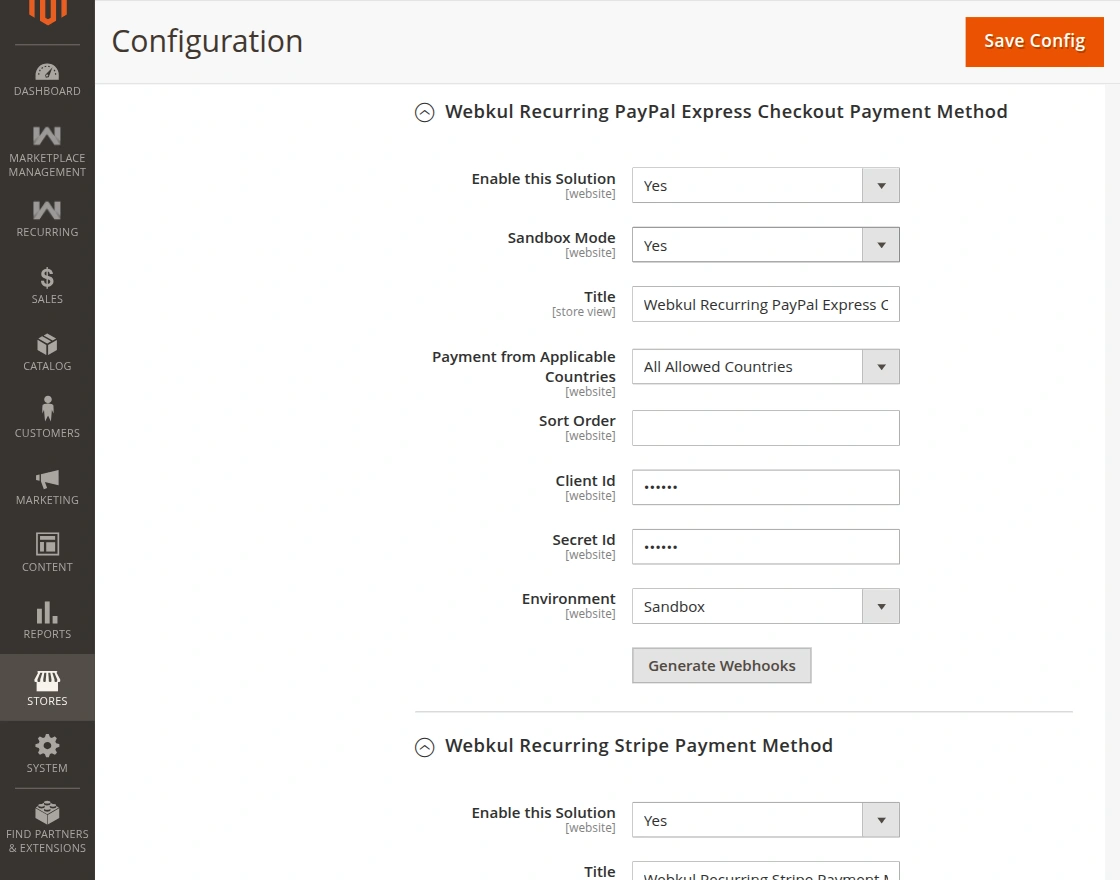
Configure the following parameters:
- Enable this Solution: Set to Yes to activate PayPal for subscription checkouts.
- Title: Enter the title displayed to customers at checkout (e.g., PayPal Express Checkout (Recurring)).
- Sandbox Mode: Set to Yes for development/testing; set to No in live production.
- Merchant PayPal ID: Enter your PayPal merchant account ID.
- PayPal API Username: Enter your PayPal API credentials username.
- PayPal API Password: Enter your PayPal API credentials password.
- PayPal API Signature: Enter your PayPal API signature.
- Client Id & Secret Key: REST API Client ID and Secret obtained from the PayPal Developer Dashboard for executing payout operations.
- Payment from Applicable Countries: Specify whether all countries or selected countries can purchase subscriptions via PayPal.
- Sort Order: Position of this payment method on the checkout payment step.
Webkul Recurring Stripe Settings
To configure Stripe Connect for automated subscription charges:
- Under Stores > Configuration > Sales > Payment Methods, locate Webkul Recurring Stripe Payment Method.
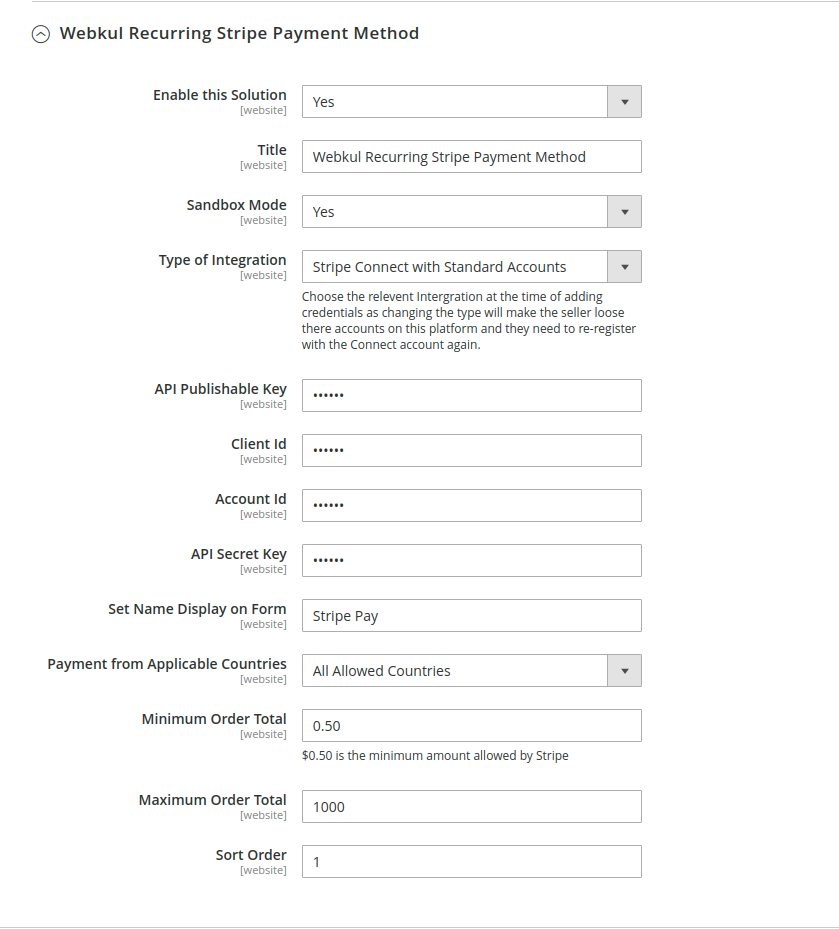
Configure the following options:
- Enable this Solution: Set to Yes to activate Stripe.
- Title: Specify the gateway title visible to customers (e.g., Credit Card / Stripe (Recurring)).
- Sandbox Mode: Choose Yes to test with Stripe test keys; choose No for live transactions.
- API Publishable Key: Enter the
pk_test_...orpk_live_...key. - API Secret Key: Enter the
sk_test_...orsk_live_...key. - Client ID: The Stripe Connect client identifier (
ca_...) required for onboarding marketplace sellers. - Account ID: Your platform Stripe Account ID (
acct_...). - Type of Integration:
- Standard: Sellers connect via Stripe standard dashboard.
- Custom / Express: Sellers onboard through white-label or Express account onboarding.
- Allow Seller To Manage Custom Accounts: When using Custom accounts, allow sellers to manage account details directly.
- Set Name Display on Form: Enter store or brand name displayed on the Stripe checkout card element.
- Minimum / Maximum Order Total: Set optional cart total boundaries for Stripe eligibility.
- Sort Order: Order priority of the payment option in the checkout form.
Crucial Integration Note
Select the correct Type of Integration prior to inviting sellers. Altering the integration type after accounts have registered will require connected sellers to reconnect their Stripe accounts.