
Admin Subscription Products
Administrators can convert existing products in the Magento catalog into subscription products or create brand new subscription products from scratch.
Converting an Existing Product into a Subscription
To enable subscriptions on an existing catalog product:
- In the Admin Panel, navigate to Catalog > Products.
- Locate the product you wish to configure and click Edit.
- Scroll down the product edit page to find the Subscription Configuration section.
- Set the Subscription field to Yes.
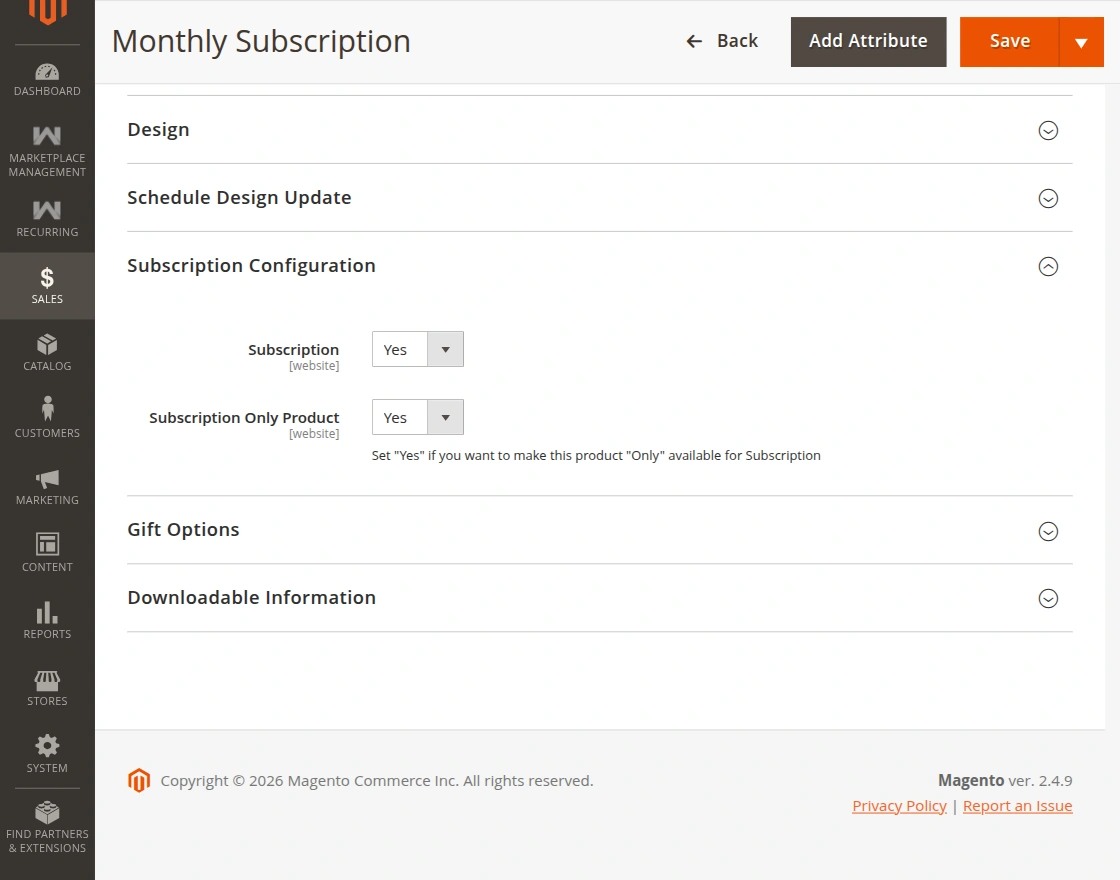
- Click on the Edit Configurations button that appears.
- A configuration modal or panel opens where you can attach one or more duration types.
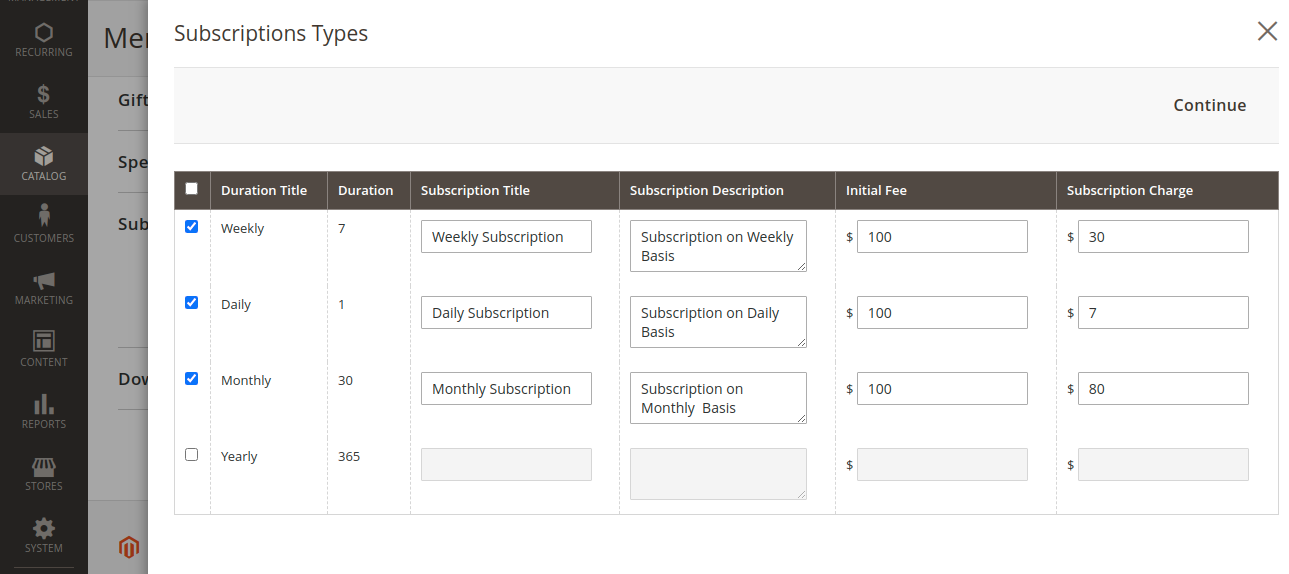
- Configure the pricing details for each selected duration:
- Duration Type: Select an enabled duration (e.g., Weekly, Monthly).
- Initial Fee: One-time onboarding or setup fee billed immediately upon signup (optional or 0).
- Subscription Amount: Recurring installment billed automatically every cycle.
- Click Save in the modal and then click Save in the top action bar to save the product.
Creating a Brand New Subscription Product
To add a new product with subscription options:
- Navigate to Catalog > Products and click the Add Product button (choose Simple, Configurable, Virtual, or Downloadable).
- Enter the general product details (Product Name, SKU, Price, Quantity, Categories).
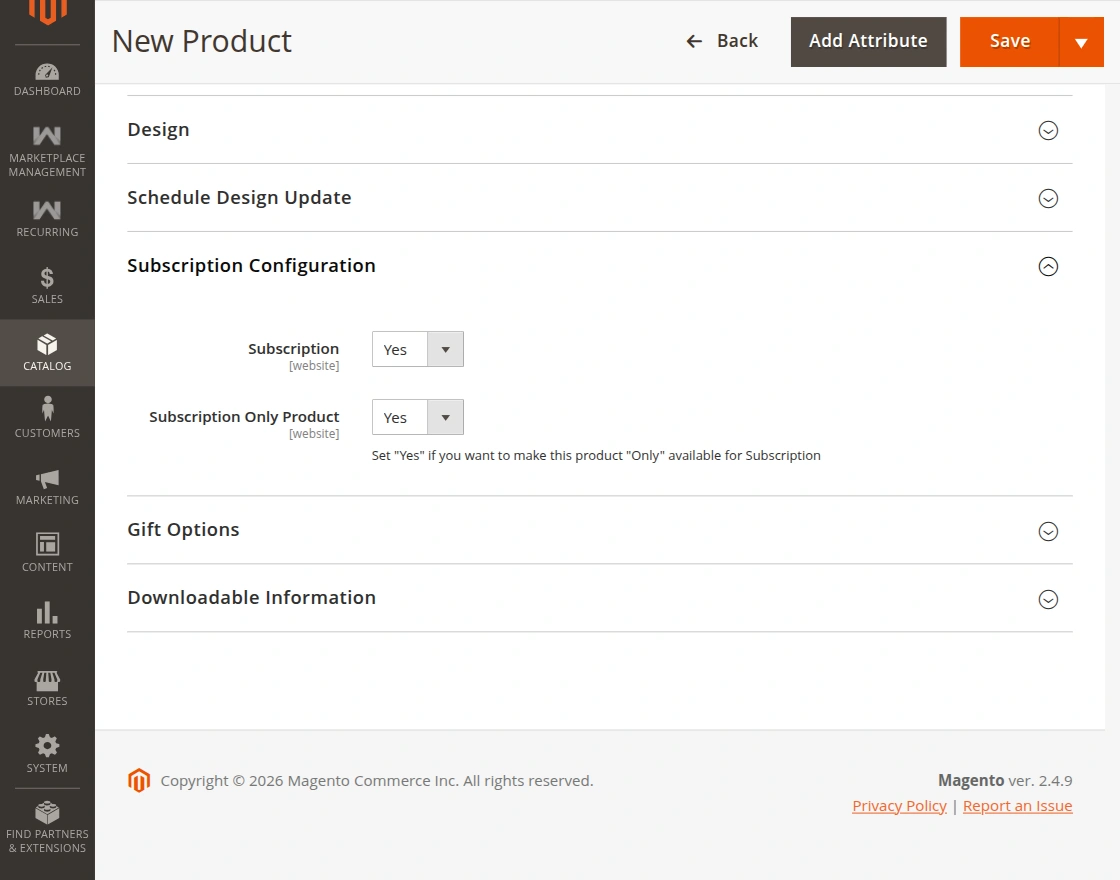
- Scroll down to Subscription Configuration.
- Set Subscription to Yes.
- Click Edit Configurations, specify your subscription terms, initial fee, and recurring amounts.
- Save the product.
Dual Purchase Flexibility
When a product has subscription configuration enabled, it displays the subscription plan selector on the storefront. Customers can select a plan and subscribe directly.