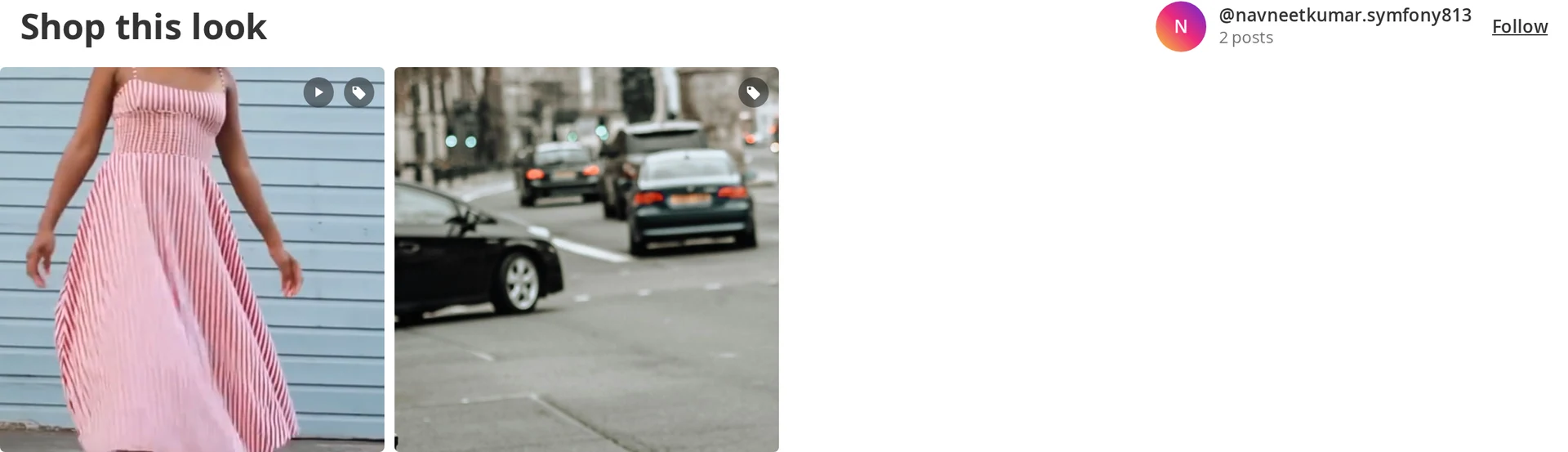
Shoppable posts
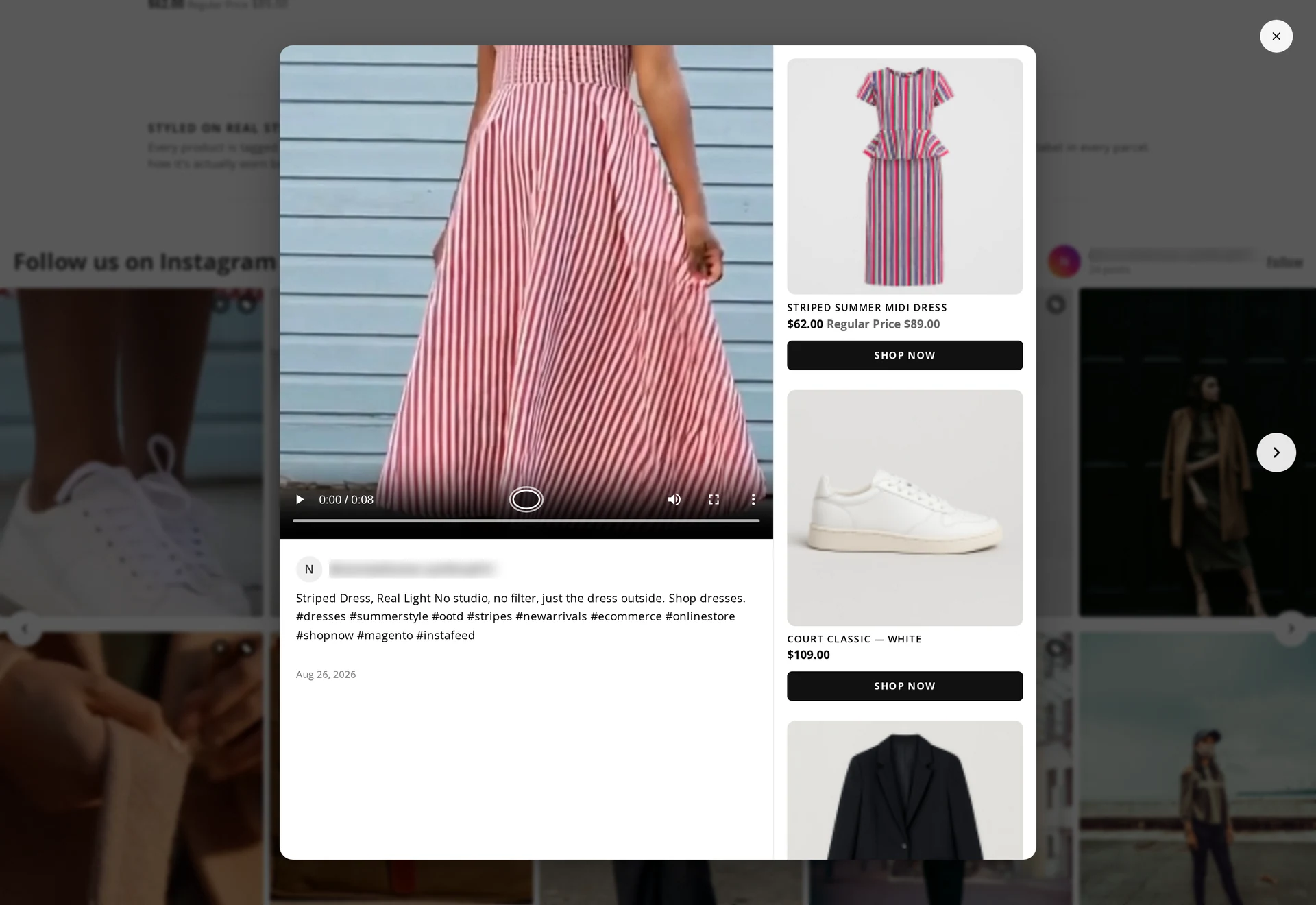
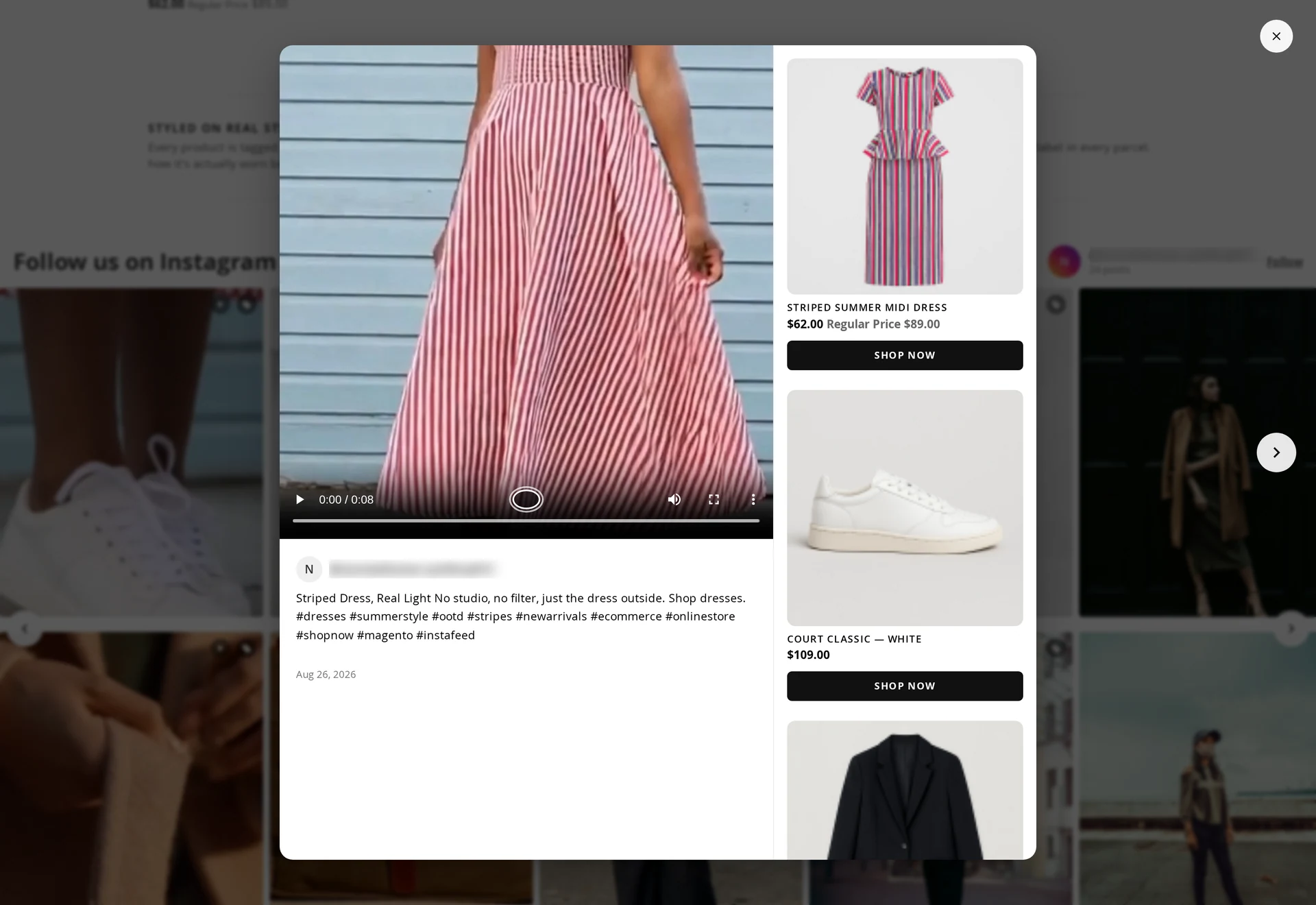
Tag products on a post and the popup becomes a storefront: image, name, price and a working Shop Now button, with optional hotspots pinned to the photo.
Tag by hand
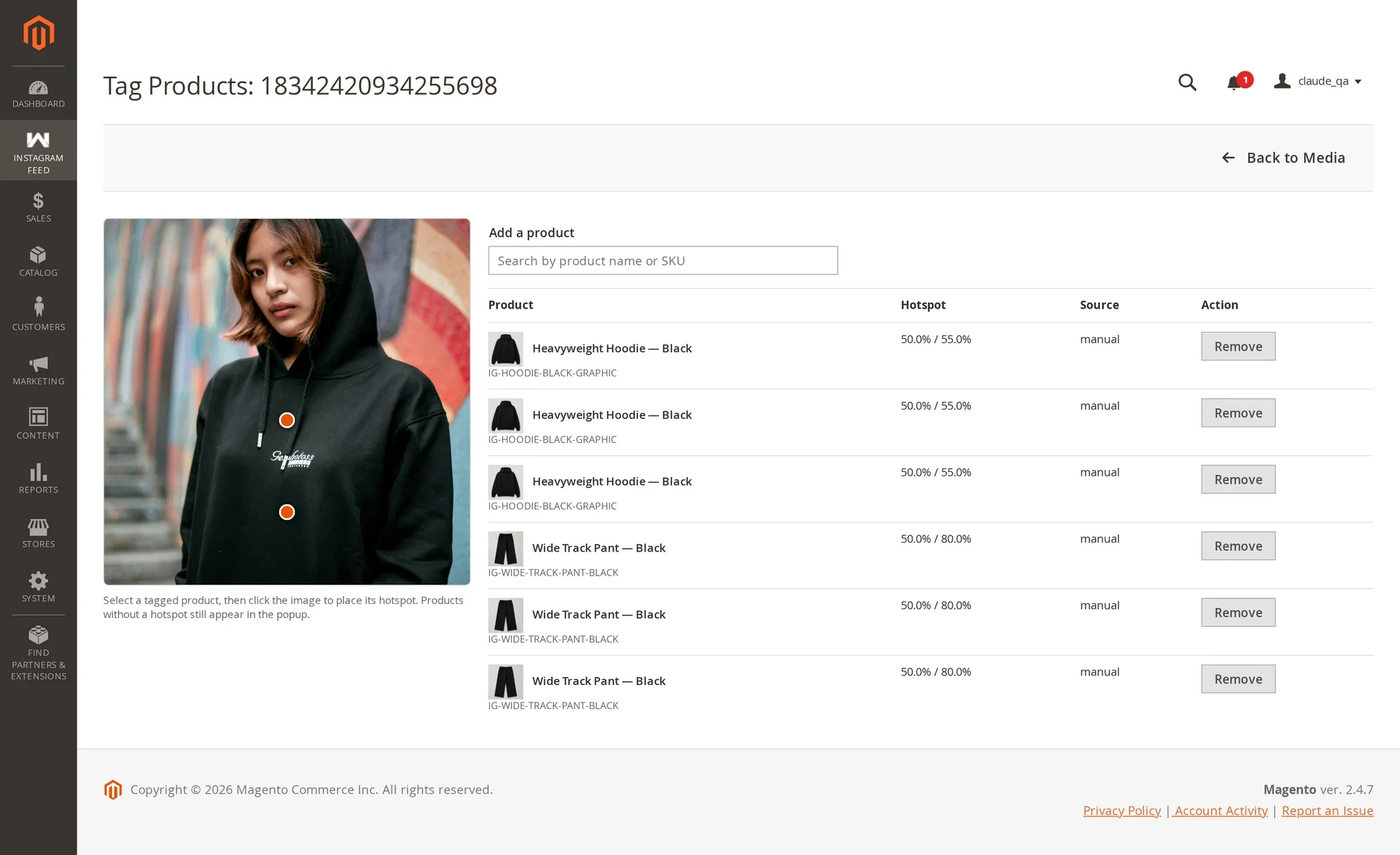
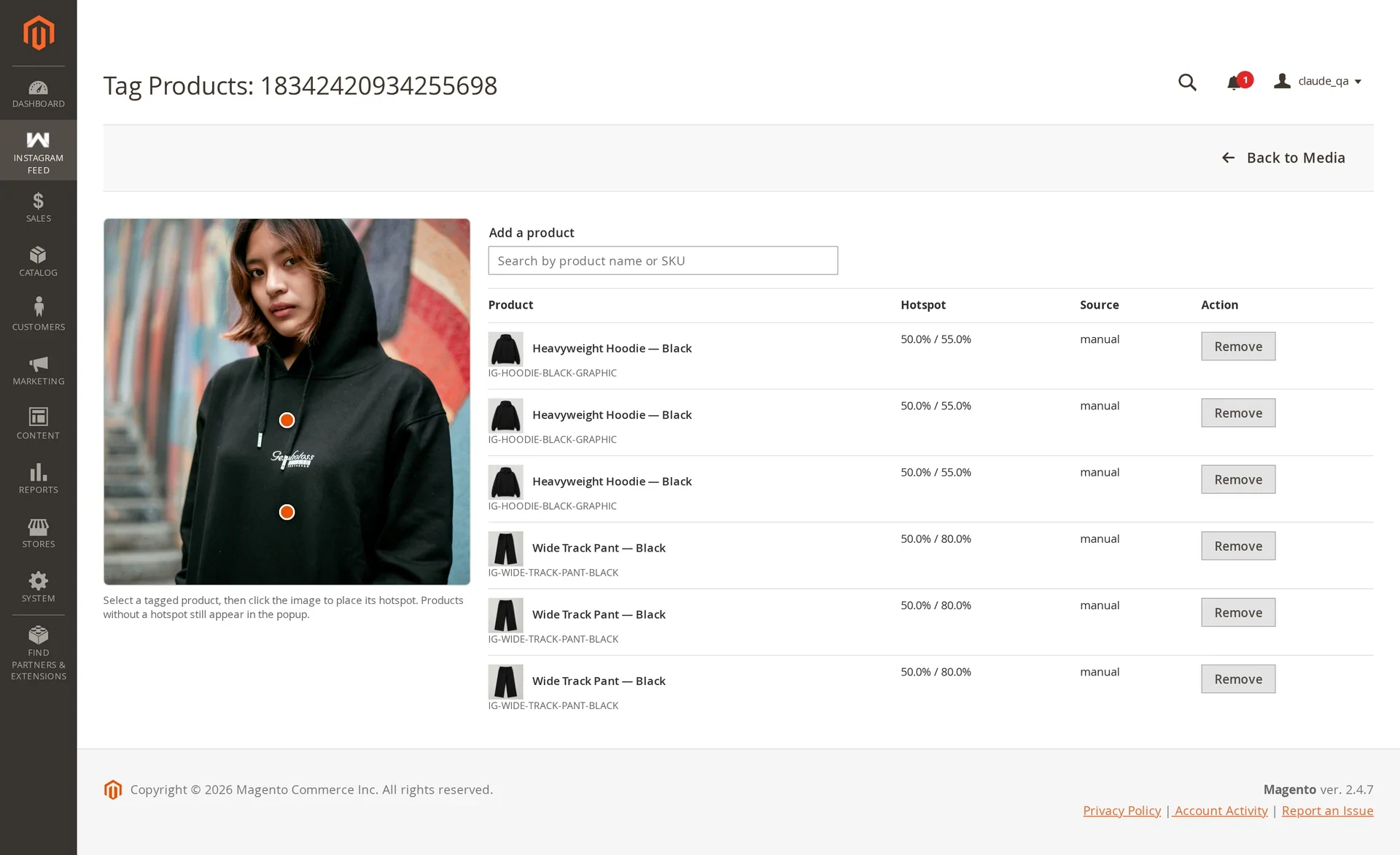
Media Library → Select → Tag products
- Search by product name or SKU.
- Click a result to tag it.
- Click the image to place a hotspot for that product — optional.
- Use Remove to untag.
Hotspots are stored as percentages of the image, so a pin lands in the same place whatever size the storefront renders at.
Which products can be tagged
Only products a shopper can actually buy:
- Enabled
- Visible Individually — in catalog, in search, or both
- Price above zero
- Assigned to the store's website
Search hides anything that fails and tells you how many were withheld.
Tag the parent, not the variant
A configurable product's size and colour children are not visible individually and have no price of their own, so they can never render. Tag the parent configurable instead.
The storefront applies the same rule, which is why tagging an unsellable product would otherwise produce a silently empty popup.
Automatic tagging
Enable it in configuration. Every hour the module reads new posts and suggests products:
- Caption SKU match — an exact SKU in the caption
- Hashtag rules — your own mapping, e.g.
#summerdress = WSD-01
Suggestions appear on the post marked Suggested and reach the storefront only once you confirm them — unless you switch on Publish Suggestions Without Review. Tags you placed by hand are never changed by the automatic job.
What shoppers see
The popup shows the post with product cards beside or below it, each with image, name, price and Add to Cart. Prices come from Magento's own pricing block, so special prices, tier prices and tax display are all correct. Adding to cart happens in place — the shopper stays in the popup.
Product data loads in a separate request when the popup opens, which is what keeps the feed itself in the full-page cache.
Product and category feeds
Turn the relationship around:
- Product Context — on a product page, show posts tagged with that product. Real customers wearing the item, right under the buy box.
- Category Context — on a category page, show posts linked to that category.
Both are set per feed under Source Type; no per-page setup.