
Feed management
Instagram Feed → Feeds
A feed is one gallery: which posts it shows, how it looks, and where it appears. Create as many as you need.
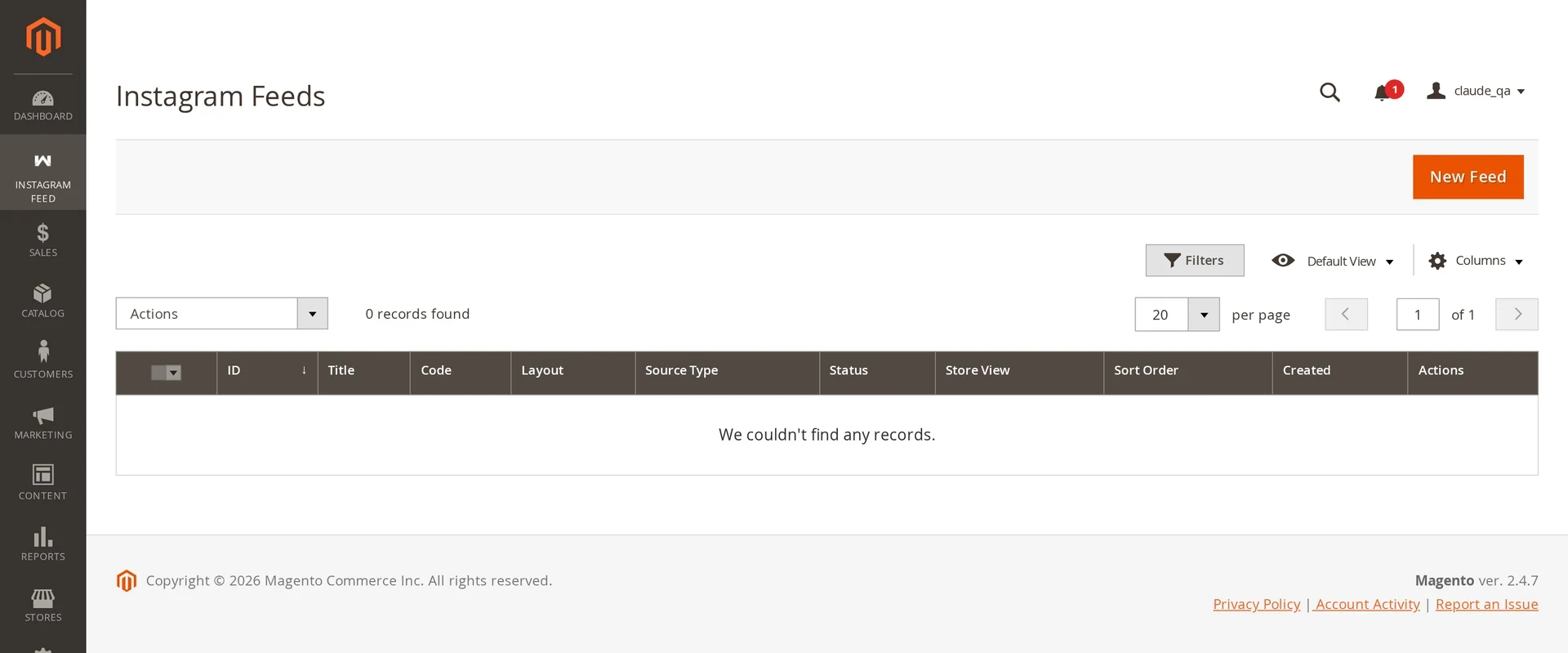
Create a feed
- Click New Feed.
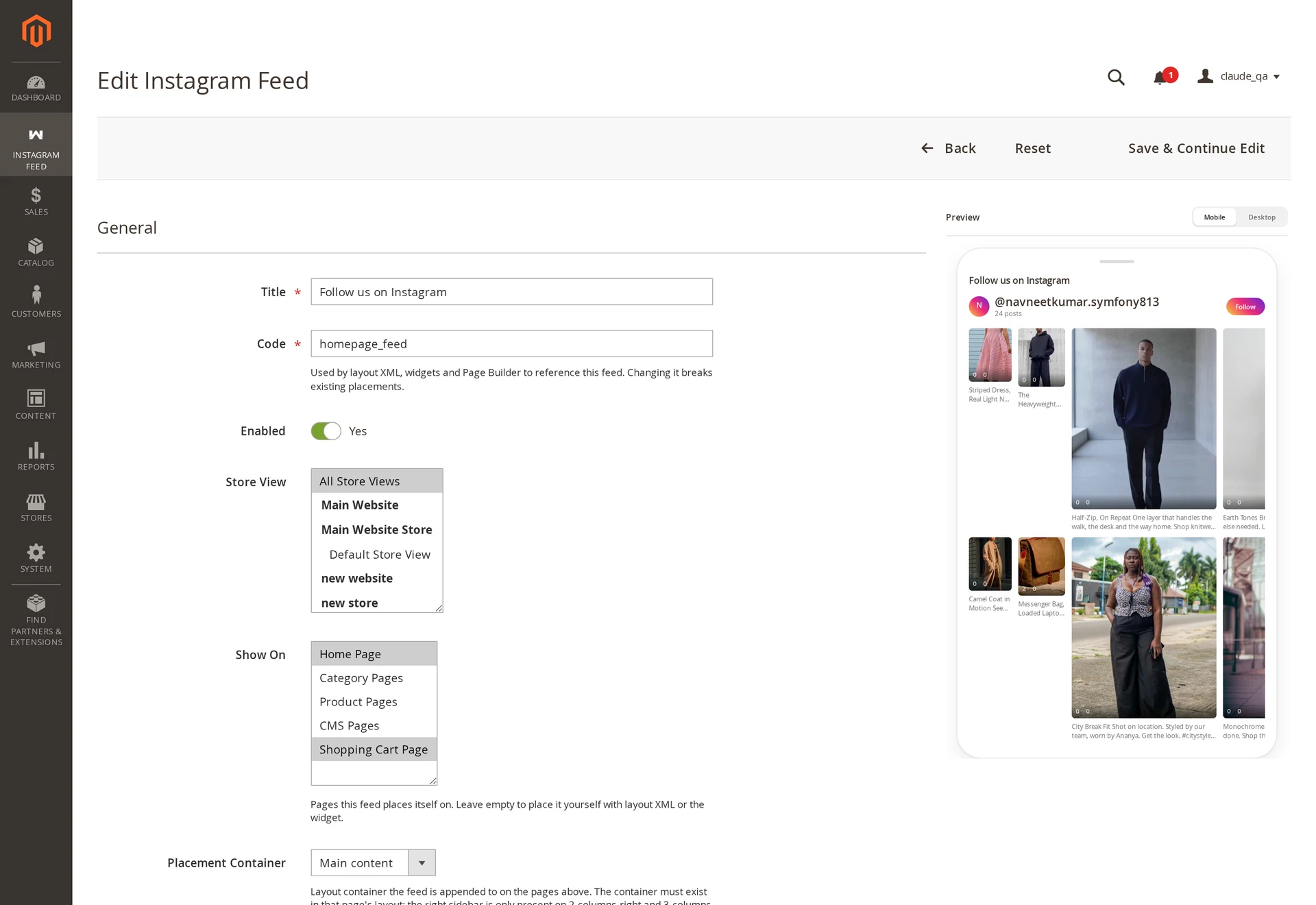
- Give it a Code — the handle widgets and layout XML use, e.g.
homepage_feed. It must be unique. - Add a Title if you want a heading above the tiles.
- Choose the Source Type and, for account feeds, the Accounts.
- Pick the Layout and adjust design settings.
- Tick where it appears under Show On, or place it with a widget.
- Set Status to Enabled and save.
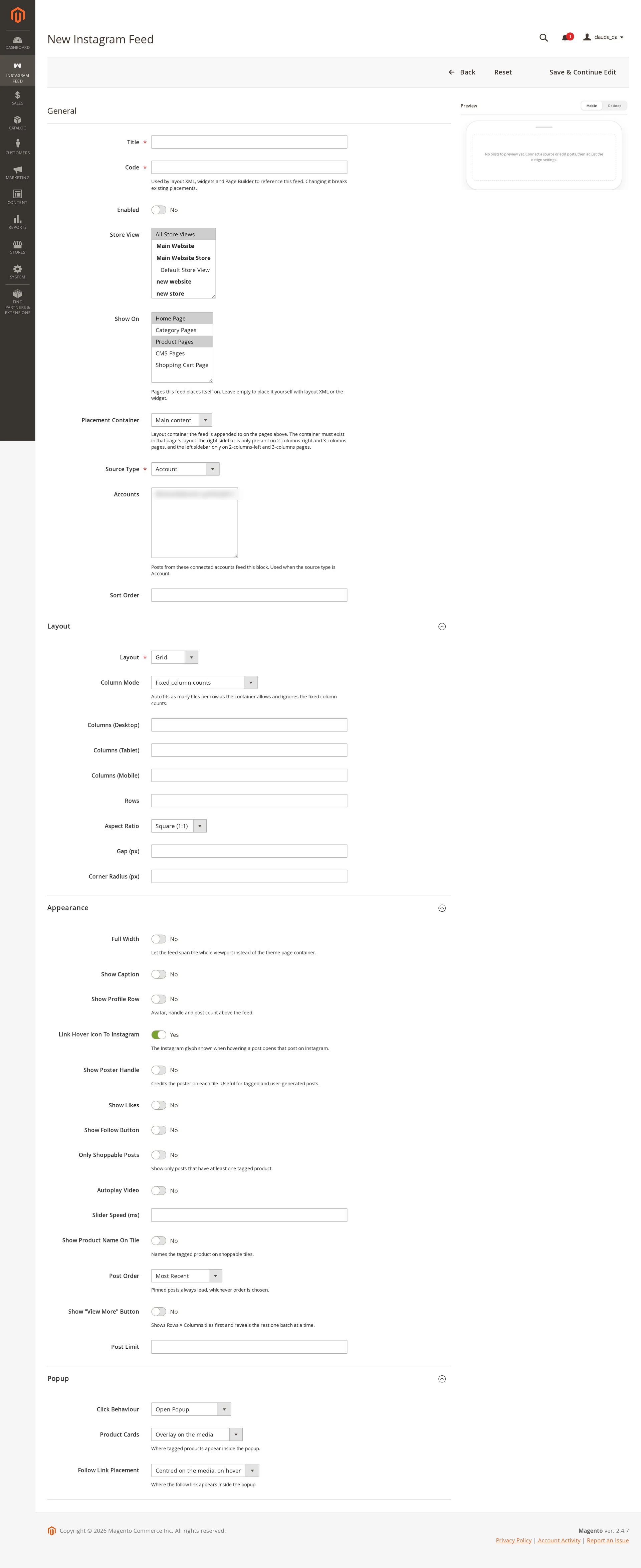
Fields
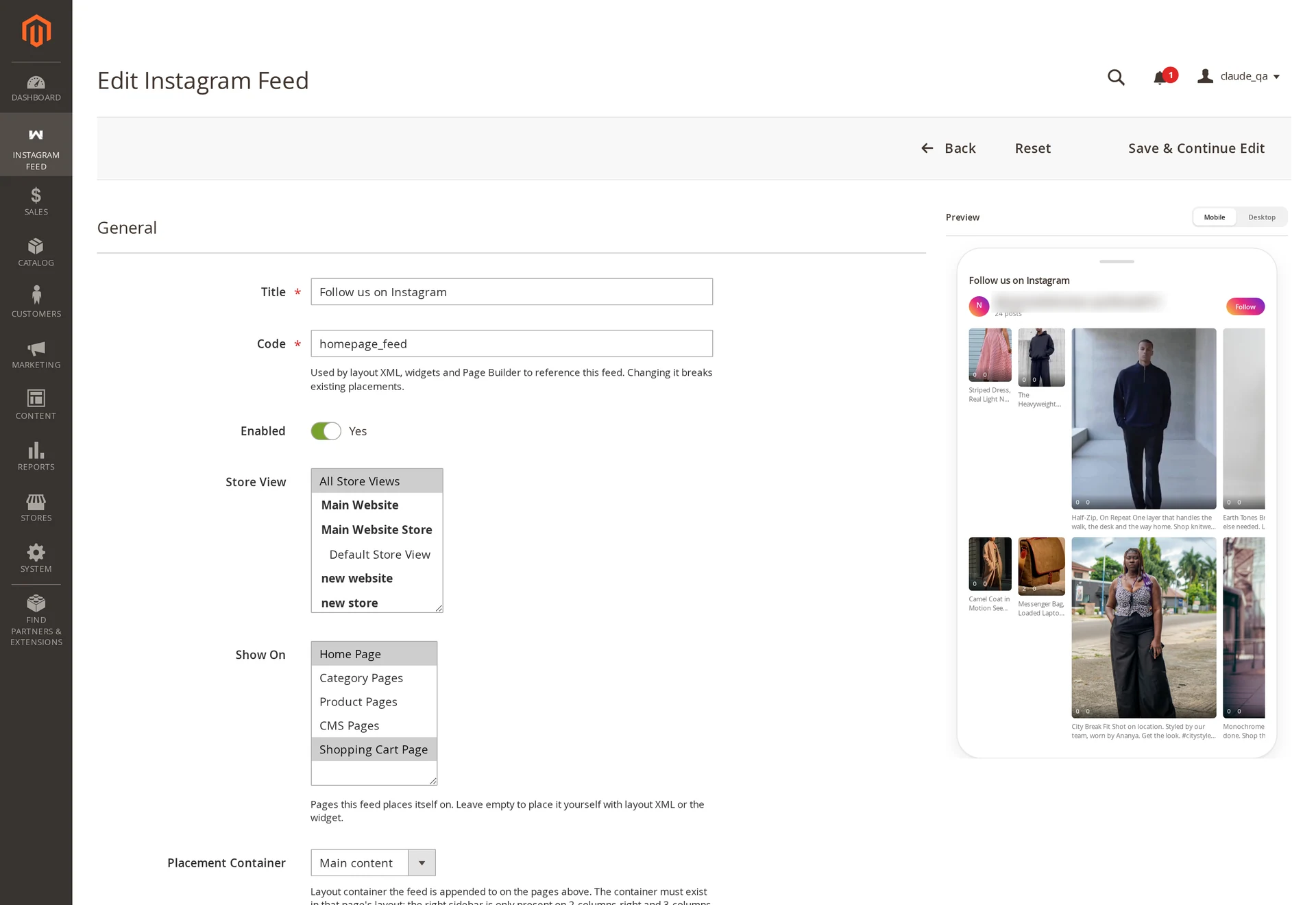
| Field | What it does |
|---|---|
| Code | Unique handle used by widgets and layout XML |
| Title | Heading above the tiles; empty means no heading |
| Status | Disabled feeds render nothing, anywhere |
| Store View | Which store views show it — All Store Views by default |
| Source Type | Where posts come from, see below |
| Accounts | Which connected accounts feed it |
| Show On | Pages the feed places itself on |
| Sort Order | Ordering when several feeds land in the same container |
| Post Limit | Maximum tiles, default 12, hard cap 100 |
Source types
| Source | Shows | Status |
|---|---|---|
| Account | Everything synced from the selected accounts, newest first | Supported |
| Product Context | On a product page: posts tagged with that product | Supported |
| Category Context | On a category page: posts linked to that category | Supported |
| Manual | Only the posts you curate into this feed, in your order | Supported |
| Uploaded Media | Only posts you uploaded or imported by URL | Supported |
| Tagged (UGC) | Posts others tagged you in | Syncs to the library; no feed-level UI yet |
| Mixed | Several source types at once | Behaves like Account today |
See Limitations for the full picture.
Manual feeds ignore synced posts
A manual feed shows only what has been assigned to it. If your library is full but the storefront shows one tile or none, check the source type first.
Curating a feed by hand
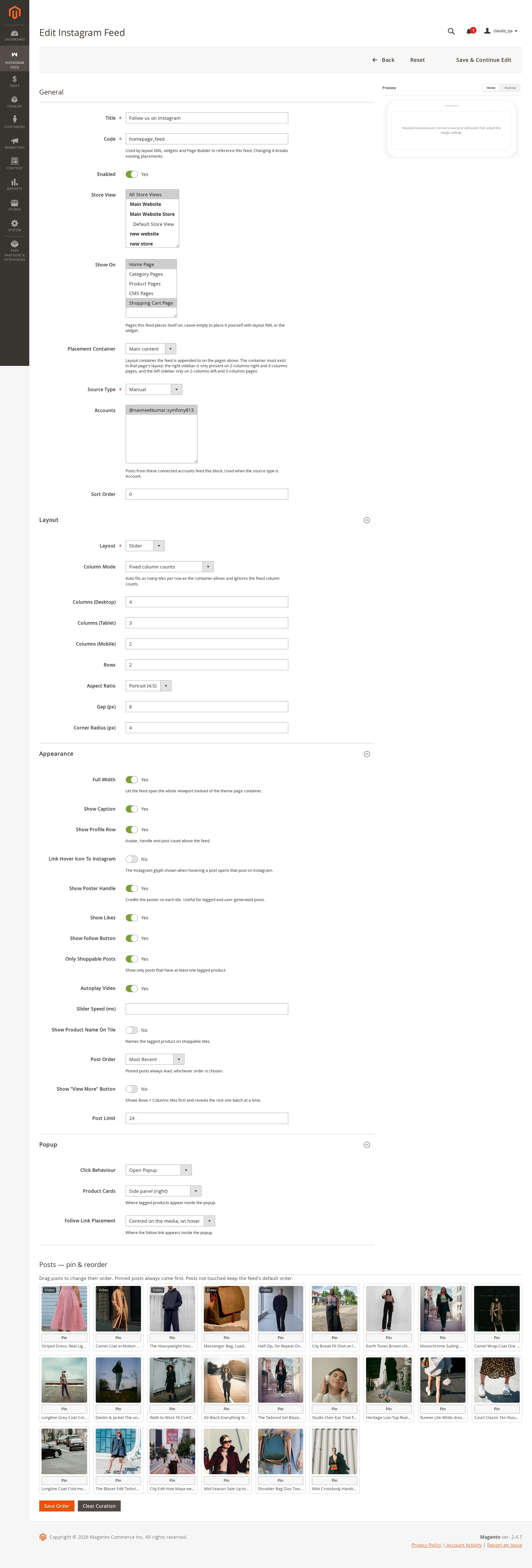
Every feed edit screen carries a Posts — pin & reorder panel below the form. It shows the posts the feed currently resolves to, and lets you fix their order instead of accepting the sort.
- Drag a post to move it. Save Order writes the new positions.
- Clear Curation discards them and returns the feed to its Post Order sort.
A brand-new feed has nothing to curate — save it once so it has an id, and the panel fills in.
For a Manual feed this panel is the feed: it renders exactly the posts listed here, in exactly this order, and nothing arrives automatically. For every other source type curation is an override on top of whatever the source resolves.
Pinning versus ordering
Pinning is a property of the post and applies everywhere it appears. Curation order is a property of this one feed. Pin a launch shot to lead every feed; curate when only one feed needs a particular sequence.
Ordering
Pinned posts first, then newest first. Pin from the Media Library.
Live preview
The feed form has a Preview pane that renders your unsaved settings through the same code the storefront uses — so what you see is what shoppers get. Toggle Mobile / Desktop to check both.
After saving
Feeds are cached with the page. Flush the cache so the storefront picks up the change:
bin/magento cache:flush
In the admin use Cache Management → Flush Cache Storage. The Flush Magento Cache button is tag-scoped and often leaves the rendered page in place.