
Export & Save to Magento
Once you have completed your design in Canva, export and persist the artwork directly into your Magento 2 product gallery with a single click.
1. Trigger Export from Sidebar
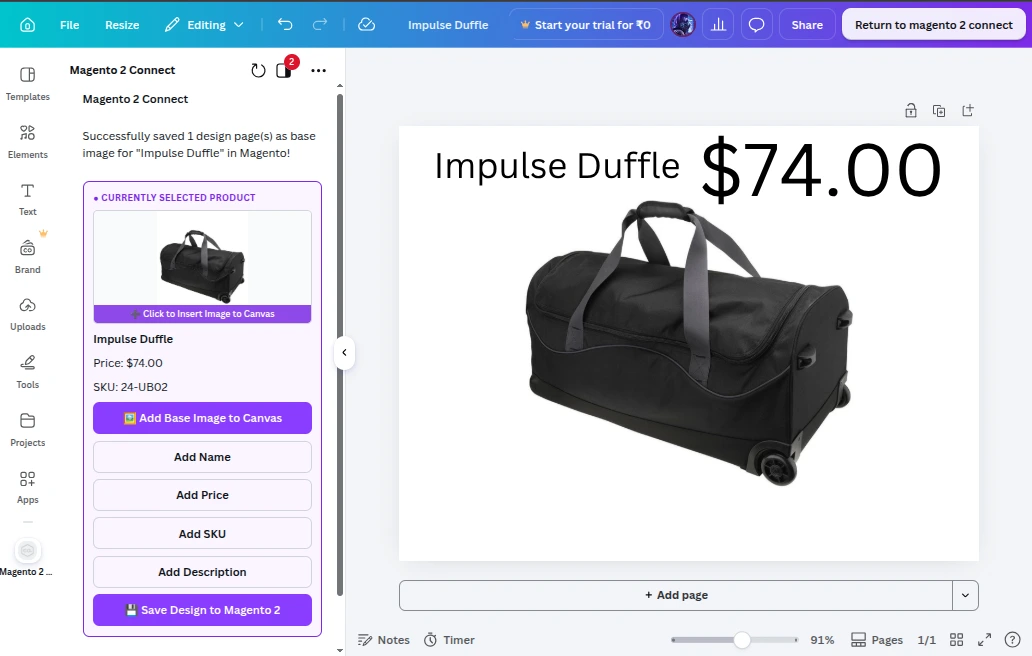
- In the Magento 2 Connect Canva sidebar, click the Save Design to Magento 2 button at the bottom of the active product card.
- Canva renders the canvas and calls the Magento REST Web API. Upon completion, a success confirmation is displayed at the top of the sidebar.
2. Export Processing & Persistence
The extension handles the export pipeline:
- Rendering: Canva renders the canvas at full resolution into high-quality image blobs (PNG / JPG).
- Payload Packaging: For multi-page designs, each page is indexed (
index: 0, index: 1, ...) and packaged as Base64 strings. - Secure API Request: The app calls Magento's REST endpoint (
POST /rest/V1/canva/export/save) with the image data, product ID, and design ID. - Media Gallery Insertion:
- Magento decodes the Base64 data and writes image files into
pub/media/catalog/product/. - Page 1: Assigned configured roles (
image,small_image,thumbnail). - Pages 2..N: Attached to the product media gallery without overwriting main roles.
- Magento decodes the Base64 data and writes image files into
- Success Toast: Canva displays a confirmation message:
Design image(s) (1 page(s)) imported and saved to product successfully.
3. Return to Magento Admin
- Click the Return to magento 2 connect link in the Canva editor header navigation.
- Canva redirects back through Magento's
/canva/auth/returnhandler. - You are returned directly to the Catalog > Products edit screen in Magento Admin, where you can view your newly imported Canva artwork in the Images and Videos gallery!