
Inside Canva (Sidebar UI) Setup
The Inside Canva configuration powers the interactive sidebar app inside the Canva design editor, allowing merchants to browse product details, switch configurable variations, add elements to the canvas, and trigger design exports back to Magento.
Step-by-Step Instructions
Step 1: Create the App Container
- Log in to the Canva Developer Portal.
- Click Create an app at the top right.
- In the modal, enter your App name (e.g.
Test Webkul). - Select your distribution preference (e.g.
Public), accept the terms, and click Create app.
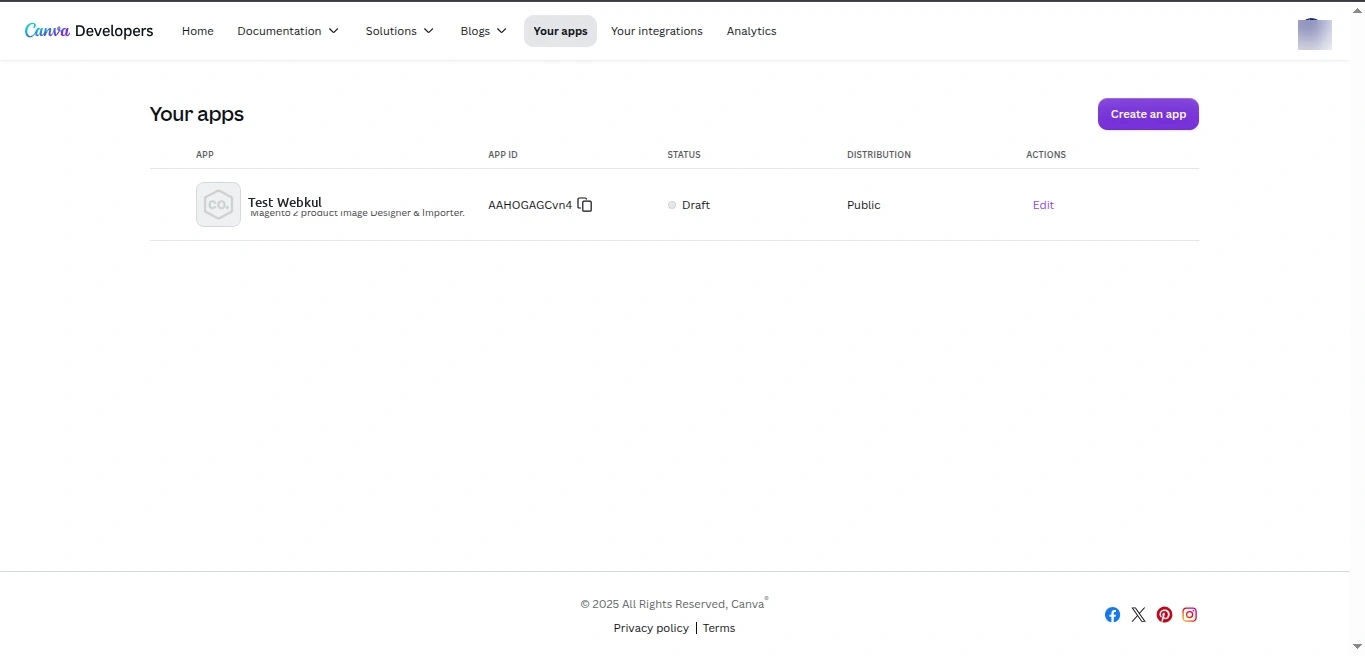
Step 2: Copy the App ID to Magento
- On the app's Overview screen, locate the App ID (e.g.
AAHOG...). - Click Copy next to the App ID.
- Log in to your Magento Admin Panel and navigate to: Stores > Configuration > Webkul > Canva Connect Settings
- Paste the copied value into Canva App ID under General Settings.
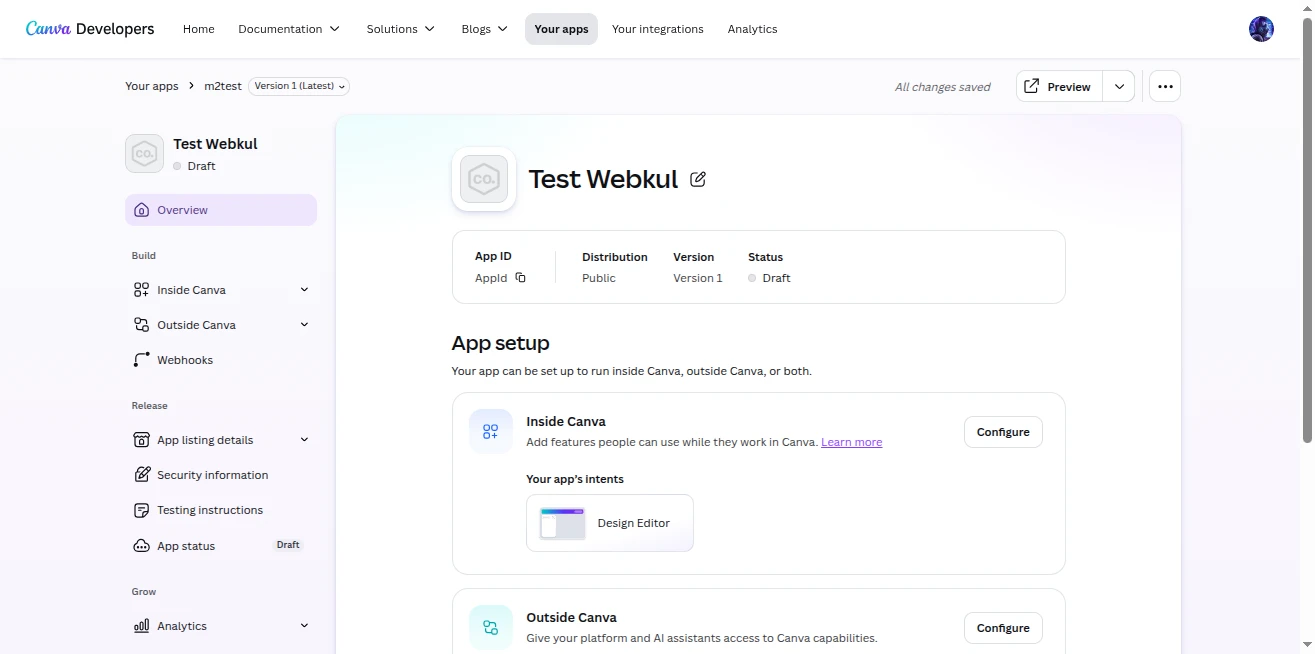
Step 3: Add the Design Editor Intent
- Return to the Canva Developer Portal.
- In the left navigation menu under Build, click Inside Canva.
- Click Add an intent and select the Design Editor intent.
- This registers the app as an interactive side panel inside the Canva editor canvas.
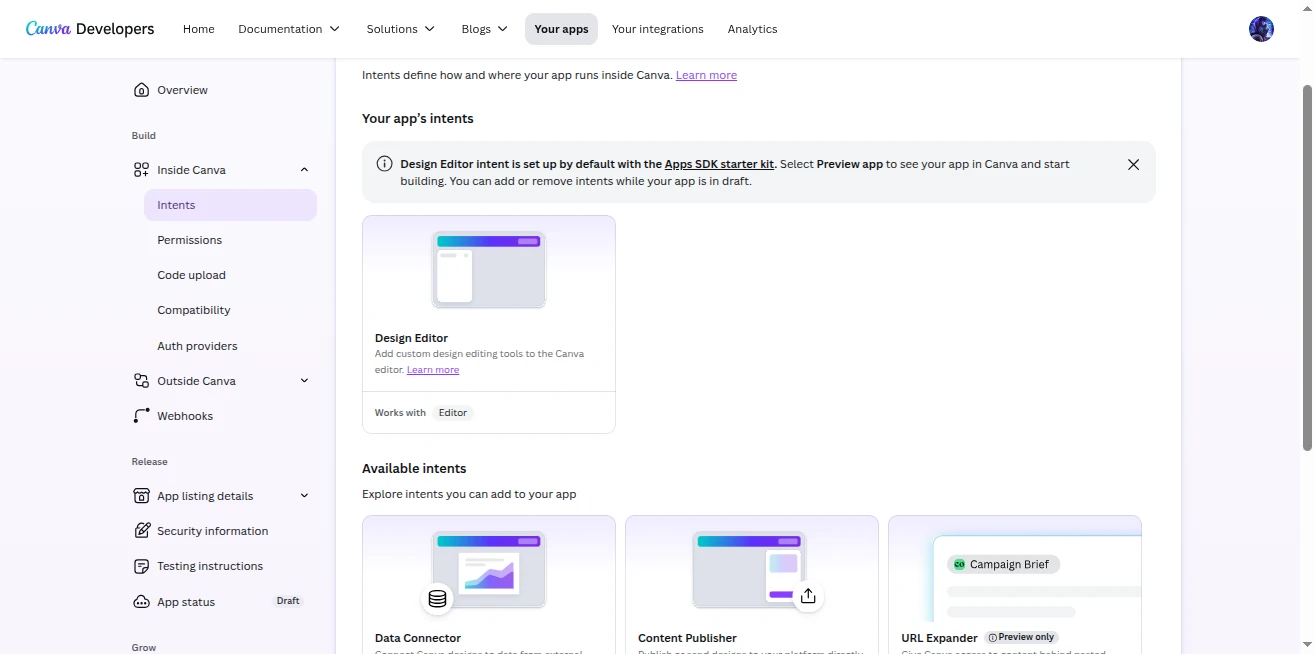
Step 4: Configure Inside Canva Permissions
- In the left menu under Inside Canva, click Permissions.
- Enable the following permission checkboxes:
canva:design:content: Check both Read and Write (allows the sidebar to read canvas state and insert text, pricing, SKU, and imagery).canva:asset:private: Check both Read and Write (allows accessing and uploading private assets).
- Changes save automatically.
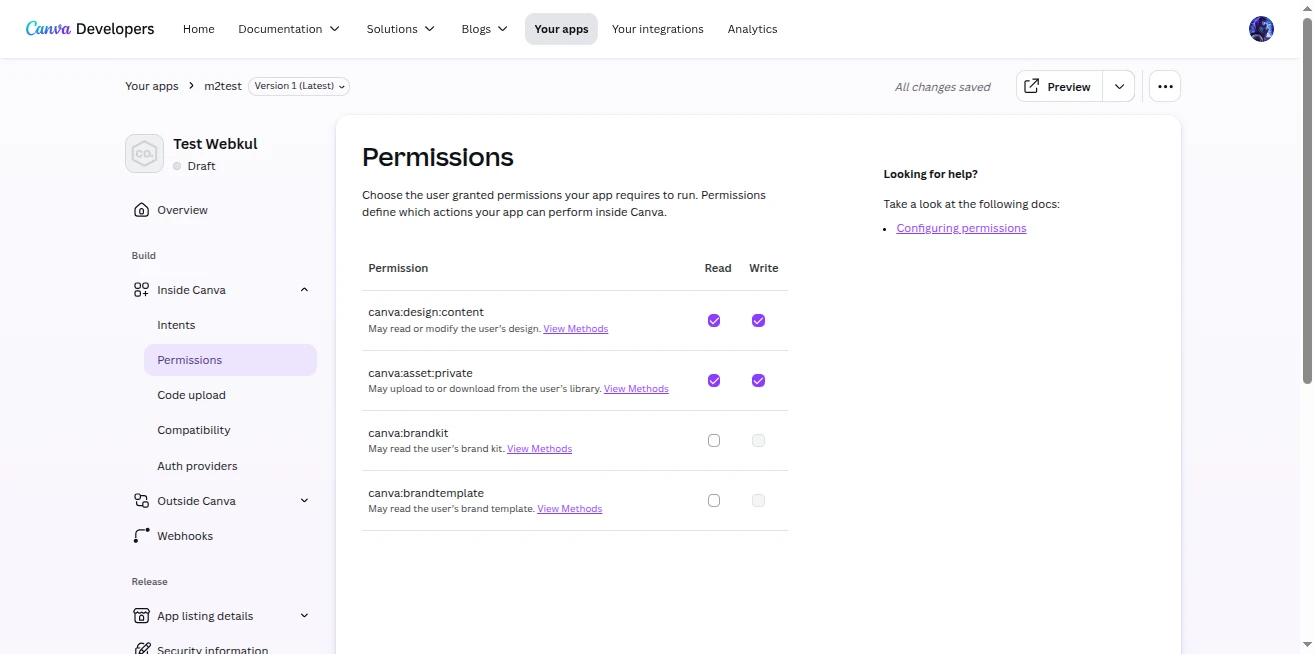
Missing Permission Scope
If canva:design:content (Read/Write) is not enabled, Canva editor will display: [missing_permission]: Some required permissions for this request were not set in the app config: canva:design:content:read. Always ensure both Read and Write are enabled.
Step 5: Configure Development URL & App Source
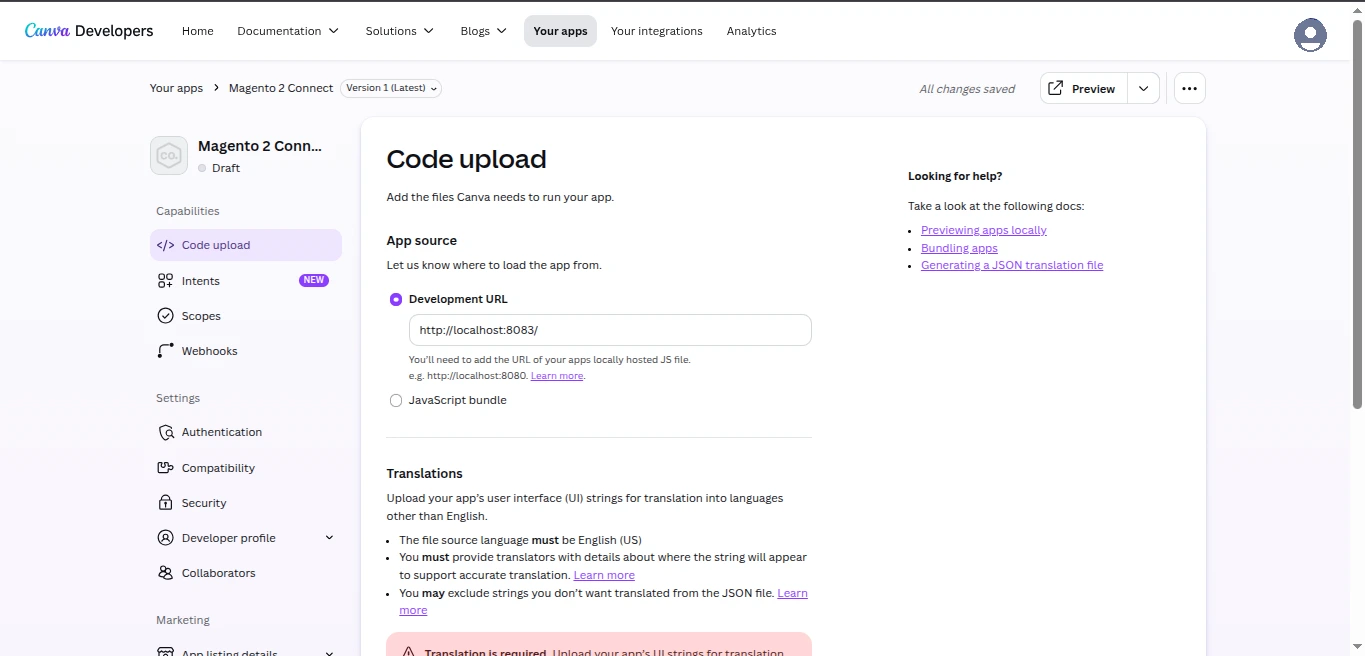
- Under Inside Canva, click Code upload (or Configuration).
- Under App source, enter your running frontend server URL in the Development URL field:
- Local development default:
http://localhost:8085/(must match the Frontend Service Port configured in Magento). - Production hosting:
https://your-frontend-domain.com/
- Local development default:
- Note your App origin (e.g.
https://app-xxxx.canva-apps.com). If enabling Hot Module Replacement (HMR), paste this into Magento Admin.
Step 6: Preview the App in Canva Editor
- Click Preview at the top right of the Canva Developer Portal.
- A new browser tab opens the Canva editor.
- On the first launch, Canva displays an introductory confirmation dialog — click Open.
- The sidebar will load the frontend bundle from your local development server and display your Magento catalog.