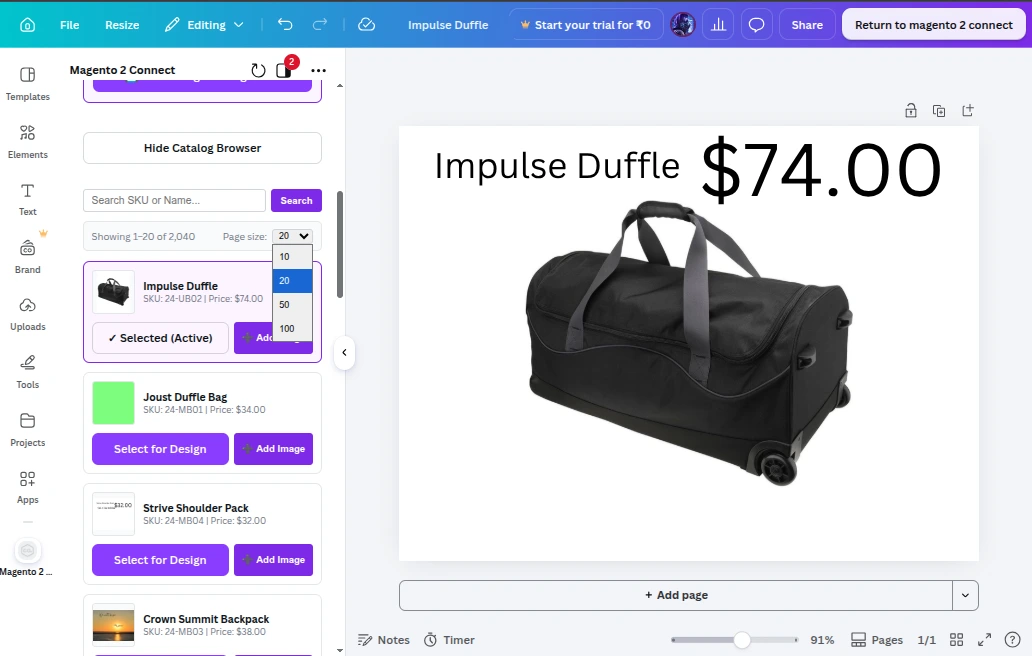
Canva In-Editor Side Panel
Inside the Canva editor, the Magento 2 Connect sidebar provides access to your store catalog, active product context, and child variations.
1. Opening the App in Canva
- In the Canva editor, open the left side panel.
- Click Apps and select Magento 2 Connect (or search for your app name).
- The sidebar initializes and verifies your Canva Design Token against Magento's REST Web API.
2. Currently Selected Product Card
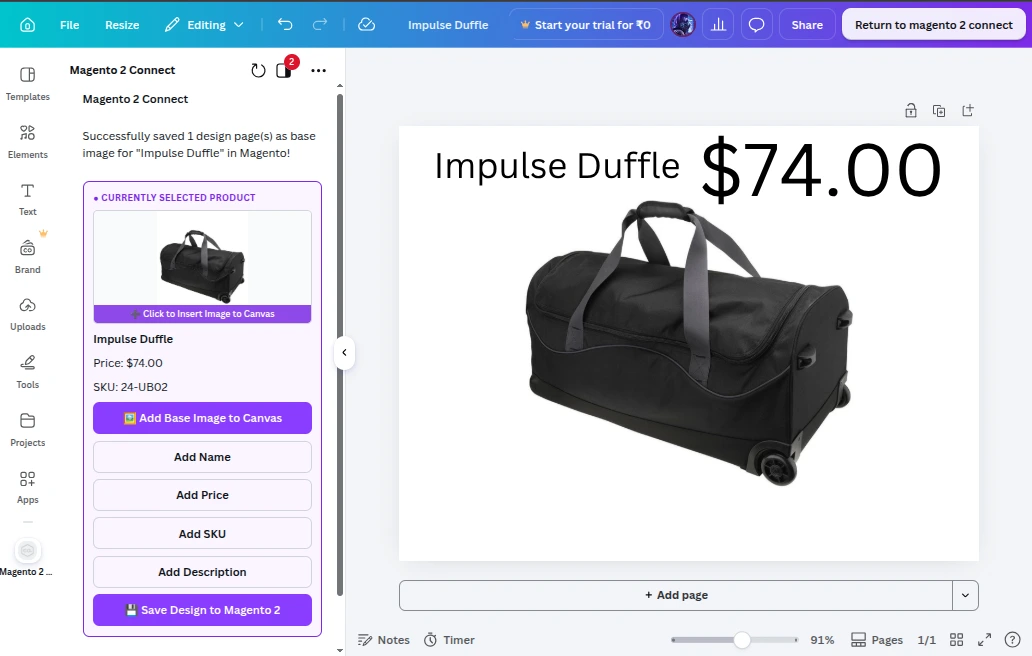
At the top of the sidebar, the app automatically detects and highlights the active product being edited:
- Product Thumbnail & Title: Displays the product image and catalog name.
- SKU & Price: Displays the primary SKU and currency-formatted price.
- Quick Action Buttons:
- Add Base Image: Adds the product's primary featured image asset to the canvas.
- Add Name: Inserts formatted product title text directly onto the active canvas.
- Add Price: Inserts the formatted product price tag onto the canvas.
- Add SKU: Inserts the product SKU on the canvas.
- Add Description: Inserts the product's short or full description as text.
- Save Design to Magento 2: Saves and exports the active design to the Magento product gallery.
3. Product Variations Selector (Configurable Products)
If the active product is a Configurable Product with child variations (such as colors, sizes, or styles):
- The sidebar displays a Variations section.
- Click on any child variation:
- Updates the preview thumbnail and details in the sidebar.
- Allows inserting the variation's specific price, title, or image onto the canvas.
4. Browse & Search Magento Catalog
Below the active product card:
- A live Search Bar allows searching across the entire Magento product catalog by name or SKU.
- A Page Size dropdown (10, 20, 50, 100) controls the number of products displayed per page.
- Click Select for Design or Add Image on any catalog item to load assets directly onto the design canvas.