
Launch from Product Grid
Creating designs starts directly from the Magento 2 Admin catalog interface.
Step-by-Step Guide
1. Navigate to Catalog Products
In Magento Admin, navigate to Catalog > Products.
Magento Admin
└── Catalog
    └── Products
        ├── [Product 1] | Image | "Design with Canva"
        ├── [Product 2] | Image | "Design with Canva"
        └── [Product 3] | Image | "Design with Canva"
2. Click "Design with Canva"
- In the product grid, locate the desired product (e.g. Driven Backpack or Compete Track Tote).
- Under the thumbnail column, click the Design with Canva button.
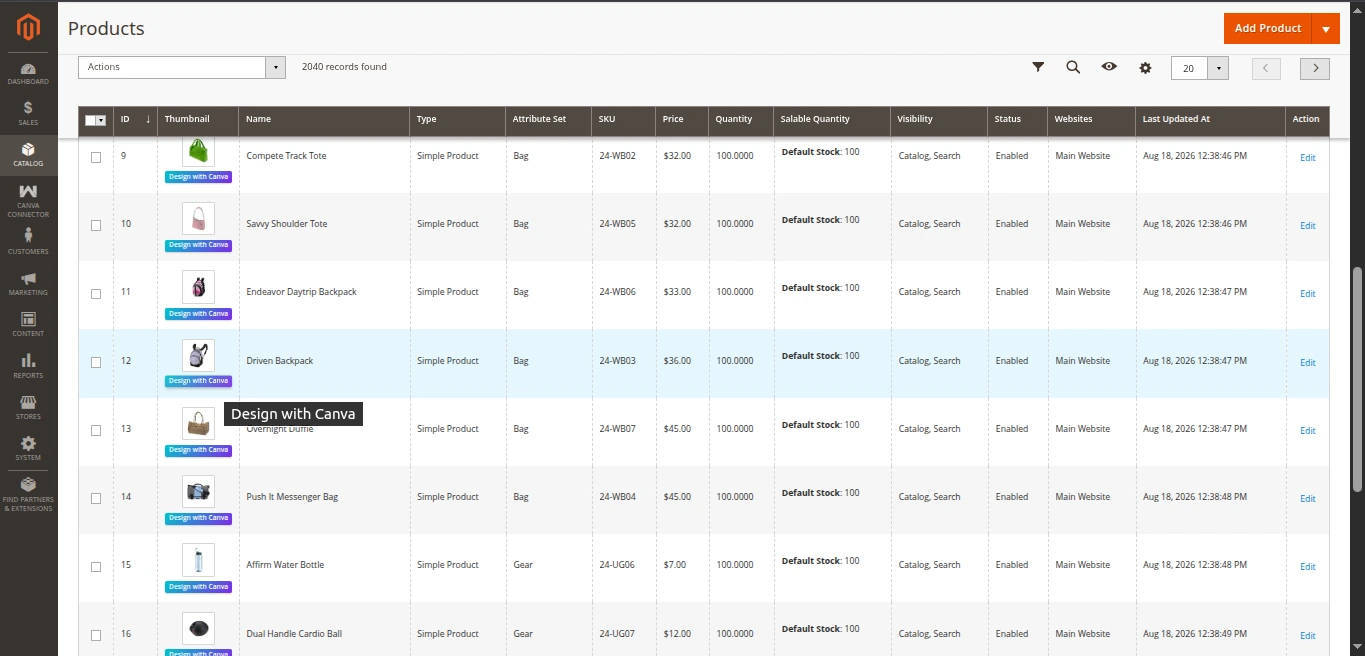
3. Automated Asset Seeding & Canva Launch
When you click the button, Magento executes the following actions in the background:
- OAuth Check: Checks for an existing active refresh token or initiates the PKCE authorization flow.
- Asset Upload: Extracts the primary product image from Magento media storage and uploads it as a binary asset to Canva via
POST https://api.canva.com/rest/v1/asset-uploads. - Job Polling: Polls the Canva asset upload status until confirmed (
success). - Design Generation: Calls
POST https://api.canva.com/rest/v1/designswith the uploadedasset_idto generate a fresh design canvas pre-seeded with your product image. - Design ID Persistence: Stores the returned Canva Design ID (
canva_design_id) on the Magento product entity. - Redirection: Redirects your browser to Canva's unique design editor URL (
edit_url).
Re-opening Existing Designs
If you have previously designed graphics for a product, Magento remembers its canva_design_id and automatically opens your existing design canvas without duplicating assets.