
Activate & Connect
Once the Magento extension and Canva Developer Portal applications are created, connect and activate the integration by linking your API credentials in the Magento Admin Panel.
1. Enter Canva Credentials in Magento Admin
- Log in to your Magento 2 Admin Panel.
- Navigate to Stores > Configuration > Webkul > Canva Connect Settings.
- Under the General Settings section:
- Set Enable Module to
Yes. - In Canva App ID, enter your Canva App ID from your app's Overview screen.
- In Client ID, enter your Client ID from Outside Canva > Configuration.
- In Client Secret, enter your Client Secret generated from Outside Canva > Configuration.
- Set Enable Module to
- Copy the automatically generated Redirect URI and Return Navigation URI displayed on the screen and verify they match your Canva Developer Portal settings exactly.
- Click Save Config.
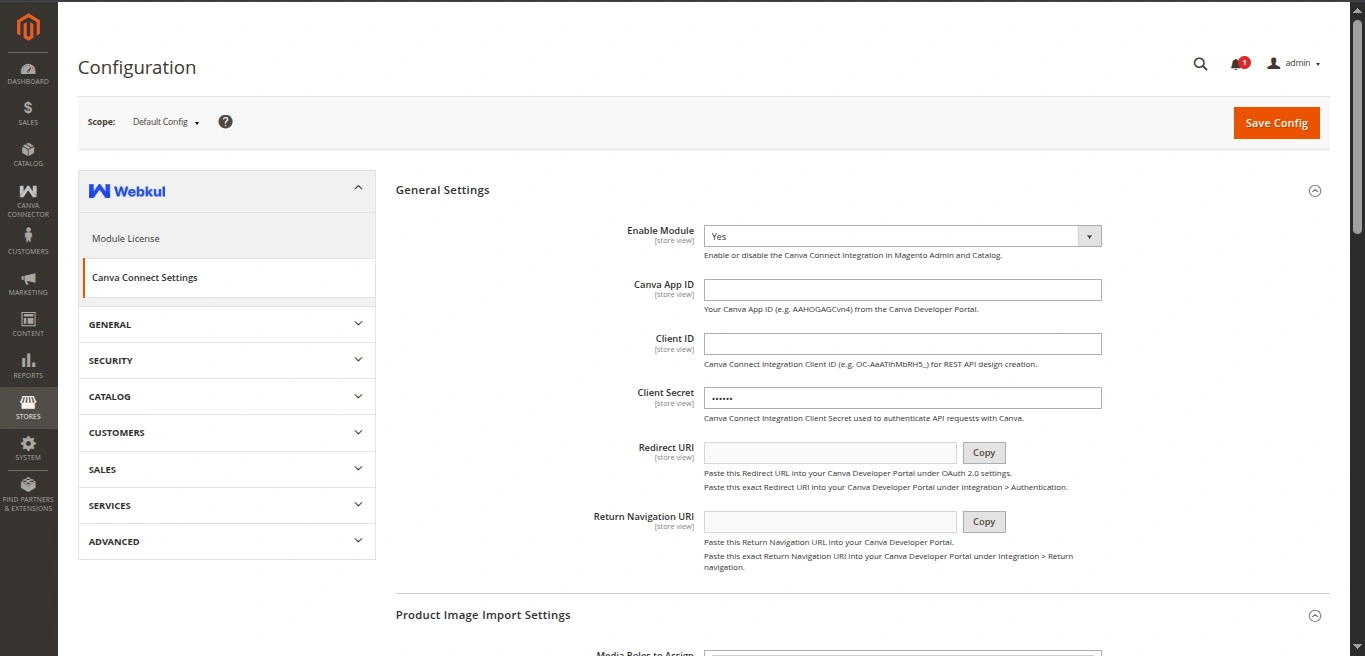
Stores > Configuration > Webkul > Canva Connect Settings
├── General Settings
│   ├── Enable Module: [Yes]
│   ├── Canva App ID: [Your Canva App ID]
│   ├── Client ID: [Your Canva Connect Client ID]
│   ├── Client Secret: [••••••••••••••••]
│   ├── Redirect URI: [https://your-domain.com/canva/auth/callback]
│   └── Return Navigation URI: [https://your-domain.com/canva/auth/return]
2. Sync Frontend Environment (.env)
- Under the Canva App Frontend & API Configuration group:
- In Canva Frontend App Server Path, enter the absolute directory path where your
canva-app-frontendfolder is located (e.g./var/www/html/canva-app-frontend). - In Magento Backend Base URL, ensure your store base URL is correct.
- In Canva Frontend App Server Path, enter the absolute directory path where your
- Click Save Config.
- Magento validates the directory path and automatically writes and synchronizes your
.envconfiguration file inside the frontend project folder.
Automatic .env Generation
Whenever you modify backend URLs or ports in Magento Admin and click Save Config, Magento automatically regenerates the frontend .env file without manual file editing.
3. Verify Connection & First Consent
- Navigate to Catalog > Products.
- Locate any product with an image and click the Design with Canva button in the thumbnail column.
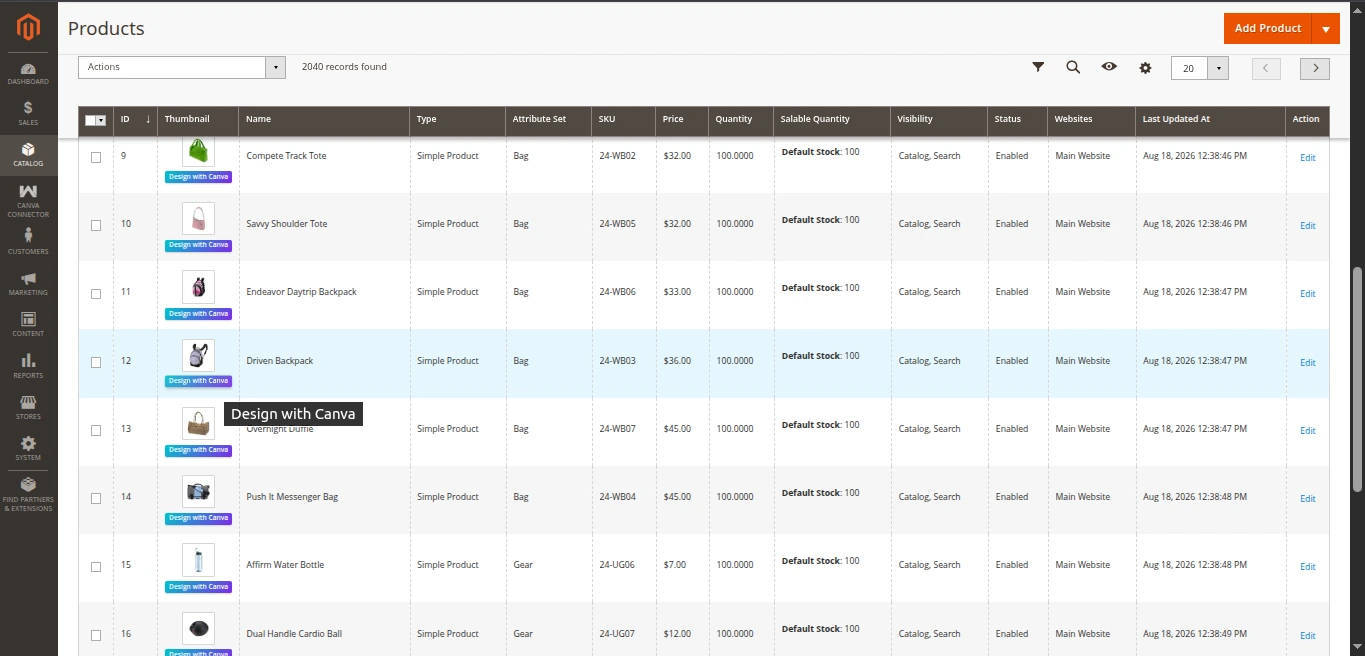
- Magento initiates the OAuth 2.0 PKCE flow and redirects you to Canva's authorization screen.
- Click Allow / Approve on Canva's consent screen.
- Canva redirects back to Magento (
/canva/auth/callback), stores the rotating refresh token securely, uploads the product image asset, creates a design, and launches the Canva editor. - The integration is now fully active!
Note
Subsequent clicks on Design with Canva will utilize rotating refresh tokens and open the Canva design editor instantly without asking for consent again.