
Twilio Setup for SMS OTP
When using Mobile as your two-factor authentication channel, the module uses Twilio to deliver one-time authentication codes directly to customer mobile numbers.
Prerequisites
- An active account on Twilio.
- A Twilio SMS-enabled phone number.
Step 1: Create or Sign In to Twilio Account
- Visit Twilio and sign in to your console (or click Sign Up to create an account).
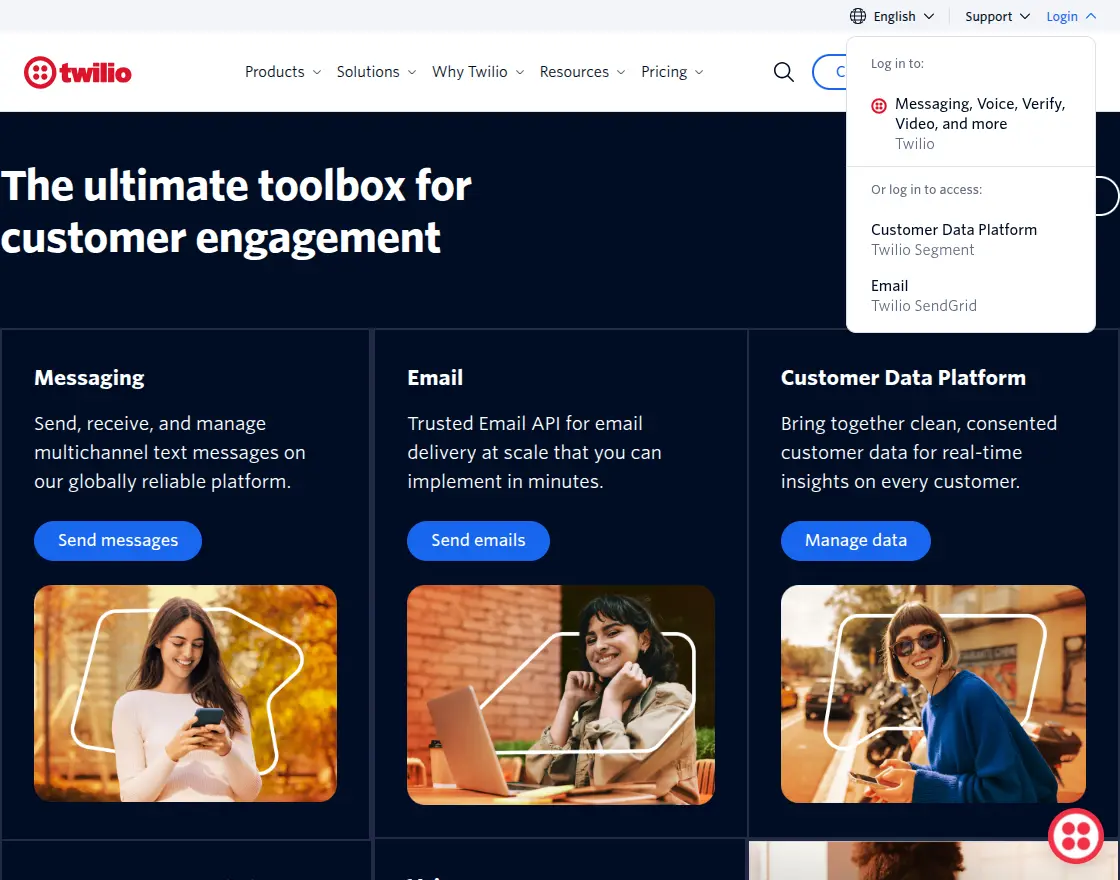
- Complete your email and mobile verification.
Step 2: Retrieve API Credentials
From your main Twilio Console dashboard:
- Locate the Account Info section.
- Note your Account SID (used as Auth ID in Magento).
- Click the reveal icon to copy your Auth Token (used as Token in Magento).
- Note your Twilio Phone Number (used as Sender Number in Magento).
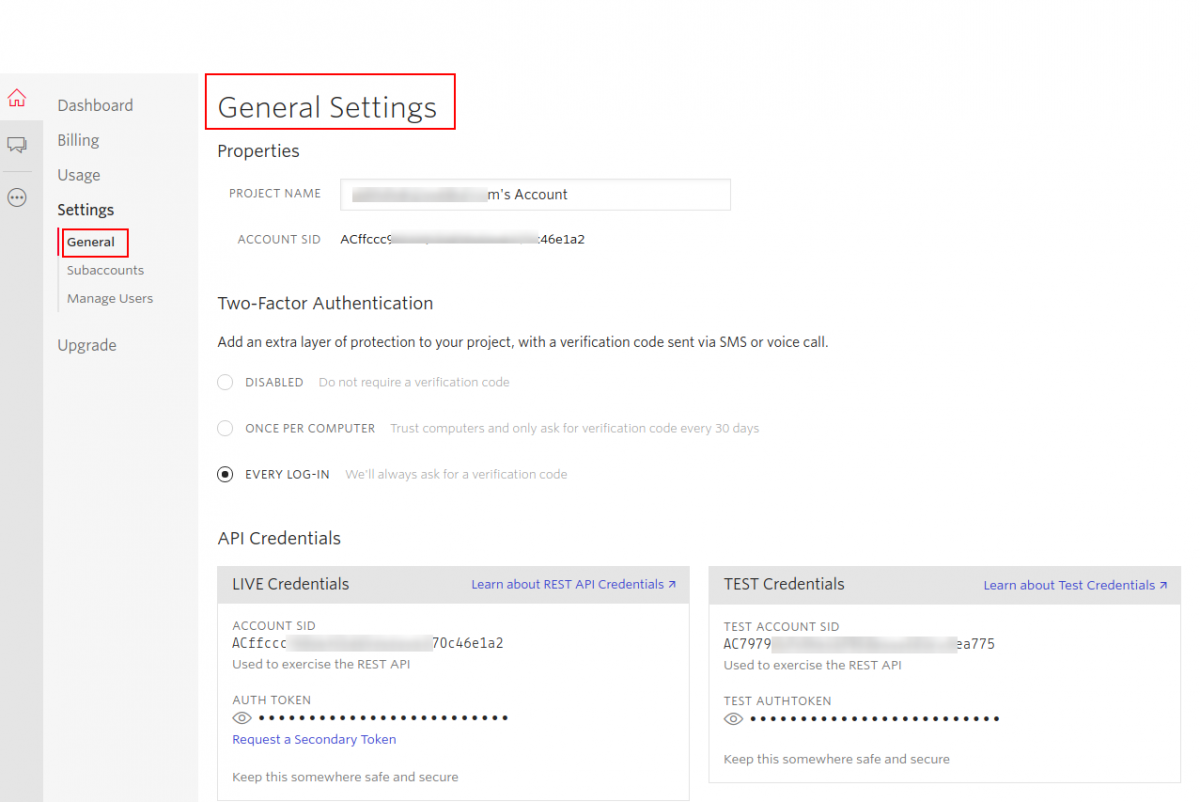
Credential Mapping Reference
| Twilio Console Field | Magento Two Factor Auth Setting | Notes |
|---|---|---|
| Account SID | Auth ID | Unique 34-character string starting with AC |
| Auth Token | Token | Secret 32-character authentication token |
| Twilio Phone Number | Sender Number | E.164 formatted sender number (e.g., +1234567890) |
Next Steps
Once you have gathered these three credentials, proceed to Admin Configuration to enter them into Magento and customize your SMS message template.