
Brute-Force & Lockout Protection
To defend against automated bot attacks, credential stuffing, and dictionary brute-force attempts on 2FA prompts, the module includes configurable lockout protection and trusted IP bypassing.
Lockout Protection Configuration
Navigate to Stores > Configuration > Webkul > Two Factor Auth:
- Maximum Failed 2FA Attempts: Enter the number of consecutive incorrect code attempts permitted before lockout (e.g.
3). Enter0to disable automatic lockout. - Account Lockout Duration (Minutes): Enter the duration in minutes for which the customer account remains locked (e.g.
15).
How Lockout & Attempt Warnings Work
Remaining Attempts Warning Modal:
- If a customer enters an incorrect password on the login form or an incorrect 2FA authentication code, a warning modal is triggered on the storefront displaying the remaining attempt count:
"Invalid login or password. 1 attempt(s) remaining before account lockout."
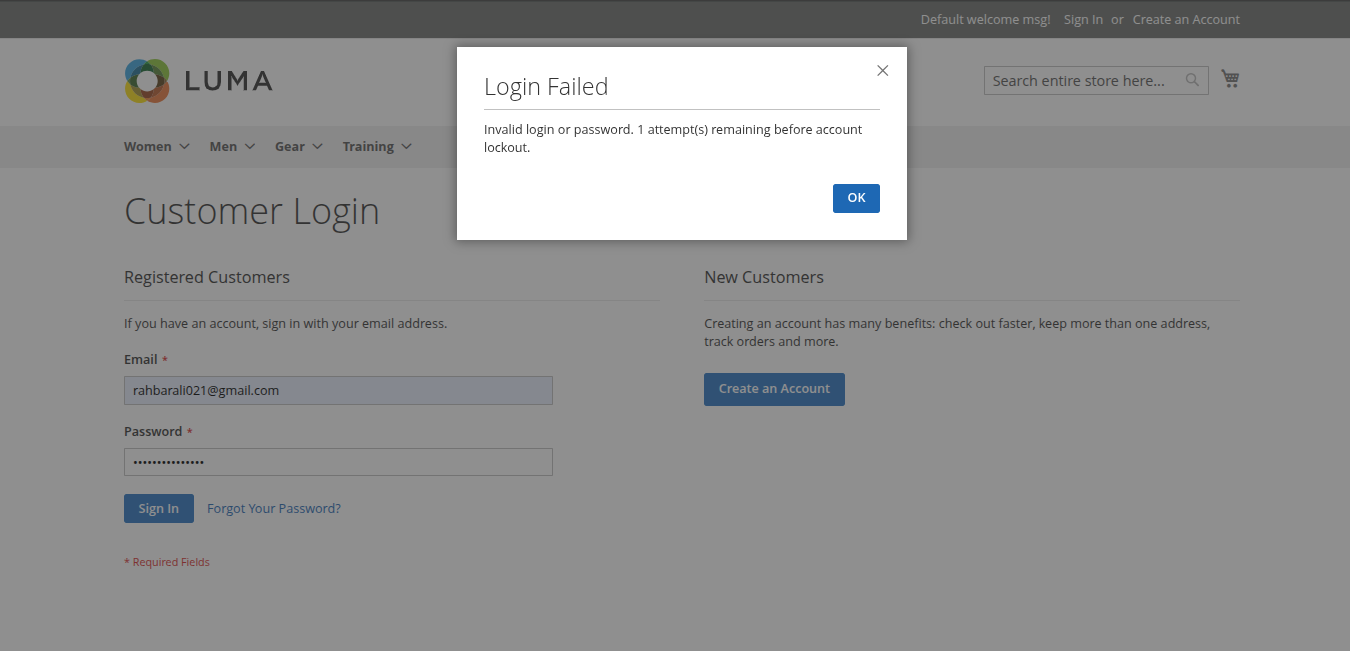
- If a customer enters an incorrect password on the login form or an incorrect 2FA authentication code, a warning modal is triggered on the storefront displaying the remaining attempt count:
Temporary Account Lockout Modal:
- When the user exhausts all permitted attempts (Maximum Failed 2FA Attempts), the account is locked immediately for the specified lockout window (Account Lockout Duration (Minutes)).
- A modal informs the customer:
"Your account has been temporarily locked due to multiple failed login attempts. Please try again in 15 minutes or contact store administrator."
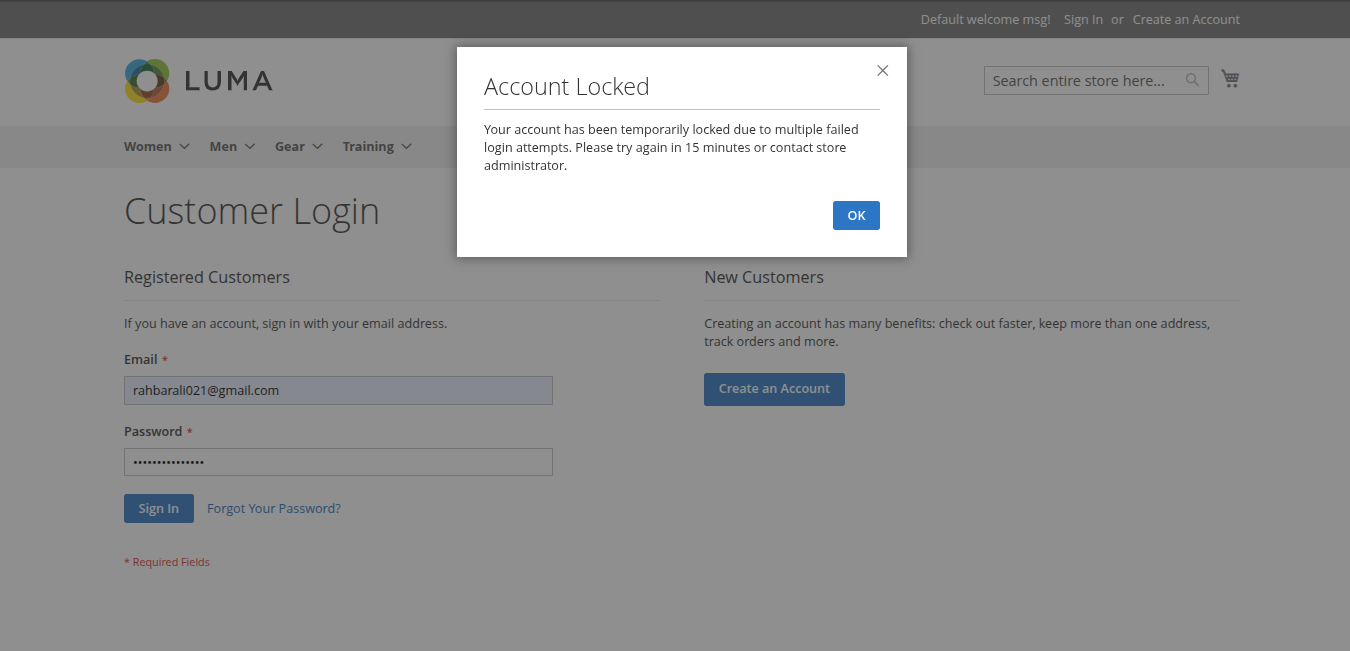
Protection & Recovery:
- During the lockout window, subsequent login or 2FA verification attempts are blocked to neutralize bot-driven credential stuffing and high-speed OTP guessing.
- The lock expires automatically once the timer reaches zero, or a store admin can immediately clear the lockout from the backend via the Unlock 2FA Account button.
Trusted IP Whitelisting (Bypass)
For corporate offices, testing teams, call centers, or developer environments, administrators can bypass 2FA checks based on client IP addresses.
- In the Trusted IP Addresses (Whitelist) setting, enter IP addresses or CIDR subnets (e.g.
192.168.1.1,10.0.0.0/24) separated by commas or line breaks. - Requests originating from these IP addresses will bypass two-factor authentication prompts entirely.