
Installation Guide
This guide covers installing the Magento 2 Two Factor Authentication extension via direct package upload or via the Magento Marketplace.
Method 1: Install from Webkul Store Package
Step 1: Download Extension
- Log in to your Webkul Store Account.
- Navigate to My Account > My Purchased Products.
- Locate Magento 2 Two Factor Authentication, verify your order, and download the
.ziparchive. - Extract the
.ziparchive on your local computer.
Step 2: Upload Files to Server
Inside the extracted folder, navigate to src > app. Copy or upload the app folder into your Magento 2 root installation directory:
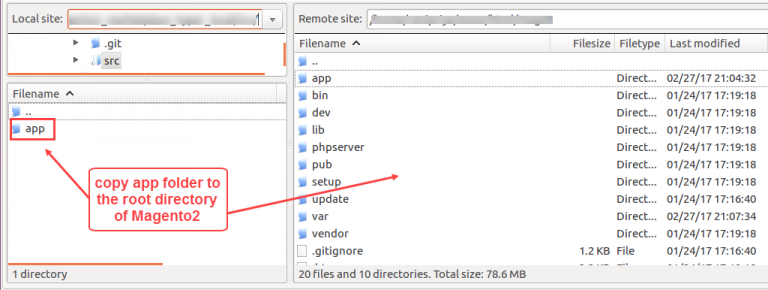
<Magento_Root>/
└── app/
    └── code/
        └── Webkul/
            └── TwoFactorAuth/
Step 3: Run Deployment Commands
Log in to your Magento server via SSH, navigate to the Magento 2 root folder, and execute:
# Install third-party SDK dependencies
composer require twilio/sdk:^8.6
composer require pragmarx/google2fa
composer require pragmarx/google2fa-qrcode
composer require minishlink/web-push
composer require google/auth

# Run Magento deployment commands
php bin/magento setup:upgrade
php bin/magento setup:di:compile
php bin/magento setup:static-content:deploy -f
php bin/magento indexer:reindex
php bin/magento cache:flush
Method 2: Install via Magento Marketplace
Step 1: Obtain Access Keys
- Log in to the Magento Marketplace.
- Go to My Profile > Access Keys in the My Products section.
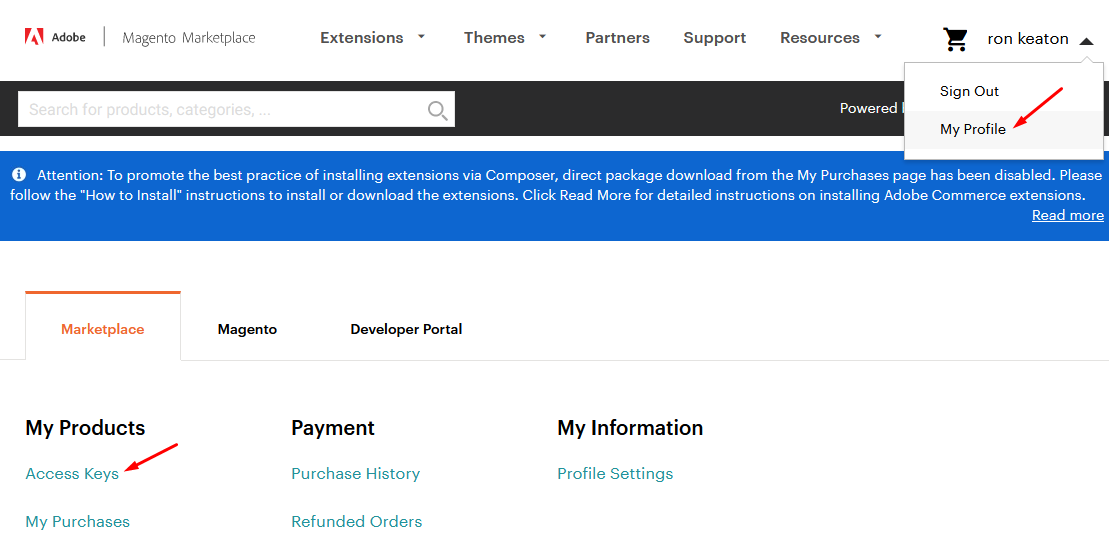
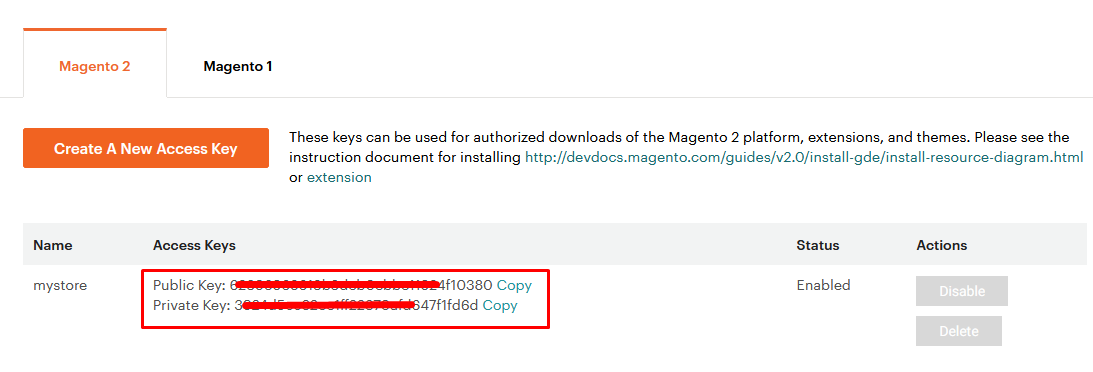
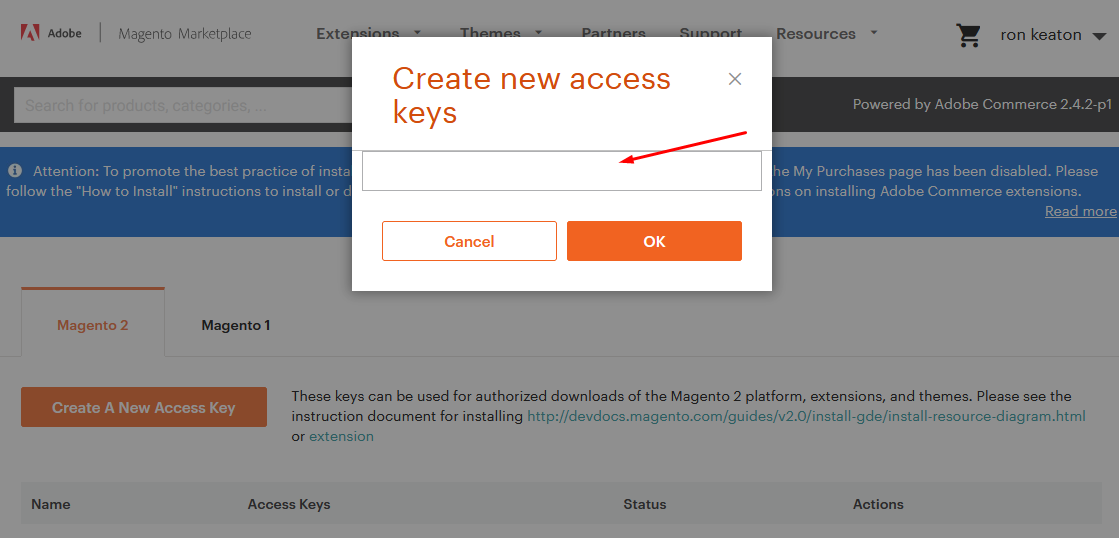
- Copy your Public Key and Private Key. If no keys exist, click Create A New Access Key.
Step 2: Update composer.json
In My Profile > My Purchases, locate the extension to review your licensed component details.
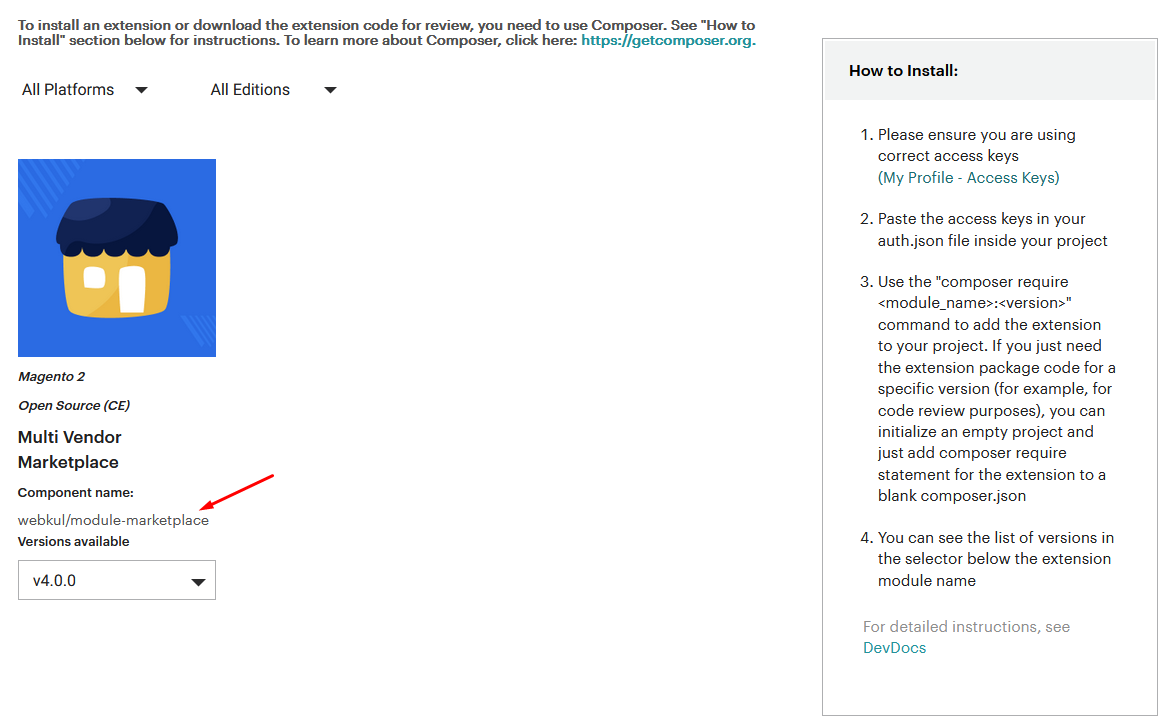
In your Magento root directory, execute:
composer require webkul/2fa:5.0.5-p1
When prompted for credentials:
- Username: Paste your Public Key
- Password: Paste your Private Key
Step 3: Run Deployment Commands
Run the dependency installation and Magento compilation commands:
composer require twilio/sdk:^8.6
composer require pragmarx/google2fa
composer require pragmarx/google2fa-qrcode
composer require minishlink/web-push
composer require google/auth

php bin/magento setup:upgrade
php bin/magento setup:di:compile
php bin/magento setup:static-content:deploy -f
php bin/magento indexer:reindex
php bin/magento cache:flush
Verification
To verify that the module is installed and active:
- Run:
php bin/magento module:status Webkul_TwoFactorAuth
It should report Webkul_TwoFactorAuth : Module is enabled.
- Log in to the Magento Admin Panel.
- Navigate to Stores > Configuration > Webkul > Two Factor Auth. The settings page should be visible and accessible.
Next Step
If you plan to use SMS or Push Notifications, review the Twilio Setup and Firebase Setup guides. Otherwise, proceed directly to Admin Configuration.