
Admin Backend Management & Account Unlock
Store administrators have complete visibility into each customer's 2FA status, failed verification metrics, lockout state, and backup recovery codes directly from the Magento Admin Panel.
Accessing Customer 2FA Details
- In the Magento Admin Panel, go to Customers > All Customers.
- Find the desired customer in the grid and click Edit.
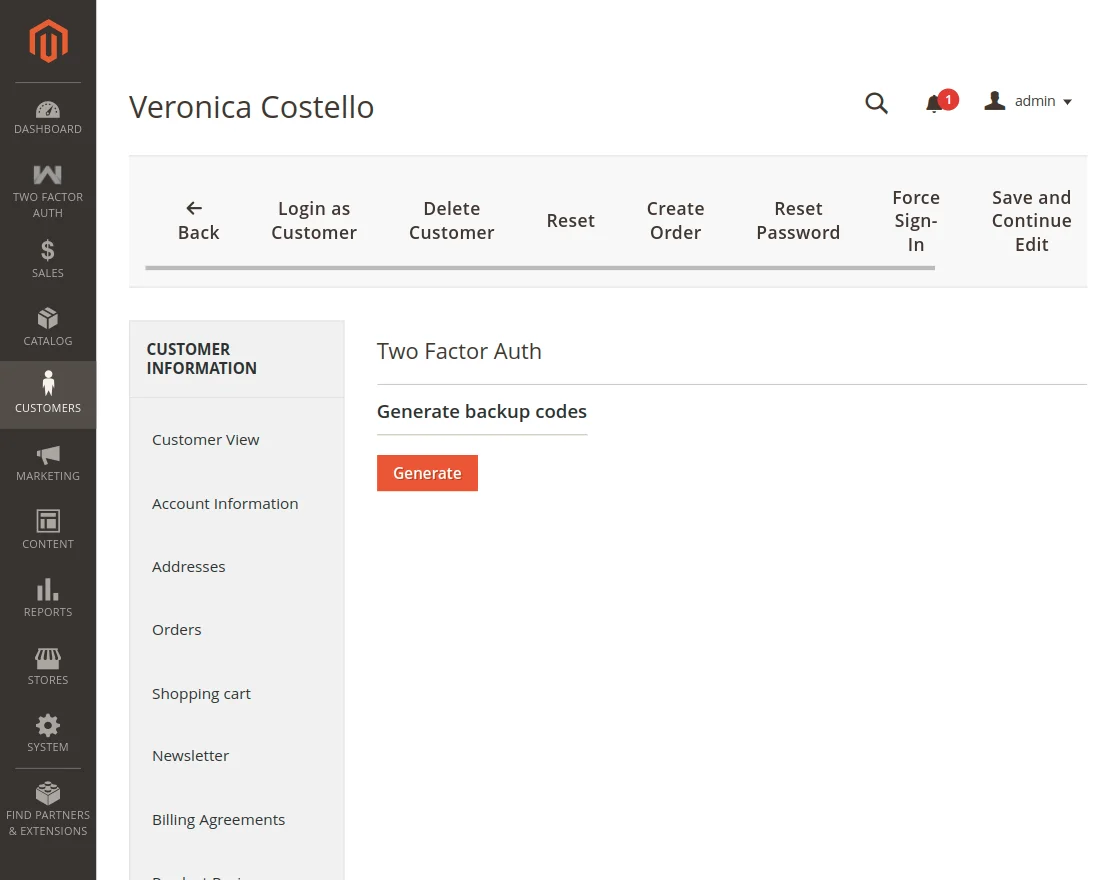
- In the left navigation menu of the customer edit page, click the Two Factor Auth tab.
1. Generating Emergency Backup Codes
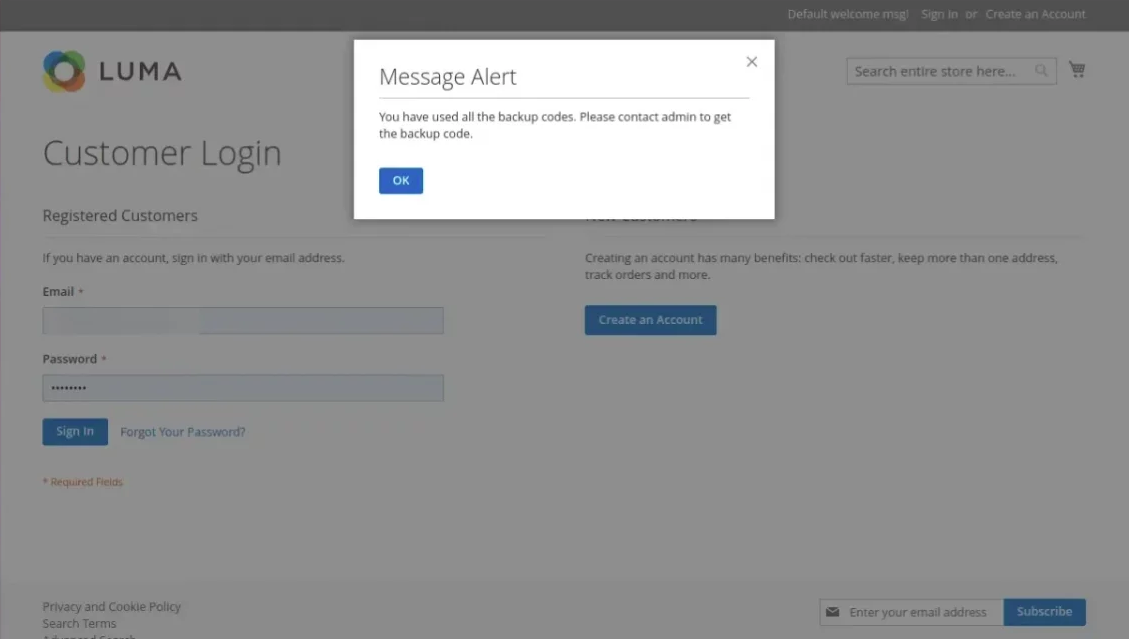
When a customer exhausts their 12 backup recovery codes, a notification banner alerts them:
An administrator can generate a fresh batch of codes on behalf of the customer:
- Open Customers > All Customers > Edit Customer > Two Factor Auth.
- Click the Generate button.
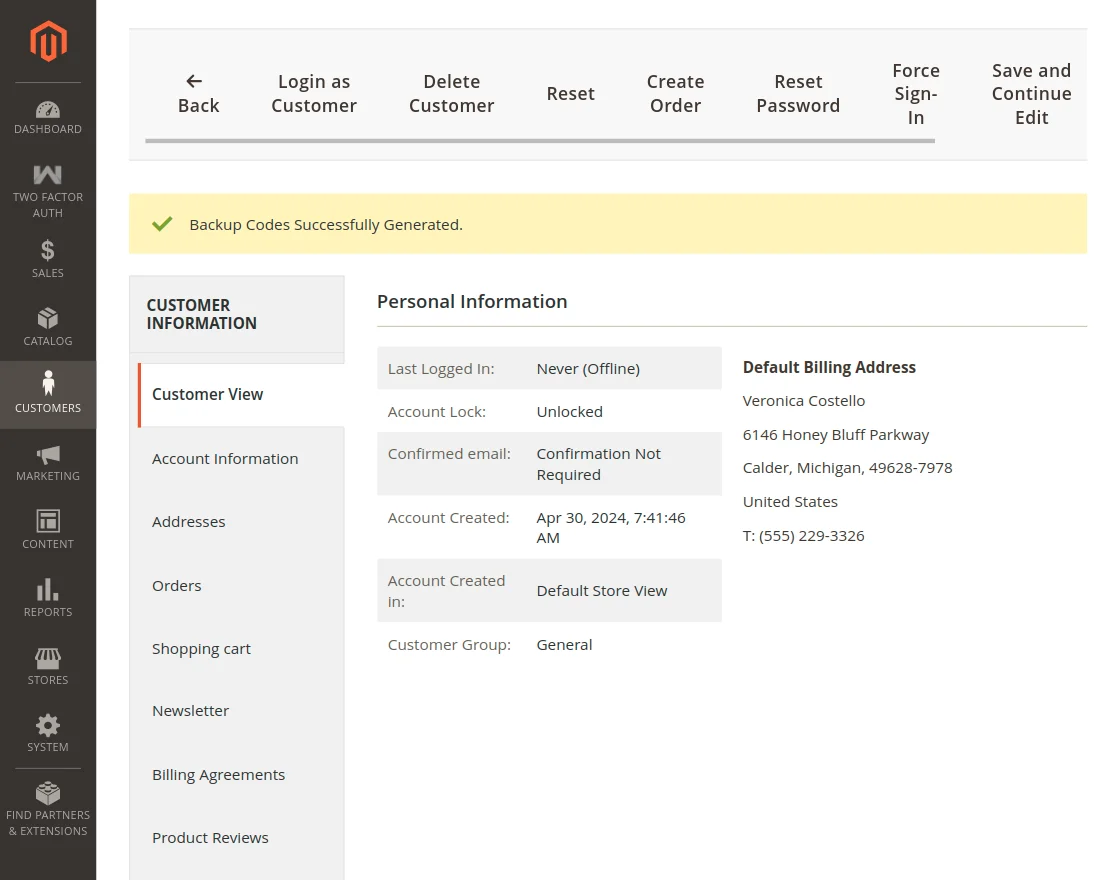
- A brand-new set of 12 single-use backup codes is instantly generated, shown in the admin panel, and automatically emailed to the customer.
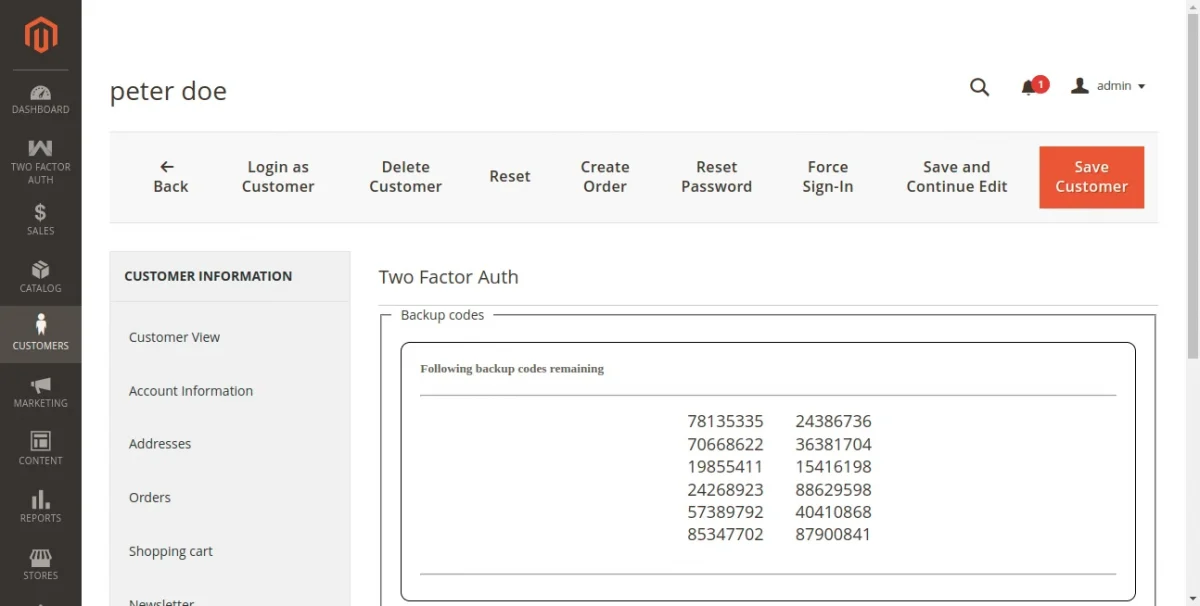
2. Reviewing Lockout Status & Unlocking Accounts
When brute-force lockout is triggered:
- Open Customers > All Customers > Edit Customer > Two Factor Auth.
- Review the account metrics:
- Account Status: Displays
LOCKED(along with remaining lock duration) orACTIVE / UNLOCKED. - Failed Attempts: Indicates the number of consecutive incorrect 2FA attempts recorded.
- Account Status: Displays
- To restore customer access immediately without waiting for the timer to expire, click the Unlock 2FA Account button.
- The lockout status is cleared, the failure counter is reset to zero, and the customer can log in immediately.