
Warehouse Manager Portal & Order Fulfillment
Each warehouse is assigned a dedicated manager account. Warehouse managers log in to a specialized backend management panel to view assigned orders, package consignments, generate shipments, and download packingslips.
Warehouse Manager Login
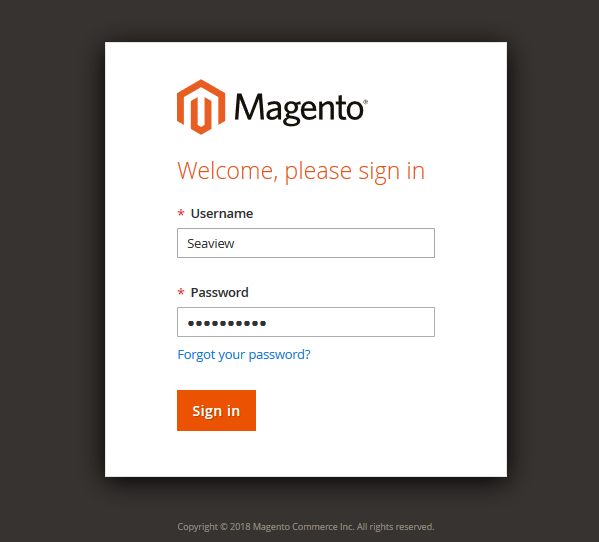
- When an administrator creates a warehouse, the manager receives an email containing login credentials (username, password, and portal URL).
- The warehouse manager accesses the login URL and enters their credentials:
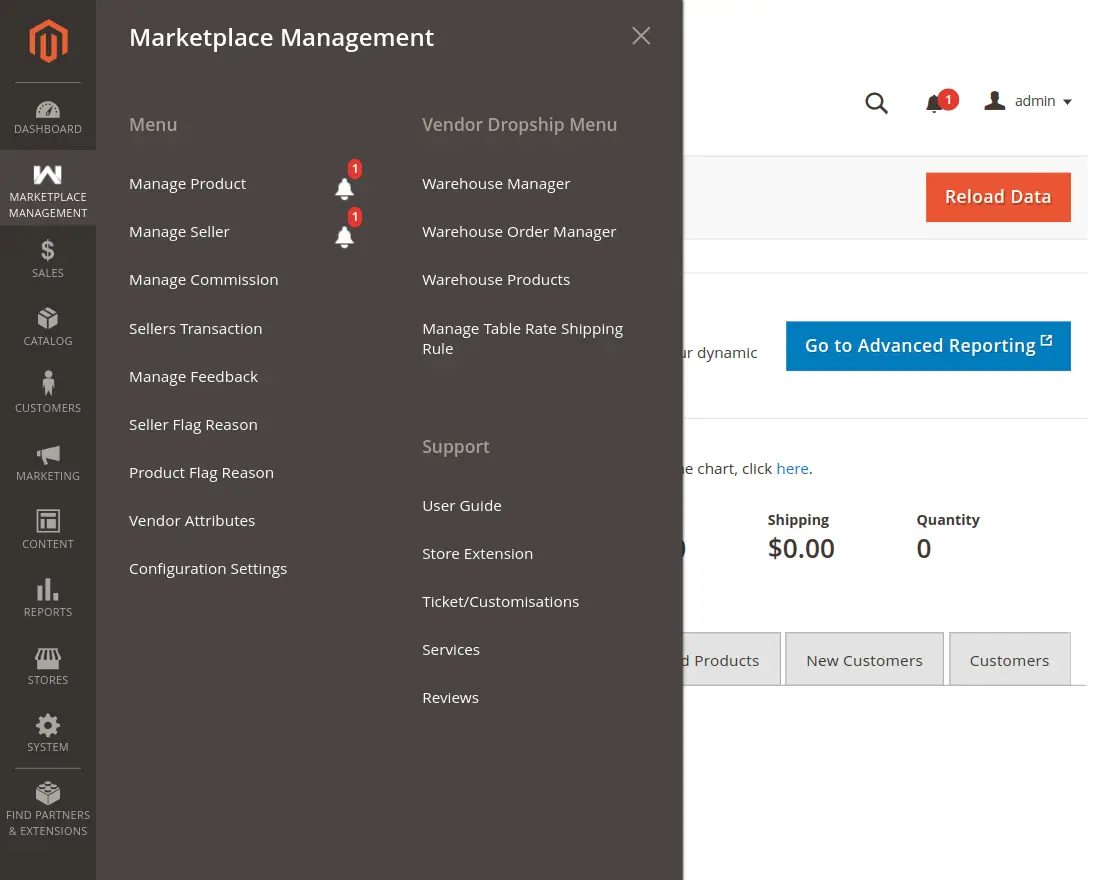
- Upon successful sign-in, the manager accesses their specialized menu options under Vendor Dropship Menu:
- Warehouse Order Manager
- Manage Shipping Rule
Viewing Assigned Orders
Clicking Warehouse Order Manager displays all orders routed to this specific warehouse:
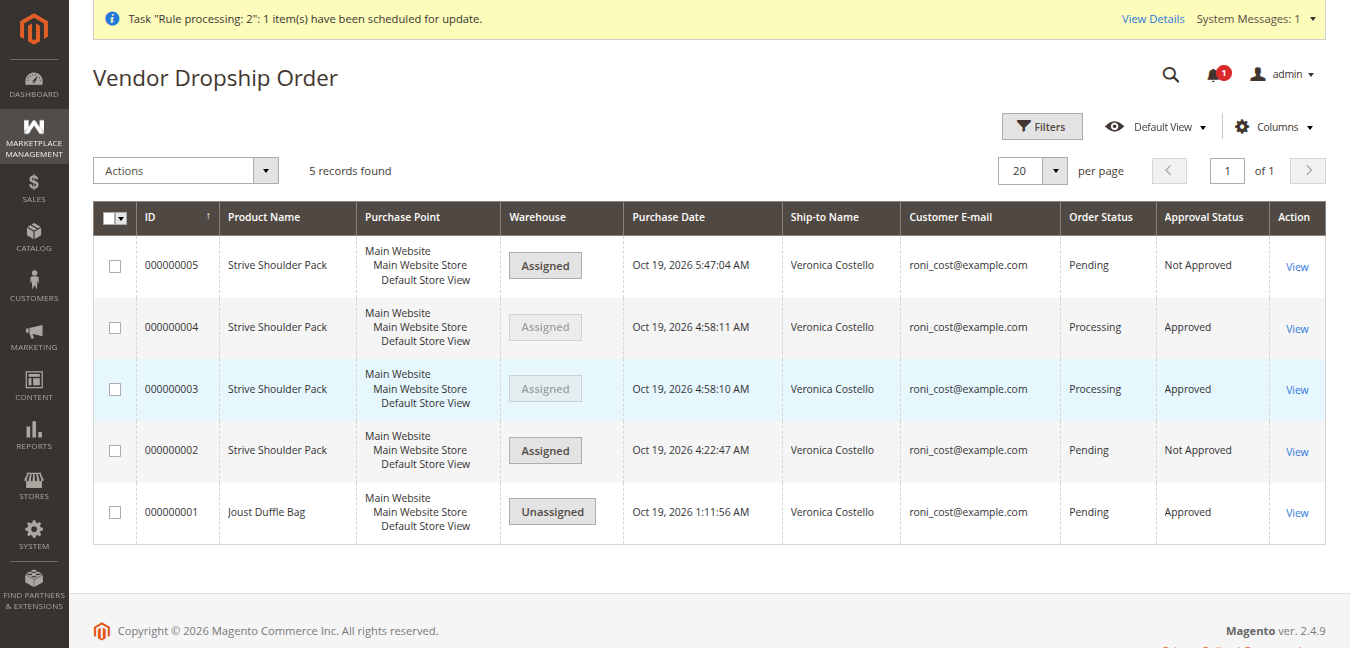
The grid includes:
- Order ID & Purchase Date
- Bill-to Name & Ship-to Name
- Grand Total
- Status (e.g. Approved)
- Action
Processing Shipments
To ship an approved order:
- Click the Create or View link next to the order.
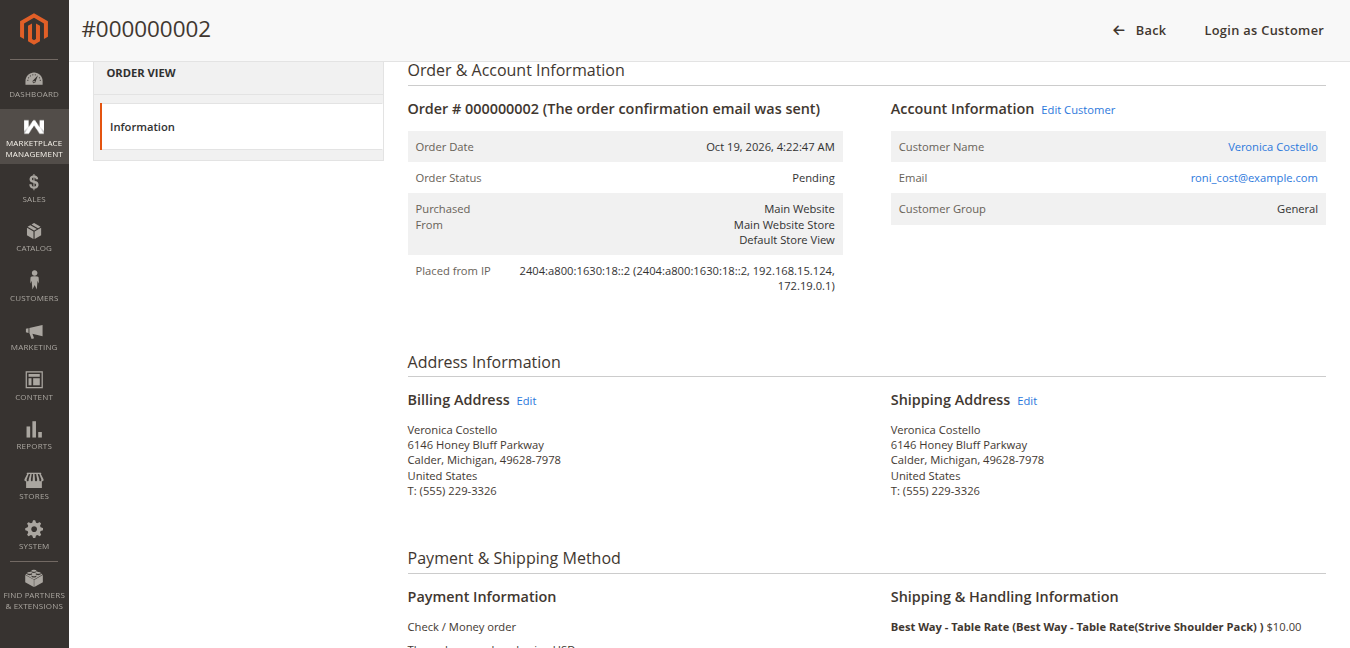
- The order fulfillment view displays customer shipping destination, selected delivery carrier, and ordered items:
- Review the items and quantities.
- Add carrier tracking information (Carrier Name and Tracking Number).
- Click Submit Shipment.
- A Magento shipment record is generated, updating the order fulfillment status to Complete / Shipped and emailing tracking details to the end customer.