
Seller Product Warehouse Assignment
Marketplace sellers can distribute their products across multiple warehouses directly from their frontend vendor dashboard, enabling multi-location inventory fulfillment for their catalog.
Accessing Seller Product List
- The seller logs in to their customer account on the storefront.
- From the vendor dashboard sidebar, navigate to Marketplace > My Product List.
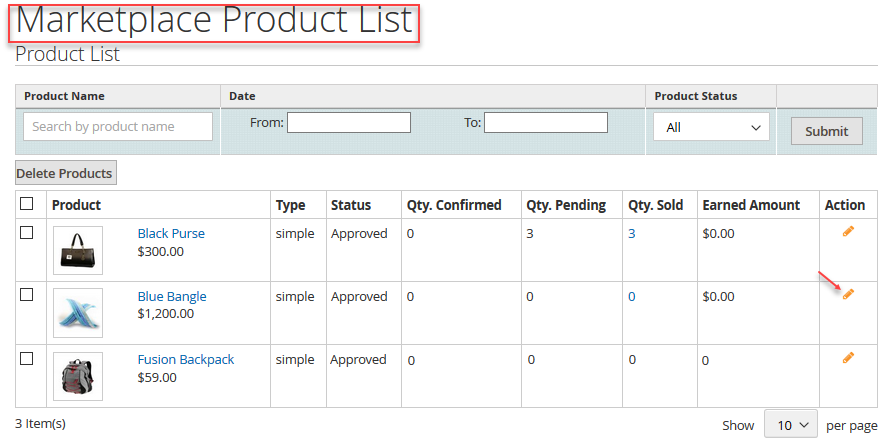
Assigning Warehouses & Custom Stock Quantities
To link a product to one or more warehouses:
- In the seller's product listing, find the product and click Edit.
- Scroll to the Assign Product to Warehouses section.
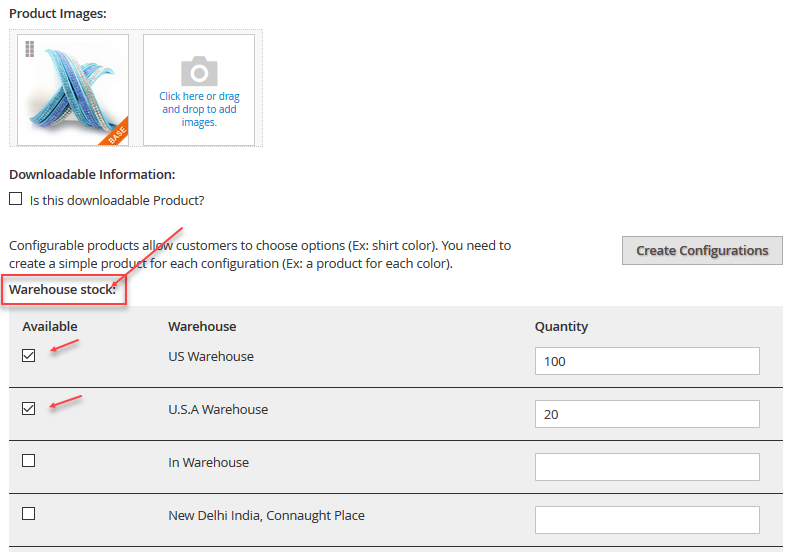
- For each available warehouse:
- Check the checkbox next to the warehouse name to enable stock storage at that facility.
- Specify the available Quantity stored in that warehouse.
- Click Save Product.
Multi-Warehouse Stock Splitting
A seller can allocate 50 units to a New York warehouse and 30 units to a Los Angeles warehouse. When a customer orders, the system automatically checks stock and fulfills from the closest warehouse holding adequate inventory.