
Module Configuration
After installing the Magento 2 Multi-Vendor Dropship extension, administrators need to configure the core settings for warehouse allocation, API integration, email templates, and carrier delivery methods.
Accessing Configuration
- In the Magento Admin Panel, navigate to Stores > Settings > Configuration.
- In the left panel, expand the Webkul tab and click on Vendor Dropship Manager.
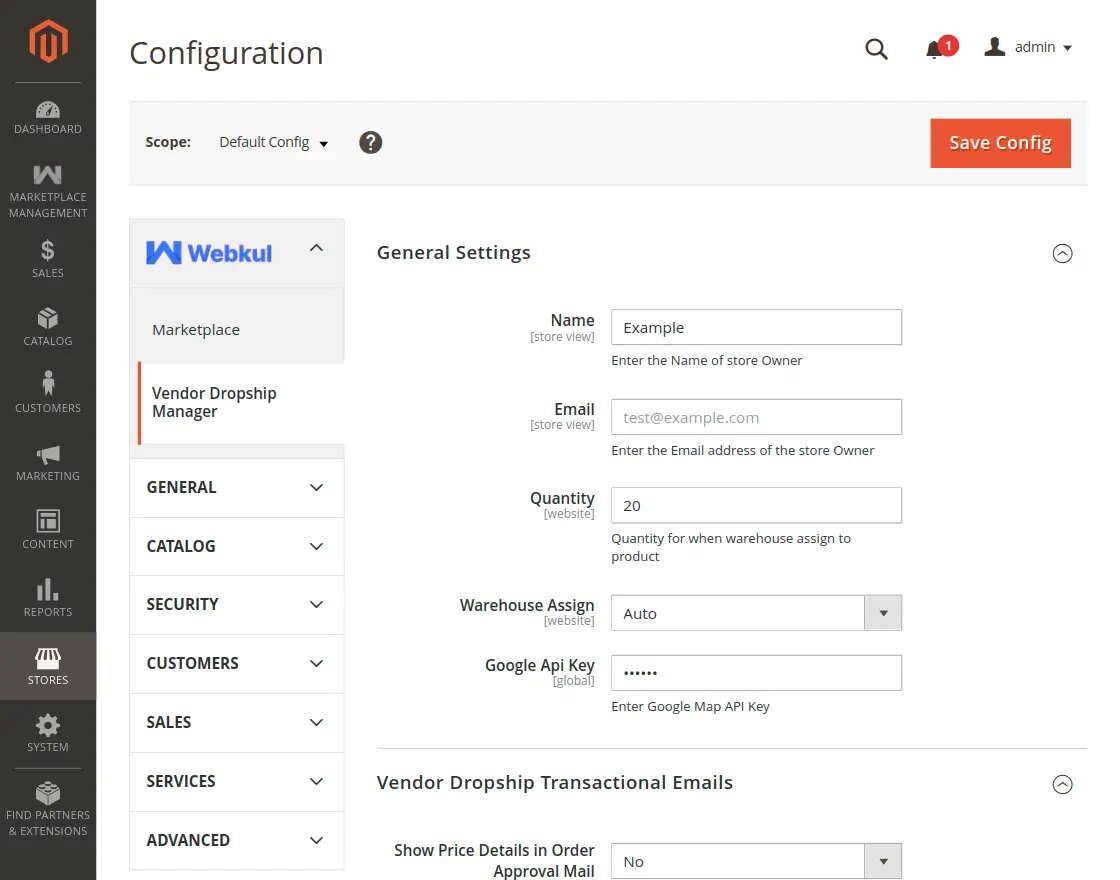
1. General Settings
| Field | Description |
|---|---|
| Name | Enter the name of the store owner. This name appears in notifications dispatched to warehouse managers. |
| Enter the administrative contact email address of the store owner. | |
| Quantity | Enter the default quantity assigned to a warehouse when adding products. |
| Warehouse Assign | Select how incoming customer orders are assigned to warehouses: • Auto: The system automatically calculates distance using Google Maps APIs and routes orders to the nearest available warehouse. • Manual: The admin manually reviews and assigns the warehouse to the order from the order management screen. |
| Google Api Key | Enter your Google Maps Platform API Key. (Note: Required when Warehouse Assign is set to Auto). |
Auto Assignment Mode
When Auto is selected, Google API integration evaluates customer shipping coordinates against all active warehouses with inventory, instantly choosing the closest fulfillment facility.
2. Vendor Dropship Transactional Emails
Manage automatic email communications sent to warehouse managers:
| Field | Description |
|---|---|
| Show Price Details in Order Approval Mail | Choose Yes to display product pricing in order notifications sent to warehouses, or No to hide prices. |
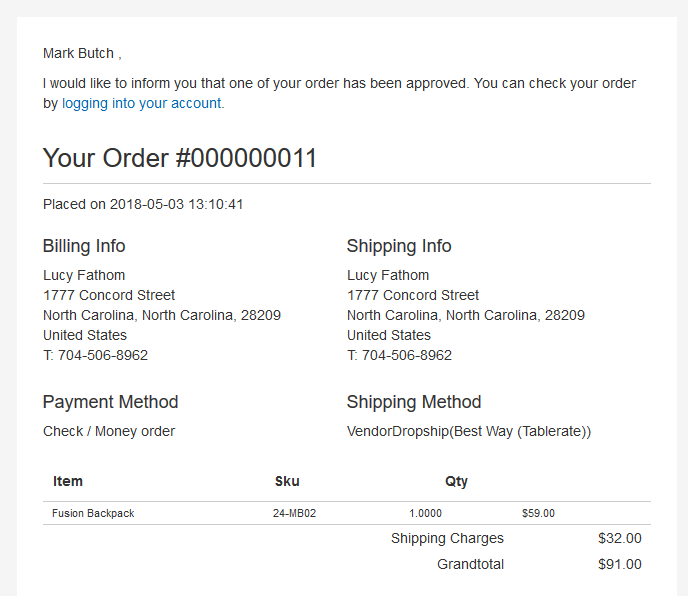
| Order Approved Template | Select the email template used to notify warehouse managers when an order has been approved and is ready for fulfillment. |
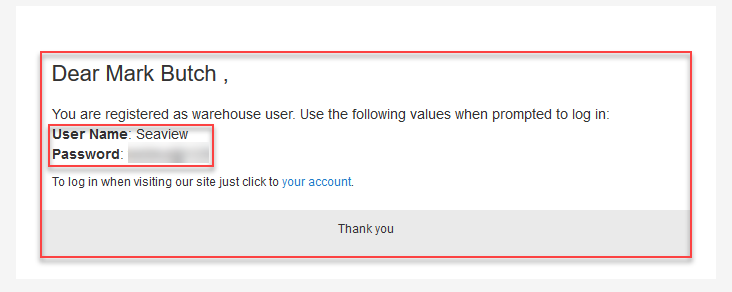
| New Warehouse Account Template | Select the email template sent to new warehouse managers containing their credentials and login link. |
Sample Emails
New Warehouse Registration Email
When an admin creates a new warehouse, the system sends account credentials and portal access instructions:
Order Approval Email
When an order is approved by the admin, the warehouse receives a structured alert containing the customer's delivery destination and order line items:
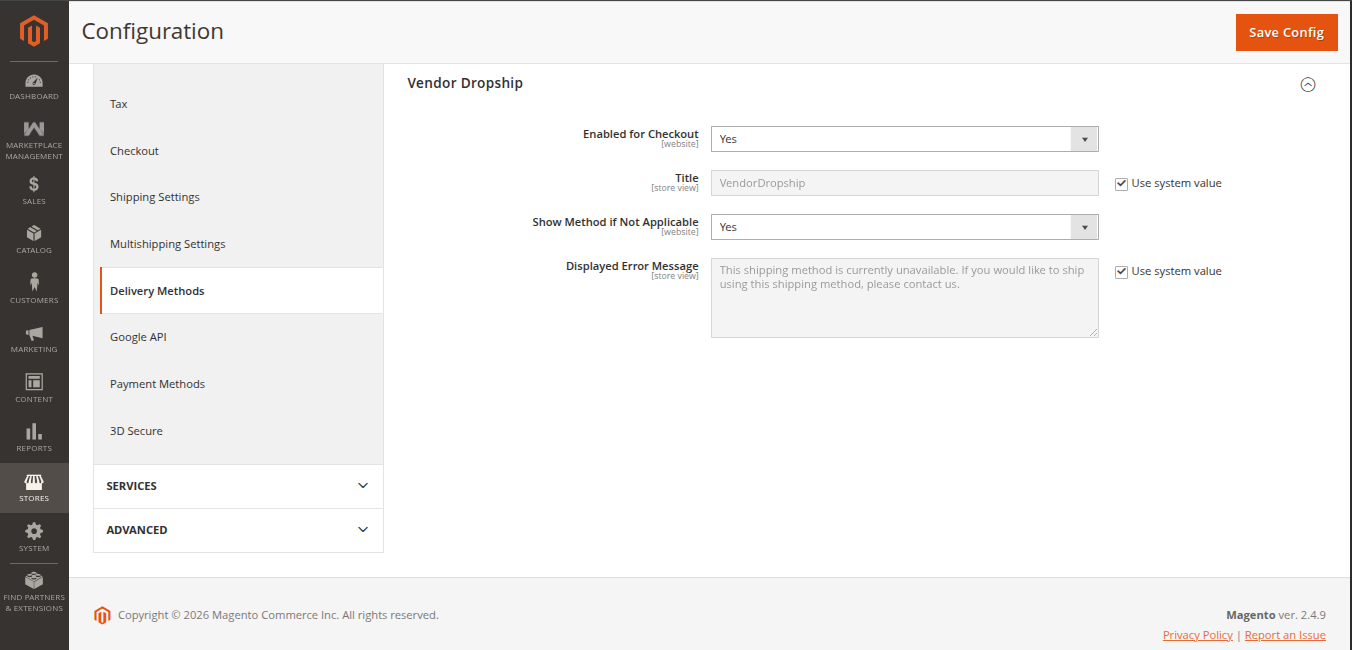
3. Shipping Delivery Methods Configuration
To configure how dropship shipping rates are calculated and presented at checkout:
- Navigate to Stores > Configuration > Sales > Delivery Methods.
- Find the Vendor Dropship carrier group.
| Field | Description |
|---|---|
| Enabled for Checkout | Set to Yes to enable dropship shipping options on the storefront checkout. |
| Title | Set the shipping method title displayed to customers during checkout (e.g., Vendor Dropship). |
| Show Method if Not Applicable | Choose whether to display the method with an error message when it cannot be applied. |
| Displayed Error Message | Custom notification shown when dropship shipping is unavailable for the customer's cart or address. |