
Table Rate Shipping Rules
The Manage Table Rate Shipping Rule section allows administrators to import and manage precise location-based and weight-based shipping rates for each dropship warehouse.
Accessing Shipping Rules
In the Magento Admin Panel, navigate to Marketplace Management > Vendor Dropship Menu > Manage Table Rate Shipping Rule.
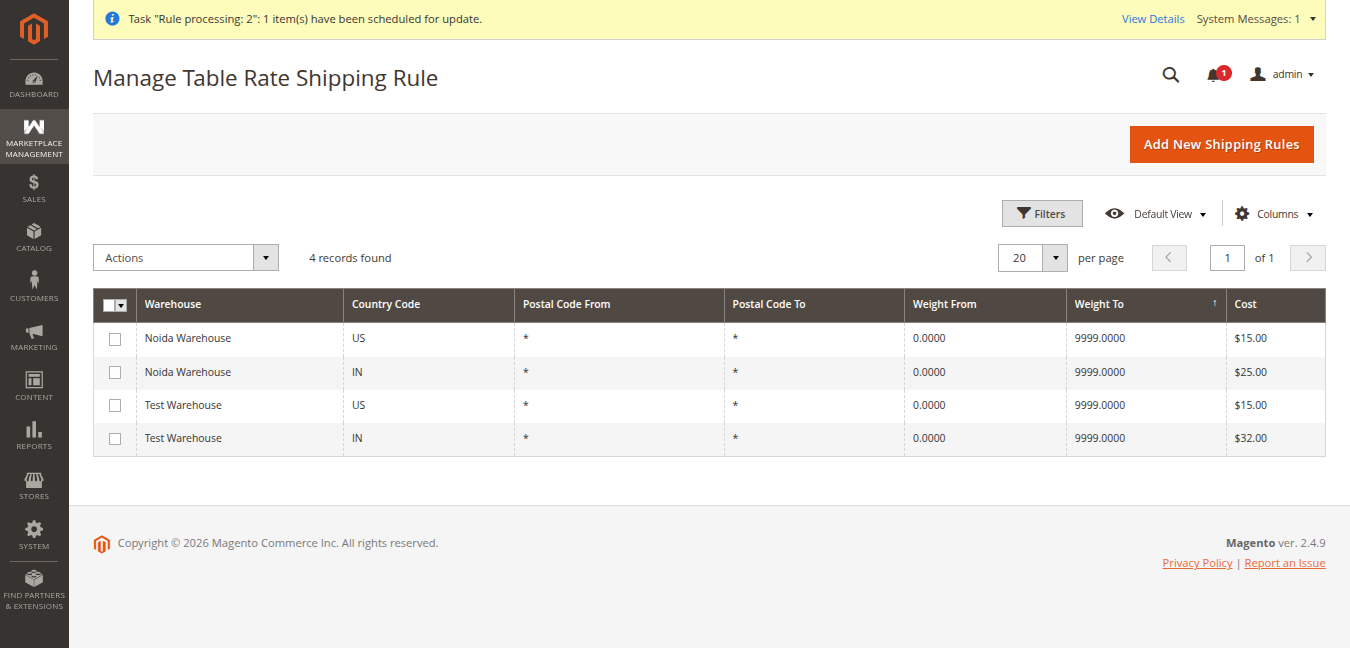
Shipping Rules Grid Overview
The grid displays all active table rate entries configured across your warehouses:
| Column | Description |
|---|---|
| Warehouse | Warehouse facility name associated with this shipping rate (e.g. Noida Warehouse, Test Warehouse). |
| Country Code | Destination ISO country code (e.g. US, IN). |
| Postal Code From | Starting postal code boundary or wildcard * matching all postal codes. |
| Postal Code To | Ending postal code boundary or wildcard * matching all postal codes. |
| Weight From | Minimum consignment weight threshold (e.g. 0.0000). |
| Weight To | Maximum consignment weight threshold (e.g. 9999.0000). |
| Cost | Fixed shipping fee assessed when shipment parameters match this rule (e.g. $15.00, $25.00, $32.00). |
Importing Table Rate Shipping Rules
To create or upload rates for a warehouse:
- Click the Add New Shipping Rules button located at the top-right of the screen.
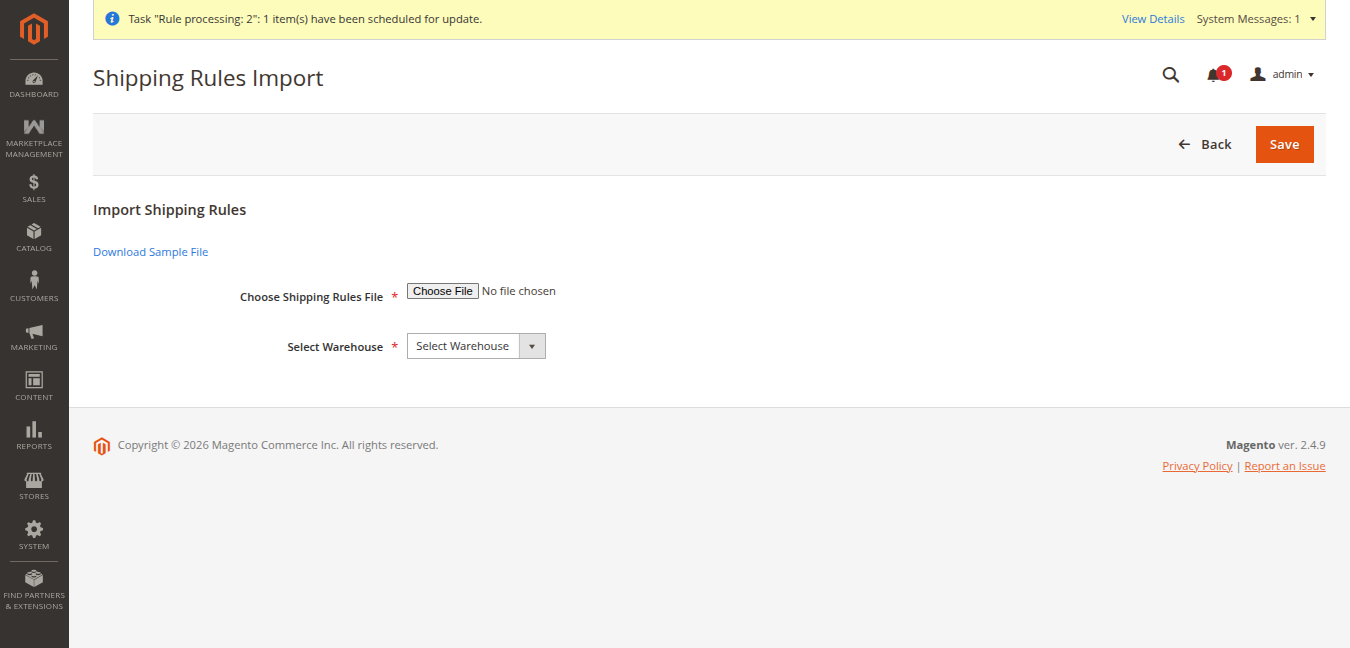
- The import interface opens:
Step 1: Download Sample CSV
Click Download Sample File to obtain the official template:
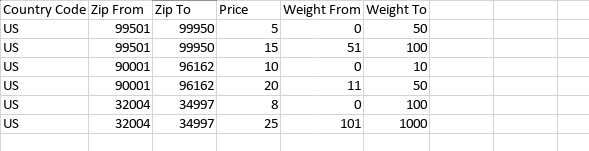
The CSV contains the standard table rate columns:
Country(ISO 2-letter country code)Region/StateCityZip/Postal Code From&Zip/Postal Code ToWeight From&Weight ToPrice(Shipping cost)
Step 2: Upload CSV and Assign Warehouse
- Under Choose Shipping Rules File *, click Choose File and select your populated CSV file.
- In the Select Warehouse * dropdown, select the target facility for these rates (e.g., Noida Warehouse or Test Warehouse).
- Click the orange Save button in the header.
The rates are immediately parsed and stored in the database, displayed in the rules grid:
Deleting Shipping Rules
To remove obsolete rates:
- Select the rules using the grid checkboxes.
- From the Actions dropdown, select Delete.
- Confirm deletion in the pop-up prompt.