
Warehouse Order Manager
The Warehouse Order Manager enables store administrators to review storefront orders, track assigned fulfillment centers, approve orders for dispatch, or manually re-route orders to alternate warehouses.
Accessing Warehouse Orders
In the Magento Admin Panel, navigate to Marketplace Management > Vendor Dropship Menu > Warehouse Order Manager.
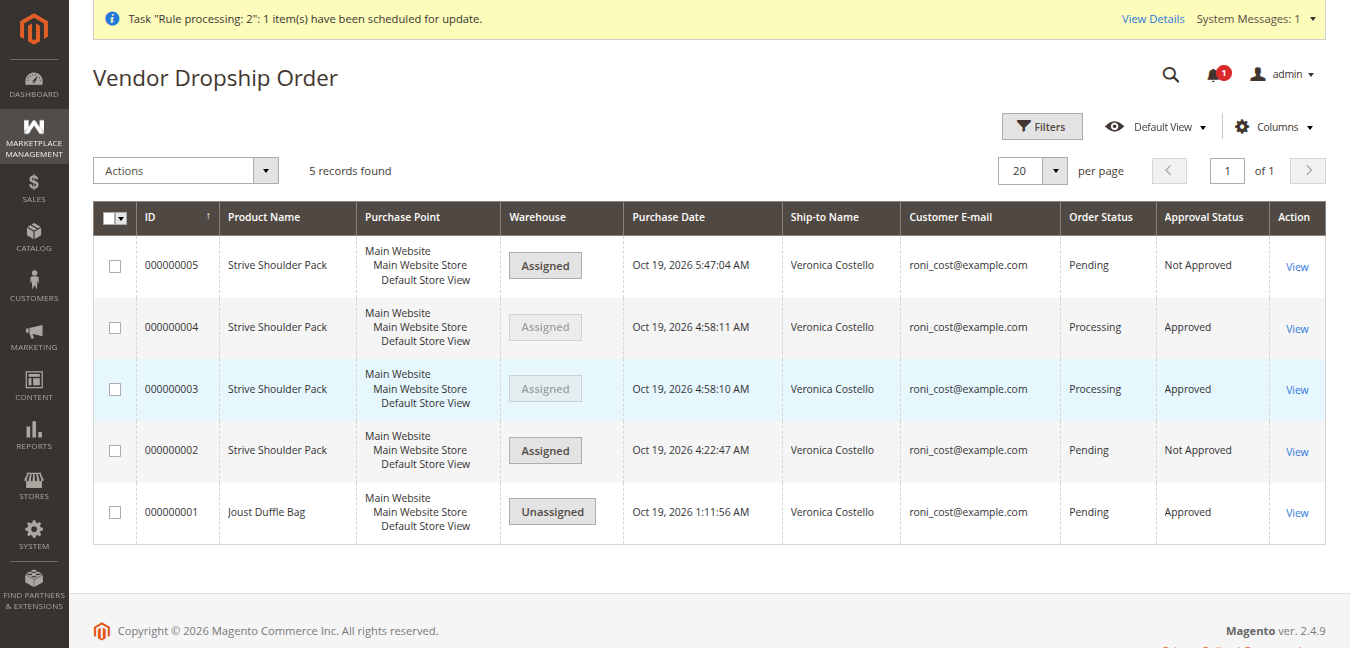
Warehouse Orders Grid Overview
The Vendor Dropship Order grid provides a comprehensive overview of every placed order and its fulfillment state:
| Column | Description |
|---|---|
| ID | System increment order identifier (e.g., 000000005, 000000004, 000000002). |
| Product Name | Name of the purchased catalog product (e.g., Strive Shoulder Pack). |
| Purchase Point | Website, store, and store view where the customer placed the order. |
| Warehouse | Interactive status button indicating whether a facility is Assigned or Unassigned. Clicking this button allows instant modal assignment or inspection. |
| Purchase Date | Exact timestamp when the order was completed by the shopper. |
| Ship-to Name | Recipient customer's delivery name (e.g., Veronica Costello). |
| Customer E-mail | Customer's registered email address for tracking notifications. |
| Order Status | Core Magento sales order status (Pending, Processing, etc.). |
| Approval Status | Dropship workflow authorization status (Approved or Not Approved). |
| Action | Click View to inspect detailed order information and customer addresses. |
Order Allocation Workflows
Depending on the Warehouse Assign setting in module configuration:
- Auto Assignment:
- When the customer places an order, the system calculates distance between customer shipping coordinates and registered warehouses stocking the ordered products using Google Maps Geocoding APIs.
- The nearest qualifying warehouse is automatically assigned.
- Manual Assignment:
- Orders enter the grid without a warehouse assigned (displaying Unassigned).
- The admin reviews warehouse availability and assigns the order manually before approval.
Approving or Canceling Orders
To authorize a warehouse to proceed with fulfillment:
- Check the desired order row(s) in the grid.
- In the Actions dropdown menu, select Approve or Cancel.
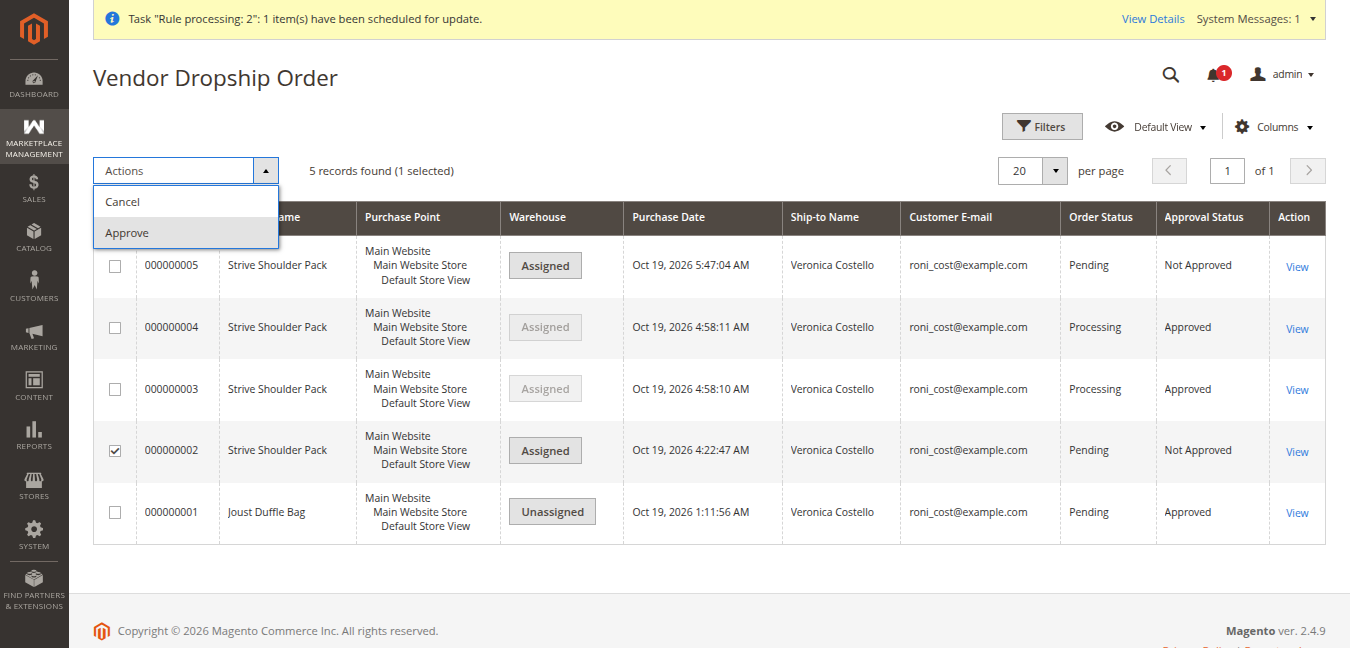
- Once an order is approved:
- Its Approval Status transitions to Approved.
- An automated Order Approval Notification email is dispatched to the assigned warehouse manager containing shipping destination details and required line items.
- The order appears in the warehouse manager's portal for packing and shipment generation.
Viewing Order Details
Click View in the Action column for any order to inspect full line items, pricing, customer details, and shipping carrier information:
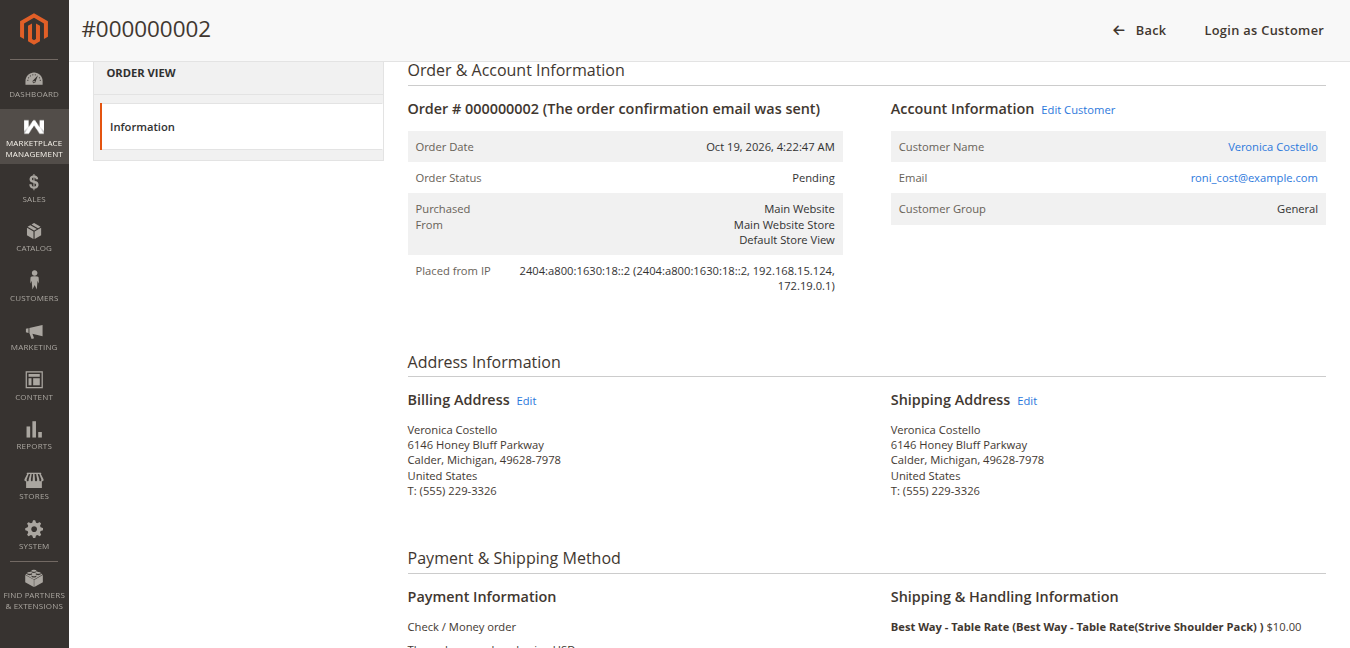
The detailed view breaks down:
- Order & Account Information: Order date, current status (Pending / Processing), placed IP address, customer name, email, and customer group.
- Address Information: Verified Billing Address and Shipping Address.
- Payment & Shipping Method: Selected payment gateway and specific shipping method details (e.g., Best Way - Table Rate (Best Way - Table Rate(Strive Shoulder Pack) ) $10.00).
Warehouse Reassignment & Lock Protection ("Cannot Change Warehouse")
The module provides both quick modal assignment from the grid and built-in protection against reassigning shipped orders:
1. Assigning Warehouses from the Grid
Clicking the Warehouse button (Assigned or Unassigned) directly in the grid opens a popup allowing administrators to select which warehouse will fulfill each product in the order.
2. Shipped Order Lock Protection
Once a warehouse manager creates the shipment and dispatches the consignment (is_shipped state), the warehouse assignment is strictly locked.
If an administrator attempts to click the Assigned warehouse button for an order that has already been shipped, the system intercepts the request and displays a security alert dialog:
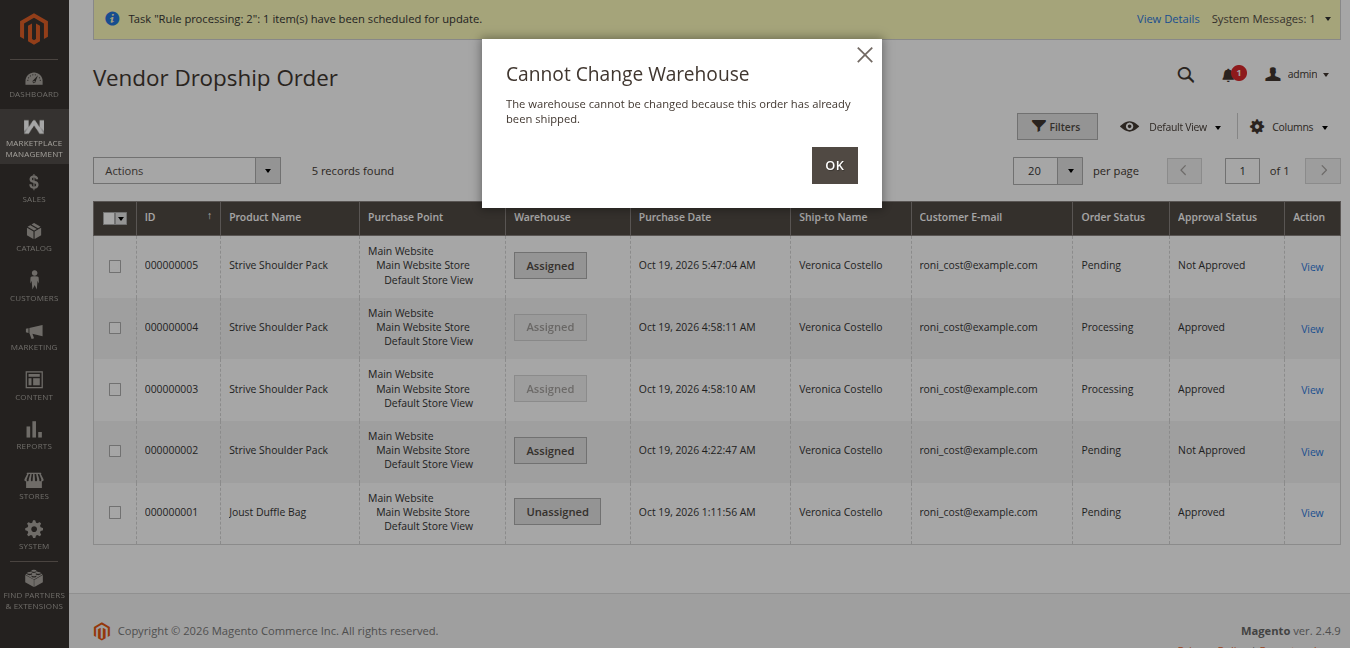
Cannot Change WarehouseThe warehouse cannot be changed because this order has already been shipped.
Why Warehouse Locking is Enforced
- Prevents Duplicate Shipments: Guarantees that another fulfillment facility cannot accidentally generate a duplicate consignment or dispatch redundant items.
- Maintains Stock Accuracy: Protects inventory deduction records, preventing erroneous adjustments across physical warehouses.
- Preserves Tracking & Carrier Data: Keeps customer dispatch notifications and courier tracking links locked to the actual fulfilling warehouse.
Manually Re-Routing Orders via Order View
If an order is still unshipped and needs to be redirected from the order view page:
- Open the order view and locate the Warehouse dropdown.
- Select the preferred new warehouse.
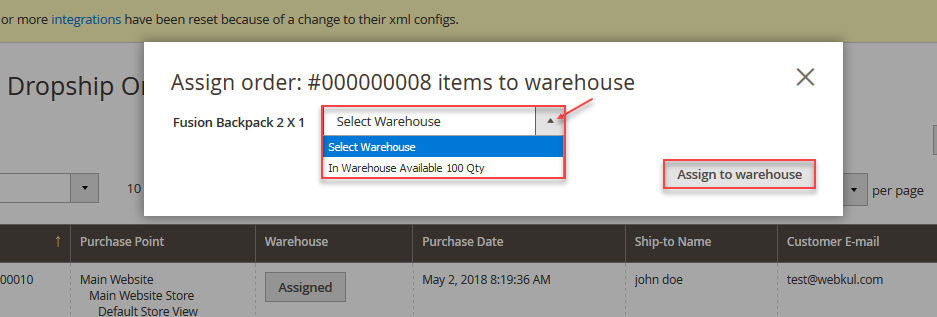
- Click Assign to Warehouse.
- The order is instantly updated and mapped to the selected facility for fulfillment.