Product Edit & Storefront Display
Once products are mass uploaded, linked relationships (related products, up-sells, cross-sells) and product information are immediately active in both the product edit panel and customer storefront.
Product Edit View (Admin & Seller Panel)
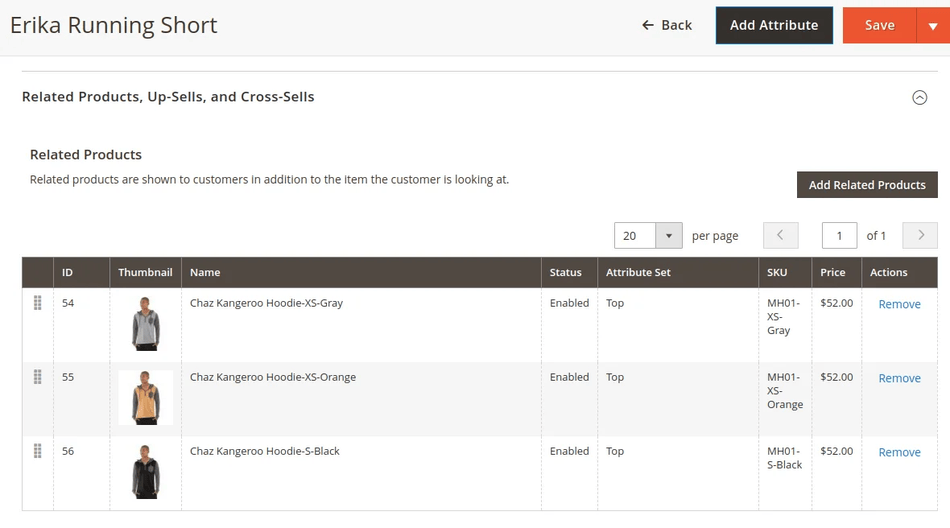
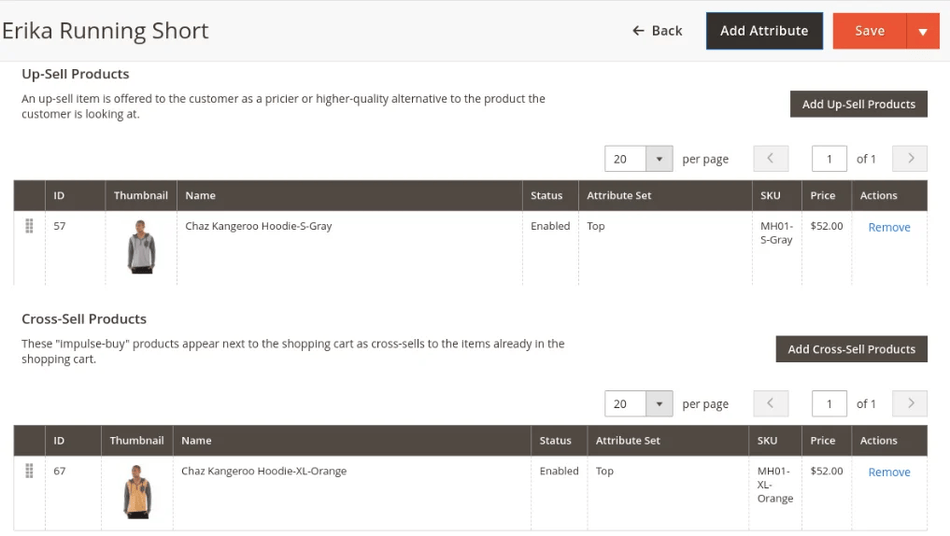
When editing a mass-uploaded product via Catalog > Products > Edit Product:
- All basic attributes, categories, and images specified in the upload file are pre-populated.
- Under the Related Products, Up-Sells, and Cross-Sells tab, administrators and sellers can view or modify the linked products imported via CSV/XLS/XML.
Storefront Front-End View
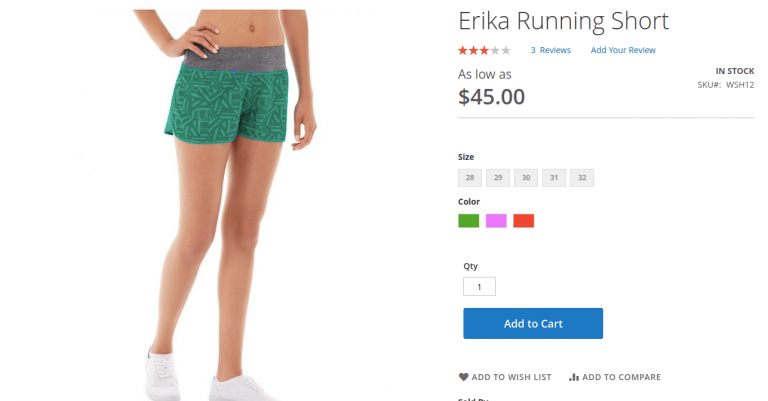
Customers browsing the online store can view mass-uploaded products with full image galleries, prices, descriptions, and variant swatches.
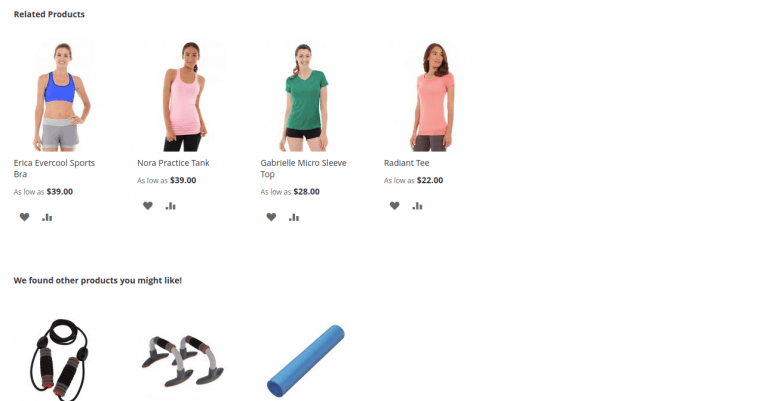
Related & Up-Sell Products on Product Page
Uploaded Related and Up-Sell items appear directly on the product detail page under the main description:
Cross-Sell Products on Shopping Cart Page
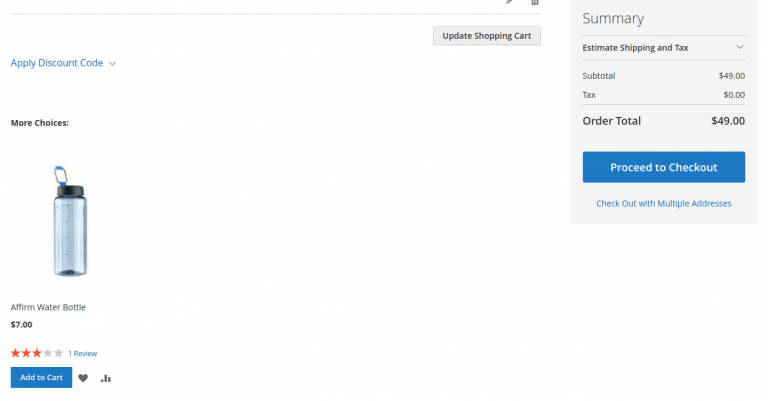
Uploaded Cross-Sell items appear on the shopping cart page when the customer adds the main item to their cart: