Email Templates
Create and customize styled HTML email templates directly inside Magento to run personalized promotions, sales newsletters, or notifications.
Managing Templates
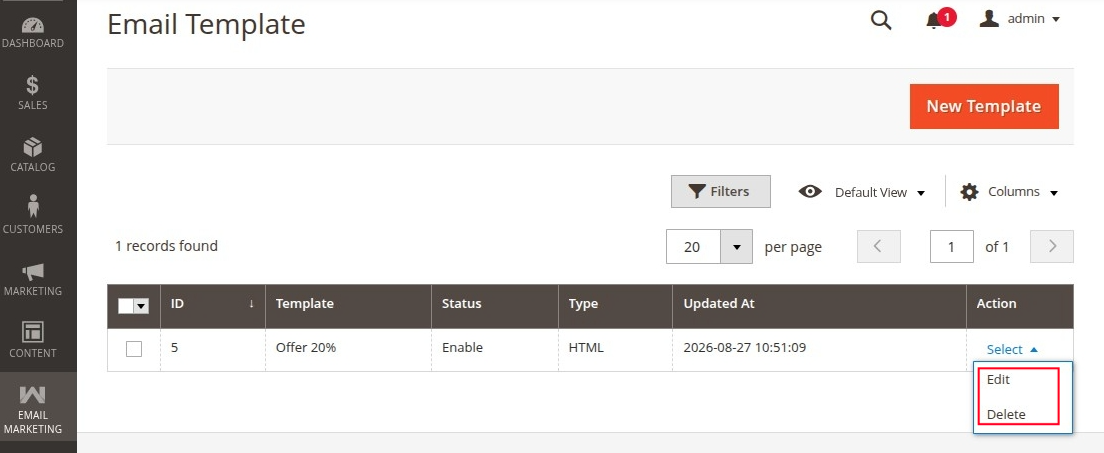
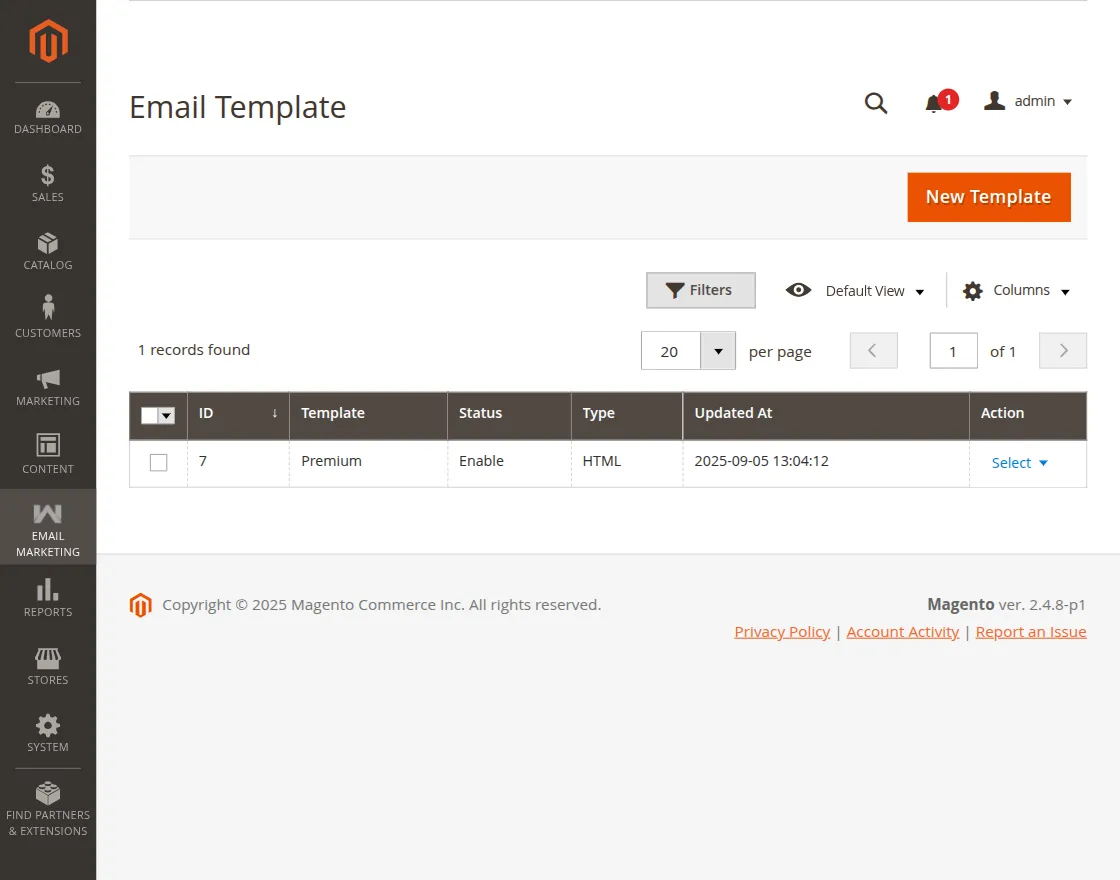
To view or manage your custom templates, navigate to Email Marketing → Email Template in the Admin panel.
Adding a New Template
- Click the Add Template button in the top right.
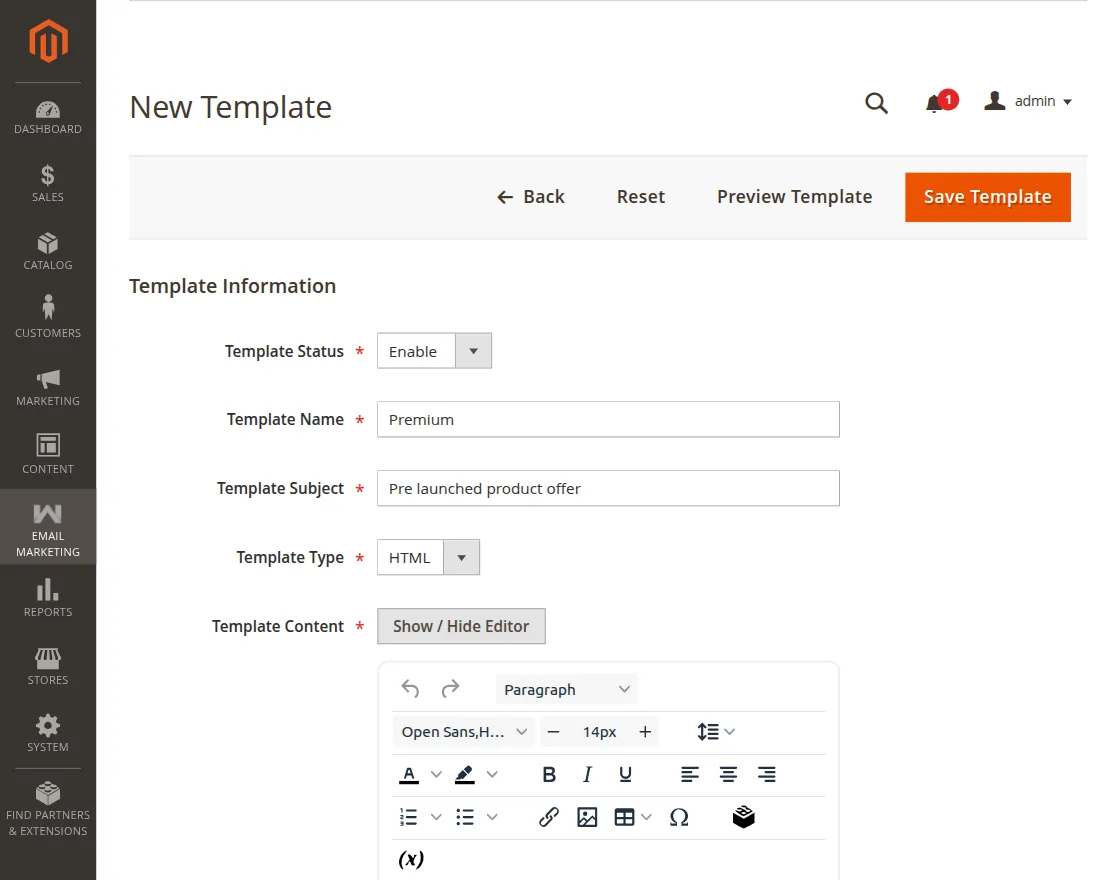
- Configure the following template options:
- Template Code: Give the template a descriptive name for administrative reference (e.g.,
Black Friday Promo 2026). - Template Subject: Enter the default subject line of the email that recipients will see in their inbox.
- Template Text: Write your newsletter content. You can write rich HTML layouts inside this field.
- Template Styles: Enter custom CSS rules to format your email template layout (e.g., margins, font families, text alignments, background colors, and buttons).
- Status: Set to Enabled to make this template selectable when configuring email campaigns.
- Template Code: Give the template a descriptive name for administrative reference (e.g.,
- Click Save Template.
Editing or Deleting a Template
- Select a template from the grid or click Edit under the Action column to update its subject line, HTML content, CSS styles, or status.
- Select one or more templates in the grid and use the Actions dropdown to delete templates individually.