
Activate Your Licence
Activate the extension with the licence key you received at purchase. The licence screen is installed with the extension.
Where the field is
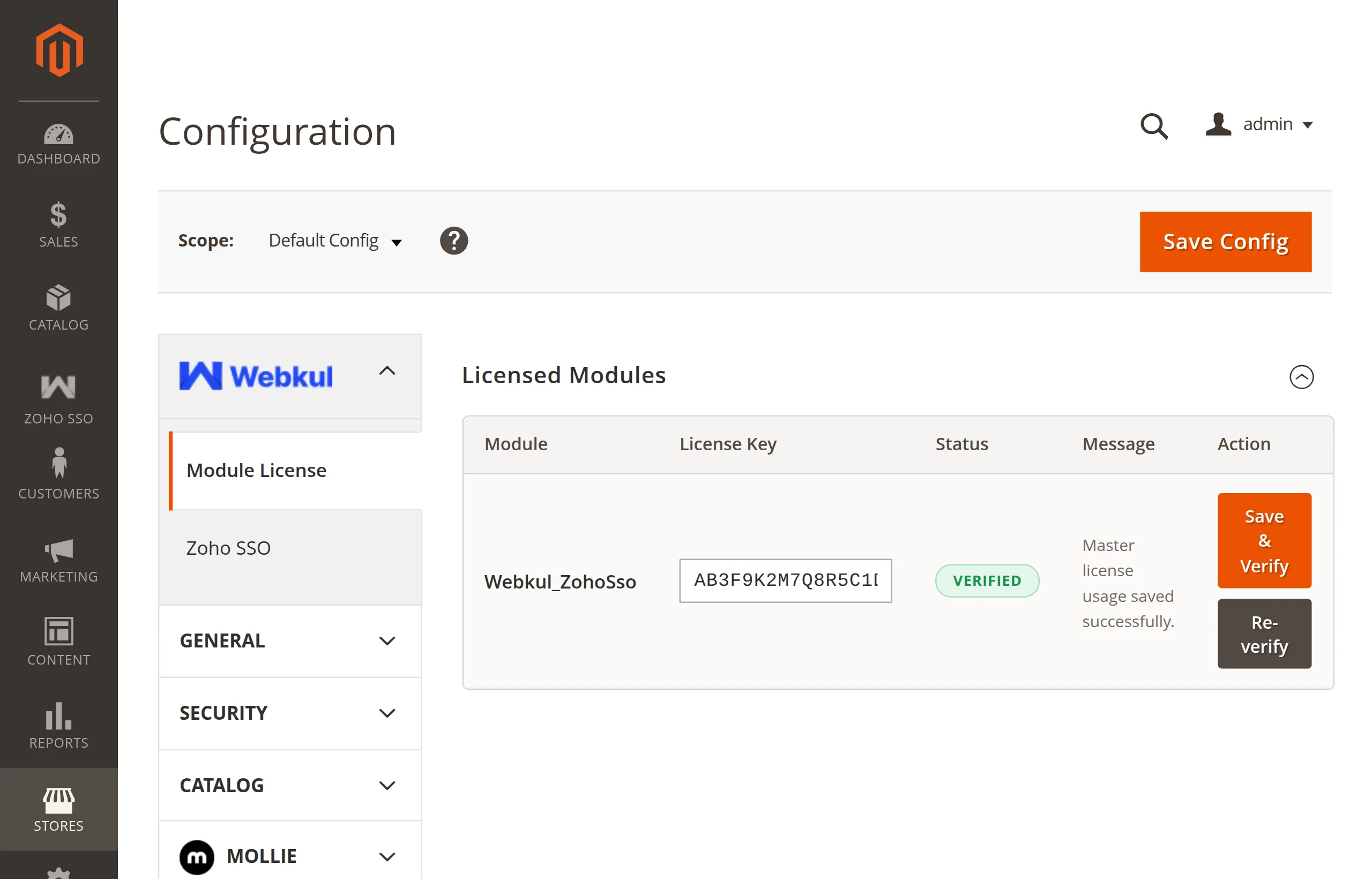
Stores → Configuration → Webkul → Module License
That is a sibling of Zoho SSO in the same Webkul tab. The Licensed Modules table lists every installed Webkul module, including Webkul_ZohoSso.
Activate
- Open Module License.
- In the Webkul_ZohoSso row, paste your key into License Key.
- Click Save & Verify in the Action column.
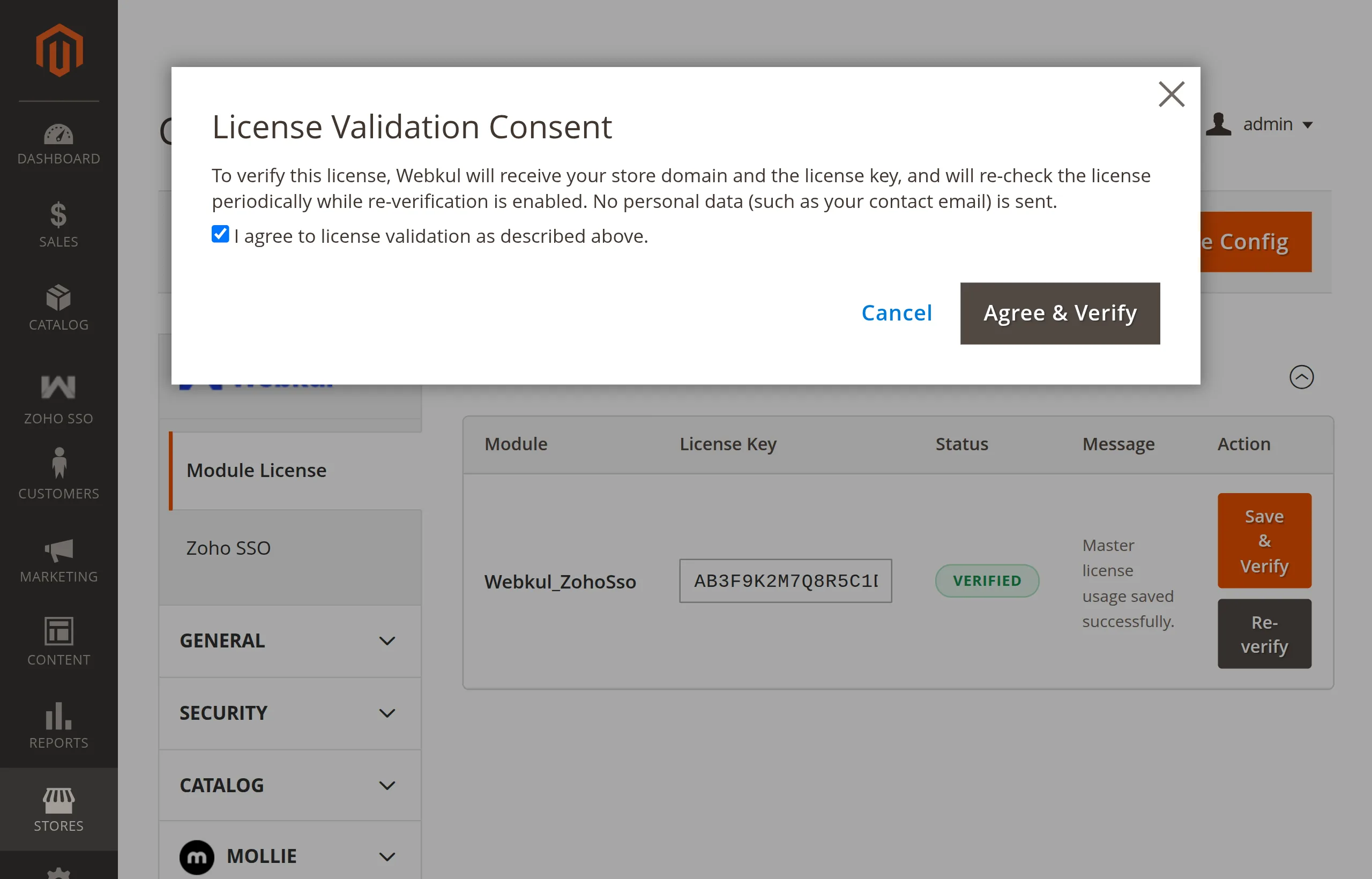
- The License Validation Consent popup opens. Tick I agree to license validation as described above.
- Click Agree & Verify.
When the key is accepted, Status changes to VERIFIED and Message confirms the licence was saved.
What is shared with Webkul
To verify the key, Webkul receives your store domain and the licence key, and re-checks the licence periodically while re-verification is enabled. No personal data, such as your contact email, is sent.
Re-verify
Click Re-verify in the same row to check the licence again, for example after moving the store to a new domain.
Where to find your key
It is issued at purchase and is available from your account on the Webkul Store under your order. If you cannot find it, raise a ticket at webkul.uvdesk.com with your order number.
Status stays Unverified?
Check the key for extra spaces and click Save & Verify again. If it still fails, raise a ticket with the message shown in the Message column.
Next: Register a Zoho Client.