
Magento 2 Zoho SSOMagento 2 Zoho SSO
Buy Now
Support
Buy Now
Support
  • Getting Started

    • Introduction
    • Key Features
    • How It Works
  • Installation

    • Requirements
    • Install the Module
    • Enable & Compile
    • Verify the Installation
  • Setup

    • Activate Your Licence
    • Register a Zoho Client
    • Connect Magento to Zoho
    • Test the First Sign-In
  • Configuration

    • Overview
    • Settings Reference
    • Data Centers
    • Redirect URI
    • Scope & Store Views
    • Admin Menu
    • Access Control
  • Storefront

    • Customer Login
    • Create Account
    • Checkout Sign-In
    • Popup & Mobile Behaviour
    • Accounts & Matching
    • Messages
  • Developers

    • Routes & Endpoints
    • Data & Sessions
    • Logging
  • Help

    • Setup Problems
    • Sign-In Problems
    • FAQ

Admin Menu

A Zoho SSO entry appears in the admin sidebar once Enable Zoho SSO is Yes at Default Config.
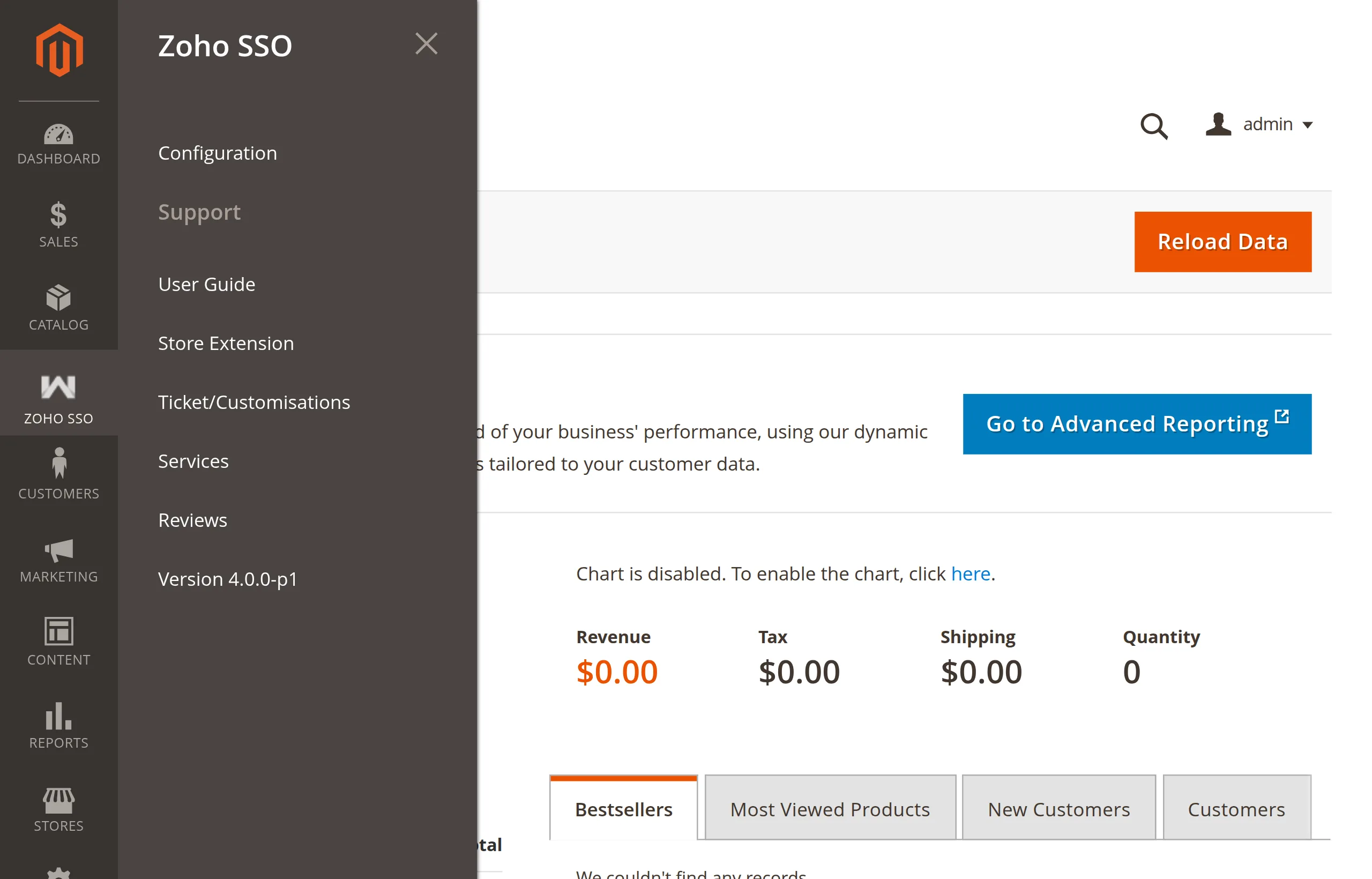
Zoho SSO admin menu with Configuration and Support links

Menu itemOpens
ConfigurationStores → Configuration → Webkul → Zoho SSO
Support → User GuideThe Zoho SSO user guide
Support → Store ExtensionThe extension page on the Webkul Store
Support → Ticket/CustomisationsWebkul's help desk, to raise a ticket
Support → ServicesWebkul's Magento development services
Support → ReviewsThe reviews section of the extension page
Support → Version 4.0.0-p1Label only — shows the installed version

The support links open external Webkul pages.

Menu missing?

The menu is tied to the Enable setting. Turn on Enable Zoho SSO at Default Config, or use Stores → Configuration → Webkul → Zoho SSO directly.

Prev
Scope & Store Views
Next
Access Control