
Installation
Follow these steps to install the Magento 2 Store Optimization module.
Installation Methods
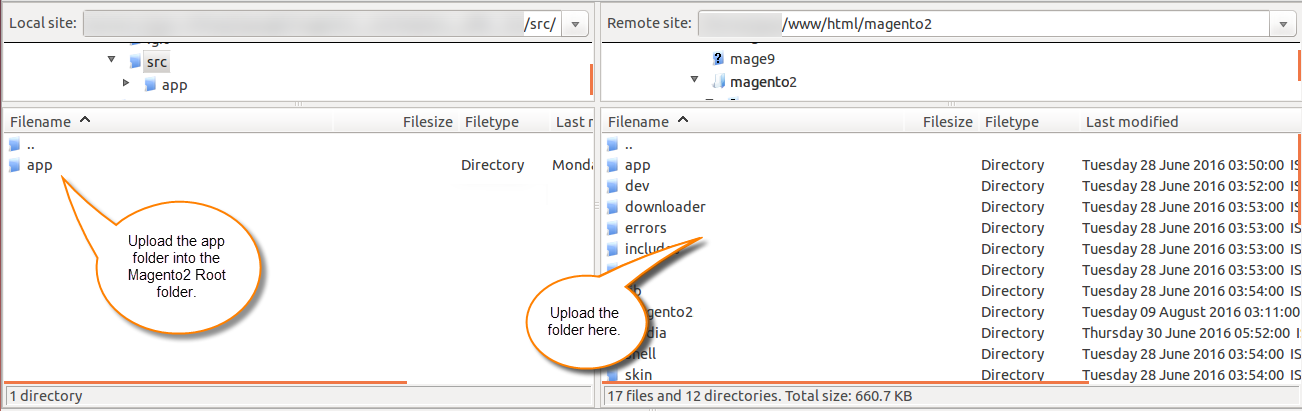
Method 1: Install Through ZIP File
Extract the downloaded module archive and place the files into your Magento 2 root directory under:
magento2_root/
└── app/
    └── code/
        └── Webkul/
            └── StoreOptimization/
Method 2: Install Through Composer
Navigate to your Magento 2 root directory in your SSH terminal and run the composer command in the following format:
composer require <component-name>:<version>
For example, to install version 4.0.1 of this extension, run:
composer require webkul/module-store-optimization:4.0.1
Execute Magento CLI Commands
After placing the module files (via ZIP or Composer), navigate to your Magento 2 root directory in your SSH terminal and run the following deployment commands to complete installation:
composer require rosell-dk/webp-convert
php bin/magento setup:upgrade
php bin/magento setup:di:compile
php bin/magento setup:static-content:deploy -f
php bin/magento cache:flush
Language Translation
For Magento 2 Page Speed Optimization module translation, navigate to the following path in your Magento 2 installation directory:
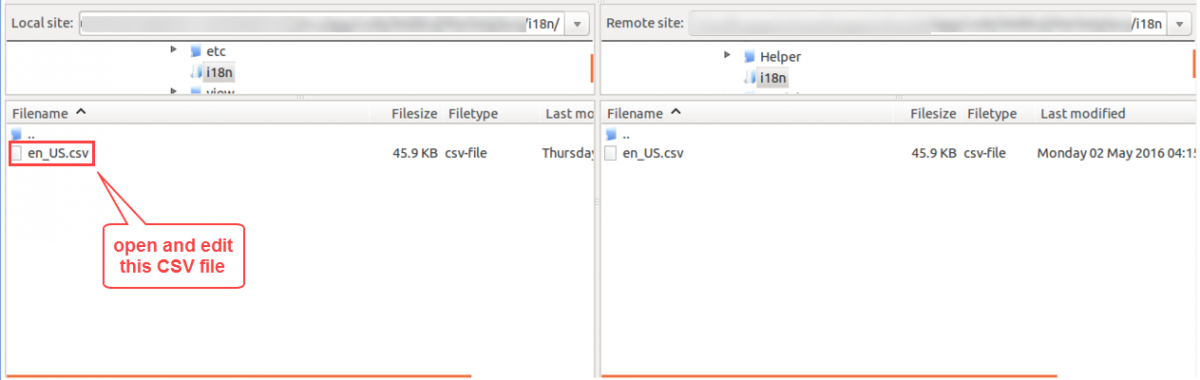
app/code/Webkul/StoreOptimization/i18n/en_US.csv
Open the en_US.csv file for editing:
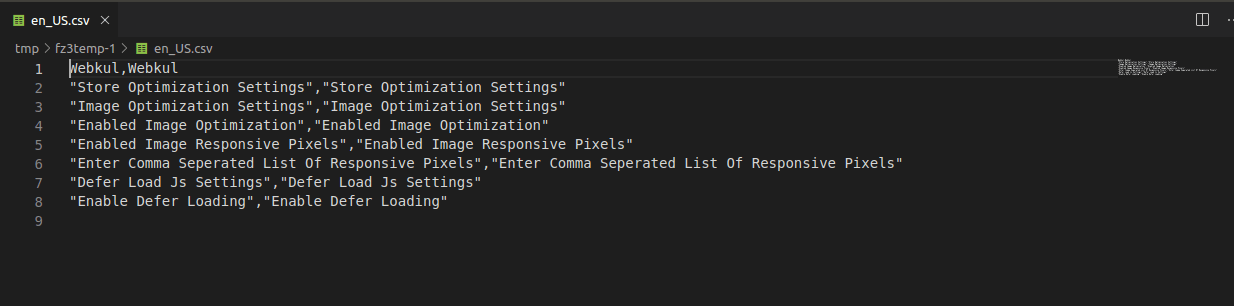
Replace the words on the right side of the comma (,) with your translated phrases.
Region Language & Country Code
Save the translated file named according to your target region's language and country code (for example: de_DE.csv for German, fr_FR.csv for French, es_ES.csv for Spanish).
Upload the newly created CSV file into the same i18n/ directory:
app/code/Webkul/StoreOptimization/i18n/de_DE.csv
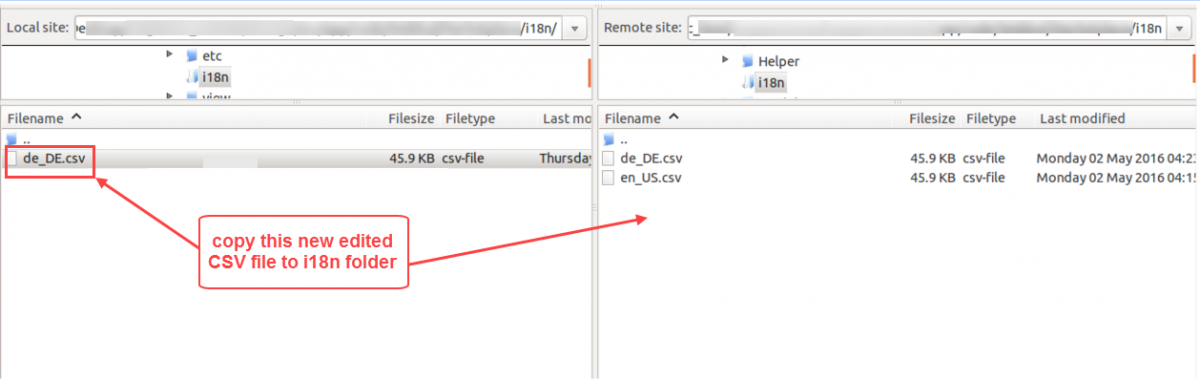
After uploading the file, run php bin/magento cache:flush to complete the module language translation.