
Image Optimization
The Image Optimization feature automatically converts product and CMS images into compressed WebP or optimized JPEG formats with configurable compression quality and encoding modes.
Under Image Optimization Settings, the store administrator can configure image compression parameters to balance visual fidelity and file size reduction.
Admin Configuration
Admin Menu Location
Navigate to Stores → Configuration → Webkul → Store Optimization Settings → Image Optimization Settings.
| Setting | Field Type | Options | Description |
|---|---|---|---|
| Enable Image Optimization | Select | Yes / No | Yes: Enables storewide image optimization. No: Retains original image file formats. |
| Compression Type | Select | WebP / JPEG | Target output format. WebP: Converts images to WebP format for faster loading. JPEG: Converts images to JPEG format. |
| Enter Compressed Image Quality | Text Input | Digits (40 to 100) | Sets the image quality after compression (a number between 40 and 100). |
| Encoding Type | Select | Auto / Lossy / Lossless | Lossy: Discards imperceptible pixel data for maximum compression. Lossless: Preserves 100% pixel fidelity. Auto: Selects the smallest resulting file size. |
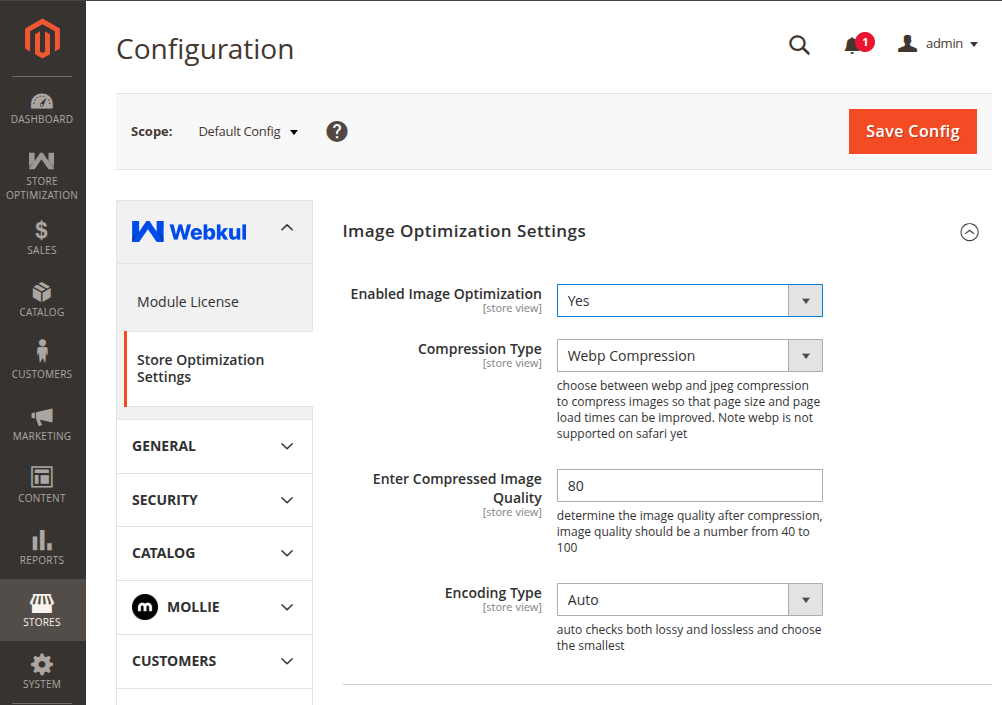
Detailed Setting Guidelines
Enable Image Optimization: Select Yes to activate image compression across product, category, and CMS pages. When set to No, image files remain in their original file format.
Compression Type: Choose between WebP and JPEG:
- WebP: Automatically converts PNG/JPEG images into
.webpformat for improved product and category page performance by loading images at a faster rate.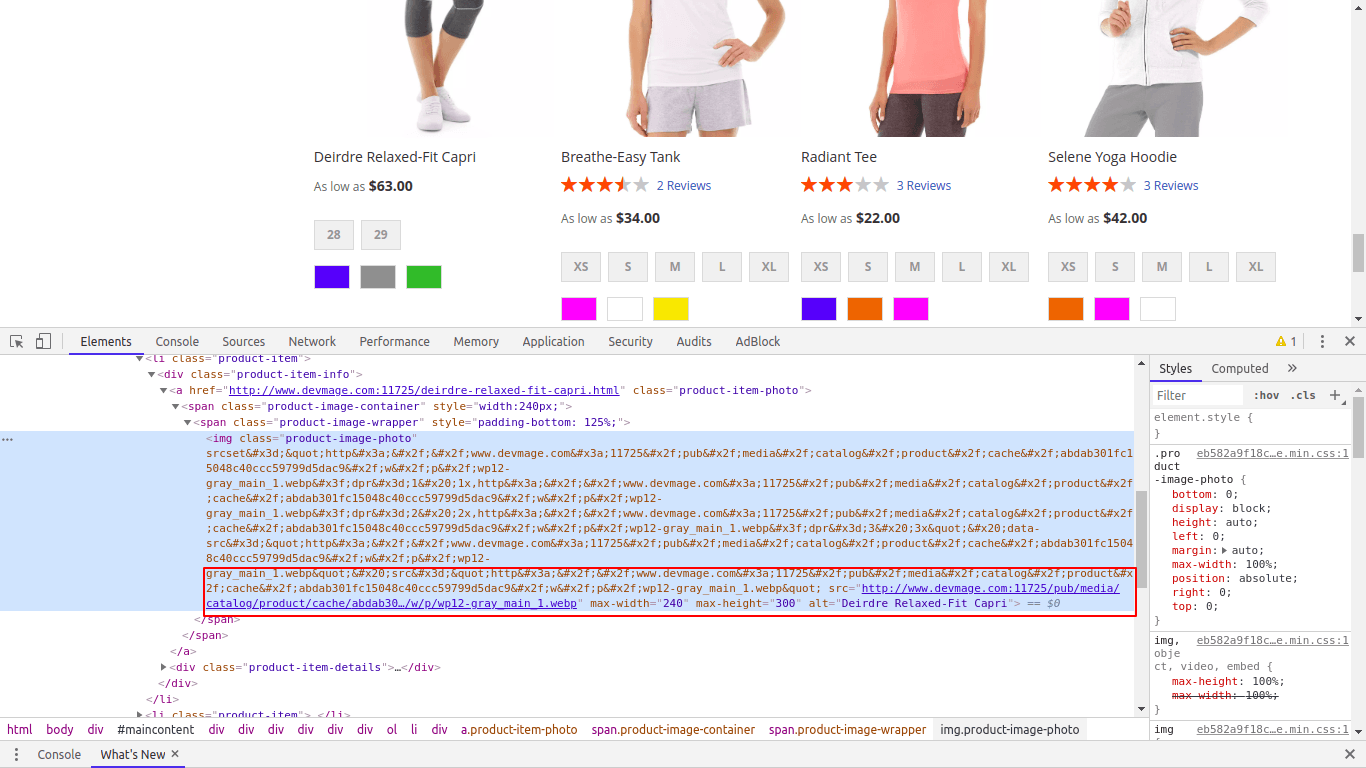
- JPEG: Automatically converts image files to optimized
.jpegformat.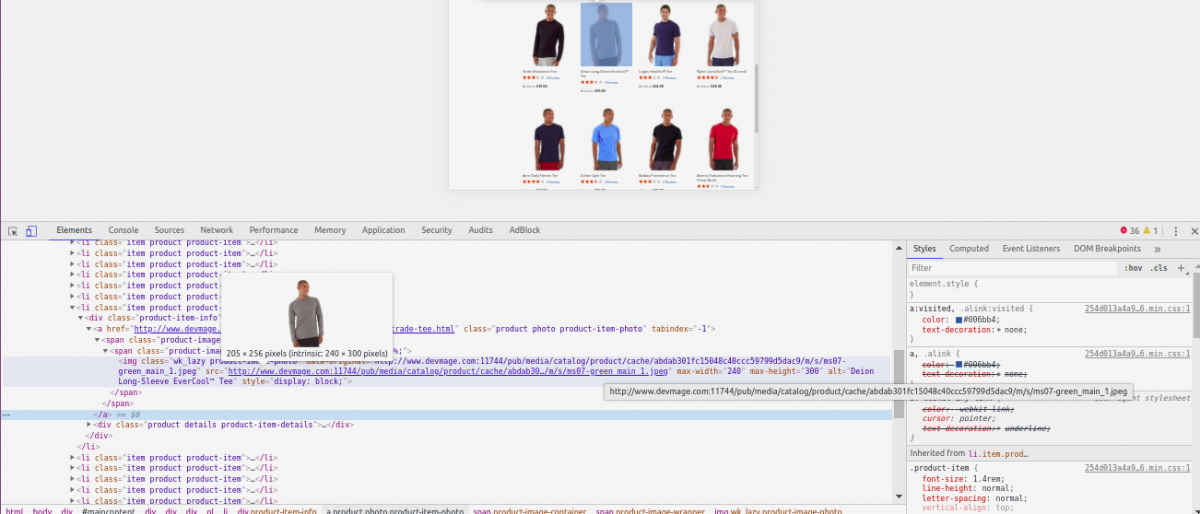
- WebP: Automatically converts PNG/JPEG images into
If you select No for Enable Image Optimization, image file names will remain in their original file format. 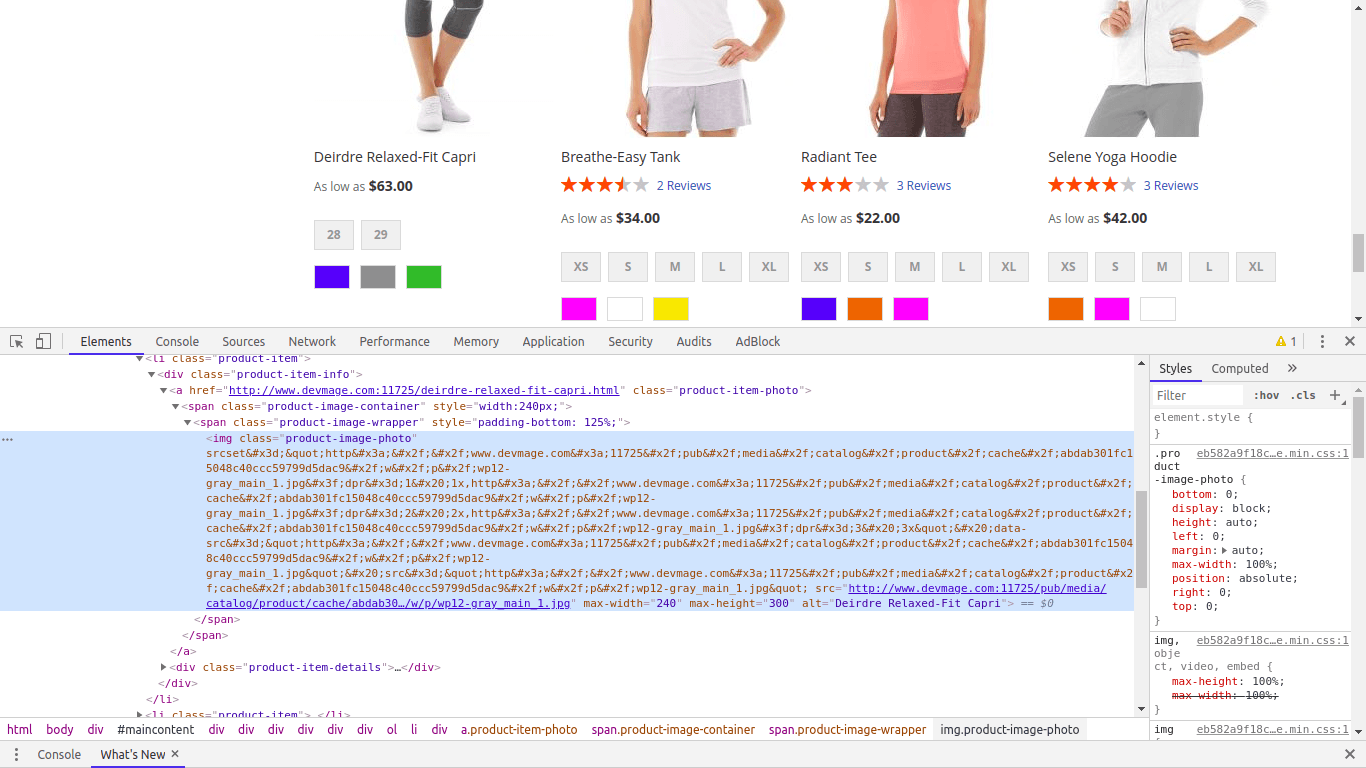
Enter Compressed Image Quality: Determine the image quality after compression by entering a number from 40 to 100. (Recommended value:
80).Encoding Type: Select how image compression algorithms process image data:
- Lossy Compression: Reduces file size by selectively discarding non-critical pixel data and subtle color variations. It yields significantly smaller file sizes (often 40%–70% reduction) with no noticeable loss in visual quality, making it ideal for rich product photographs and promotional banners.
- Lossless Compression: Compresses image files by optimizing pixel data structures without removing any original image detail or color information. Every single pixel remains 100% identical to the original image, making it ideal for brand logos, crisp text graphics, and transparent overlays.
- Auto Mode: Evaluates both Lossy and Lossless encoding algorithms in the background and automatically selects whichever yields the smallest file size for each image.
CLI Bulk Image Compression Tool
Execute recursive image compression directly from your server SSH terminal:
php bin/magento image:compress [type] --path [path_to_directory_or_file]
Examples:
- Compress Product Media Directory:
php bin/magento image:compress webp --path pub/media/catalog/product - Compress a Single Image File:
php bin/magento image:compress jpeg --path pub/media/banner.png
CLI & Admin Matching Requirement
The type argument (webp or jpeg) passed in CLI must match the Compression Type configured in Admin.