Quicklink Options
The Quicklink Options feature accelerates your store's navigation by pre-loading pages for links that are currently visible on the customer's screen.
By anticipating where shoppers are likely to click next and fetching those pages silently during browser idle time, Quicklink makes store navigation and page transitions feel near-instantaneous.
Why Use Quicklink?
The Challenge: Whenever a customer clicks on a category link or product card, the browser sends a new HTTP request and waits for the server to return the HTML code. Even on fast servers, this causes a slight delay before the next page opens, slowing down customer browsing.
The Solution: Enabling Quicklink automates background prefetching:
- Near-Instant Page Transitions: Pages for visible links are pre-loaded in advance so they open immediately upon clicking.
- Smart Idle Preloading: Utilizes browser idle time (
requestIdleCallback) to prefetch resources without affecting current page performance. - Smart Bandwidth Controls: Includes configurable limits for request counts, concurrency throttling, and domain origin filtering.
- Image & CMS Fetch Priority: Allows setting high priority for key promotional banner images so they render instantly.
Admin Configuration
Admin Menu Location
Navigate to Stores → Configuration → Webkul → Store Optimization Settings → Quicklink Listen Fields.
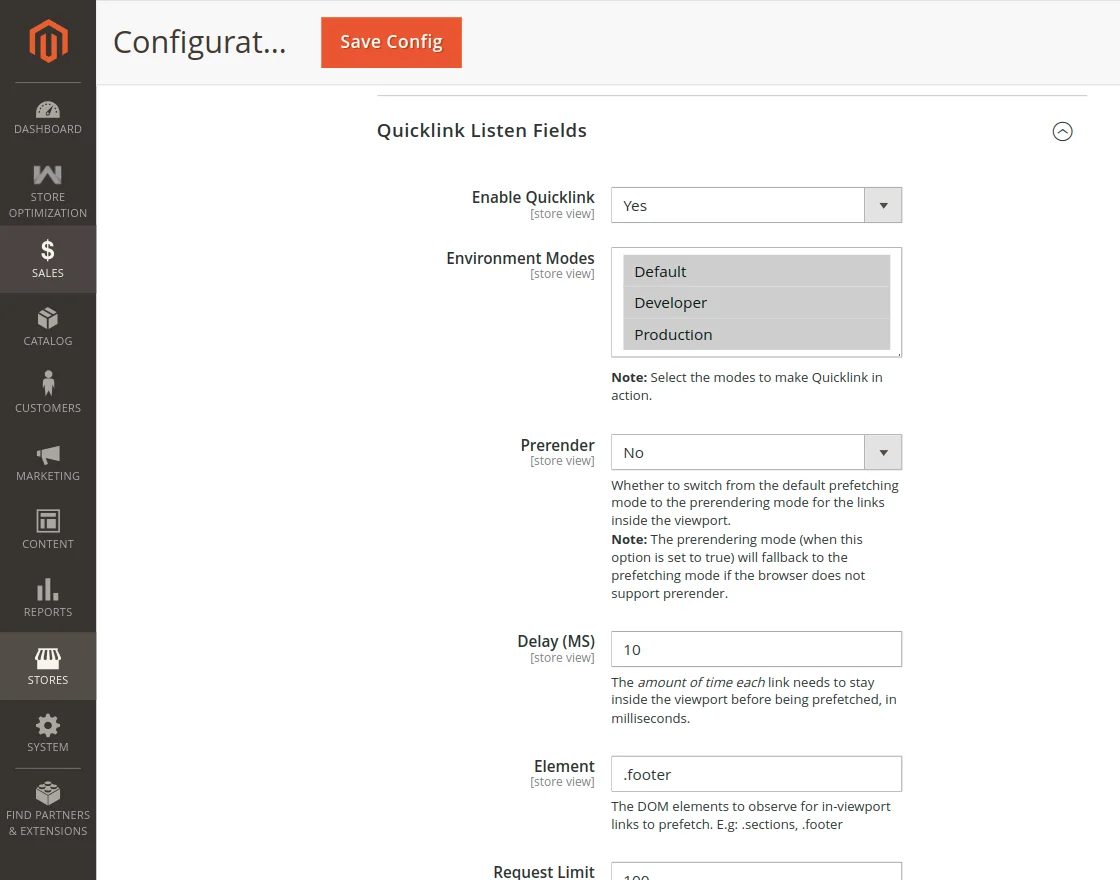
Quicklink Settings Overview
| Setting | Field Type | Options / Format | Description |
|---|---|---|---|
| Enable Quicklink | Select | Yes / No | Master switch to enable or disable Quicklink prefetching. |
| Environment Modes | Multiselect | Default / Developer / Production | Select modes in which Quicklink will be active. (Note: Select modes to bring Quicklink into action) |
| Prerender | Select | Yes / No | Switches from default prefetching to prerendering for links inside viewport. (Note: Falls back to prefetching if browser does not support prerender) |
| Delay (MS) | Text Input | Milliseconds (e.g. 500) | Amount of time each link needs to stay inside the viewport before being prefetched. |
| Element | Text Input | .class or #id | DOM element container to observe for in-viewport links. All href links inside this element get highest priority. |
| Request Limit | Text Input | Digits (e.g. 10) | Total requests that can be prefetched while observing the container element. |
| Threshold | Text Input | Decimal (e.g. 0.25) | Area percentage of each link that must enter the viewport to trigger prefetching (e.g. 0.25 = 25%). |
| Concurrency Limit | Text Input | Digits (e.g. 2) | Concurrency throttle limit for simultaneous prefetch requests. |
| Timeout (MS) | Text Input | Milliseconds | The requestIdleCallback timeout in milliseconds. |
| Priority | Select | Yes / No | Treat URLs within options.el as high priority. When Yes, uses fetch() API if supported rather than <link rel="prefetch">. |
| Origins | Table | Hostnames | Allowed origin hostnames for prefetching. Defaults to same origin (location.hostname).(Important: Leaving empty allows all origins to be prefetched) |
| Ignore List | Table | URL Strings | Exclusion rules. If a URL contains the string rule, it will not be prefetched. (Important: Executed after origin matching) |
| Prerender URL List | Table | Static URLs | Static list of URLs to be prerendered instead of viewport detection. |
| Prefetch URL List | Table | Static URLs | Static list of URLs to be prerendered instead of viewport detection. |
Detailed Setting Guidelines
1. Element Container Selector Specify the DOM element container to observe for in-viewport links:
- Class Selector: Use
.before the class name (for example:.section).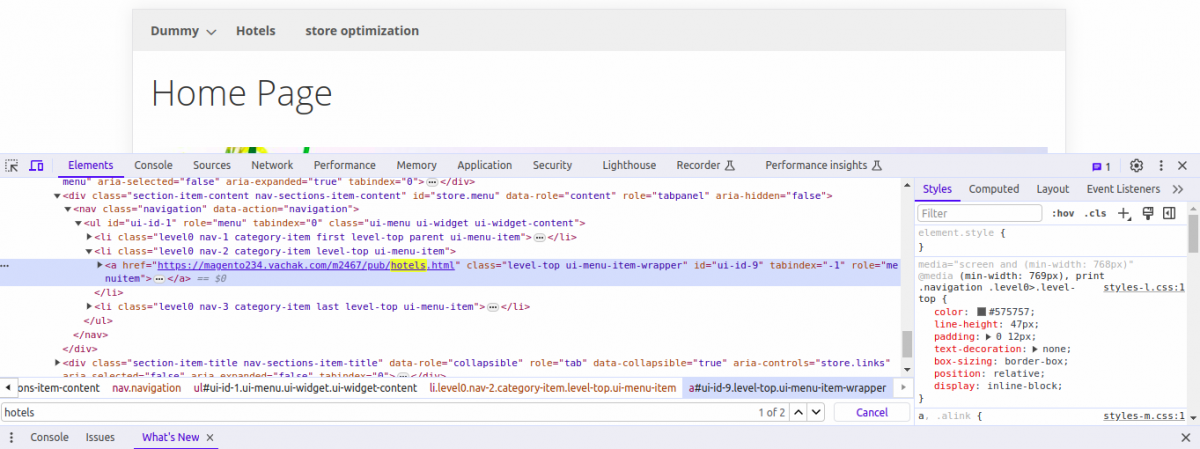
- ID Selector: Use
#before the ID name (for example:#main-content).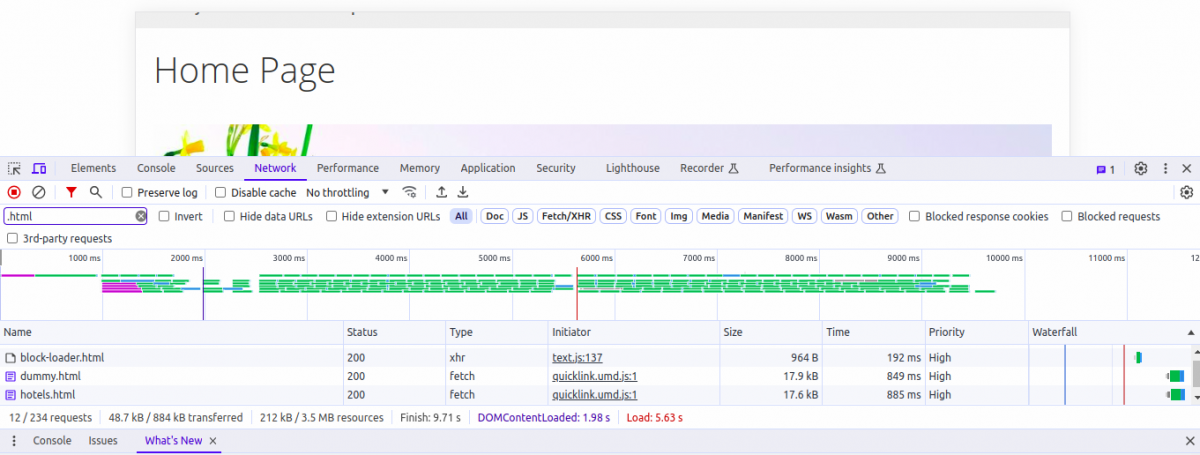
2. Request Limit, Threshold & Concurrency Limit Configure performance boundaries to optimize speed without overloading network bandwidth: 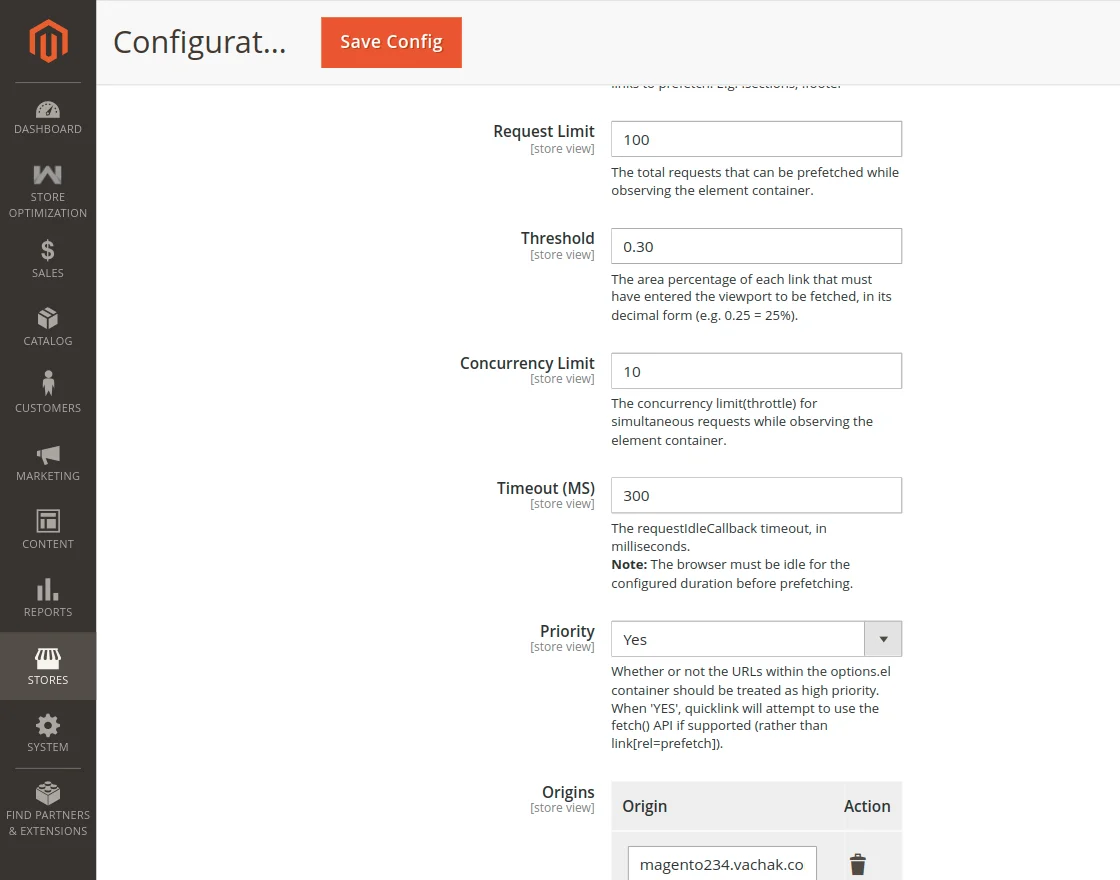
3. Static URL Lists Provide custom static URL lists for instant preloading: 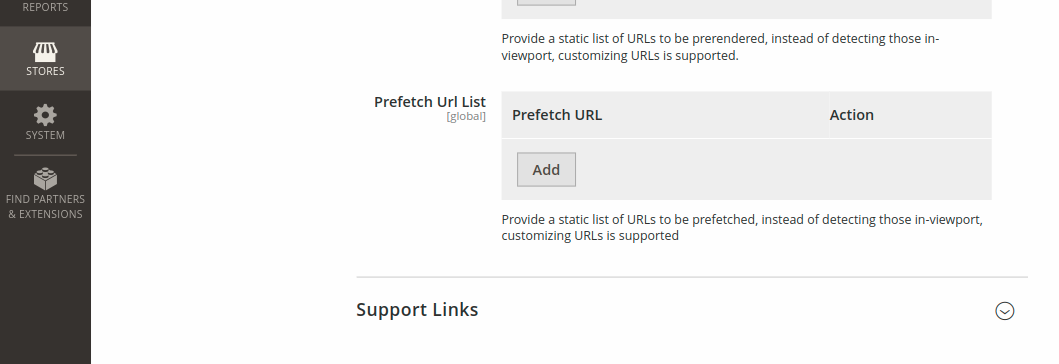
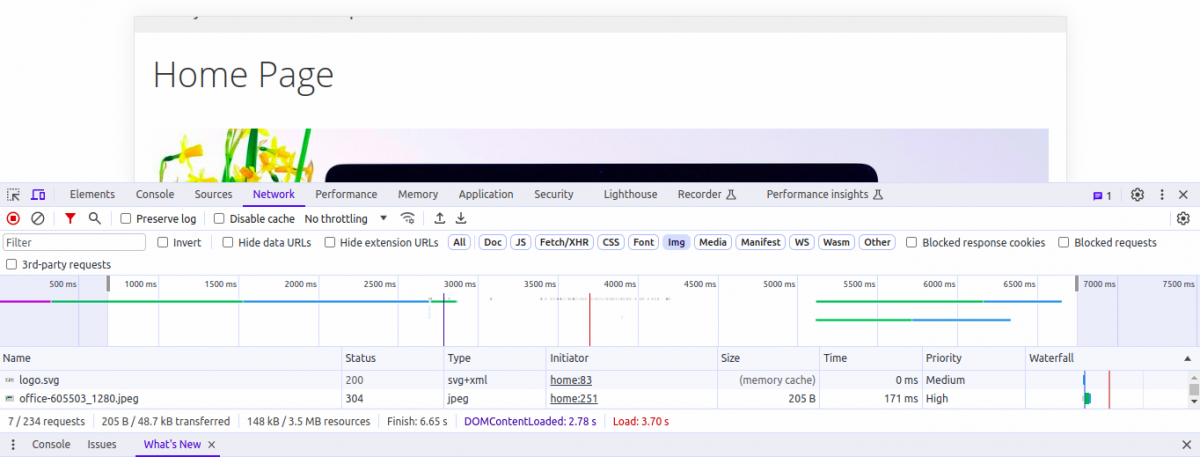
Fetch Priority Attribute For Images
Store administrators can set the fetch priority attribute for CMS and storefront page images so key visual assets load instantaneously:
Edit the target CMS page under Content → Pages.
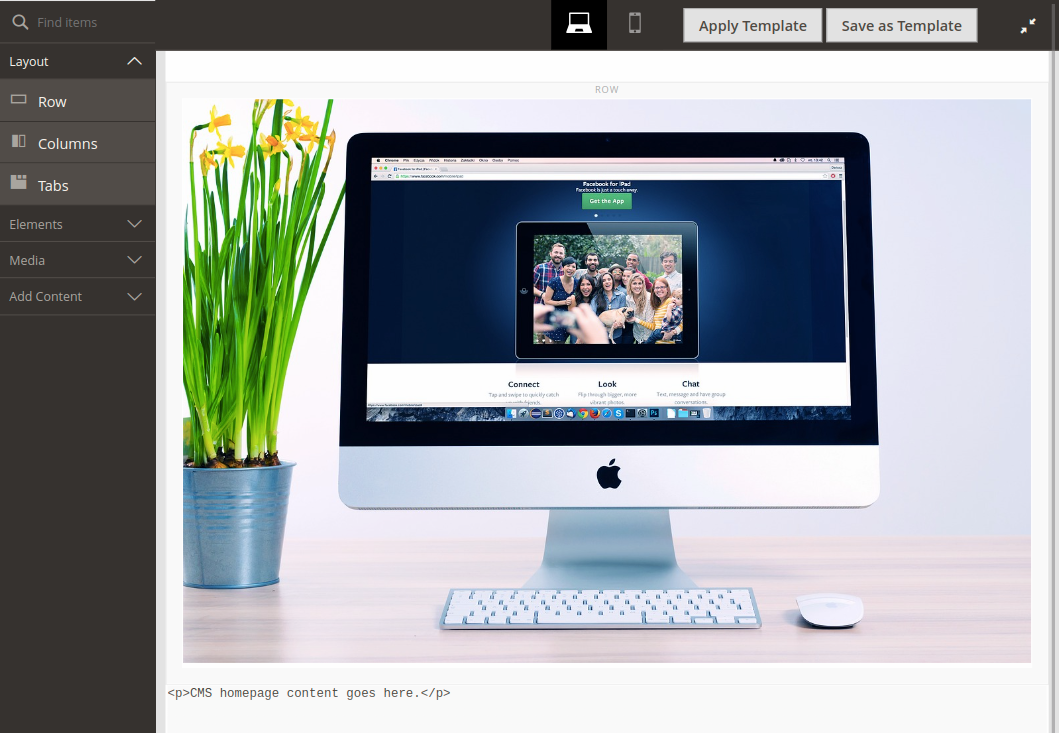
Edit the respective image within the page content editor and locate the Select Fetch Priority option.
Set the priority to Low or High:
- High: Assigns highest fetch priority to the image so it loads instantaneously when the storefront page opens.
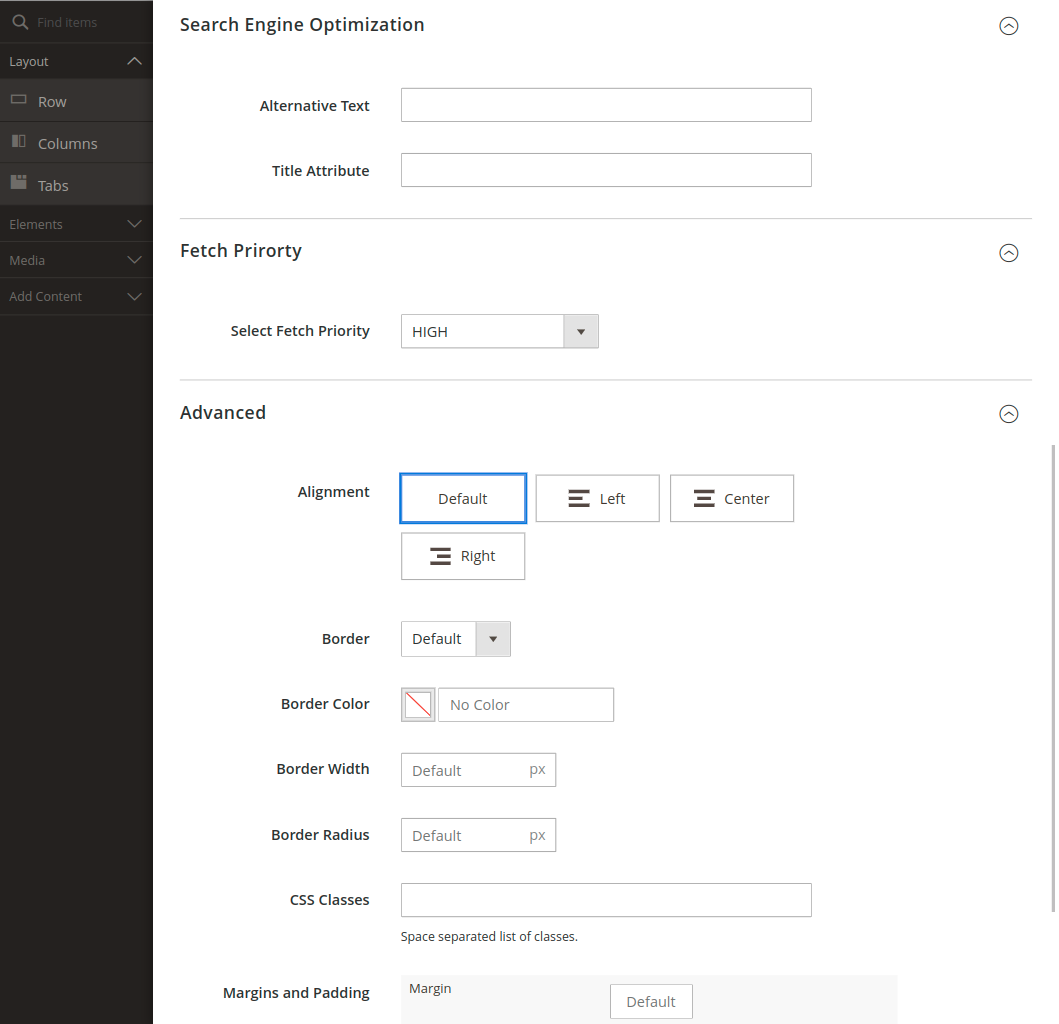
- High: Assigns highest fetch priority to the image so it loads instantaneously when the storefront page opens.
Save the page. On the storefront, the image with High fetch priority loads immediately.