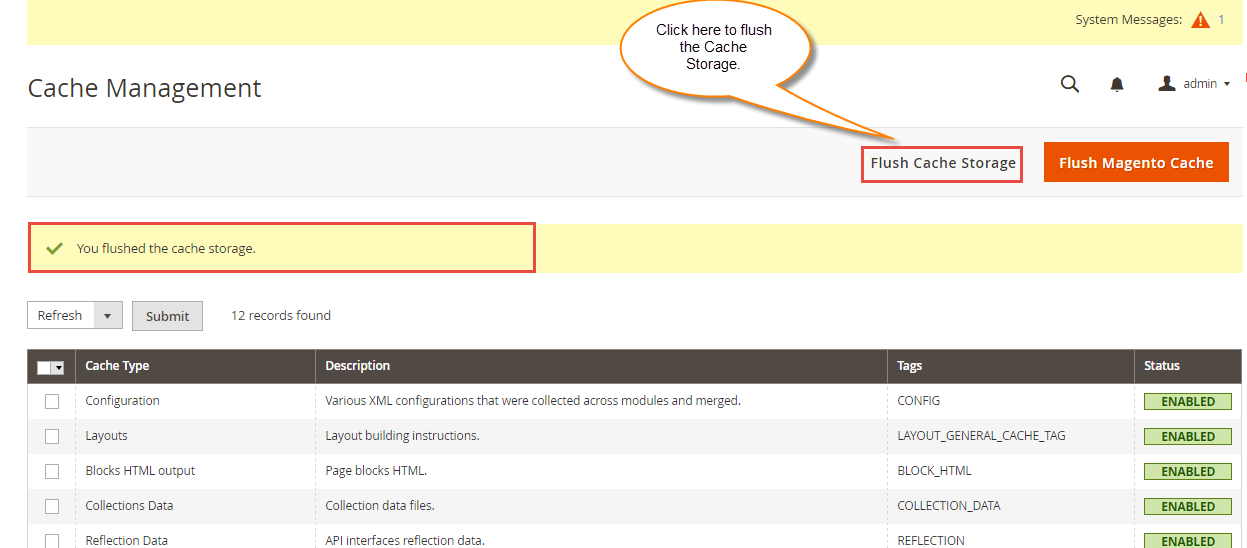
Activate & Connect
After running installation commands, enable the module in the Magento Admin Panel.
Navigation Path
Admin Menu Location
Navigate to Stores → Configuration → Webkul → Store Optimization Settings.
Module License
The admin needs to verify the module license to use it properly. Navigate to Stores → Configuration → Webkul → Module License.
Here, the admin will find the list of all the licensed modules. For the Magento 2 Store Optimization module, the admin needs to enter the License Key and click on the Save & Verify button to verify the license. 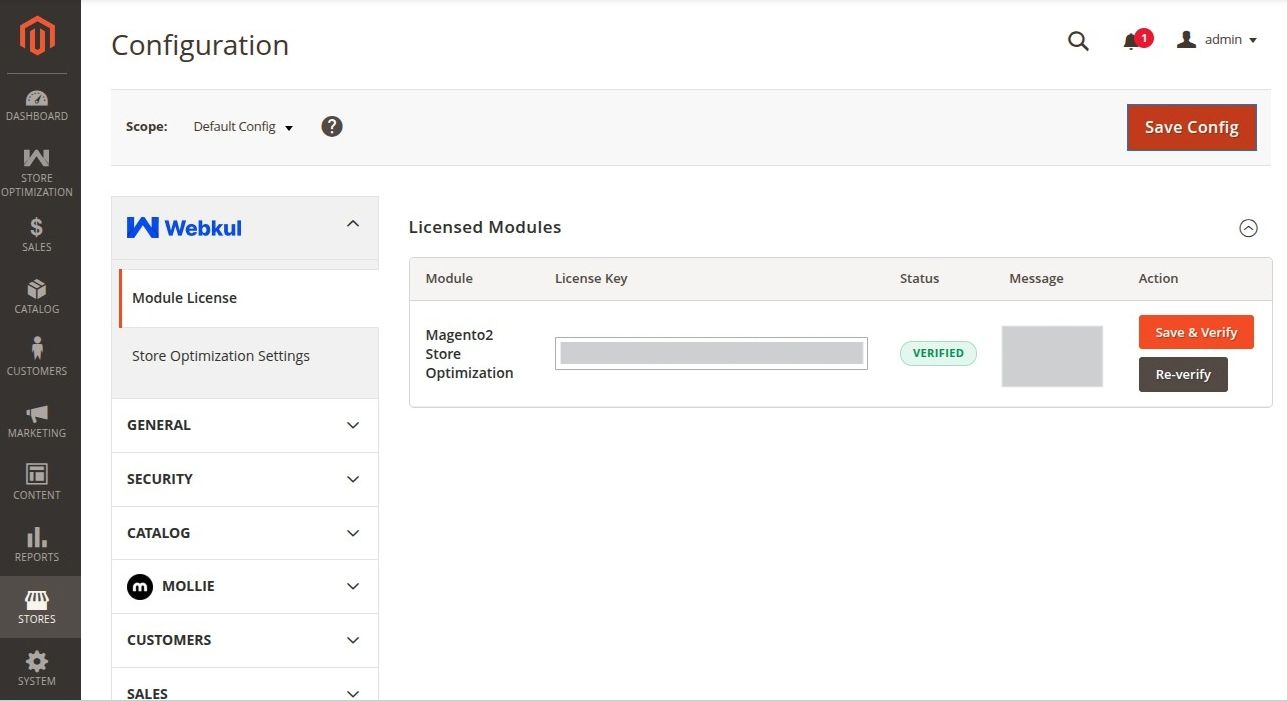
Global Module Activation
- Go to Stores → Configuration.
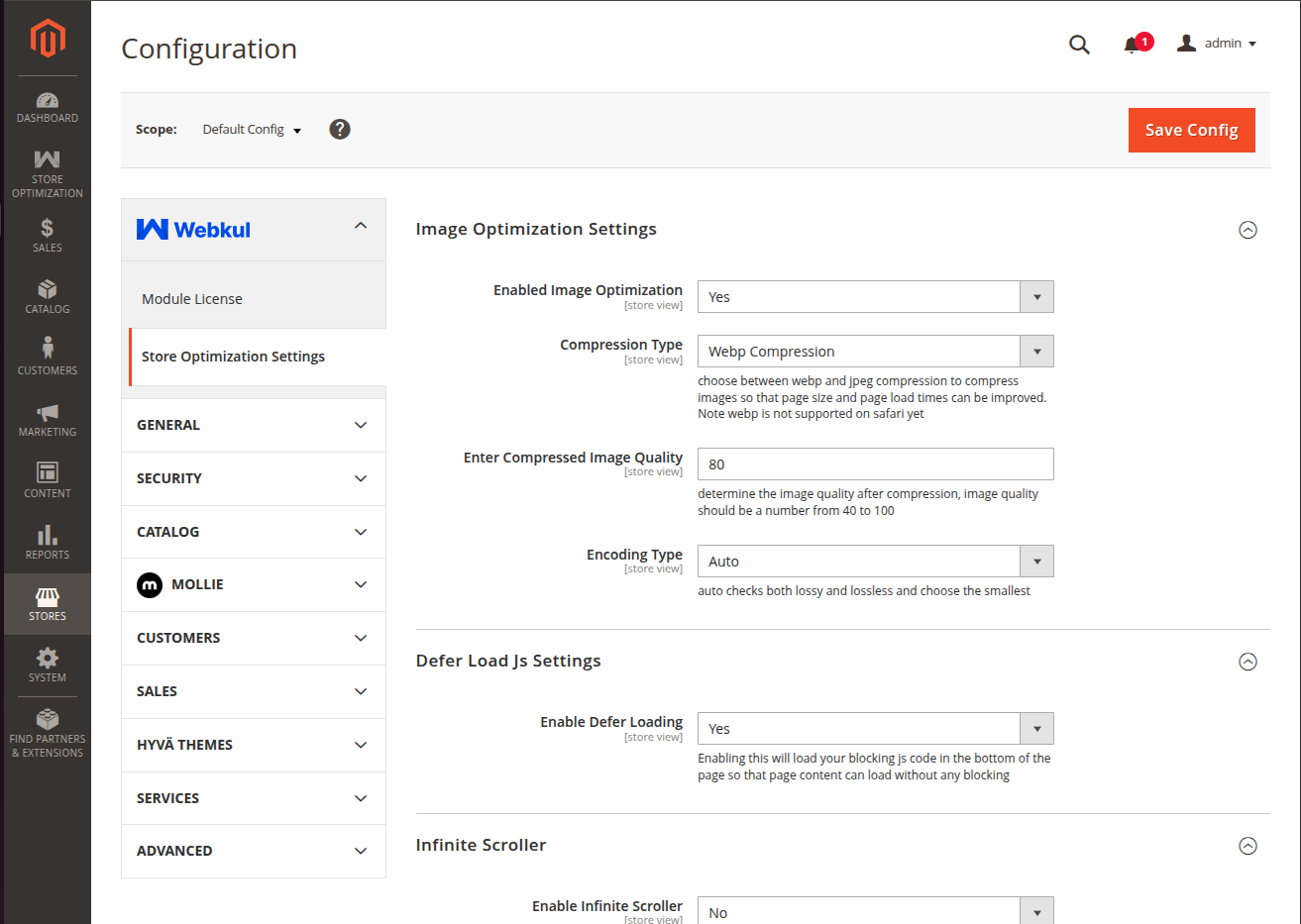
- Select Store Optimization Settings under Webkul in the left menu.
- Open Image Optimization Settings.
- Set Enabled Image Optimization to Yes.
- Click Save Config at top right.
- Flush system caches:
php bin/magento cache:flush
Cache Flush Location
Navigate to System → Tools → Cache Management.