
Payment Gateways Setup
The Magento 2 Recurring Plan For Discount module integrates with PayPal Express Checkout and Stripe to process initial plan purchases and automated recurring renewal billing.
To enable and configure both payment methods, navigate in your Magento Admin to Stores > Configuration > Sales > Payment Methods.
Setting up PayPal Express Checkout
To enable PayPal for recurring subscription billing:
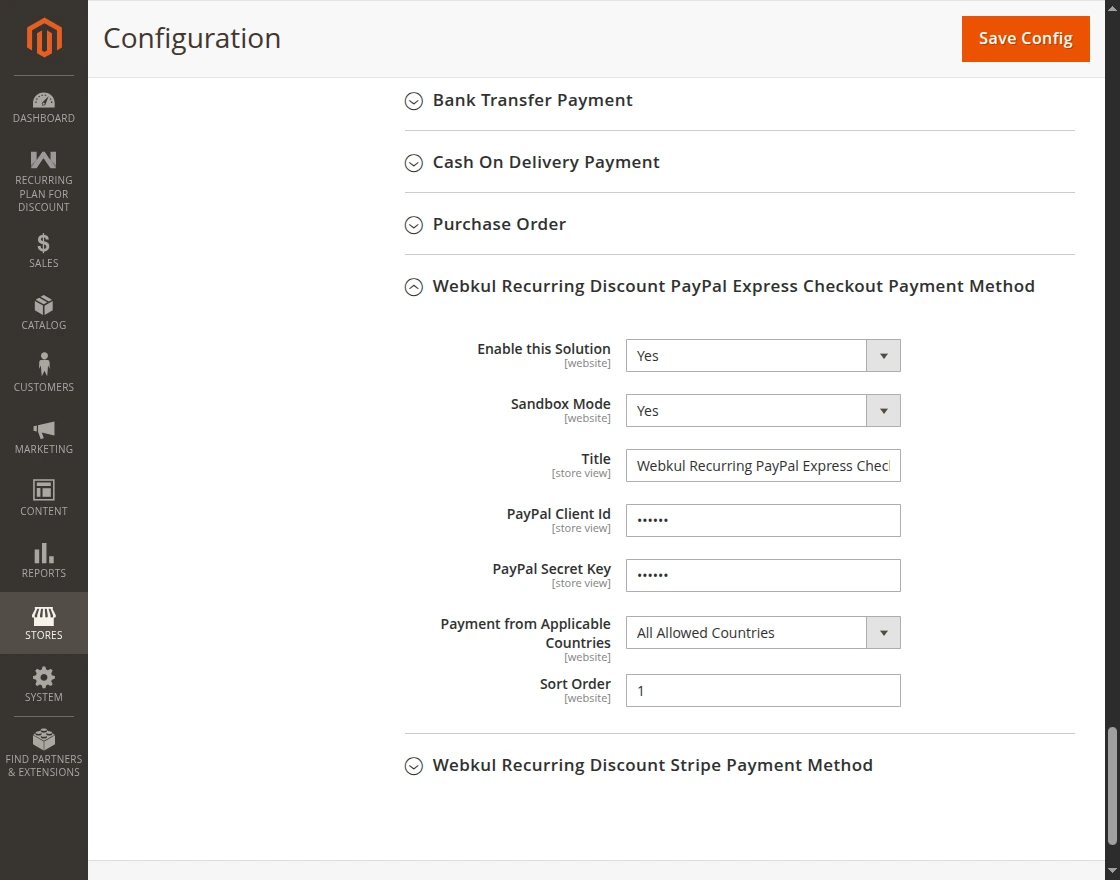
- Scroll to the Webkul Recurring Discount PayPal Express Checkout Payment Method section under Payment Methods.
- Fill in the required credentials and configuration options:
- Enabled: Set to Yes to enable PayPal recurring payments.
- Title: Enter the title displayed to customers during checkout (e.g., Recurring PayPal Express Checkout).
- Sandbox Mode: Set to Yes for testing, or No for live production stores.
- Client ID & Client Secret: Enter your REST API Client ID and Secret obtained from your PayPal Developer Dashboard.
- Payment Action: Select the appropriate payment action for billing cycles.
Setting up Stripe Payment Method
To enable Stripe for seamless, secure card-based recurring billing:
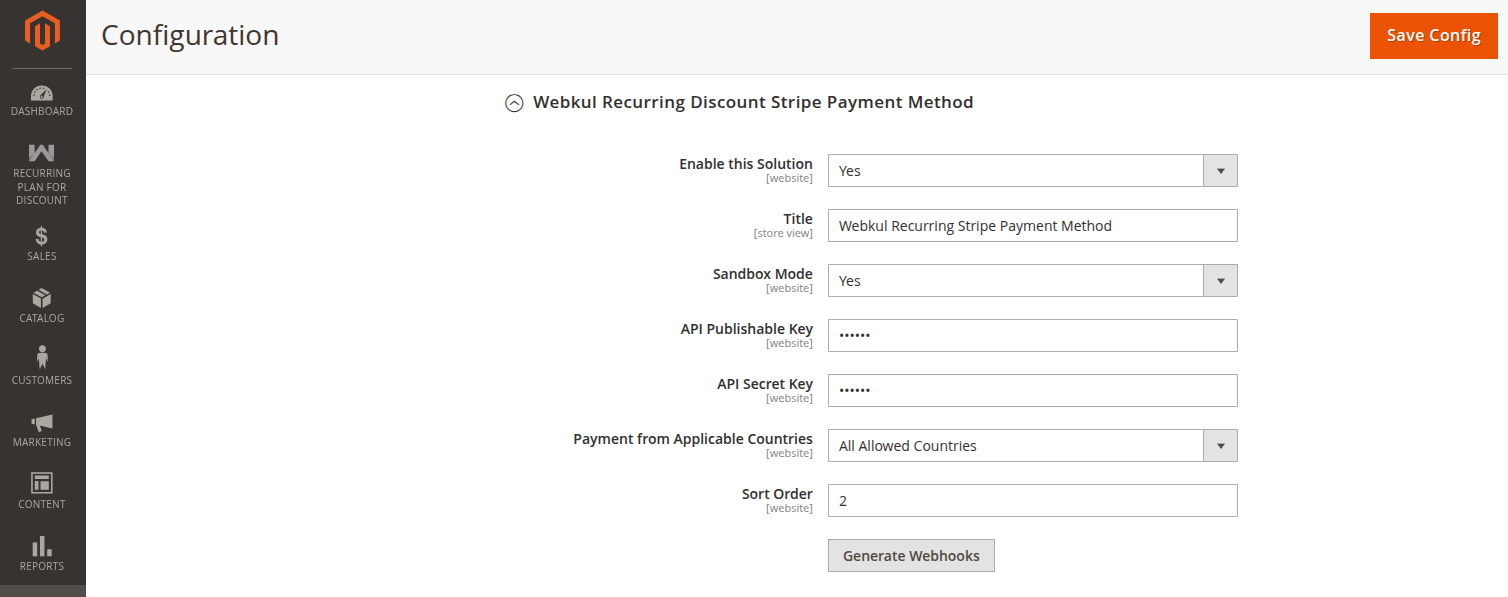
- In the same Payment Methods menu, locate the Webkul Recurring Discount Stripe Payment Method section.
- Configure the following fields:
- Enabled: Set to Yes to enable the Stripe recurring gateway.
- Title: Enter the payment method title displayed on the checkout page (e.g., Webkul Recurring Stripe Payment).
- Sandbox / Test Mode: Select Yes when testing with Stripe test card numbers, or No for live transactions.
- API Publishable Key: Enter your Stripe publishable key (
pk_test_...orpk_live_...) from the stripe dashboard. - API Secret Key: Enter your Stripe secret key (
sk_test_...orsk_live_...) from the stripe dashboard. - Generate Webhooks: Click on this button to generate the webhook endpoint.
Stripe Webhook Configuration
Stripe requires webhooks to notify Magento when renewal invoices are paid, failed, or cancelled.