
Manage Recurring Discount Plans
Store administrators can create, edit, filter, and delete custom recurring discount plans directly from Magento's backend panel.
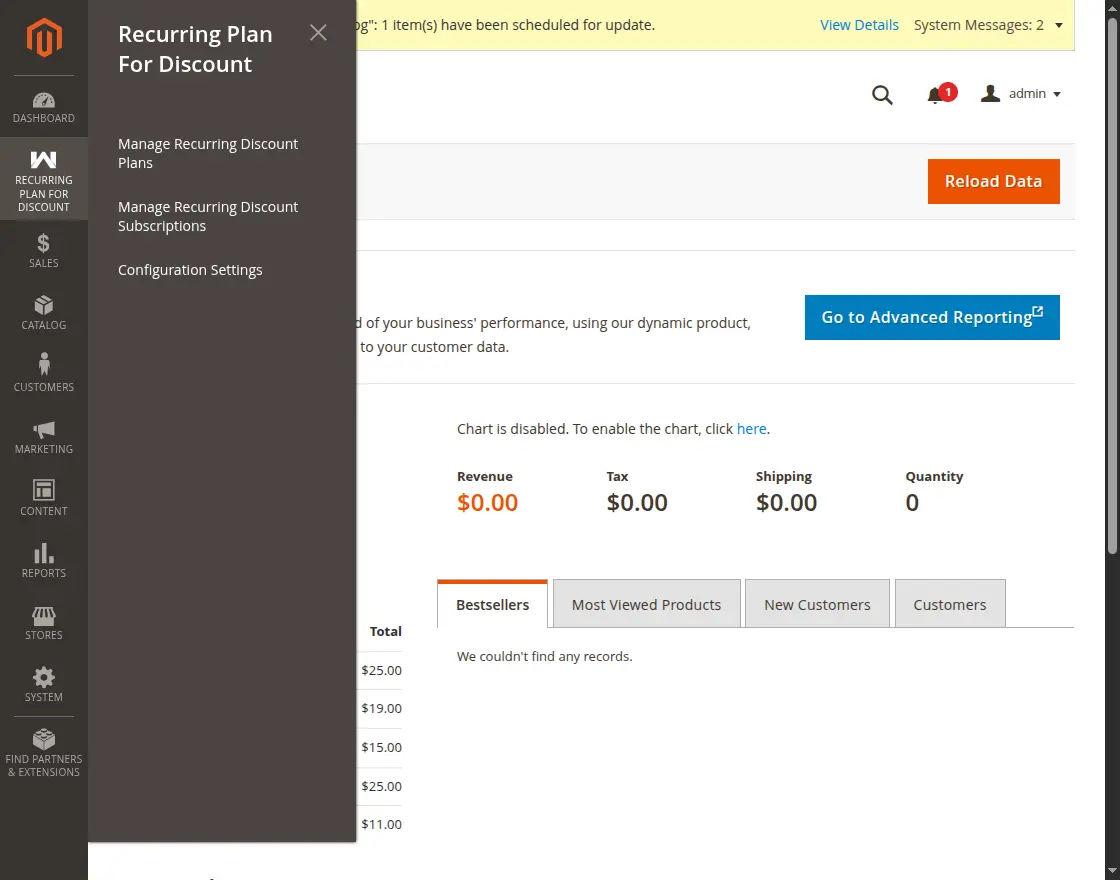
To access plan management, open the admin menu and navigate to Recurring Plan for Discount > Manage Recurring Discount Plans.
Viewing All Discount Plans
The Manage Recurring Discount Plans grid provides a comprehensive overview of all created discount subscription tiers.
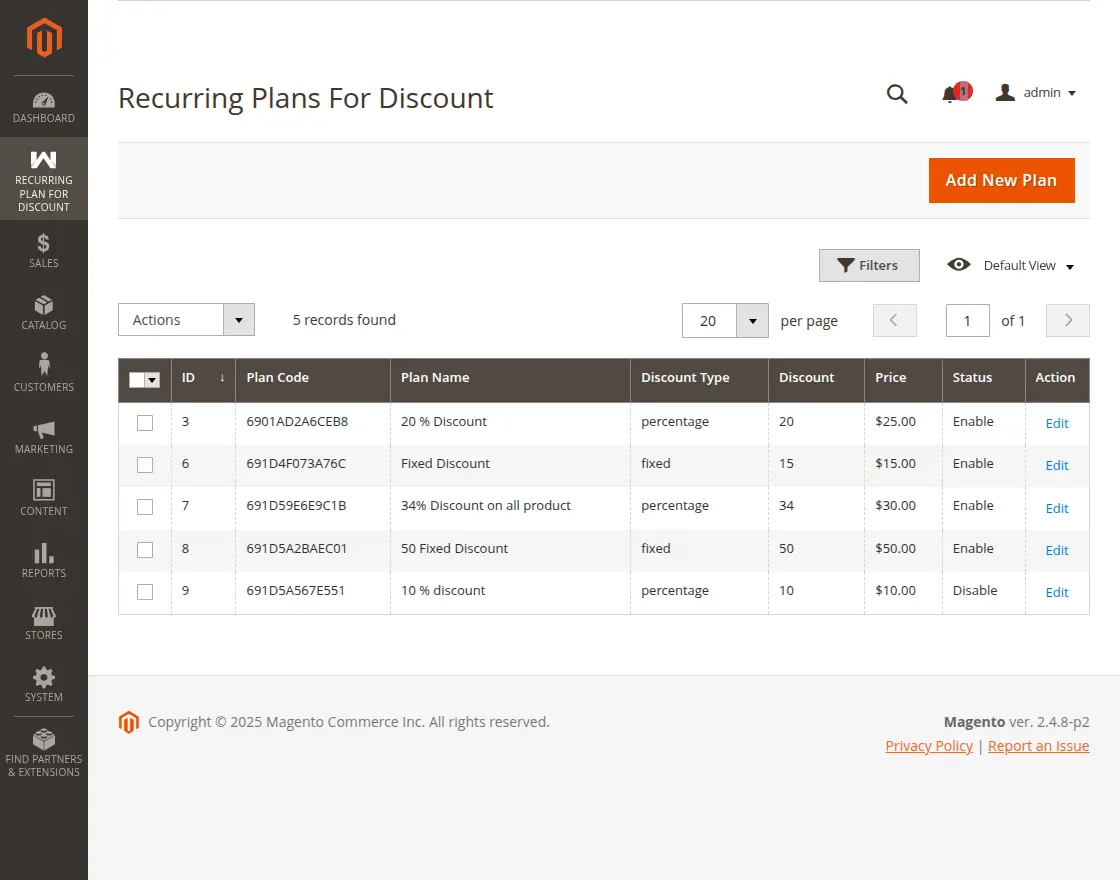
The grid includes the following key information:
- ID: The unique numerical identifier for the discount plan entity.
- Plan Code: The unique code used in the payment gateway (Stripe or PayPal) for the discount plan.
- Plan Name: The title of the plan displayed across the storefront and customer account.
- Discount Type: The discount format — Percentage or Fixed.
- Discount: The discount value applied to customer orders.
- Price: The recurring fee charged to the customer at every billing cycle.
- Status: Current operational state of the plan (Enabled or Disabled).
- Action: Direct link to edit or remove the plan record.
Mass Actions
From the grid, administrators can select one or more plans using the checkboxes and execute batch actions from the Actions dropdown:
- Enable: Bulk activate selected plans.
- Disable: Bulk deactivate selected plans to prevent new customer purchases.
- Delete: Remove selected plan records.
Creating a New Discount Plan
To create a new plan, click the Add New Plan button located at the top right of the grid view.
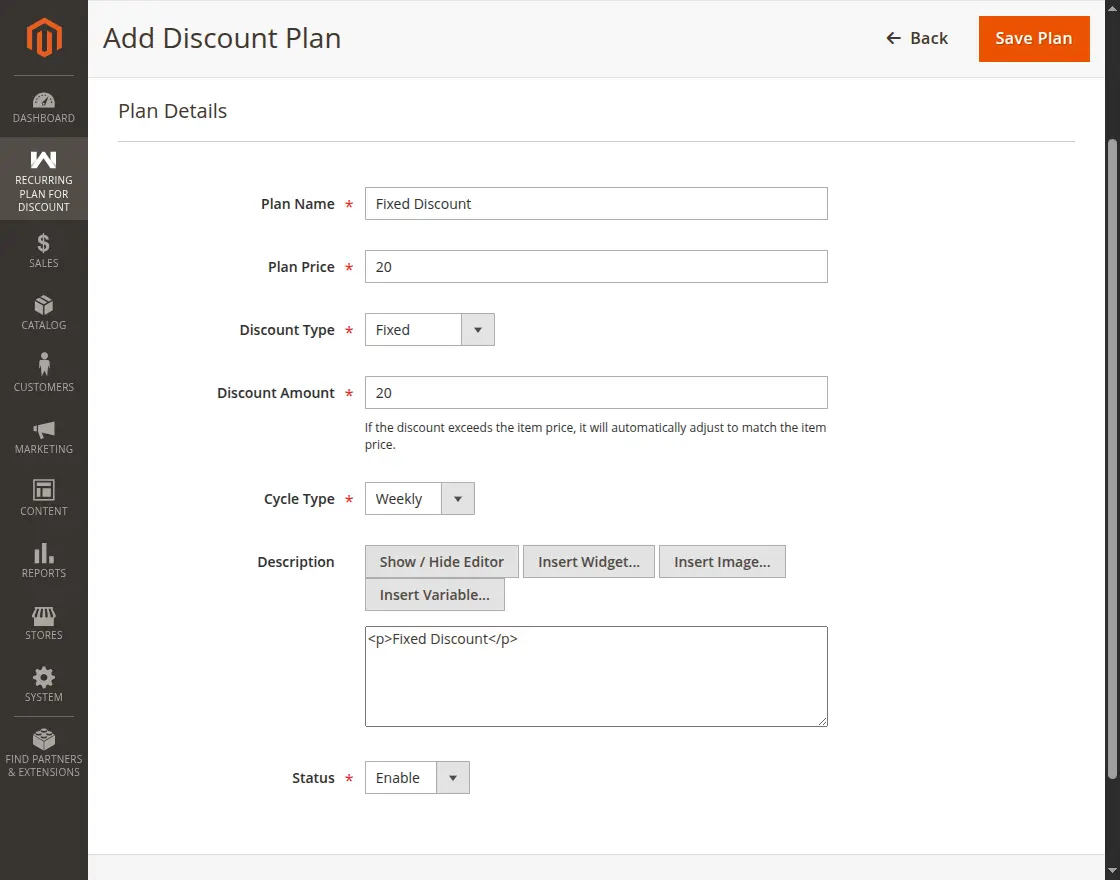
Fill in the plan details in the form:
- Plan Name: Enter a customer-friendly title for the subscription tier (e.g., Silver Saver Plan, VIP Monthly Club).
- Plan Price: Specify the price charged to customers upon initial subscription and at each recurring cycle.
- Discount Type: Choose between:
- Percentage: Deducts a percentage from product totals in the cart.
- Fixed: Deducts a fixed currency amount from product totals in the cart.
- Discount Amount: Enter the discount value (e.g., enter
15for 15% or a flat$15.00discount). - Cycle Type: Select the recurrence frequency:
- Weekly: Billed every 7 days.
- Monthly: Billed every 30 days.
- Yearly: Billed every 365 days.
- Description: Provide a detailed description outlining what benefits the customer receives with this subscription.
- Status: Set to Enabled to make the plan available immediately on the storefront, or Disabled to keep it as a draft.
Click the Save Plan button to store and publish the recurring plan.