
Customer Workflow
The Magento 2 Recurring Plan For Discount module provides an intuitive and seamless experience for customers, from discovering plans to automatic cart discount application and self-service subscription management.
1. Browsing & Selecting a Discount Plan
Customers can view all available recurring discount plans by navigating to the Current Discount Plans page from the storefront navigation menu.
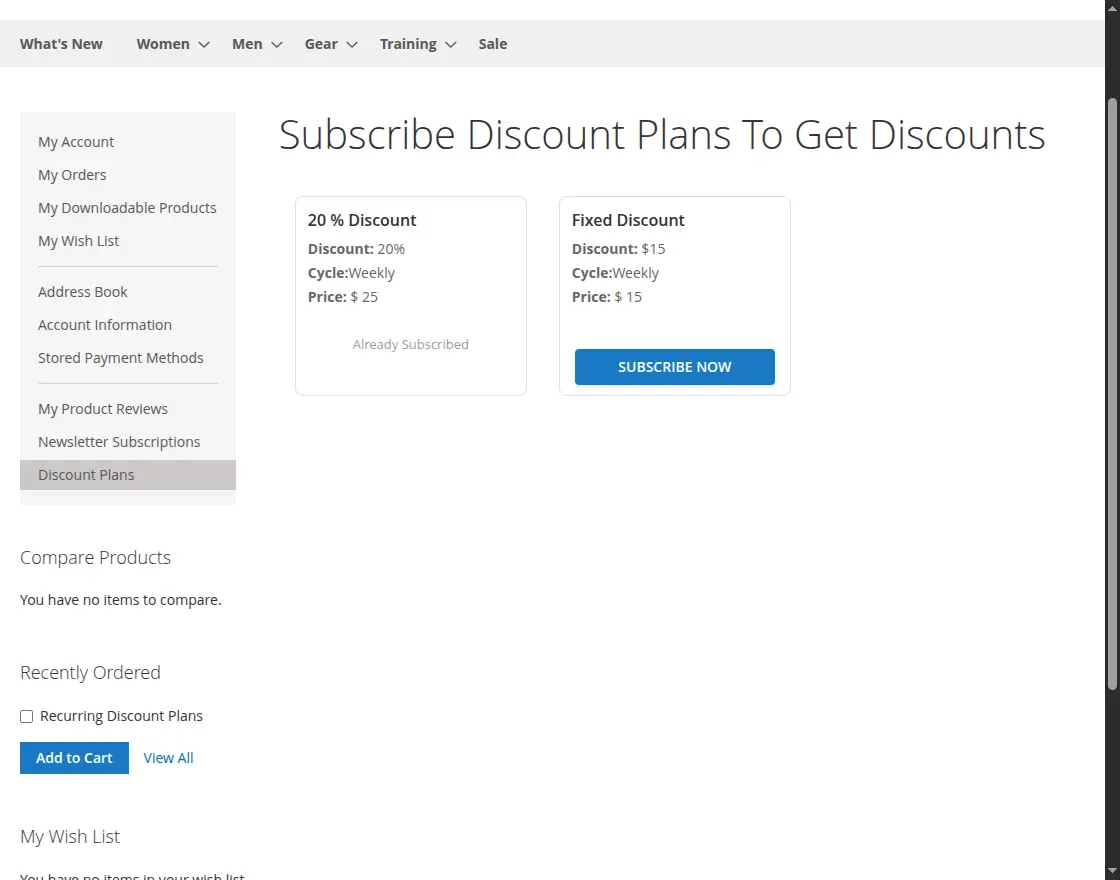
Plan View Page
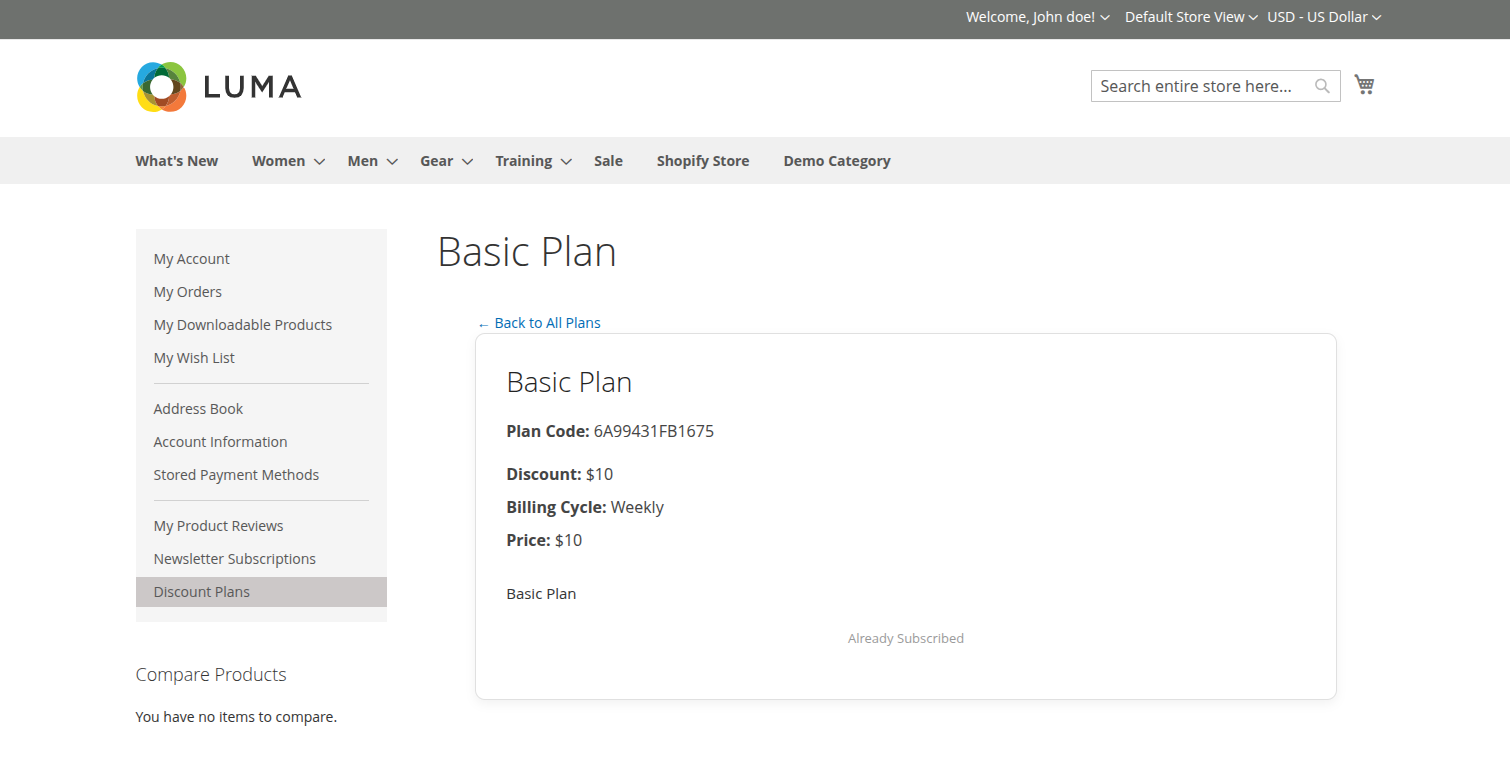
Each plan card clearly highlights:
- Plan Name: The subscription title.
- Plan Code: The subscription code.
- Discount: Whether the discount is a percentage or fixed amount.
- Price: The price of the plan.
- Billing Cycle: Weekly, Monthly, or Yearly billing cycles.
- Plan Description: The perks and terms of the subscription.
To proceed, the customer clicks the Subscribe button on their chosen plan.
2. Checkout & Payment Authorization
Clicking Subscribe adds the recurring discount subscription to the checkout session.
Selecting Payment Method
At the checkout step, customers select their preferred recurring payment gateway:
- Webkul Recurring Discount Stripe Payment Method
- Webkul Recurring Discount PayPal Express Checkout
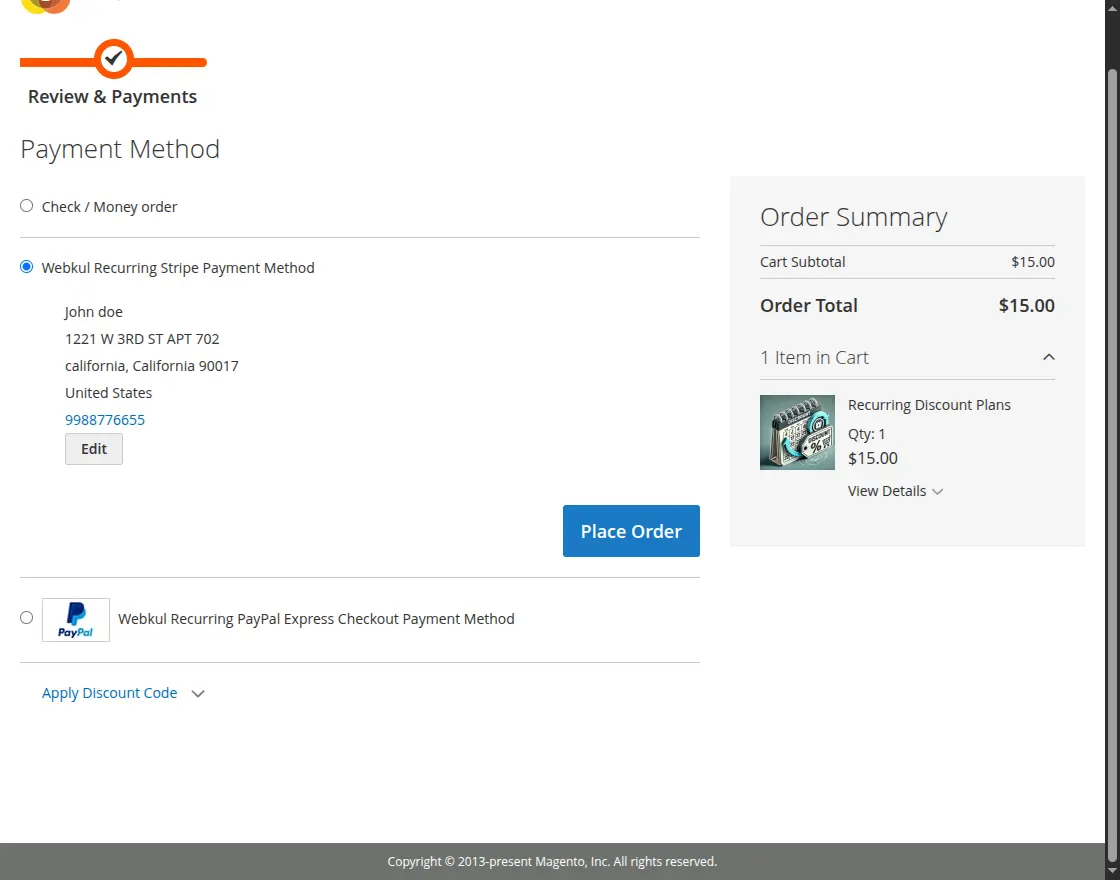
Completing the Order
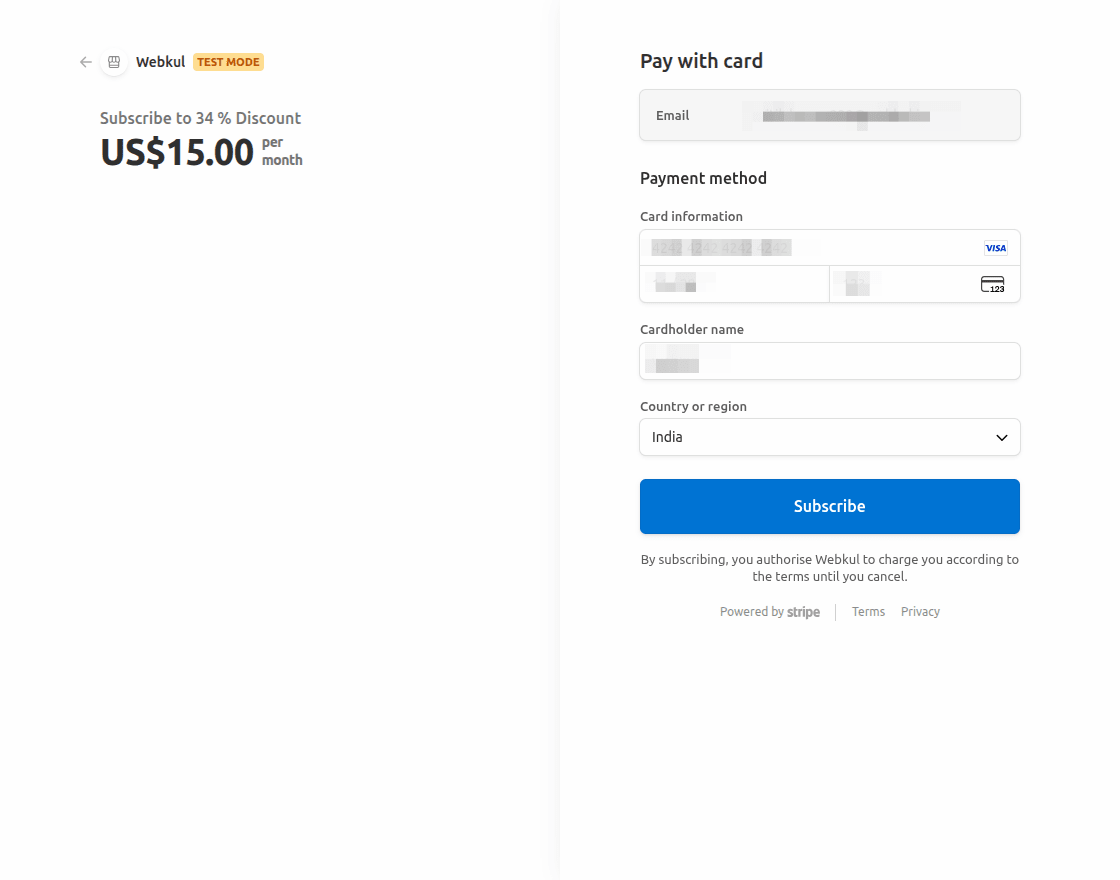
If choosing Stripe, the customer enters their card details securely into the integrated Stripe Elements card field:
If choosing PayPal Express Checkout, the customer is redirected to PayPal to complete the payment:
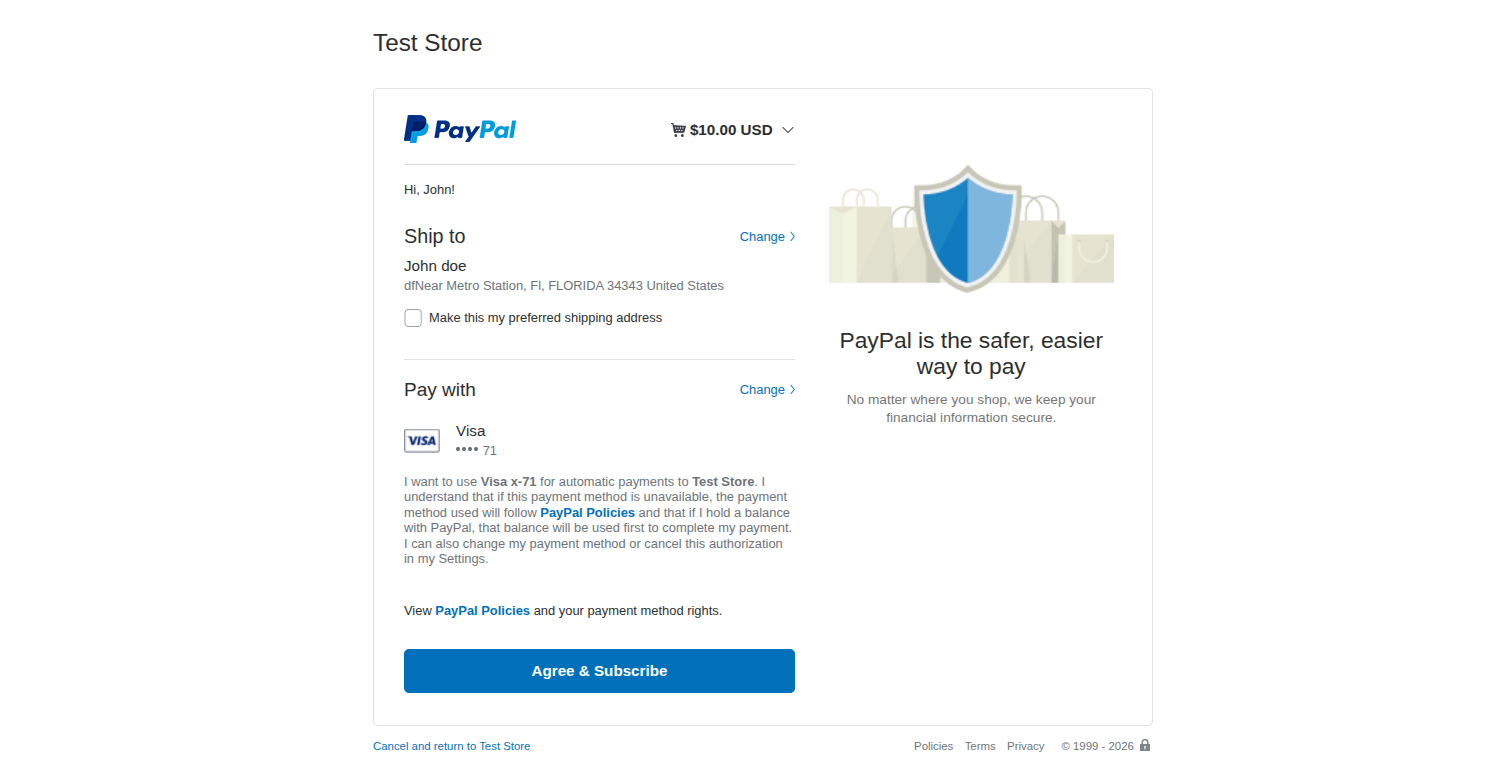
Once details are entered, clicking Subscribe or Place Order authorizes the initial charge and registers the customer's payment profile for future renewal cycles.
3. Automatic Discount Application in Cart
Once the subscription invoice is generated and the status becomes Active, the customer receives their plan benefits automatically.
When the customer browses the store and adds any eligible products to their shopping cart, the extension automatically calculates the discount and deducts it as Subscription Discount in the cart totals summary.
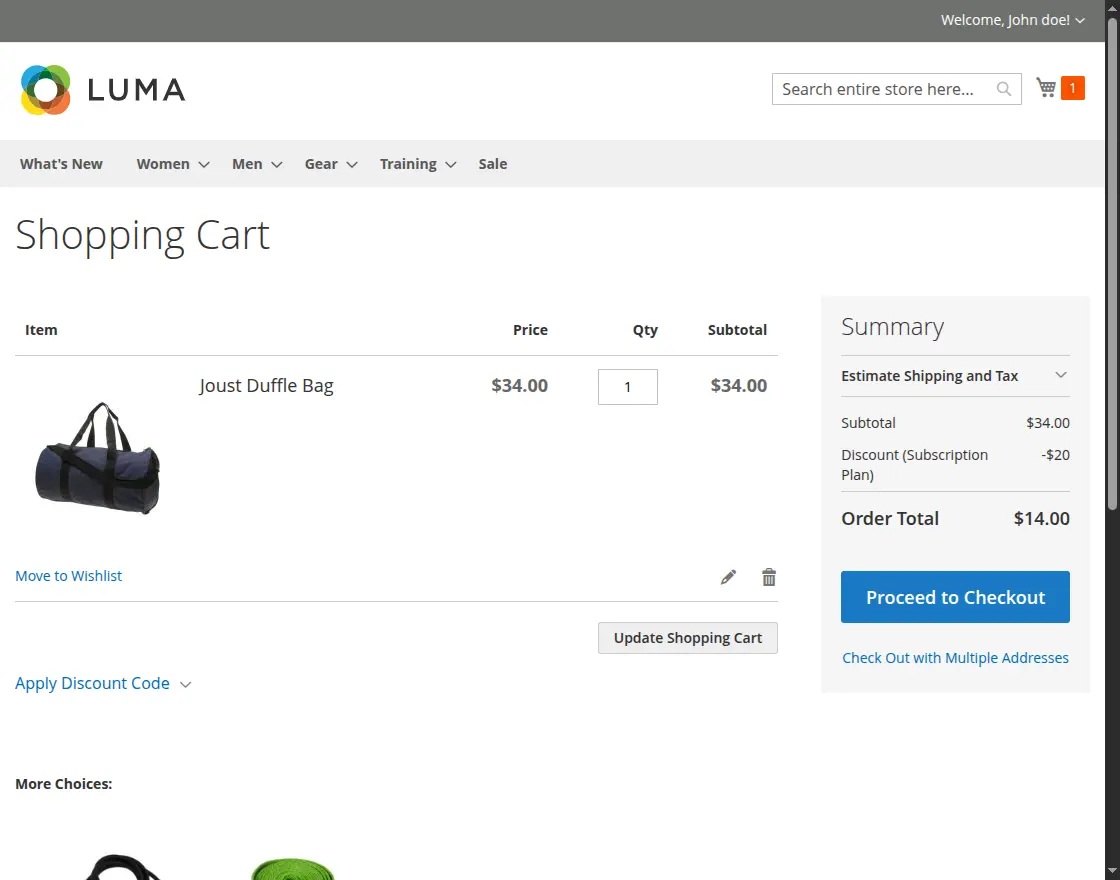
The customer does not need to enter any promo code or coupon — the savings are applied automatically.
4. Managing Subscriptions in Customer Account
Customers retain full control over their active discount plans from their customer dashboard:
- Log in to the customer account.
- In the left navigation menu, click Discount Plan > My Subscribed Plans.
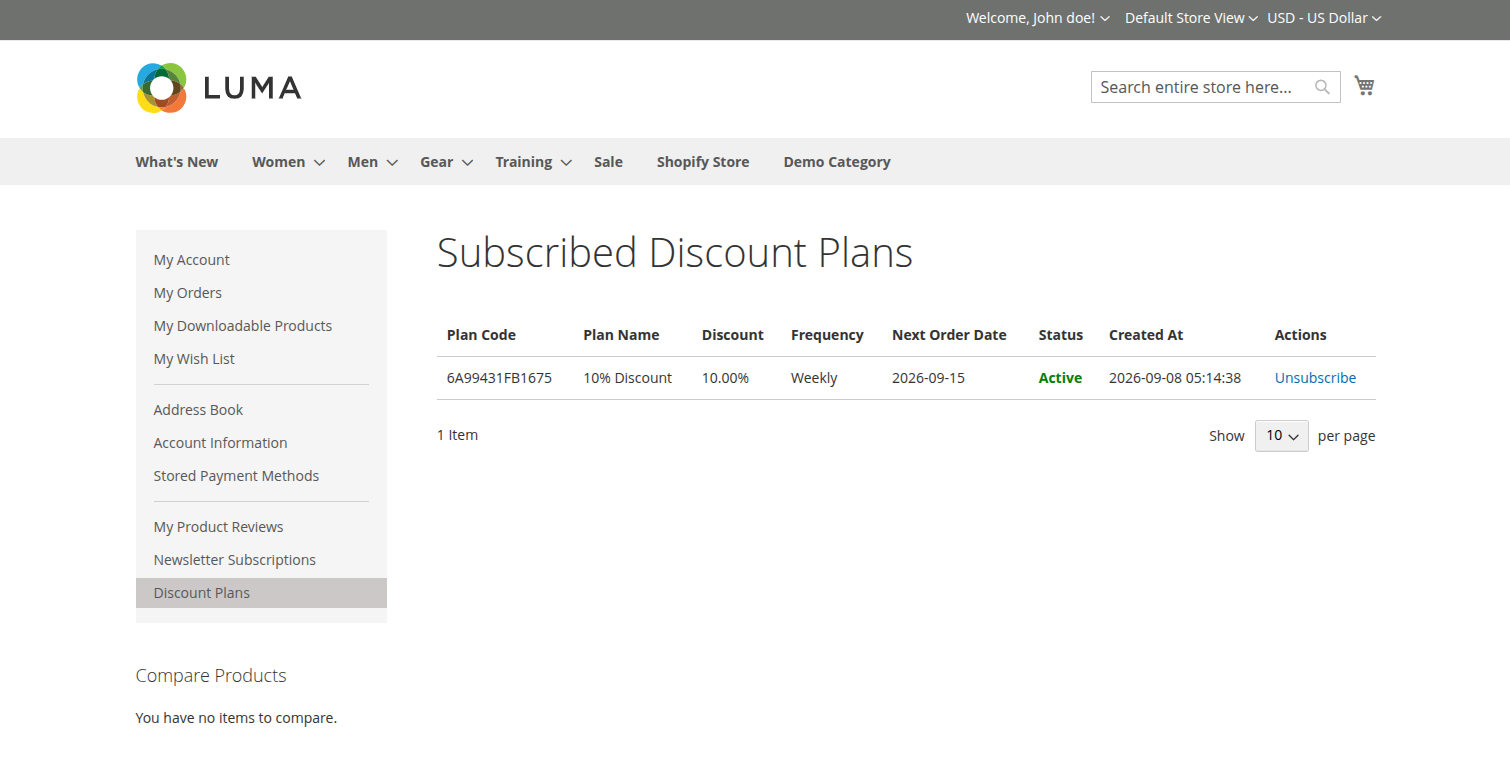
From this screen, customers can:
- View details of all active, inactive, or canceled subscriptions.
- Check start date, upcoming billing date, plan details, and discount amount.
- Cancel an active subscription at any time using the Unsubscribe button. When canceled, renewal billing ceases, and plan benefits conclude.