
Installation
This guide walks you through installing the Webkul Magento 2 Marketplace RMA System extension on your store server using either manual extraction or Composer installation.
Option A — Install from Zip Package
Use this method if you downloaded the module package directly from the Webkul Store.
1. Download Module
Log in to your Webkul Store account, navigate to My Account > My Purchased Products, and download the Webkul_MpRmaSystem zip archive to your local computer.
2. Upload Folder
Extract the zip archive. Inside you will find the src/app directory. Connect to your server using SSH or SFTP. Copy the contents and upload them to your Magento 2 root directory. The files must reside under: app/code/Webkul/MpRmaSystem/
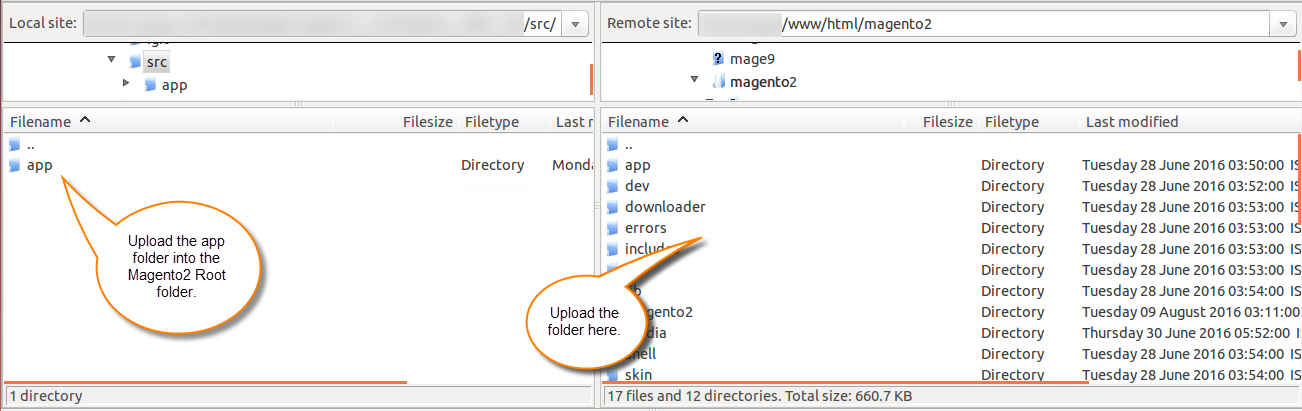
3. Run Commands
Execute the following commands sequentially in your Magento 2 root directory:
php bin/magento setup:upgrade
php bin/magento setup:di:compile
php bin/magento setup:static-content:deploy
php bin/magento indexer:reindex
php bin/magento cache:flush
You can also clear the cache from the Magento Admin Panel. Navigate to System > Tools > Cache Management and click the Flush Magento Cache button.
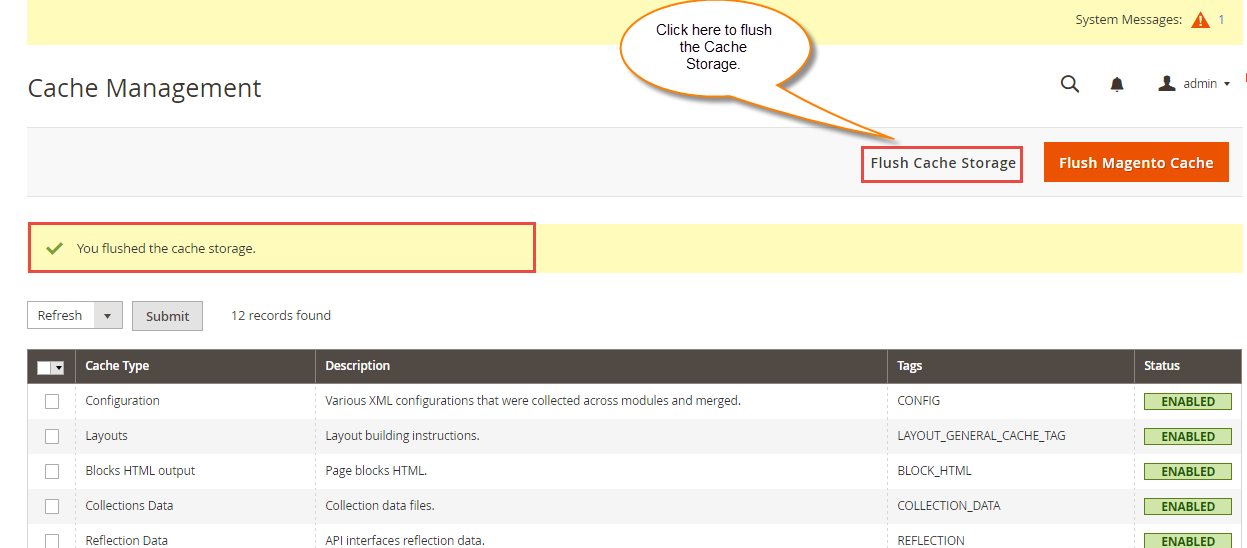
Option B — Install with Composer
Use this method if the module package is available in your Composer repository.
You need to add the provided access keys during purchase. After that, run the Composer require command to install the package:
composer require webkul/marketplace-rma-system
If your store uses the Hyvä Theme, also install the Hyvä compatibility companion module:
composer require webkul/marketplace-rma-system-hyva
After running Composer, proceed with the installation commands listed in Option A > 3. Run Commands.
Language Translation
The module provides full multilingual internationalization, supporting both LTR (Left-to-Right) and RTL (Right-to-Left) languages such as Arabic:
- Navigate to the module's
i18ndirectory:app/code/Webkul/MpRmaSystem/i18n/. - Open
en_US.csv. - Create a copy and rename it to your target locale code (e.g.,
de_DE.csvfor German orar_SA.csvfor Arabic). - Translate all phrases on the right side of the comma into your target language.
- Save and upload the file to
app/code/Webkul/MpRmaSystem/i18n/on your server.
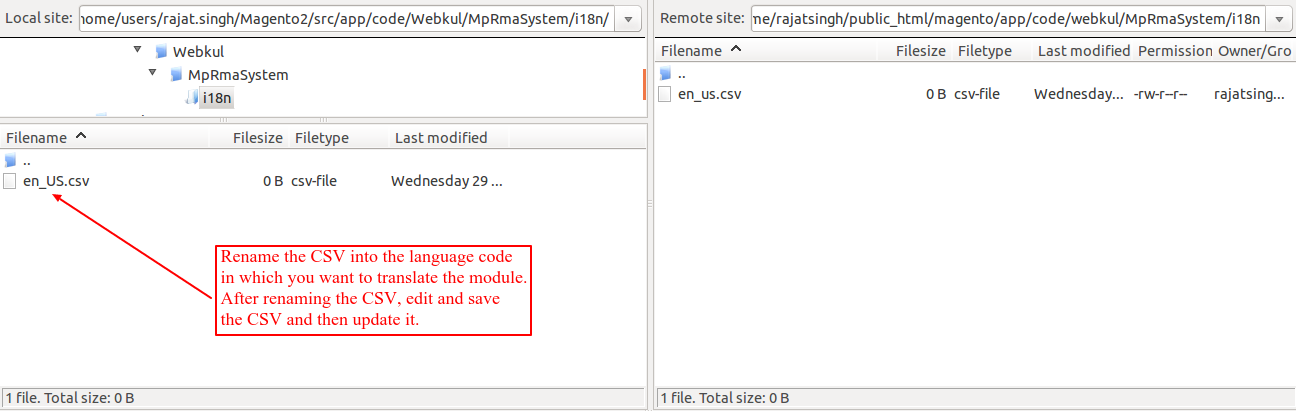
- Log in to your Magento Admin Panel, navigate to Stores > Configuration > General > General > Locale Options, and set your target locale.
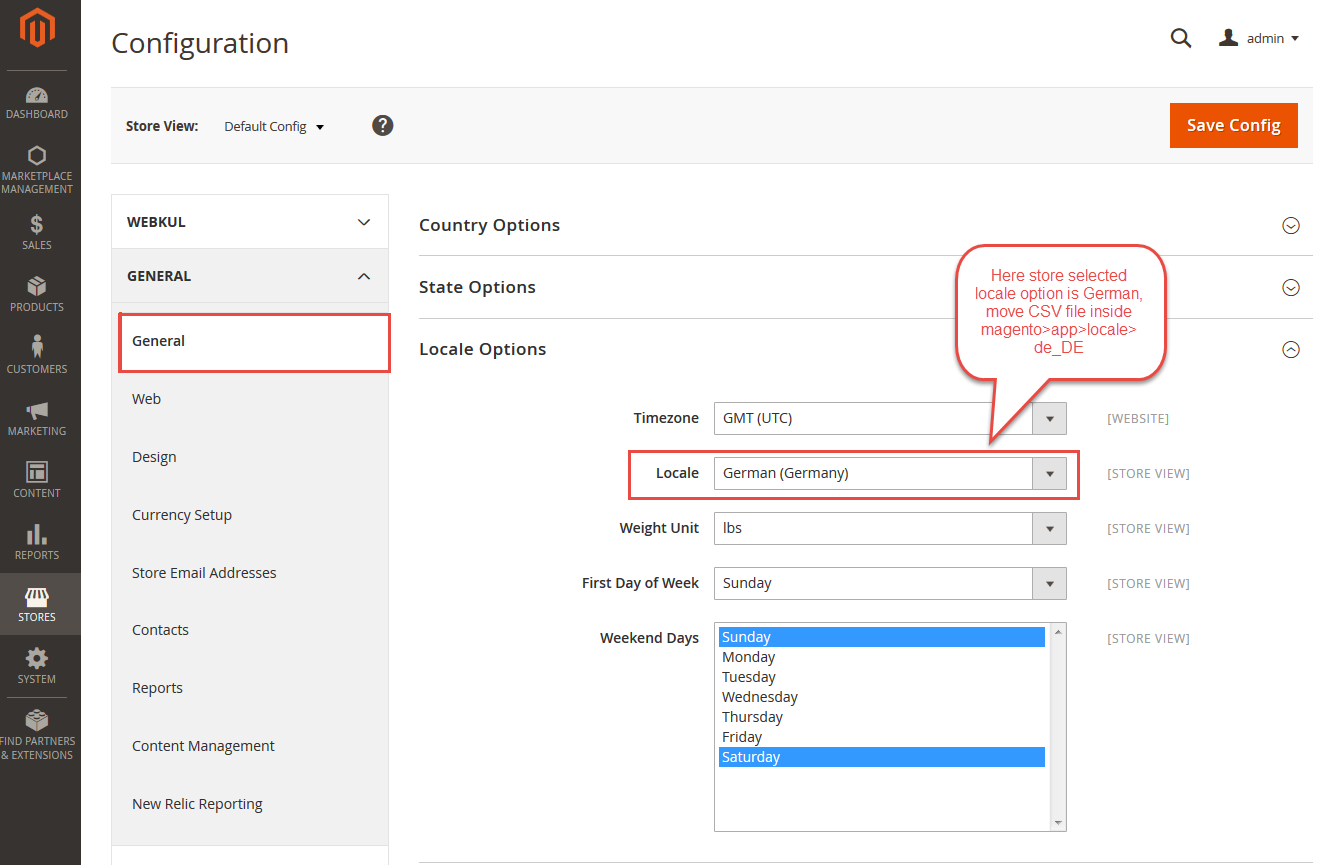
- Re-deploy static content and clear the Magento cache:
php bin/magento setup:static-content:deploy
php bin/magento cache:flush
Translation Note
Always ensure that the CSV structure remains intact (the English source phrase on the left). Only change the translated string on the right side of the comma.