
Customer Registration & Account
This section covers how custom attributes and legal agreements integrate into customer signup workflows and customer account dashboards.
Standard Customer Registration
When a new user visits the store's account creation page (/customer/account/create), they complete standard account credentials alongside configured custom attributes.
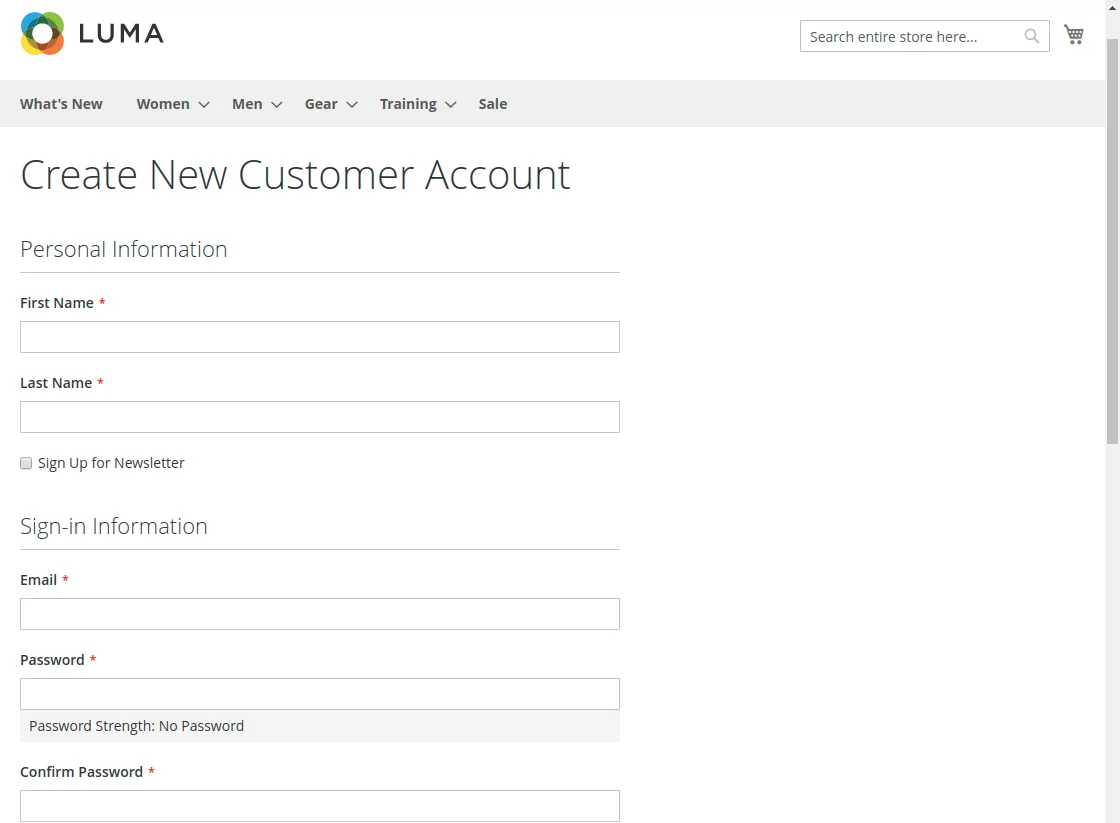
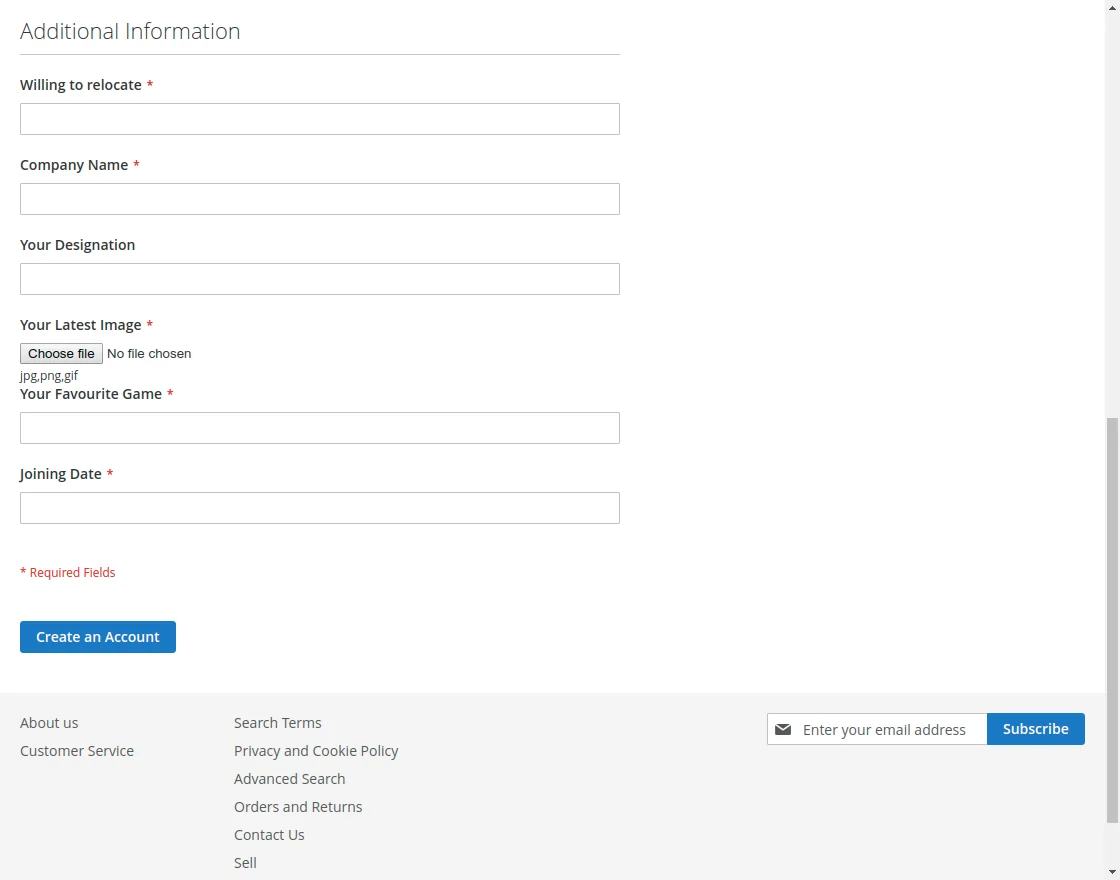
Additional Information Section
Custom attributes assigned to Customer or Both are rendered inside the Additional Information section on the registration page:
Group-Wise Attribute Selection
When Display Registration Fields Group Wise is enabled in Module Configuration, customers can choose an attribute group from a dropdown menu. Upon selection, only the fields associated with that group are presented:
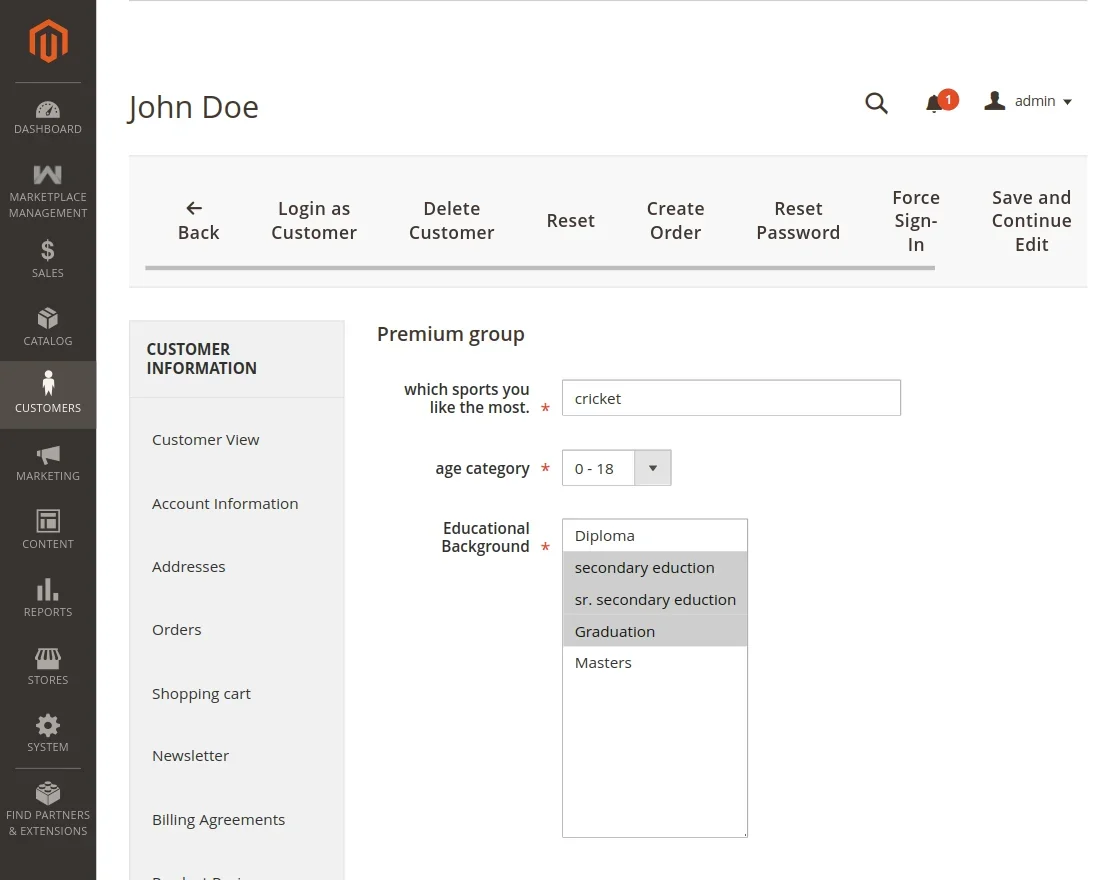
This dynamic categorization keeps long forms clean and structured.
Becoming a Seller During Registration
If the user checks the Do You Want To Become A Partner / Seller? checkbox during signup:
- The form expands to request their Shop URL.
- All custom attributes assigned to Seller or Both appear dynamically under the vendor registration fields.
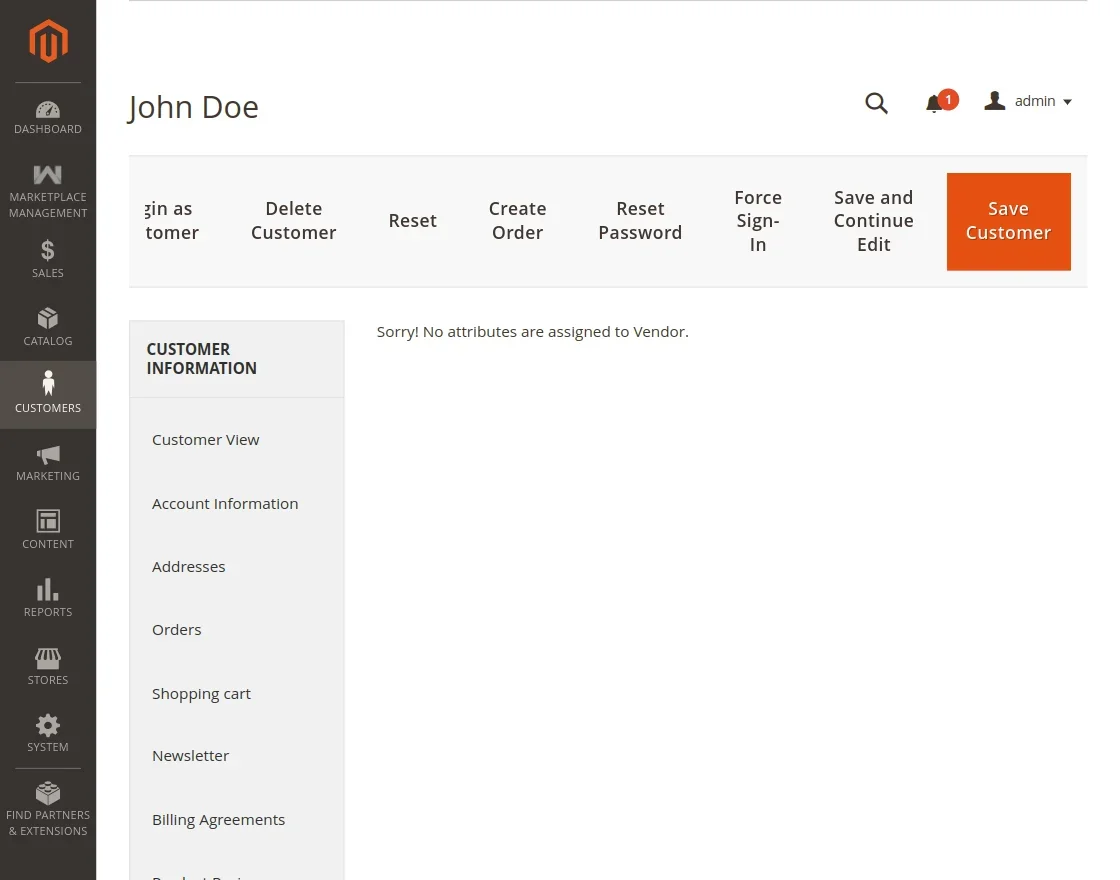
Sellers can complete both their personal profile and their vendor credentials in a single step.
Interactive Terms & Conditions Modals
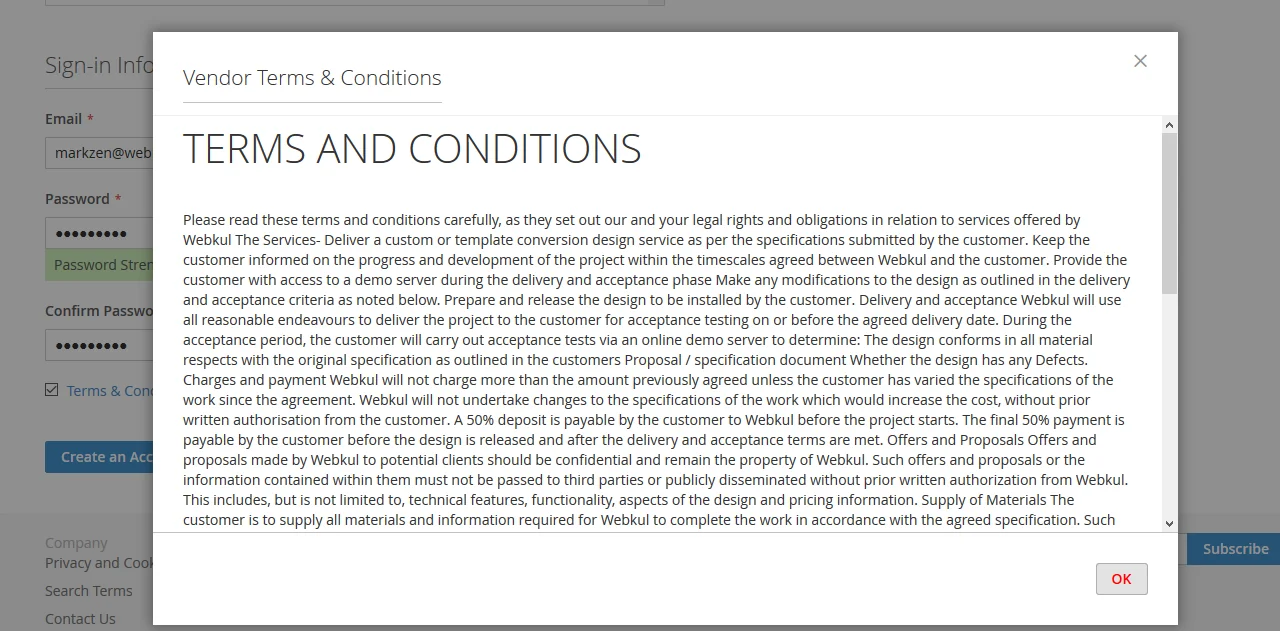
If enabled in configuration, registration forms require acceptance of the store's Terms & Conditions and Privacy & Cookie Policy:
- Clicking Terms & Conditions displays the modal popup or slide panel:
- Clicking Privacy and Cookie Policy displays the privacy details:
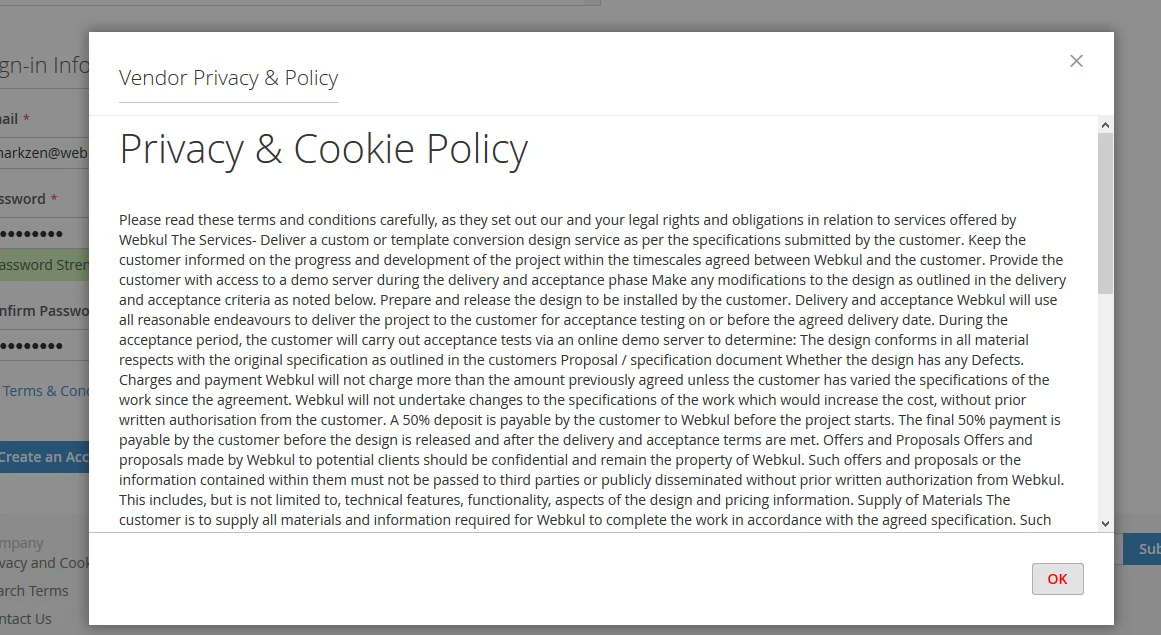
The modal style (Popup or Slide), header color, background color, and button color correspond to your store's Terms & Conditions Settings.
Customer Account Dashboard Features
Logged-in customers can access and update their custom information through dedicated menu items in their account dashboard:
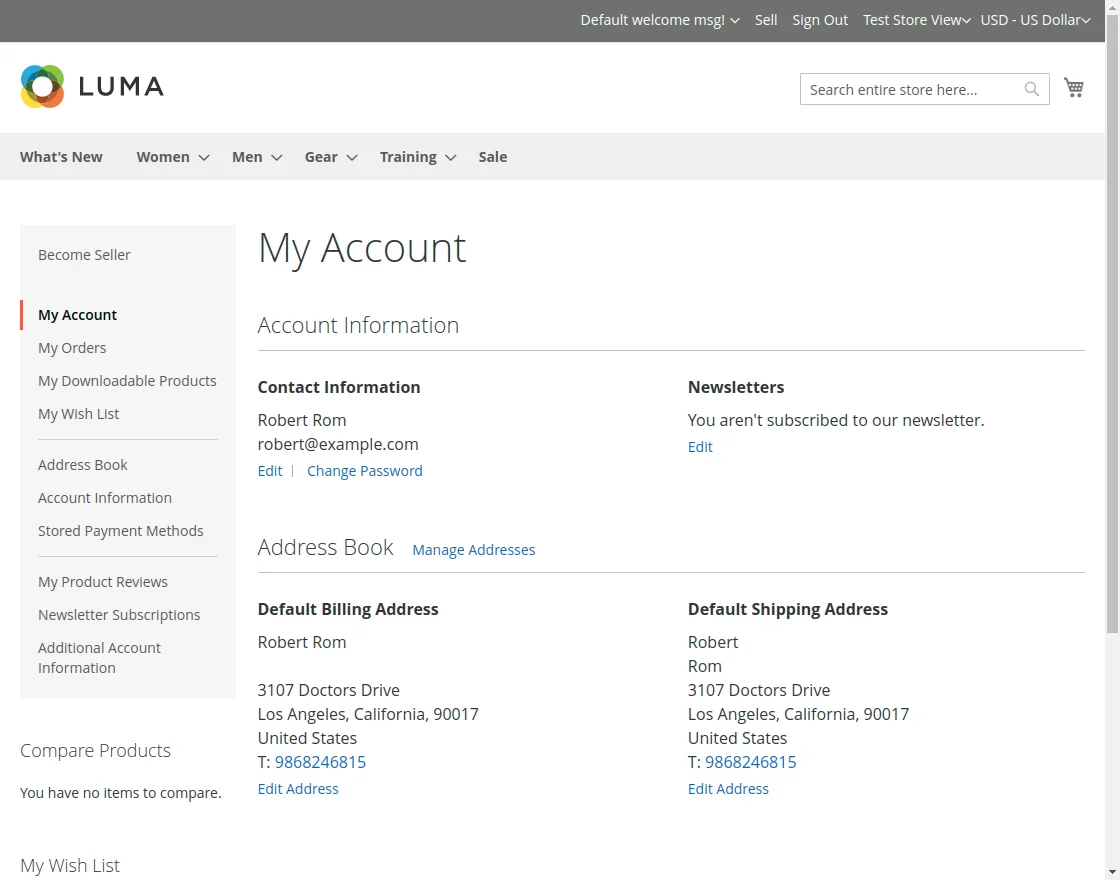
1. Additional Customer Information
Navigating to Additional Customer Information allows customers to view and update values for attributes assigned to customer accounts:
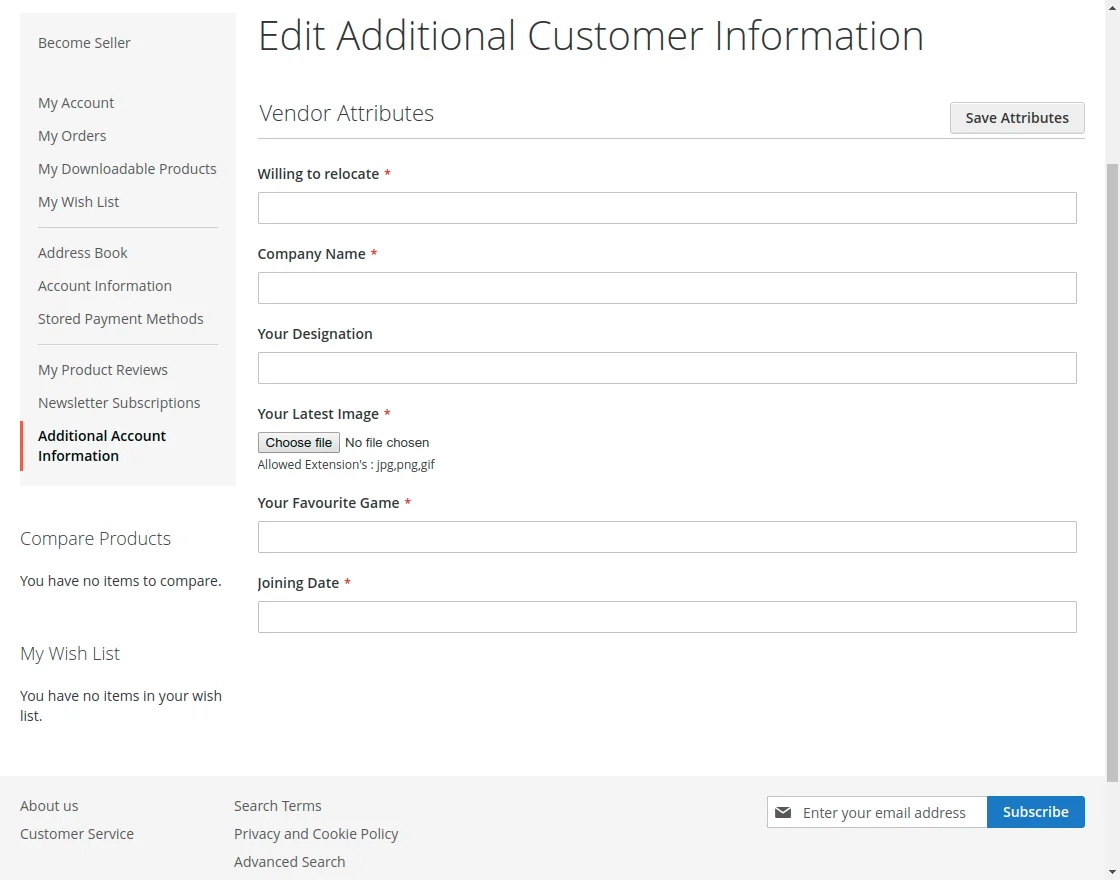
2. Become a Seller for Existing Customers
If an existing customer decides to open a marketplace seller account, they can click Become Seller in their account sidebar:
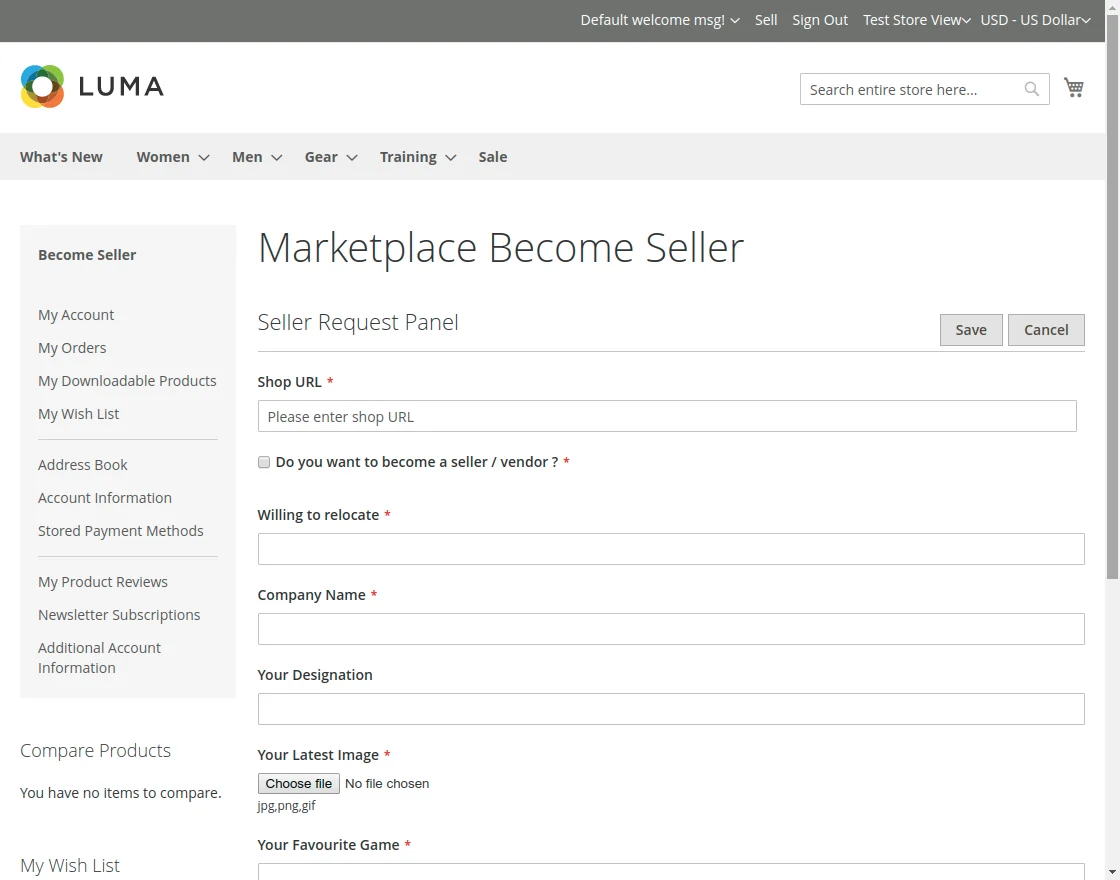
The page presents the vendor attributes form, allowing them to provide company documentation, business credentials, and store URLs to request seller status.