
Activation & Verification
After successfully installing the extension, you must verify the module license and configure initial settings in the Magento Admin panel.
1. Module License Registration
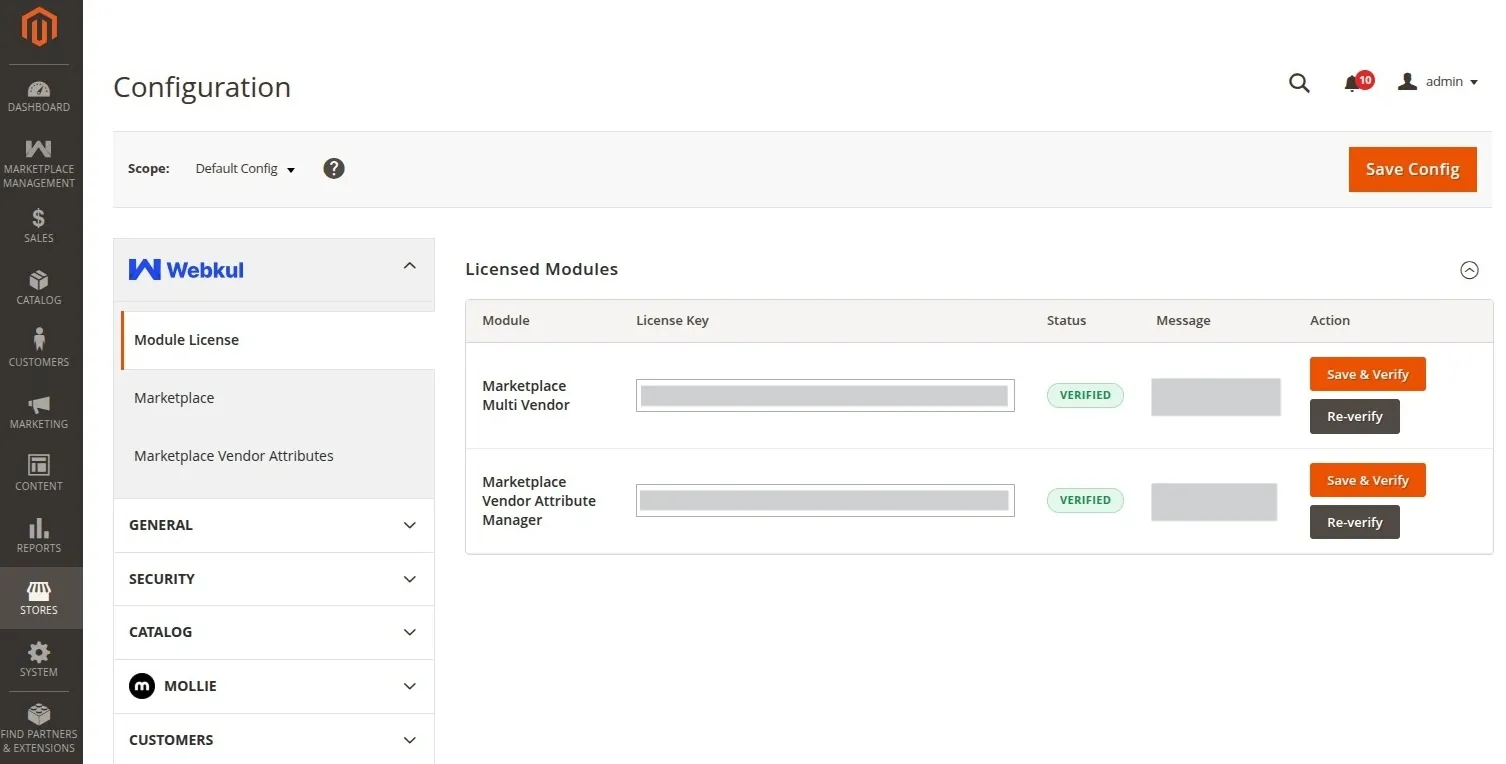
The Marketplace Vendor Attribute Manager extension requires license verification via Webkul Base:
- Log in to your Magento Admin Panel.
- Navigate to Webkul > Module License (or Stores > Configuration > Webkul > Module License).
- Locate Marketplace Vendor Attribute Manager in the installed module list.
- Enter your purchase order details and license key provided in your Webkul customer account.
- Click Save Config.
2. Initial Module Verification
To verify that the module is active and properly loaded in your store:
- Navigate to Stores > Configuration > Marketplace > Vendor Attributes Settings.
- Confirm that the configuration settings panel displays properly.
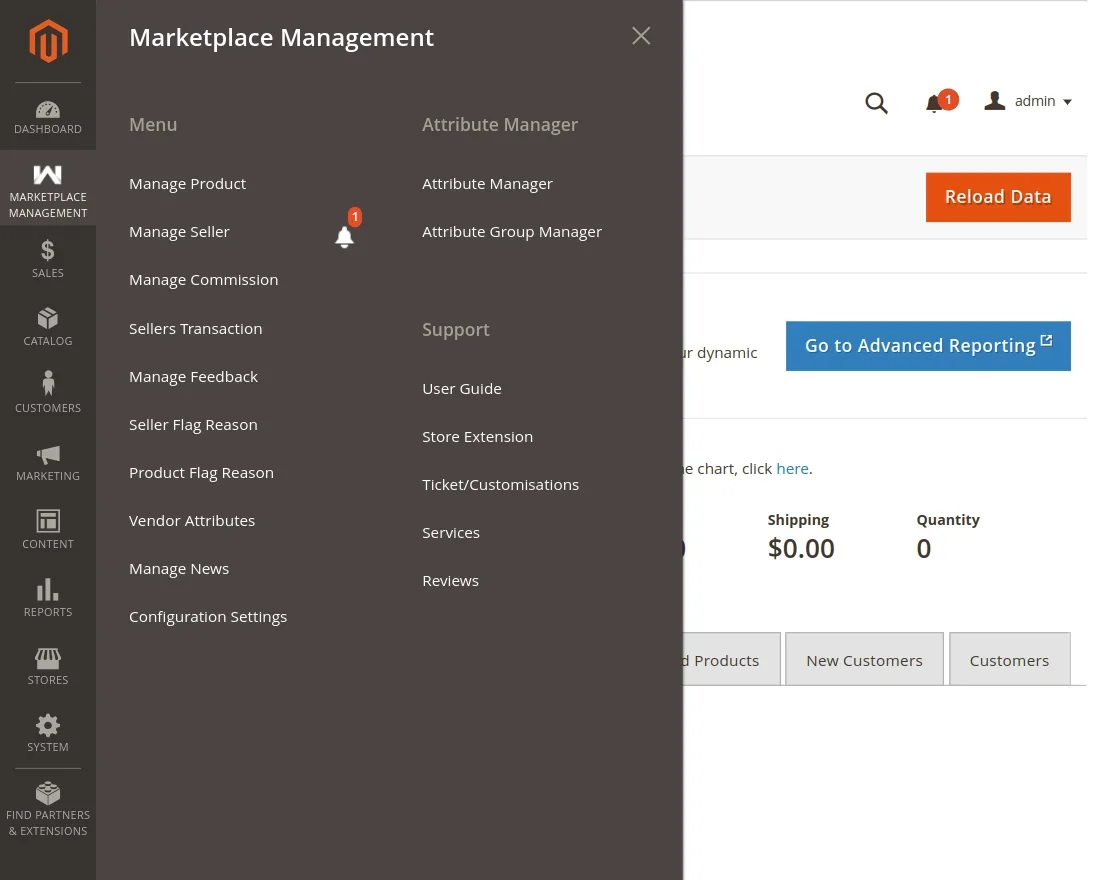
- Check the admin side menu under Marketplace Management > Attribute Manager to verify access to:
- Manage Attribute
- Manage Display Fields
- Assign Attribute
- Assign Group
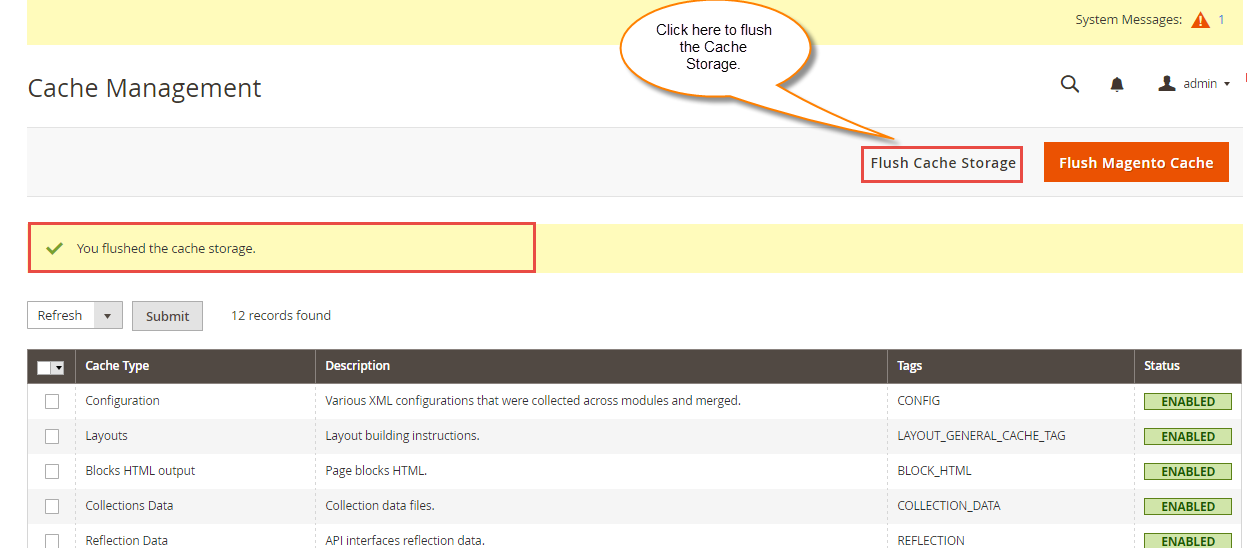
- Flush the Magento application cache under System > Cache Management or via CLI:
php bin/magento cache:flush
Verification Note
Once verified and enabled, custom vendor attributes will appear on customer registration forms, seller registration forms, and vendor profile management pages according to your configuration rules.