
Module Configuration
Store administrators can configure global attribute visibility, file upload restrictions, profile labels, and Terms & Conditions modal appearances from the Magento Admin Panel.
Accessing Configuration Settings
- Log in to your Magento Admin Panel.
- Navigate to Stores > Configuration.
- In the left navigation tree, expand the Marketplace tab and locate:
- Vendor Attributes Settings
- Vendor Terms & Conditions and Privacy Settings
1. Vendor Attributes Settings
Navigate to Stores > Configuration > Marketplace > Vendor Attributes Settings to configure core extension behavior.
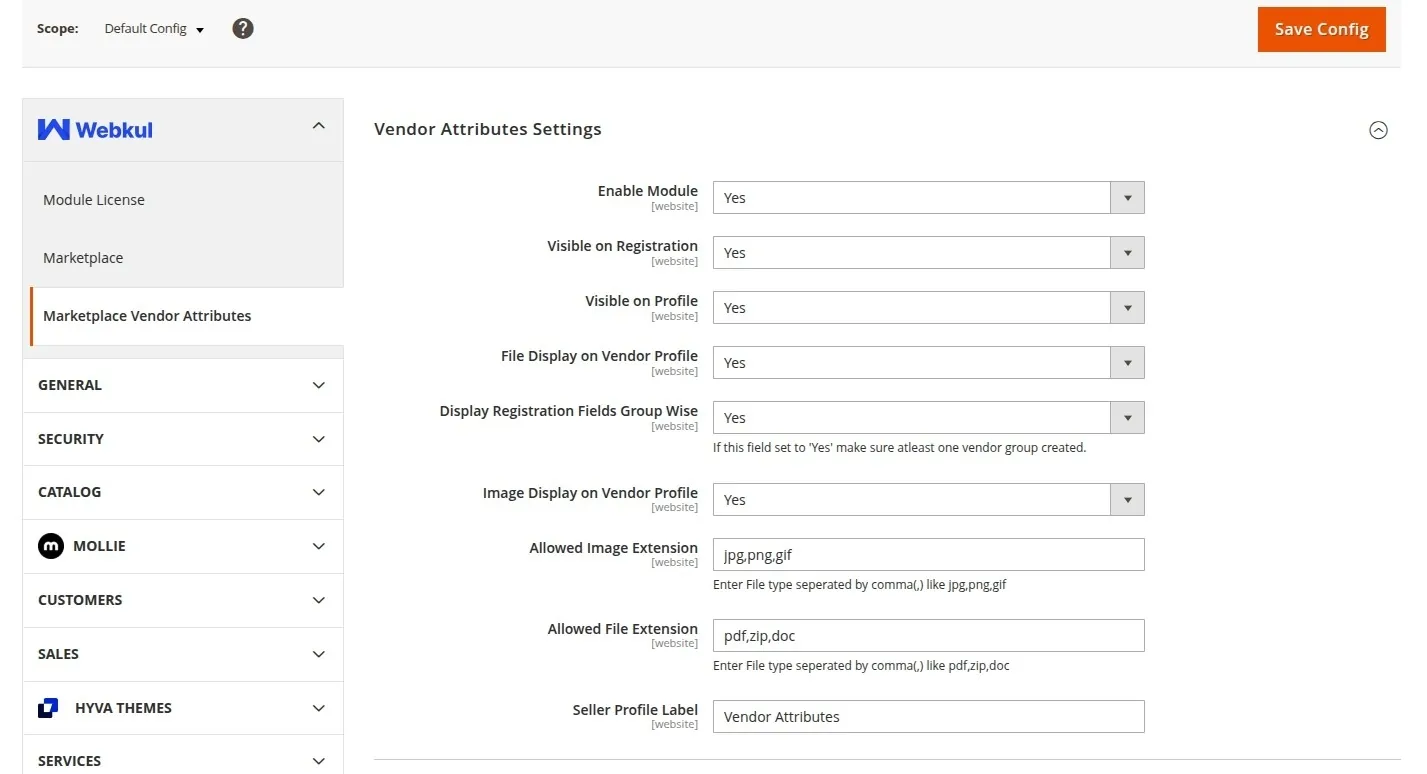
Field Reference
| Setting | Type / Options | Default | Description |
|---|---|---|---|
| Visible On Registration | Yes / No | Yes | When set to Yes, custom vendor attributes appear on the vendor registration form. |
| Visible On Profile | Yes / No | Yes | When set to Yes, custom attributes filled by the seller appear on their public marketplace storefront profile page. |
| File Display On Vendor Profile | Yes / No | Yes | When set to Yes, files uploaded by the seller (such as certificates or brochures) can be downloaded by buyers visiting the vendor profile. |
| Display Registration Fields Group Wise | Yes / No | No | When enabled, registration fields are presented according to their assigned Attribute Group. A dropdown selector lets users choose an attribute group, dynamically revealing its relevant fields. |
| Image Display On Vendor Profile | Yes / No | Yes | When set to Yes, media images uploaded via custom attributes are rendered on the public vendor profile. |
| Allowed Image Extensions | Comma-separated text | jpeg,jpg,png,gif | Defines allowable image file extensions for image upload attributes. Formats outside this list are rejected. |
| Allowed File Extensions | Comma-separated text | doc,docx,pdf,txt,xls | Defines allowable document file extensions for file upload attributes. |
| Seller Profile Label | Text | Vendor Details | Sets the custom section heading displayed above vendor custom attributes on the public seller profile page. |
2. Vendor Terms & Conditions and Privacy Settings
Navigate to Stores > Configuration > Marketplace > Vendor Terms & Conditions and Privacy Settings to customize legal popups on registration.
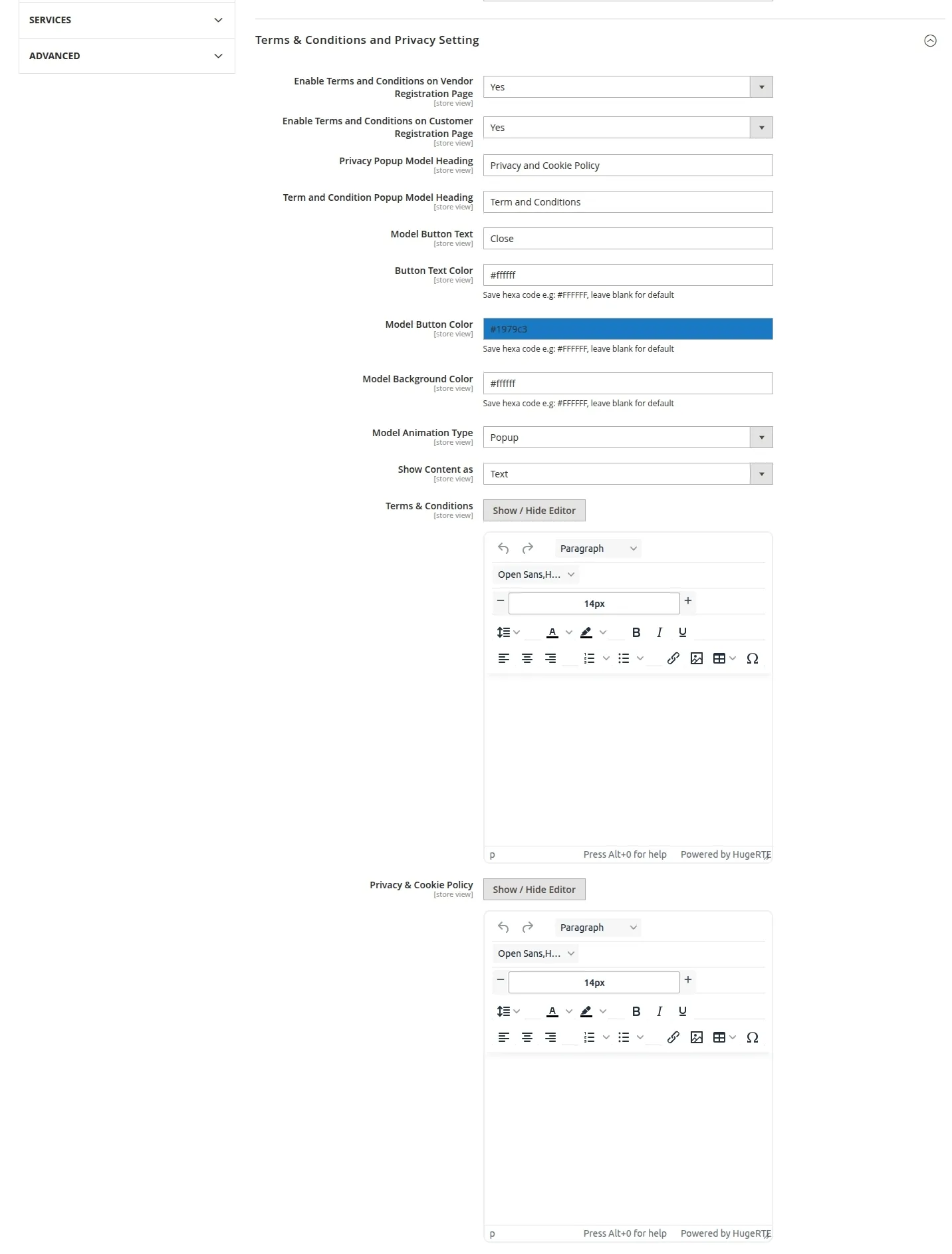
Field Reference
| Setting | Type / Options | Description |
|---|---|---|
| Enable Terms and Conditions on Registration Page | Yes / No | Enables or disables the mandatory Terms & Conditions checkbox on customer and seller signup forms. |
| Privacy Popup Model Heading | Text | Title text displayed at the top of the Privacy Policy modal popup or slide panel. |
| Terms & Condition Popup Model Heading | Text | Title text displayed at the top of the Terms & Conditions modal popup or slide panel. |
| Model Button Text | Text | Text label for the confirmation/dismiss button inside modal dialogs (e.g., Close or I Agree). |
| Button Text Color | Color Picker / Hex | Color code for the text inside modal confirmation buttons (e.g., #ffffff). |
| Model Button Color | Color Picker / Hex | Background color code for modal confirmation buttons. |
| Header Background Color | Color Picker / Hex | Background color code for the modal dialog header bar. |
| Background Color | Color Picker / Hex | Background color code for the modal content body. |
| Animation Type | Dropdown (Popup / Slide) | Choose whether legal disclosures open as a centered Popup modal or an interactive Slide-in drawer. |
| Terms and Conditions | WYSIWYG Editor | Full HTML/formatted text content of your store's seller Terms & Conditions agreement. |
| Privacy & Cookie Policy | WYSIWYG Editor | Full HTML/formatted text content of your store's Privacy & Cookie Policy. |
Saving Configuration
After updating any configuration values, click the Save Config button at the top right of the page and flush the Magento cache under System > Cache Management.