
Admin Settings & Global App
The administrative configuration controls the core behavior of the Marketplace Etsy Connector, including master module activation, the Global Etsy App credentials engine, default product assignment, and order synchronization parameters.
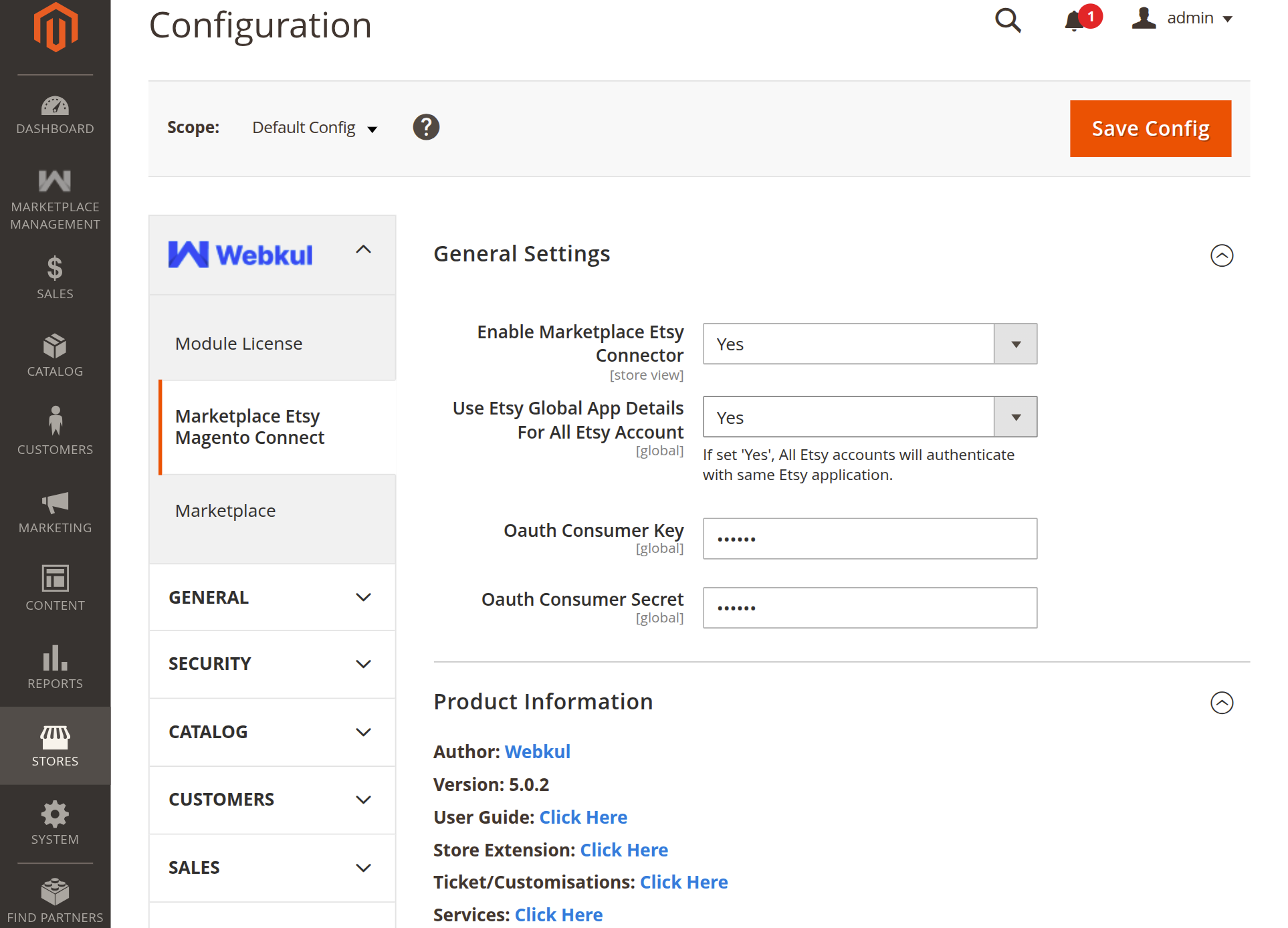
To access these settings, log into your Magento Admin Panel and navigate to: Stores → Configuration → Webkul → Marketplace Etsy Magento Connect.
1. General Settings
The General Settings section governs extension activation and the shared OAuth application infrastructure.
| Setting | Options / Type | Default | Description |
|---|---|---|---|
| Enable Marketplace Etsy Connector | Yes / No | No | Master switch for the extension. When set to No, seller panel menus are hidden and synchronization stops. |
| Use Etsy Global App Details For All Etsy Account | Yes / No | No | When set to Yes, all Etsy accounts authenticate using the central application credentials specified below. Sellers only need their Etsy shop name and Etsy login. |
| Oauth Consumer Key | Text (Encrypted) | Empty | Your Etsy Developer Application Keystring (Client ID). Only displayed and required if Use Etsy Global App Details is set to Yes. |
| Oauth Consumer Secret | Text (Encrypted) | Empty | Your Etsy Developer Application Shared Secret. Only displayed and required if Use Etsy Global App Details is set to Yes. |
Understanding Global App vs. Per-Seller App
Advantages of the Global App Mode
- Zero Technical Friction: Sellers don't have to navigate the Etsy Developer portal, apply for developer accounts, or configure redirect URLs.
- Centralized Security: Your API keys are encrypted and stored securely within Magento.
- Single Developer App: The store administrator maintains one approved Etsy application for the entire marketplace.
2. Default Settings For Import Etsy Orders
Controls how Etsy orders are provisioned within Magento:
- Default store view for order import: Select which store view newly created customer accounts and sales orders are assigned to.
- Etsy Imported Order Status: Define the initial order state for newly imported orders (e.g.,
Processing,Pending, orComplete).
3. Default Settings For Etsy Product
Establishes catalog defaults applied during product synchronization:
- Default Website: The Magento website assigned to products imported from Etsy.
- Product Import With Images:
Yes: Product media is queued inmarketplace_etsy_imported_imagesand downloaded into Magento'spub/media/catalog/productrepository.No: Imports product textual and numerical attributes only, significantly reducing import duration for text-only updates.
- Product Revision On Etsy:
Yes: When a mapped product is updated and saved in the Magento backend, theCatalogProductSaveAfterobserver immediately pushes the revisions (price, quantity, title, description) to the linked Etsy listing.No: Disables automatic revision pushes.
- Magento Product Delete On Etsy Map Record Delete:
Yes: Deleting a mapping entry inmarketplace_etsy_product_mapalso removes the corresponding product entity from Magento's catalog.No: Keeps the Magento product in the catalog and only severs the synchronization link.
4. Product Information & Module License Tracker
The extension lifecycle, version tracking, and licensing status are managed via Webkul Base:
Product Information
Located at the bottom of Stores → Configuration → Webkul → Marketplace Etsy Magento Connect:
- Displays the installed extension version (e.g.,
5.0.2). - Provides direct links to the official Webkul User Guide and support ticket portal.
Module License Tracker
To verify or update your module purchase license:
- Navigate to Stores → Configuration → Webkul → Module License.
- Locate Marketplace Etsy Magento Connect in the Licensed Modules table.
- Enter your License Key and click Save & Verify to authenticate the module.
- For complete step-by-step guidance and screenshots, see Activate & Connect - License Key Verification.
Configuration CLI Commands
After updating configuration values via admin or deployment scripts, apply and flush caches:
# Clean configuration cache
php bin/magento cache:clean config

# If production mode is enabled, verify compiled DI
php bin/magento cache:flush
Next Step
Proceed to Etsy Account Management to connect seller shops and complete the OAuth PKCE handshake.