
Akeneo PIM Verification
After completing export operations from Magento 2, verify your catalog entities within the Akeneo PIM Admin Panel to ensure data integrity, channel assignments, and media rendering.
1. Categories in Category Tree
- In Akeneo PIM, navigate to Settings → Categories.
- Expand the category root mapped to your e-commerce channel:
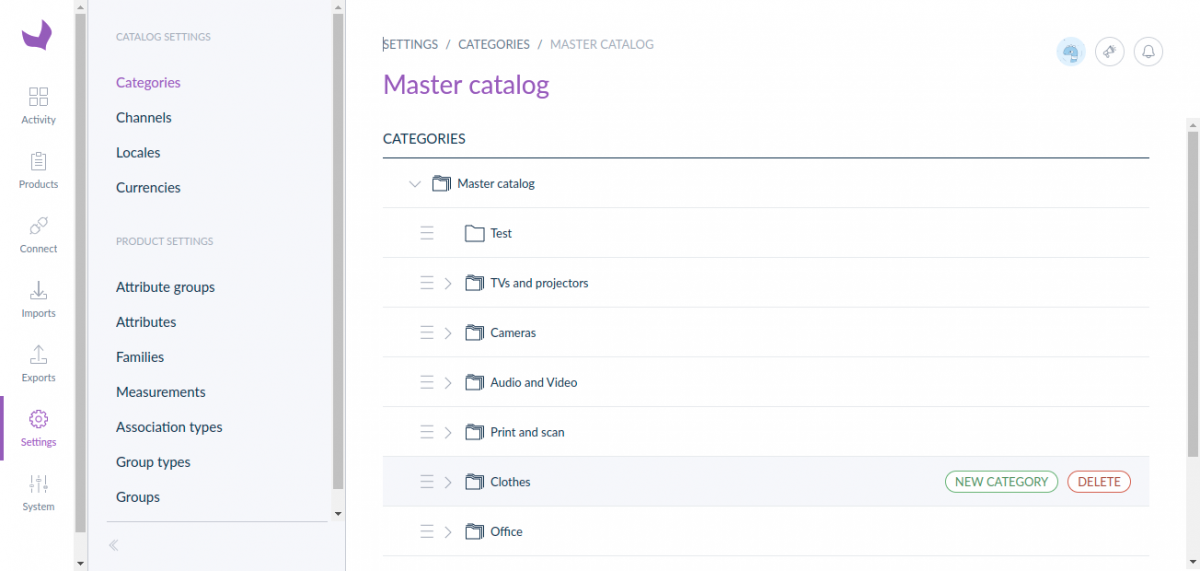
Verify that Magento's root and nested category structure (such as Men, Women, Gear) matches Akeneo's category tree accurately.
2. Families & Attribute Sets
- In Akeneo PIM, navigate to Settings → Families.
- Inspect the list of families:
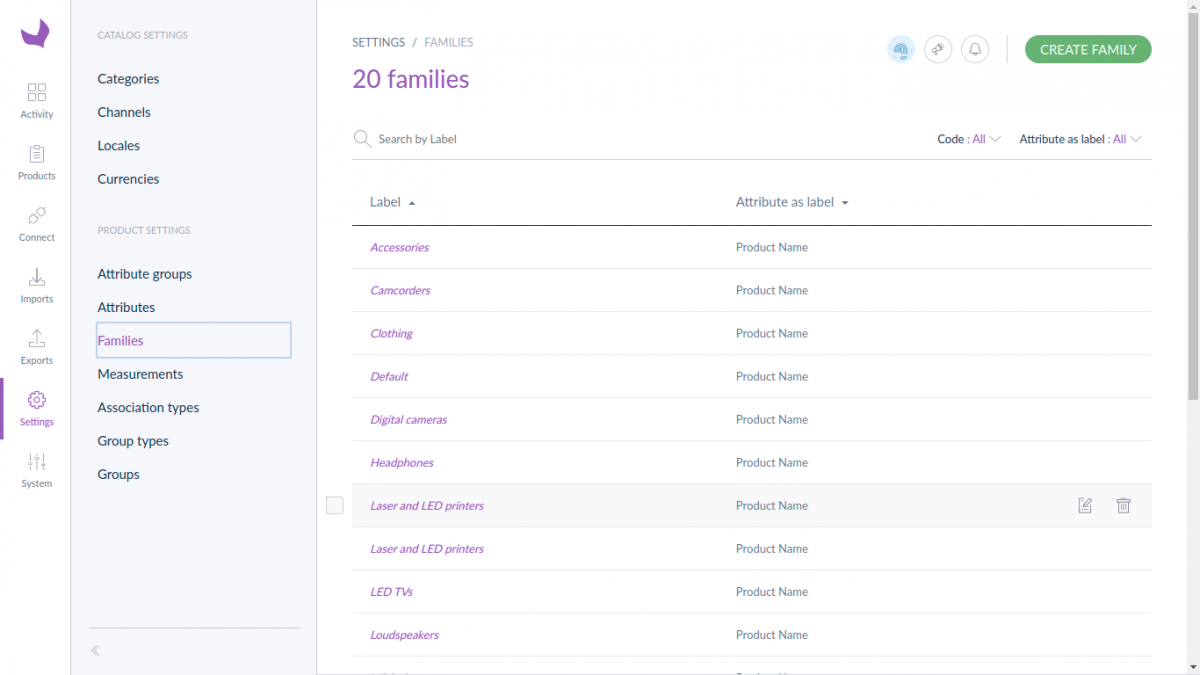
Each exported Magento attribute set will appear as an active Akeneo Family with attribute counts and variant axes defined.
3. Family Structure & Main Picture
- Open any exported family (e.g.,
DefaultorClothing). - Review the Attributes tab:
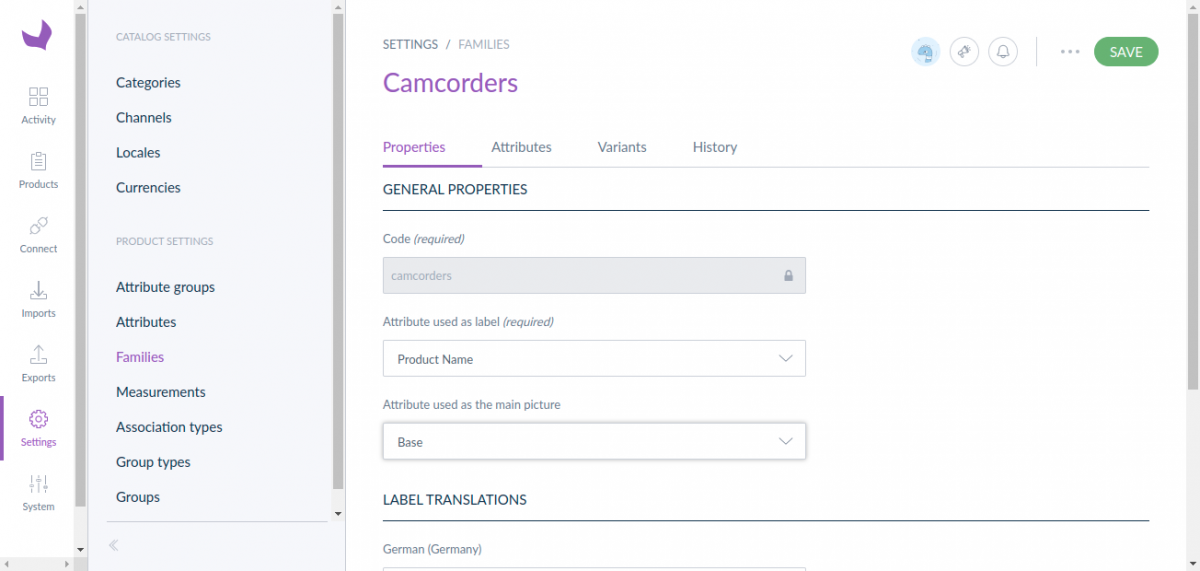
Confirm that:
- Attribute used as label is assigned to
name. - Attribute used as main picture is assigned to
thumbnailorimage. - Attribute groups (e.g. General, Prices, Design) are grouped correctly.
4. Attributes & Option Values
- Navigate to Settings → Attributes.
- Search for any custom attribute exported from Magento (e.g.
color,size,brand):
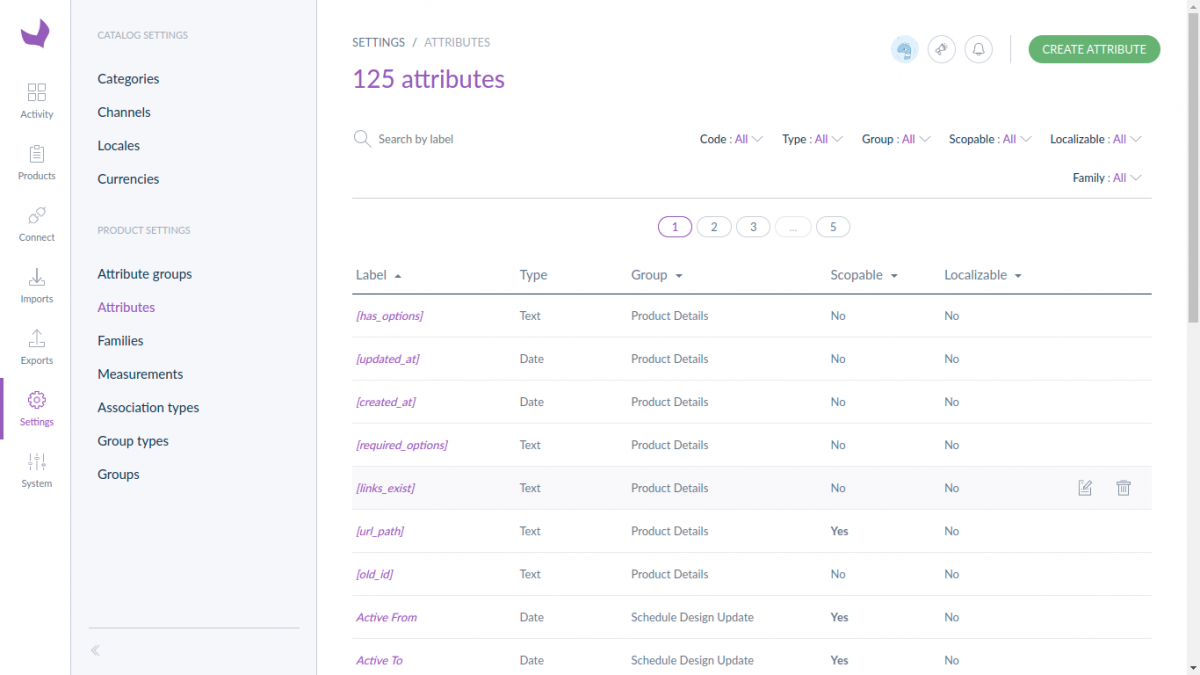
Check the attribute configuration:
- Attribute type (e.g.
Simple select,Multi select,Text,Number). - Option values and localized labels matching Magento frontend store views.
5. Products & Product Models
- Navigate to the Products tab in Akeneo PIM:
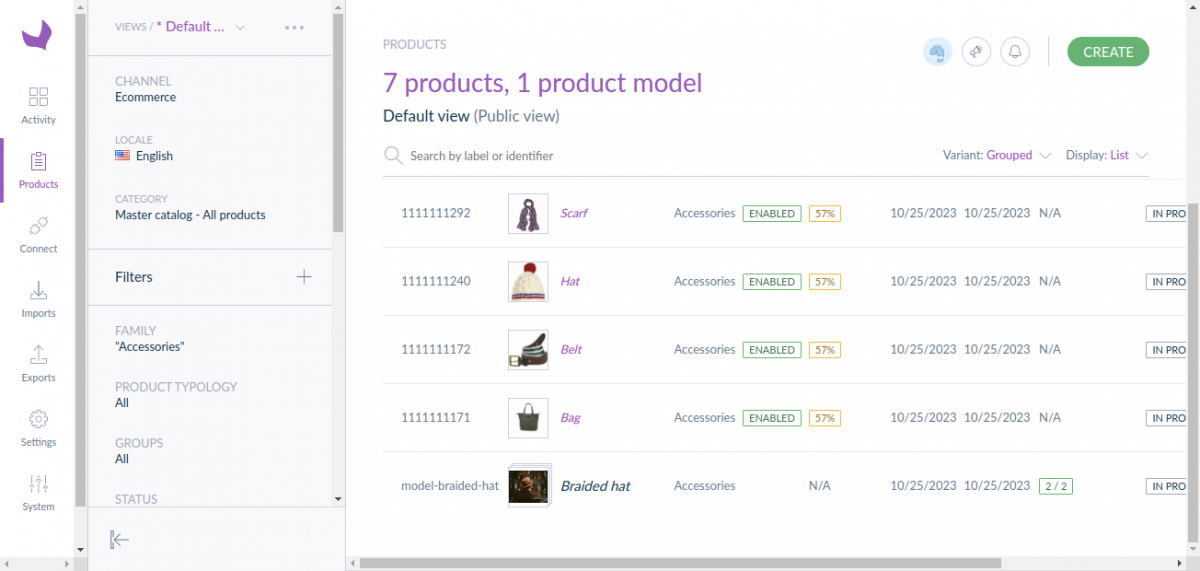
- Verify that:
- Product Models: Configurable items appear as product models, indicating the number of variants.
- Simple Products: Standalone simple items and variant simple products display correct SKU, label, price, completeness percentage, and high-resolution thumbnail images.