
Status & Health Verification
Once API credentials are saved in the Magento configuration, the module automatically attempts an authenticated handshake with Akeneo PIM's OAuth endpoint (/oauth/v1/token).
Connection Health Check
The connector performs real-time status checks during admin page loads and configuration saves.
1. Connection Error Notification
If Magento is unable to authenticate or reach the Akeneo instance, a global system notice appears across the Magento admin panel:
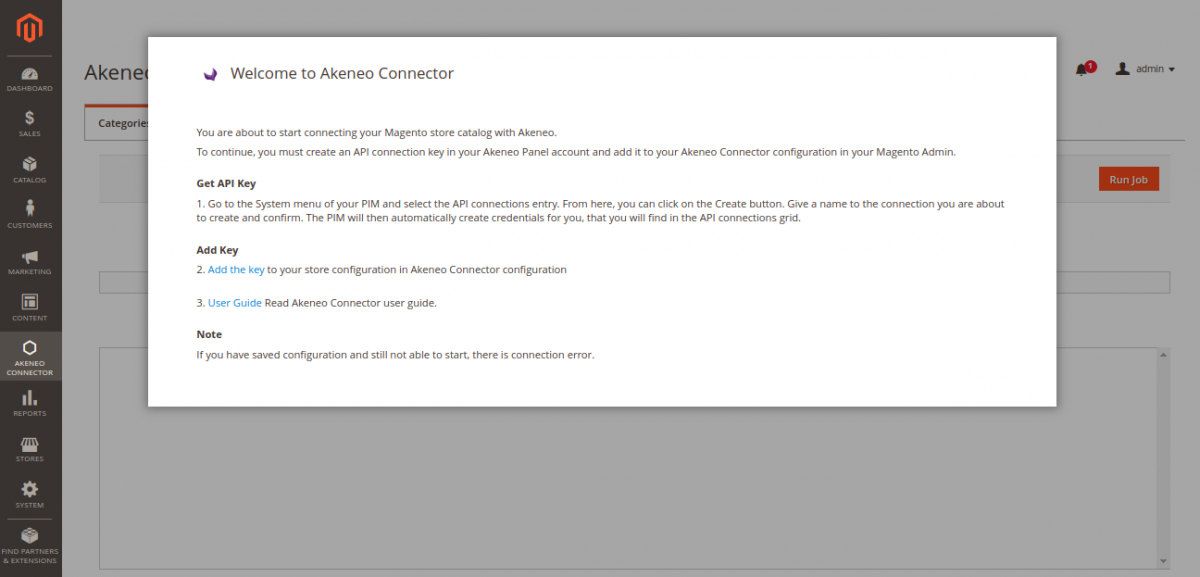
Akeneo Is Not Connected
If you observe the notification "Akeneo is not connected", the following potential issues should be investigated immediately:
- Connector Disabled: Ensure Enable Akeneo Connector is set to
Yesunder Stores → Configuration → Webkul → Akeneo Connector → General Settings. - Invalid URL or Protocol: Verify the Akeneo Portal URL uses
https://and does not include a trailing slash or path suffix. - Credentials Mismatch: Double-check the Client ID, Secret, Username, and Password. Ensure no leading or trailing whitespace was copied into the fields.
- SSL Handshake Failure: If using self-signed or internal SSL certificates on development environments, ensure the cURL CA bundle on the Magento server trusts the certificate authority.
- User Account Disabled: Verify that the specified Akeneo user account is active, confirmed, and has not exceeded maximum login attempts.
Verifying Successful Authentication
When credentials are valid and connectivity is established:
- The "Akeneo is not connected" banner disappears completely.
- In Stores → Configuration → Webkul → Akeneo Connector, dependent select dropdowns dynamically populate with live data fetched directly from Akeneo:
- Akeneo Channels (e.g.
ecommerce,print,mobile) - Locales (e.g.
en_US,de_DE,fr_FR) - Currencies (e.g.
USD,EUR,GBP) - Attribute Codes (e.g.
name,sku,price,description,color,size)
- Akeneo Channels (e.g.
- The import and export operations consoles under Akeneo Connector become fully operational.