
Hyvä Theme Compatibility & Setup
The Magento 2 Shopping List extension by Webkul is fully compatible with Hyvä Themes (Alpine.js & Tailwind CSS). Through the Webkul_ShoppingListHyva compatibility module, it delivers lightning-fast page loading speeds, smooth interactive modals, responsive list management, and modern storefront user experiences without requiring full page reloads.
Key Highlights of Hyvä Compatibility
- Alpine.js Reactive Integration: Instantly open list creation popups, select existing lists, dynamic item quantity updates, and seamless list transfers using lightweight Alpine.js state management.
- Tailwind CSS Styling: Utility-first storefront templates styled according to Hyvä design guidelines and responsive breakpoints.
- Universal Product Support: Fully supports Simple, Configurable, Downloadable, Grouped, and Bundle product types in Hyvä storefront views.
- Product & Catalog Page Integration: Includes "Add to Shopping List" action buttons on both Product Detail Pages (PDP) and Category Listing Pages (PLP) / Search Results.
- Customer Account Dashboard: Dedicated "My Shopping List" panel within the Hyvä customer account area for viewing, editing, and managing shopping lists.
- Quick Order & Guest List Workflows: Support for quick order item additions and guest user login prompts.
- Centralized Admin Control: All backend configuration settings, customer list management, and permissions remain fully centralized in Magento Admin.
Storefront User Interfaces
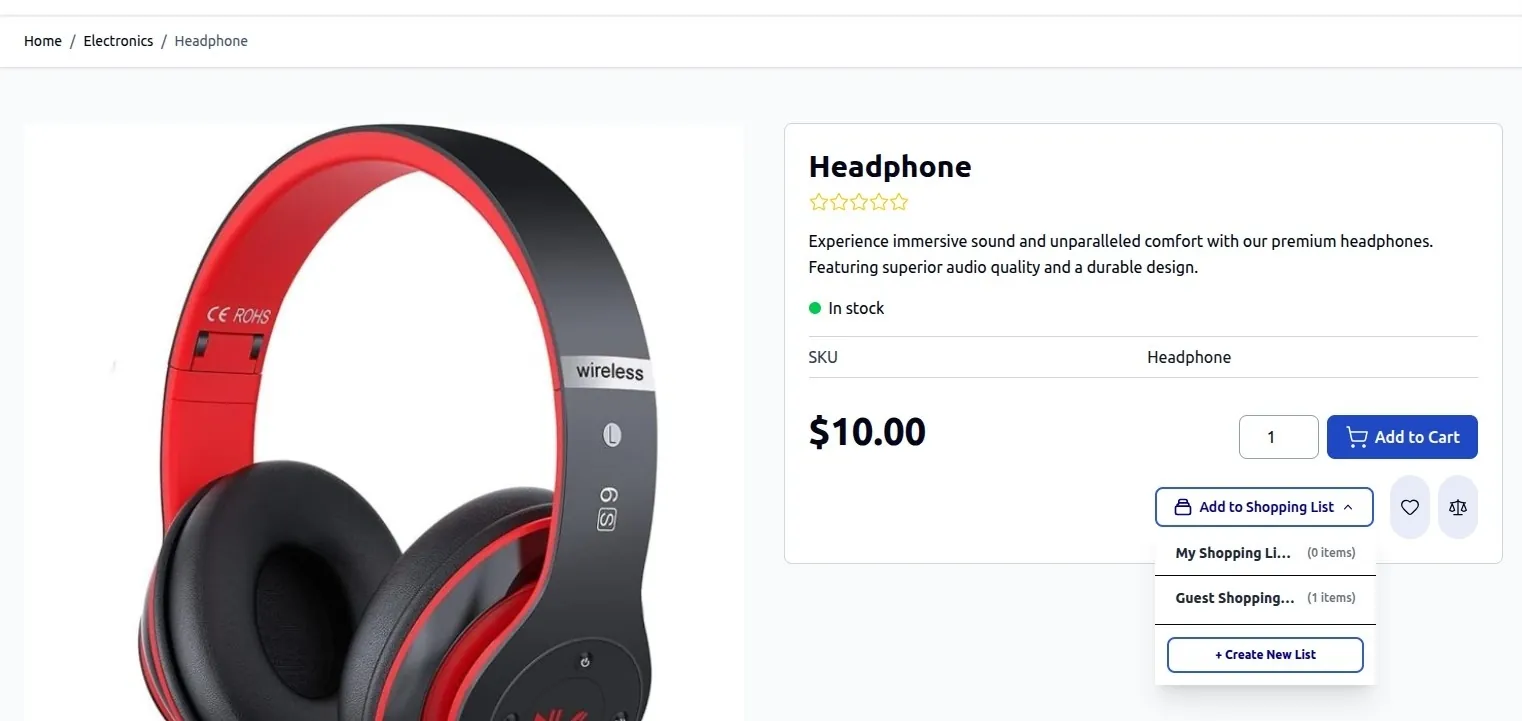
1. Product Page "Add to Shopping List" Action & Modal
On the Product Detail Page (PDP), registered customers can click Add to Shopping List to open an Alpine.js modal popup. Customers can select an existing shopping list or create a new one on the fly.
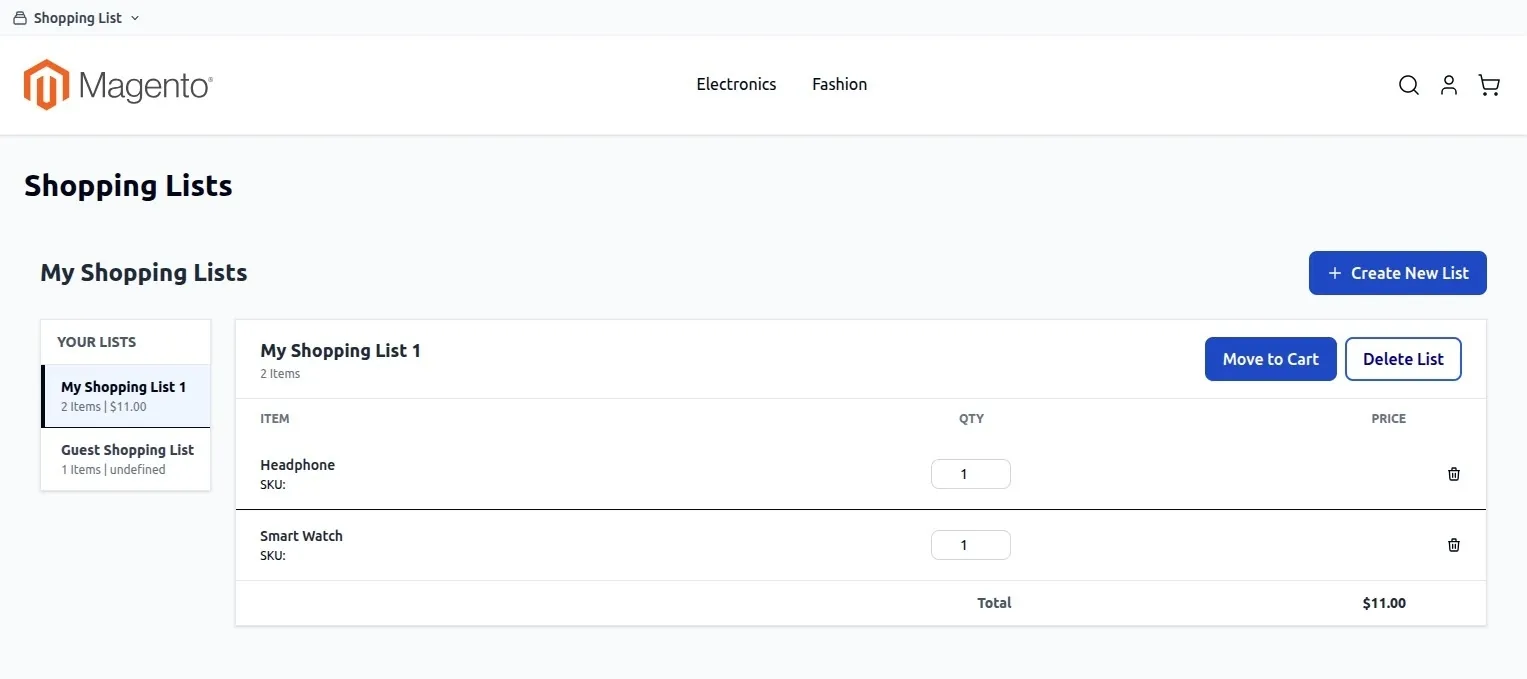
2. Customer Account Shopping List Dashboard
In the customer account dashboard under My Shopping List, customers can manage their saved lists, update item quantities, remove items, or move an entire list into the shopping cart.
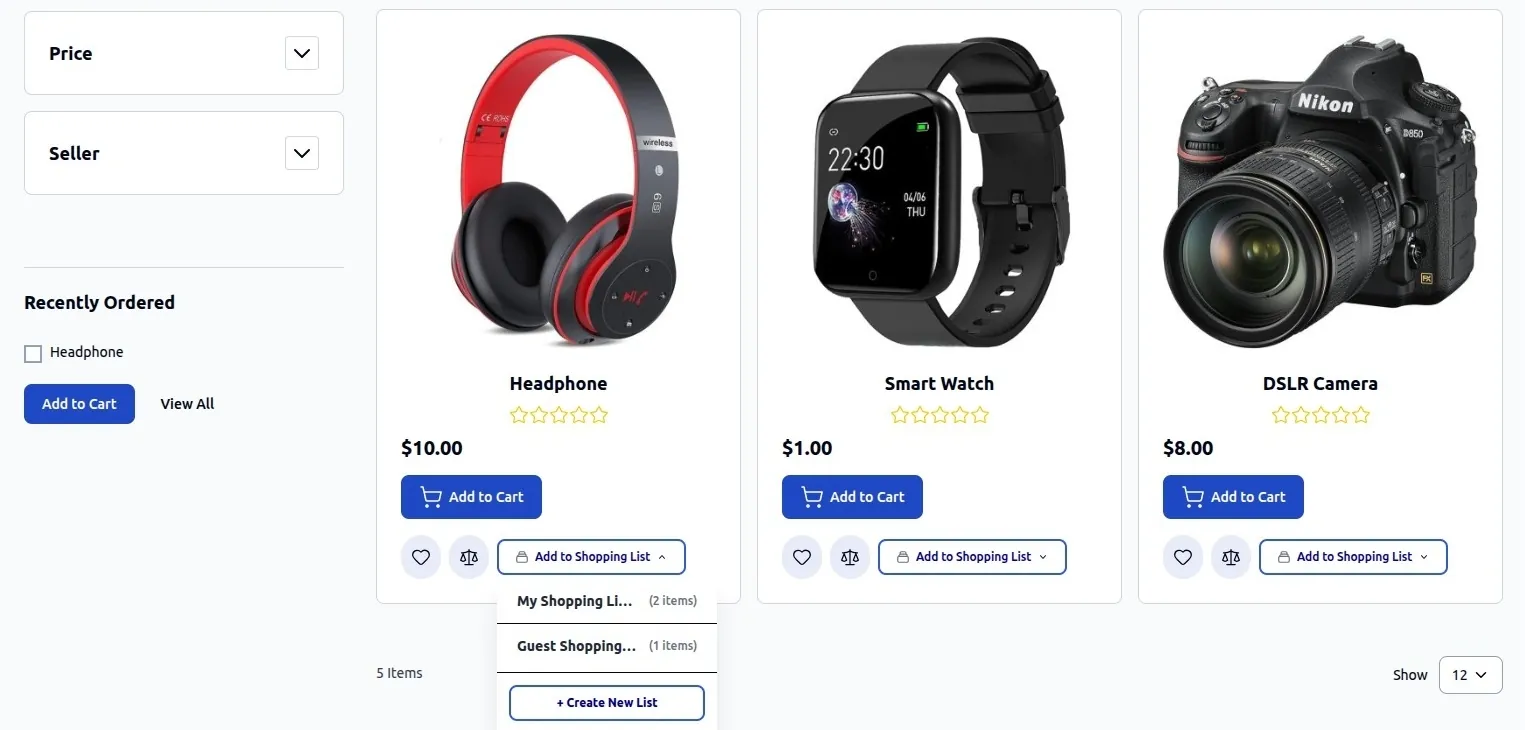
3. Catalog & Search Listing Integration
Category listing pages and catalog search results feature quick "Add to Shopping List" triggers for swift product organization.
System Requirements for Hyvä
Before enabling Hyvä Theme compatibility, verify your environment meets the following requirements:
| Component | Minimum Version Requirement |
|---|---|
| Magento Setup | Magento / Adobe Commerce 2.4.x |
| Hyvä Core Theme | hyva-themes/magento2-default-theme 1.1.x or higher |
| Hyvä Fallback Module | hyva-themes/magento2-compat-module-fallback |
| Webkul Core Modules | Webkul_Base & Webkul_ShoppingList |
| Webkul Hyvä Compatibility | Webkul_ShoppingListHyva (webkul/shopping-list-hyva) |
Installation & Setup
1. Install Hyvä Compatibility Module
If you are installing the module via Composer, execute:
composer require webkul/shopping-list-hyva
2. Enable & Deploy in Magento
Run standard Magento deployment commands to register the module and refresh dependency injection:
php bin/magento setup:upgrade
php bin/magento setup:di:compile
php bin/magento cache:flush
3. Rebuild Tailwind CSS (Custom Hyvä Theme)
If you have customized Tailwind utility classes in your Hyvä theme, purge and rebuild the Tailwind CSS bundle:
cd vendor/hyva-themes/magento2-default-theme/web/tailwind
npm run build-prod
System Architecture & Workflow
Verification & Testing
To verify that the Shopping List extension is functioning on your Hyvä theme:
- Log in as a registered customer on your Hyvä storefront.
- Open a Product Detail Page (PDP) or Category Listing Page (PLP).
- Click the Add to Shopping List button and verify the Alpine.js modal popup opens smoothly.
- Select a list or create a new list, then confirm the item is added.
- Go to My Account -> My Shopping List and verify saved items, quantities, and list metadata.
- Click Add All to Cart and ensure items are transferred into the active shopping cart quote.