Requirements
Before installing the Push Notification extension, ensure that your system meets the following prerequisites.
Supported Framework Versions
- Magento 2.0.x, 2.1.x, 2.2.x, 2.3.x, 2.4.x
Firebase API Credentials
To use Magento 2 Push Notification, you need to have Firebase Project Credentials. This is required during module configuration.
Please click here and create a new project with your Google account.
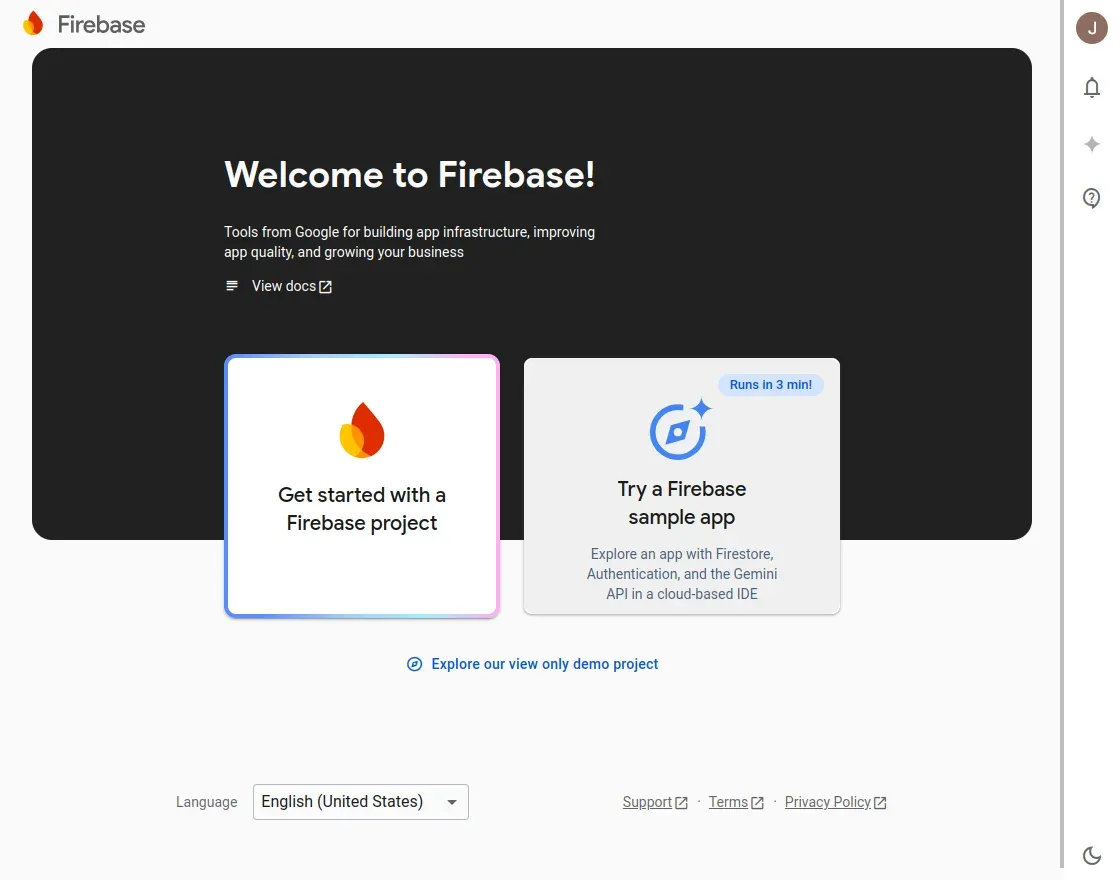
- After opening the Firebase page, create a project by clicking Get Started with a Firebase project.
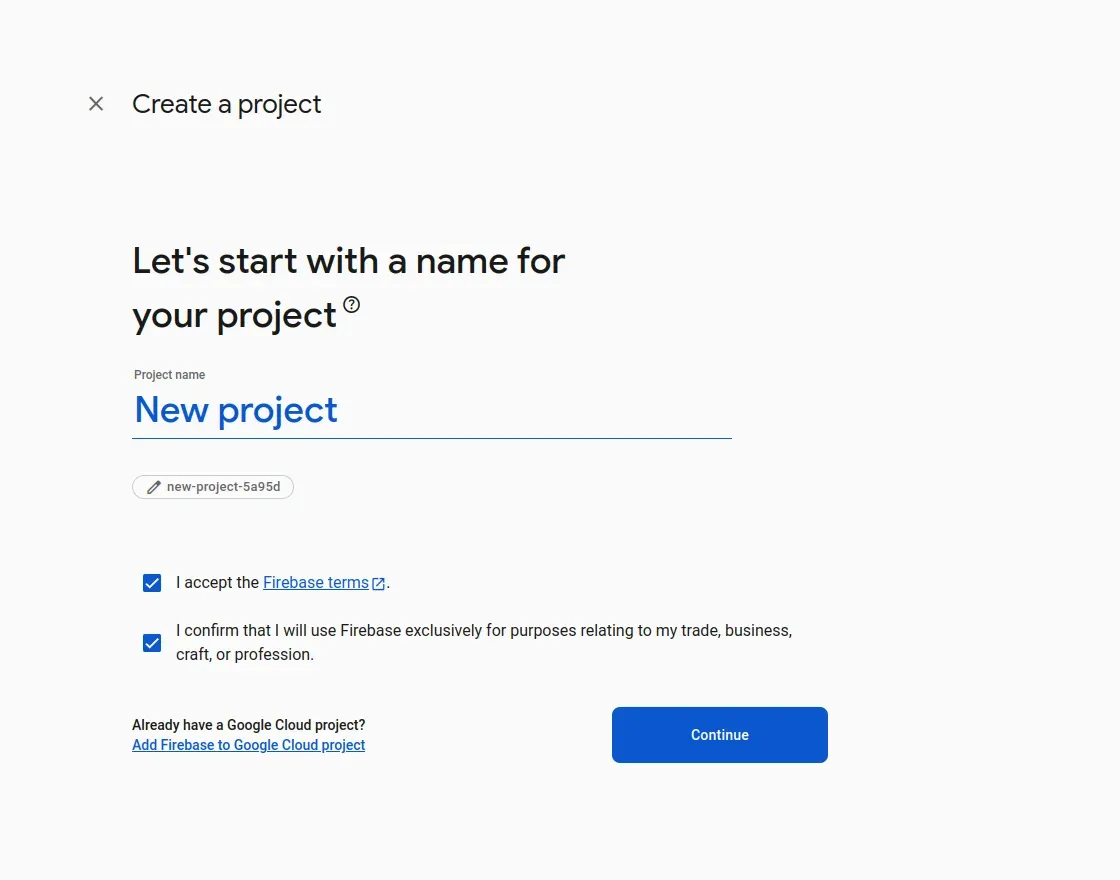
- Create a new project, enter the name of the project, and click continue.
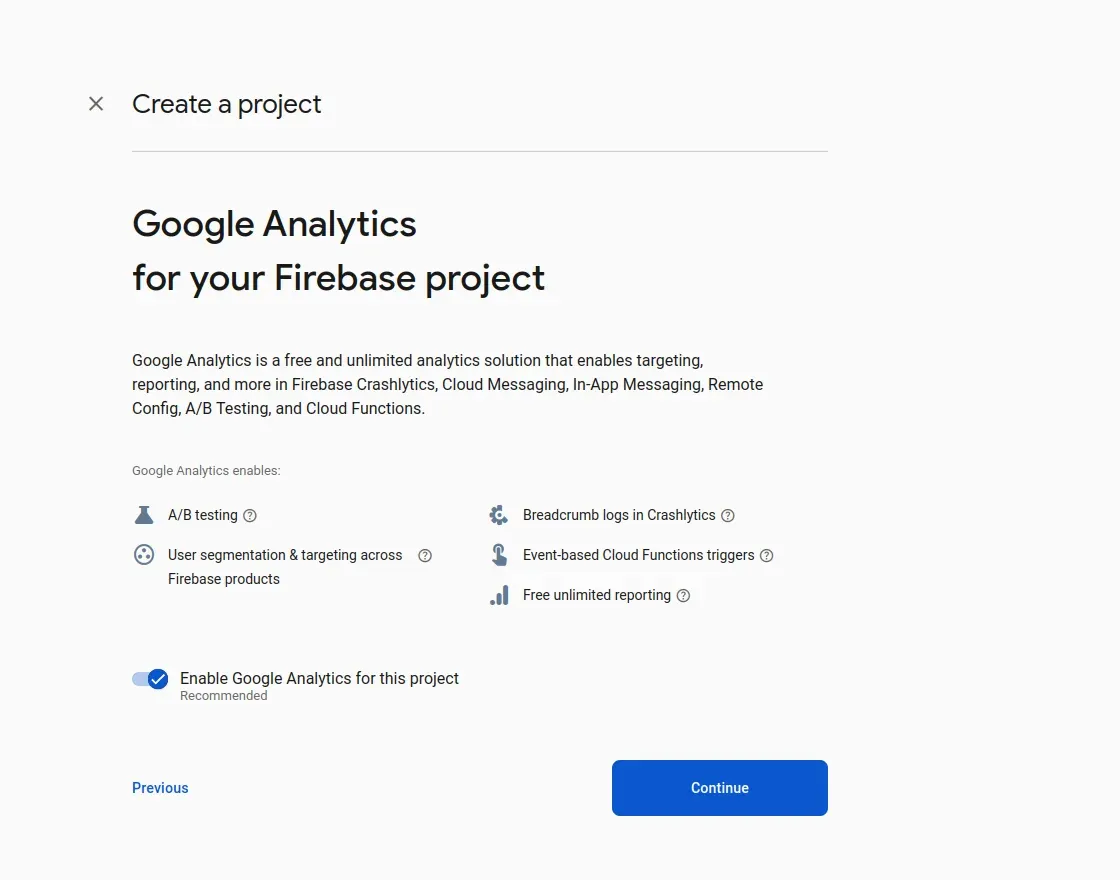
- (Optional) Enable Google Analytics for your project, then follow the prompts to select or create a Google Analytics account. If you don’t want to set google analytics, disable the toggle button or click “Continue”.
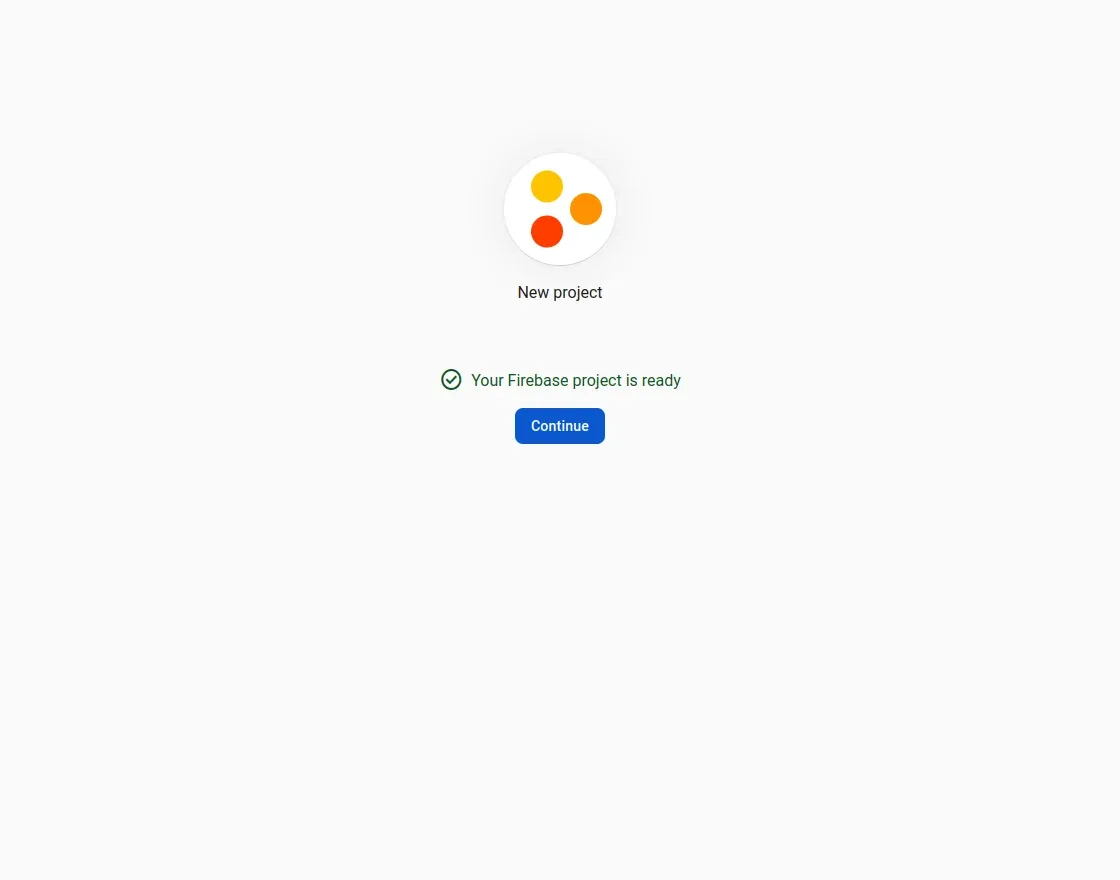
- Accept the Google Analytics Terms of Use and create a project. The process only takes a few seconds. When finished, click “Continue”.
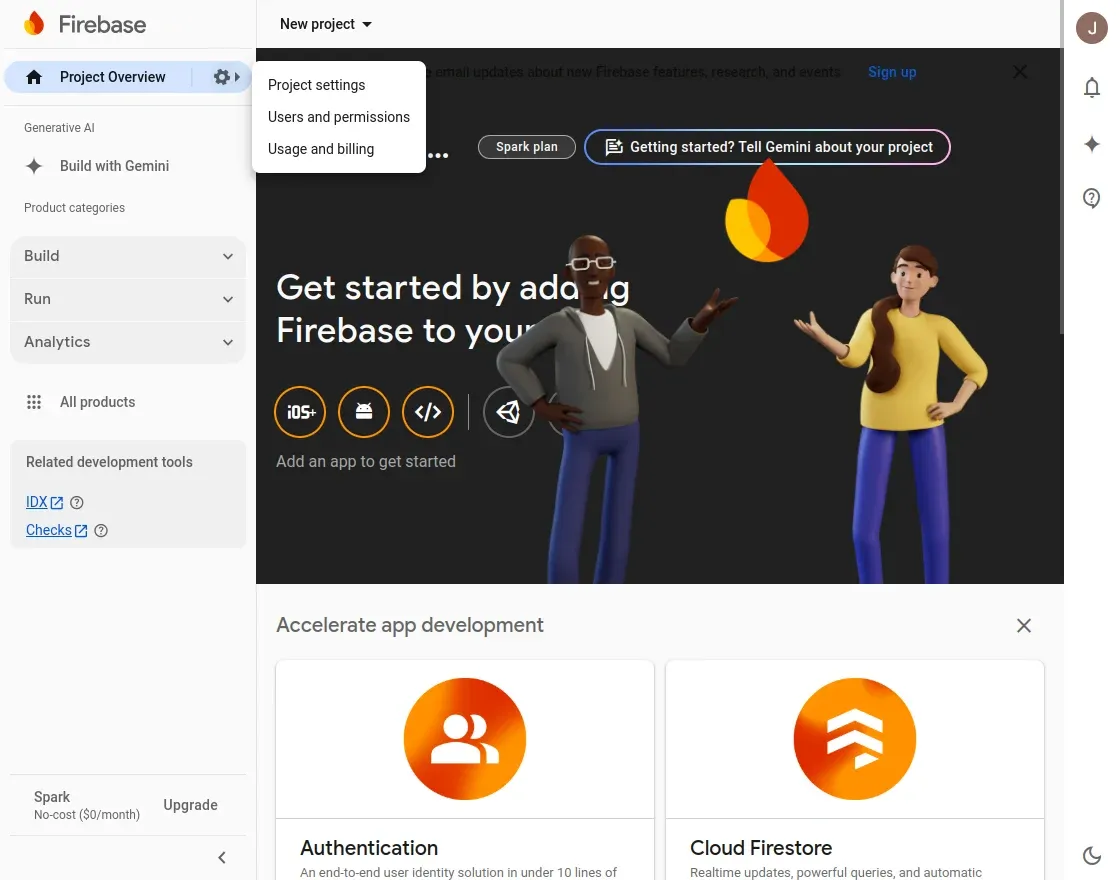
- After creating your new project, click on the Settings cog icon. Then select the Project Settings option.
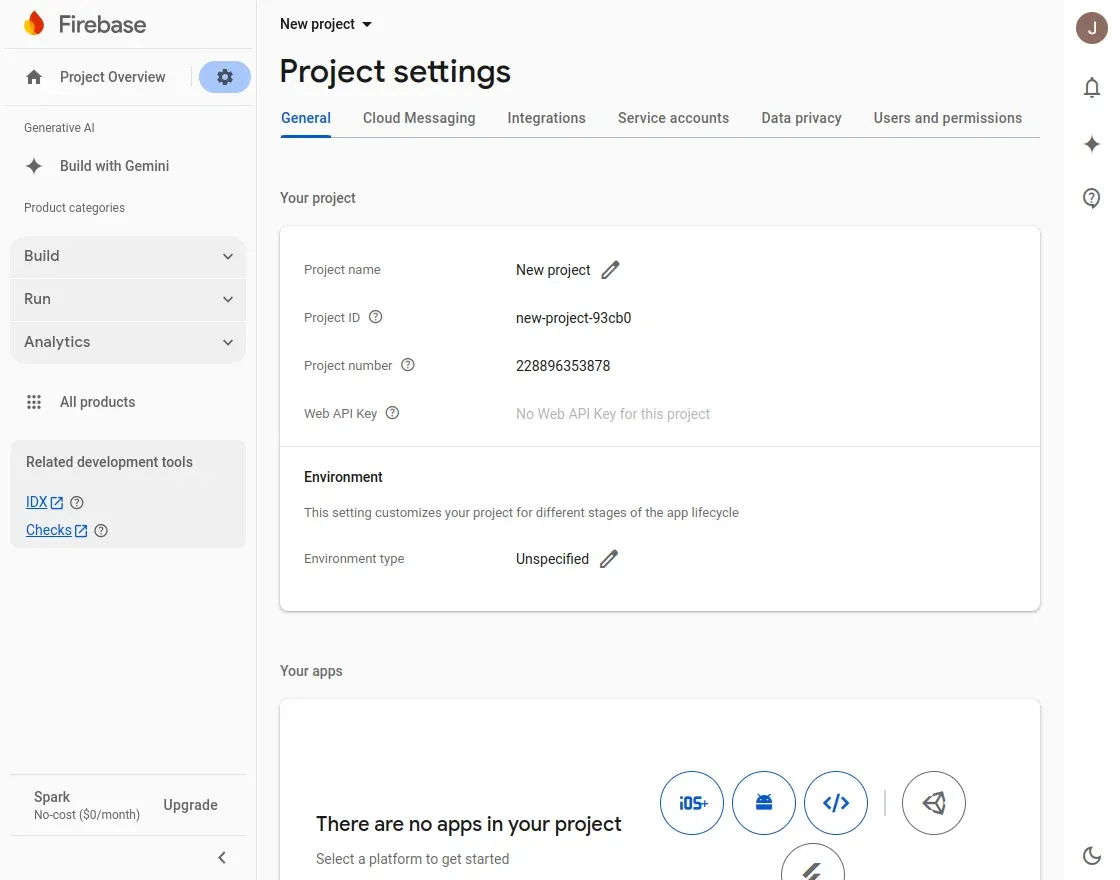
- Navigate through Project Settings > General to find the Firebase Project Credentials under web apps.
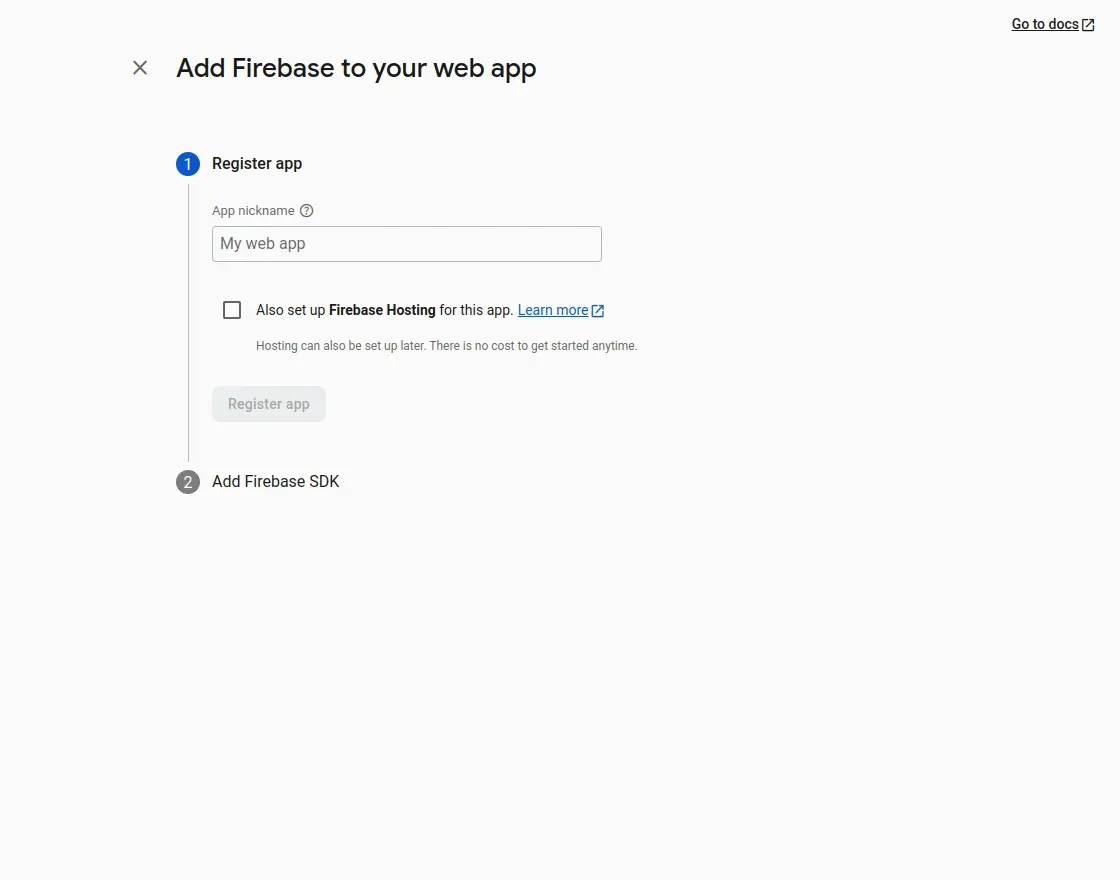
- Click on the web app option, enter the new web app name and proceed further. After that, add Firebase SDK as required.
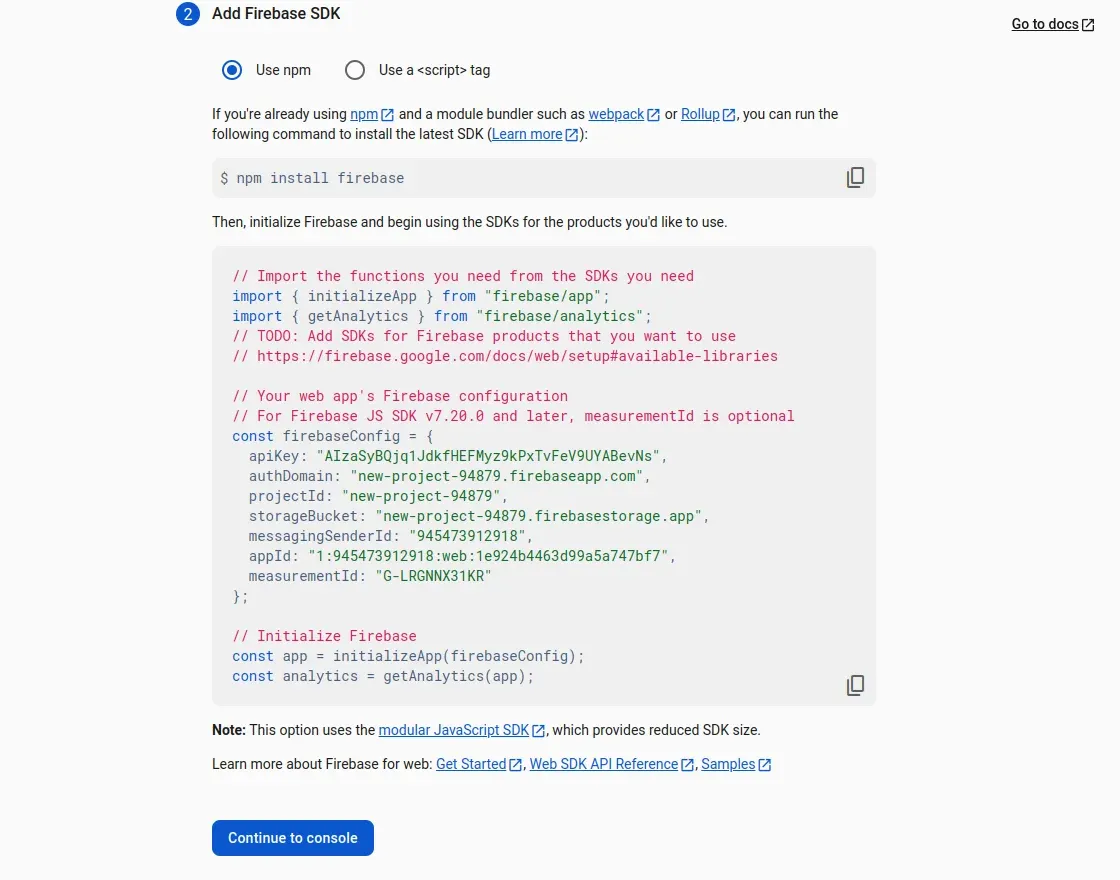
- Tap Continue to console to view your credentials.
You will need these credentials for the admin configuration:
- Web API Key
- FCM Auth Domain
- FCM Project ID
- FCM Storage Bucket
- Messaging Sender ID
- FCM App ID
- Measurement ID
- Go to the Cloud Messaging option to find your Project Credentials.
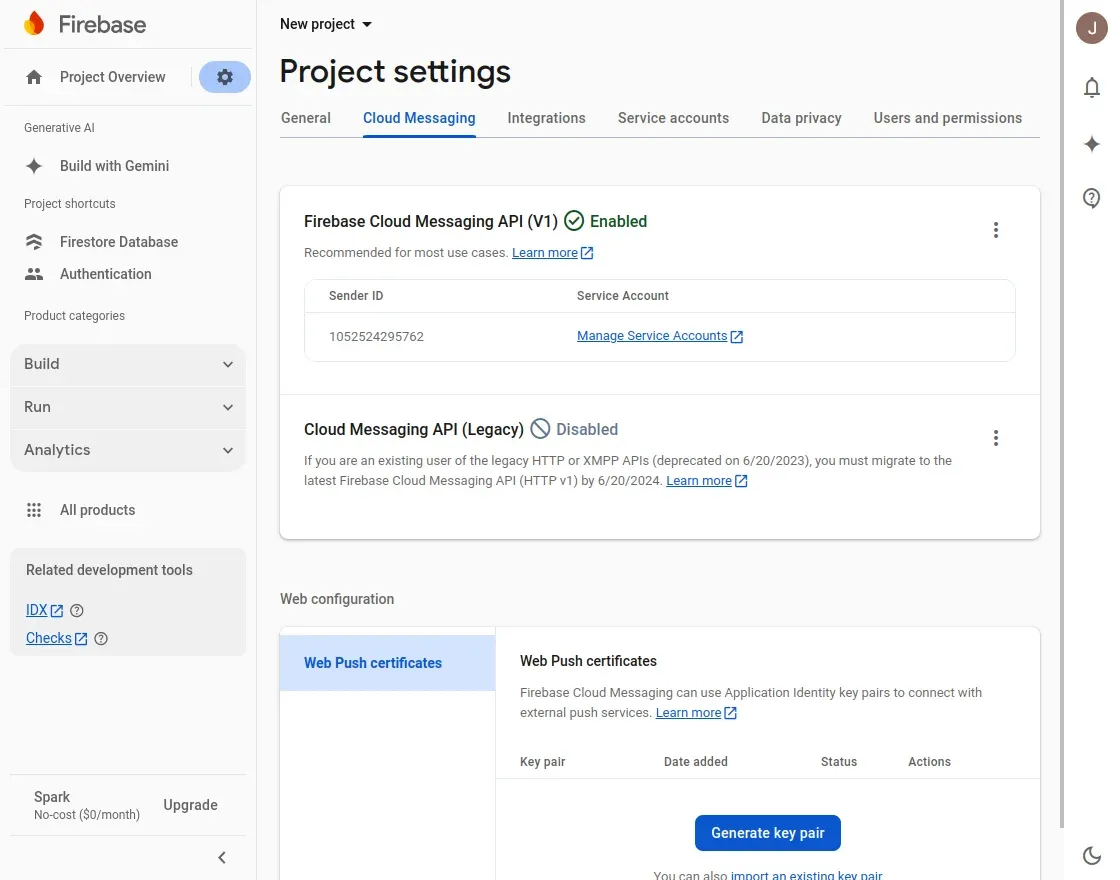
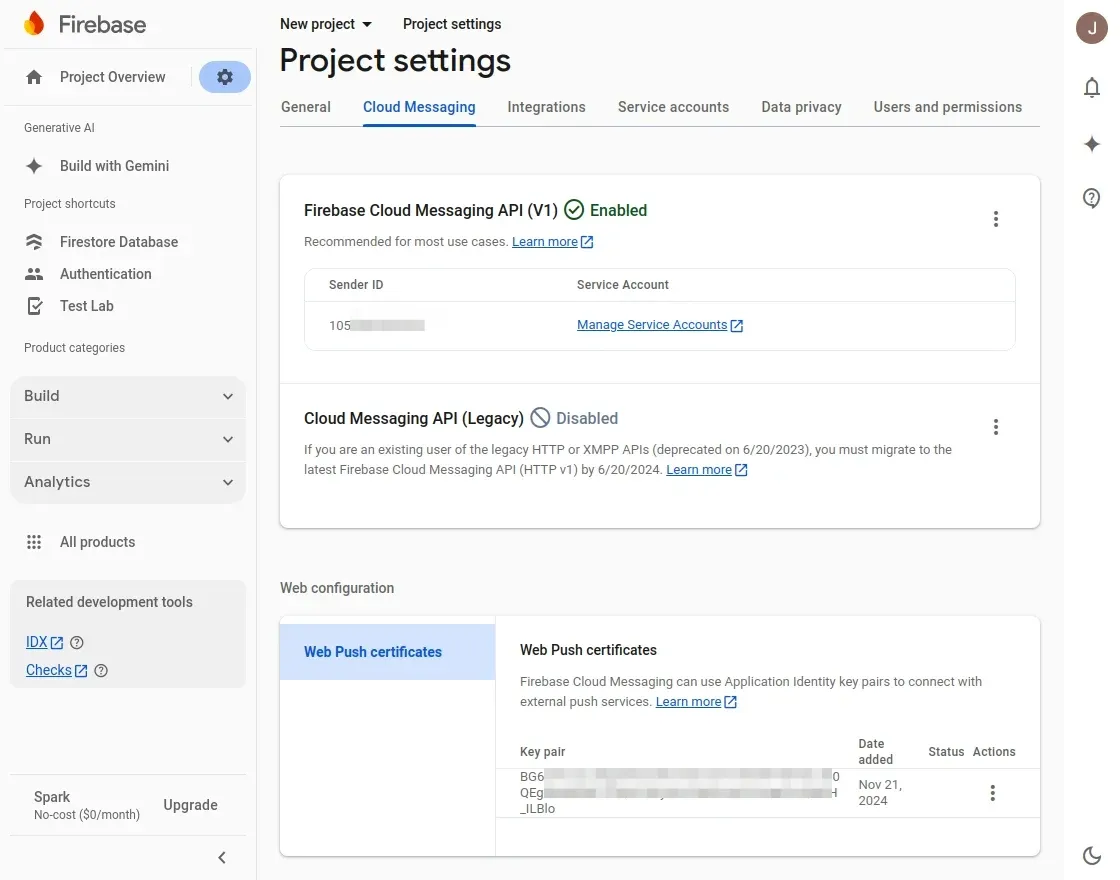
To create the key, click the Generate Key pair button.
How to Get – Auth JSON file
- Navigate to your project’s settings section and go to the Service Accounts tab.
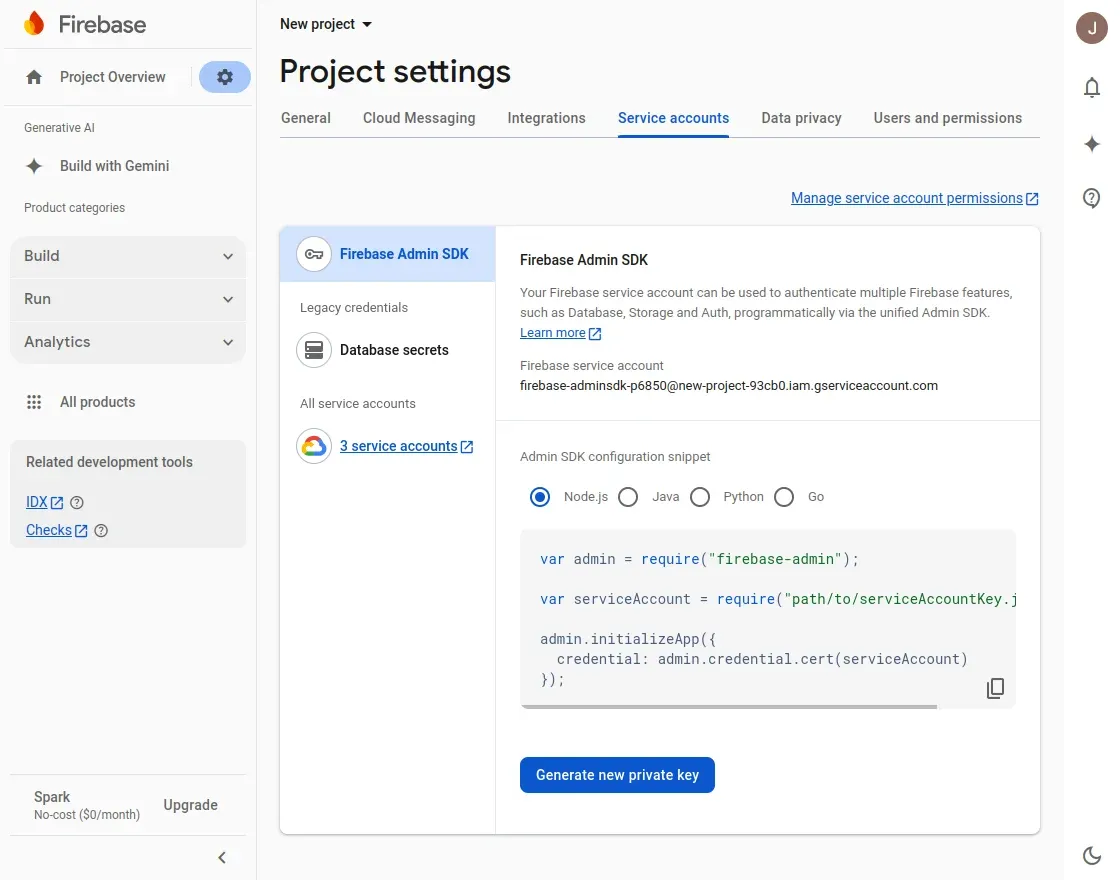
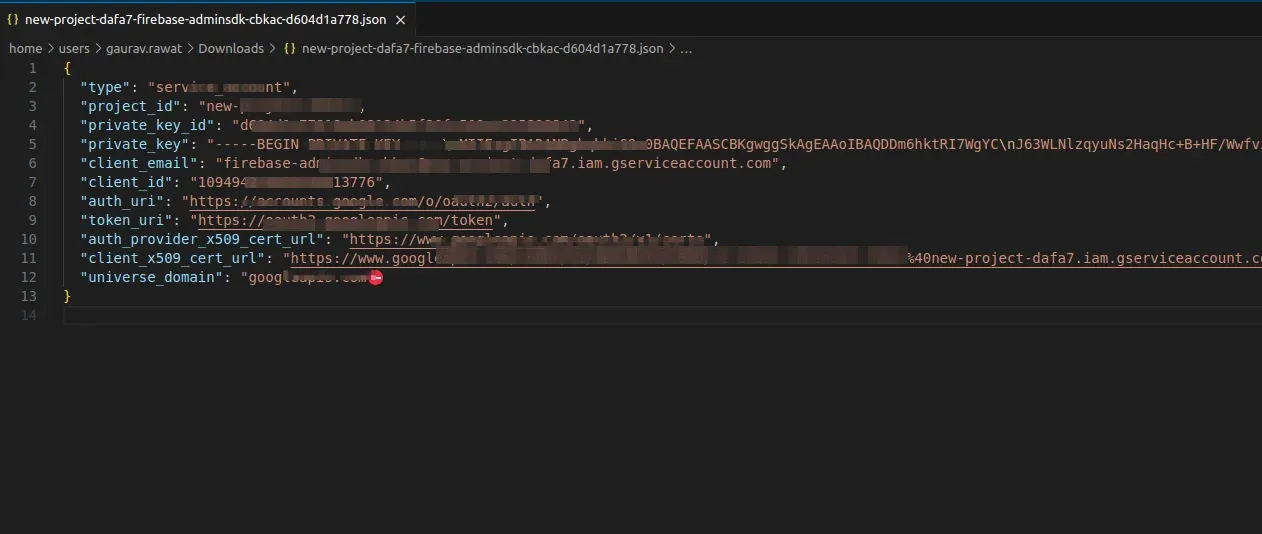
- Tap the Generate New Private Key button, continue on the popup, and download the JSON file.
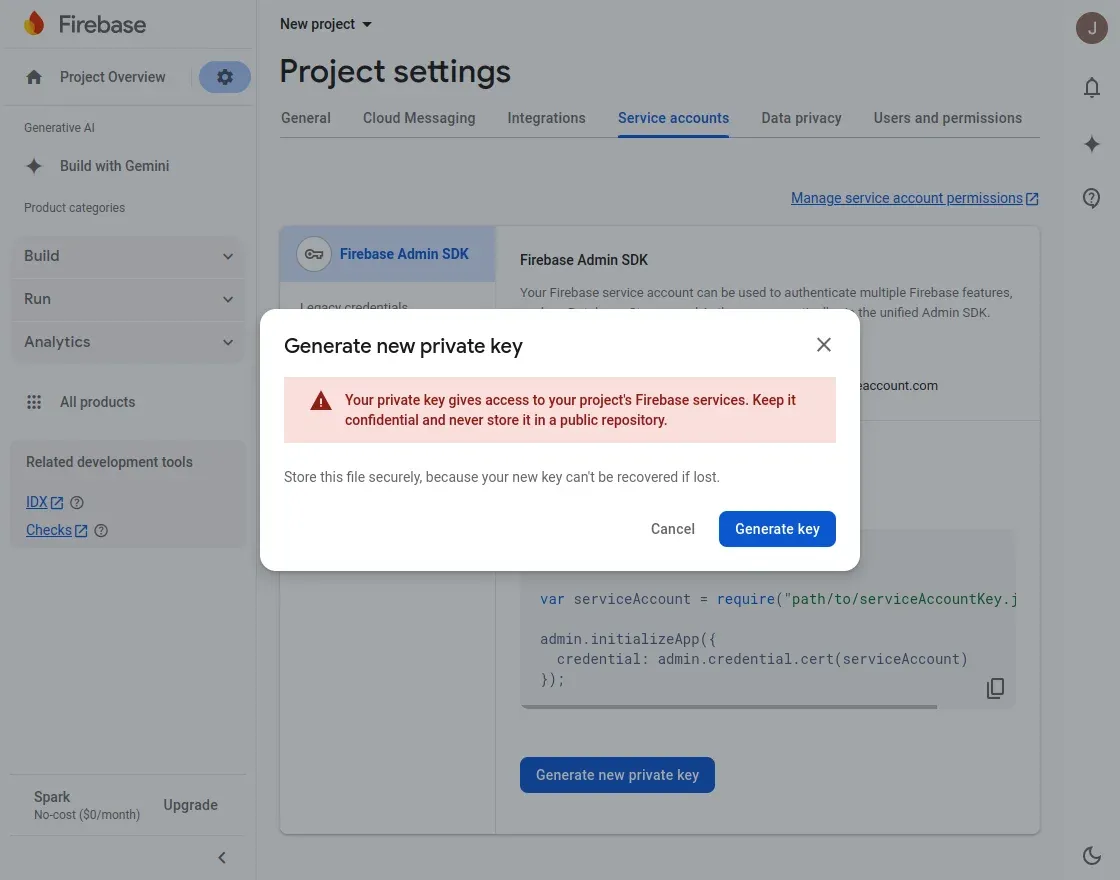
- The file will be downloaded to your system and will contain the credentials formatted as JSON.